- To install a forex trading robot in MT4, you need to open the MT4 data folder, navigate to the Experts subfolder, copy and paste your robot file (.mq4 or .ex4) there, restart or refresh MT4, activate the “Auto-Trading” option, and then open and configure your Expert Advisor to start automated trading.
- Using a Forex VPS is crucial for automated trading because it allows your trading robots to operate 24/7 without interruption, reduces latency for faster trade execution, and ensures continuous operation even when your personal computer is off, thereby maximizing trading efficiency and profit potential.
- Testing your forex trading robot through backtesting with historical data and forward testing in live or demo accounts is essential to verify its performance, ensure the strategy works under real market conditions, and minimize risks before committing real capital.
Installing a forex trading robot in MetaTrader 4 (MT4) automates your trades based on preset strategies, saving you time and effort. This straightforward guide will show new traders how to install these Expert Advisors (EAs) in MT4, set them up on a Forex VPS for continuous operation, and test them to ensure they work correctly.
- What is a Forex Trading Robot?
- How To Install a Forex Trading Robot in MT4 in 7 Quick Steps?
- How to Install Your Trading Robot on a Forex VPS
- How Do You Test Your Forex Trading Robot in MT4?
- What Should You Do If the MT4 Bot Is Not Working?
- Troubleshooting Common Error Messages When Robot Trading
- Hardware and Software Requirements for Automated Trading on MT4
- Conclusion
- Frequently Asked Questions
What is a Forex Trading Robot?
A forex trading robot, also known as a forex trading bot or Expert Advisor (EA), is software built on trading platforms that automatically enters and exits forex trades based on predefined rules and trading strategies.
These automated trading systems analyze market data, including fundamental analysis, macroeconomic news, historical market data, technical indicators, and market microstructure, to identify trading opportunities and execute trades based on those signals. This automation helps forex traders minimize emotional trading and manual trading errors, enhancing efficiency and consistent execution in the foreign exchange market.
A common term used to refer to an MT5/MT4 automated trading robot is the Expert Advisor.
We go into a deeper dive into what a forex trading robot is here:
What is a Forex Trading Robot and How Does it Work?
How To Install a Forex Trading Robot in MT4 in 7 Quick Steps?
Before we describe how to install a forex trading robot in MT4, we will assume you have your forex robot .mq4 or .ex4 file ready. If you don’t, you can use our guide on how to create a forex robot in 3 simple steps.
Here is the step-by-step guide to the installation process of your automated trading robot on the MT4 platform.
Step 1: Open MT4 Data Folder
Open your desktop version of the MT4 platform. Go to the navigation tabs at the top of the screen. Click on File -> Open Data Folder. This opens the folder in which the MT4’s operational files are stored.
Step 2: Navigate to “Experts” Subfolder
Click on the MQL4 subfolder. This will open a new subfolder. Click on Experts.
Step 3: Copy and Paste Your Robot File
When the Experts folder is open, copy your .mq4 forex robot file and paste it into the Experts subfolder.
Step 4: Restart/Refresh MT4 Platform
Restart your MT4 client. The Forex robot should now be fully installed on your MT4 platform. Alternatively, you can go to the Navigator tab on the left, right-click on the Expert Advisors tab, and click on Refresh in the dropdown menu that appears. The EA will now appear under this tab, meaning you are now ready to resume trading operations with your automated trading robot.
Step 5: Activate “Auto-Trading”
Select “Auto-Trading” from the top bar if you want to trade with the Forex robot on a live or demo account.
Step 6: Open Your Expert Advisor
Go to the Experts tab under the “Navigator” window and double-click the automated trading robot to be activated. A dialog window appears.
Step 7: Complete Setup Process
In the dialog window, under the Settings tab, check the parameters by allowing long and short trades, then complete the process by selecting OK. Your expert advisor is ready to go to work.
If you are trading on MetaTrader5, here’s a guide on how to install your forex trading robot on the MT5.
How to Install Your Trading Robot on a Forex VPS in 5 Steps
If you want your automated trading robots to work around the clock, you have to use a virtual private server, such as the packages offered by ForexVPS. In addition, a Forex VPS saves you from the hidden costs of trading that limit your profits without your knowledge.
Therefore, installing your robot to trade your retail investor accounts 24/7 requires a virtual private server or a remote desktop connection. The process starts by connecting your desktop or laptop to the VPS, located in a data center in the cities that host the forex market trading hubs. London and New York are popular destinations.
Step 1: Access Remote Desktop Connection
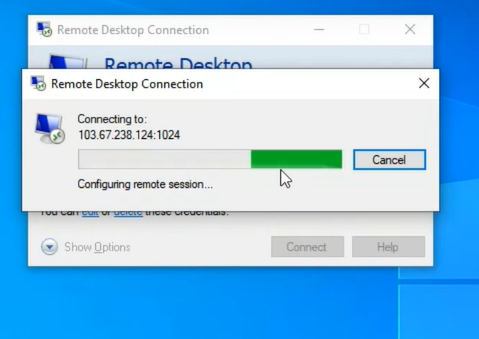
To begin, type “Remote Desktop Connection” into the search bar of your computer’s Taskbar (the pane at the bottom left of your screen). This will open a dialog box, as shown below.
Step 2: Log in with IP Address
Type the IP address of the VPS you want to connect to, then click Connect. An administrator screen will show before the remote desktop appears on your desktop or laptop.
Step 3: Install MT4 Trading Platform
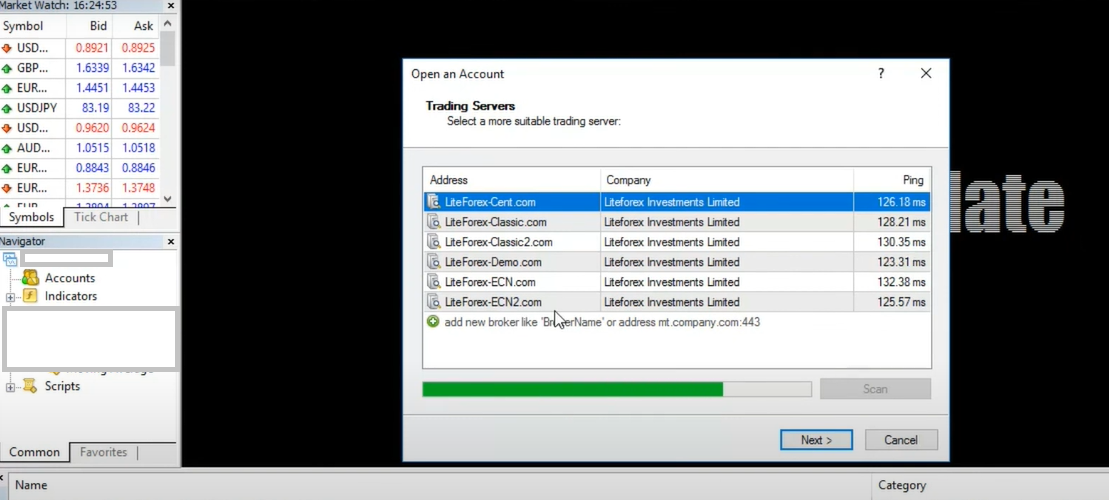
Once you have logged in to the remote desktop, you can go ahead and install your MT4 client on the remote desktop you have connected to. Go to your native drive (Drive C: in most cases on Windows computers), then click on “Program Files.” Search for the folder that contains the executable file of your MT4 client terminal. You will see the MT4 loading screen. Select the appropriate server address provided to you by the MT4 broker.
Step 4: Log in to Your Terminal
After this, click on the “Existing trade account” radio button, enter your MT4 login details (not your investor password), and click on Finish to complete the setup of your MT4 on the remote desktop.
Step 5: Install Trading Robot
If you have not already done so, follow the steps shown in the previous section to install your Forex robot from its location on your local computer to the remote desktop. Click File -> Open Data Folder -> MQL4 -> Experts. Copy and paste your EA.mq4 (i.e., your forex robot file) into the Experts folder, and you are good to go.
And that’s how you have your MT4 running on your ForexVPS.
Did you know it’s possible to install several MT4s from the Same Broker in your VPS?
How Do You Test Your Forex Trading Robot in MT4?
There are two ways of testing your automated trading robot: backtesting and forward testing.
1. Backtesting
Backtesting is the use of historical price data to simulate the performance of the strategy used in writing the robot code. It requires using clean data gleaned from 1-minute charts and looking at what a strategy would have done if subjected to price data that sometimes go back as many as ten years.
Backtesting allows you to check if the robot code is written accurately and if the robot’s strategy would have been profitable given the historical conditions of the financial markets. You can backtest a forex trading robot using the MT4 strategy tester or other providers with similar tools for performing backtests and optimization.
For optimal performance, select the ‘Every tick’ option in the Strategy Tester to ensure the most accurate simulation of market volatility and trading opportunities. This step is crucial for novice traders and experienced traders alike to validate their trading algorithms before live trading.
2. Forward Testing
Due to the extreme changes in market conditions that resulted from the 2020 COVID-19 pandemic, the use of historical price data to conduct backtests may not be as accurate as it once was. For this reason, some traders prefer to test the robot’s performance using current live conditions, which is known as forward testing.
Forward testing is considered a more realistic form of testing your Forex robot because it uses current market conditions instead of historical price data. It answers the question: how would my forex robot perform in today’s market conditions?
You can forward-test a Forex trading robot using a demo account or a small live account. Ideally, you should start the tests with a small demo account before moving to a live Forex account with small capital.
This is because a demo account also uses some form of simulated market conditions to generate price information. Using a small amount of money you can afford to lose is the best way to test your Forex robot. You may liken this to live fire training that soldiers undergo, even when not on a battlefield.
What Should You Do If the MT4 Bot Is Not Working?
If your forex trading robot is not working, here are a few things to check.
- When your forex robot is attached to the chart, a face appears at the top-right corner. Check to see if the face is smiling, which means that the Autotrading button is engaged. If the face is frowning, the Autotrading function is disengaged, and the EA is not active. Click the Autotrading button to engage it. If the face starts smiling, the Forex trading robot should start working.
- Your account balance may be too low for the EA to take a position. This may occur if the lot size chosen will demand more margin than the account balance can provide. Also, if the capital itself is too low for the asset you want to trade, the forex bot may not work. Solve this issue by reducing the minimum lot size in the EA’s code or increasing your account capital.
- If you programmed the robot to work within a particular time frame and attach it to a different one, the robot may be unable to open any trades. Solve this by using the trading bot on the recommended timeframes.
- Platform updates can sometimes affect robot compatibility, so always check for updated versions after significant MT4 updates.
- Ensure margin requirements are met and that your personal computer or VPS is running smoothly to avoid interruptions.
- Check for configuration errors in the robot’s code, especially in the init section, to fix performance inconsistencies.
Troubleshooting Common Error Messages When Robot Trading
Here are some error messages you may encounter during your robot operation:
- “Trade context busy“: Often indicates the robot is trying to execute multiple trades simultaneously; reduce trade frequency or optimize code.
- “Off quotes“: Means the broker’s server is not sending price updates; check your internet connection or broker status.
- “Invalid stops“: Suggest incorrect stop-loss or take-profit levels; verify your risk management settings.
- “Not enough money“: Increase your account balance or lower the lot size.
Regularly consult your robot’s logs to identify and resolve such issues promptly.
Hardware and Software Requirements for Automated Trading on MT4
To run MT4 and multiple expert advisors efficiently, ensure your hardware meets the following minimum requirements:
- RAM: 8GB to 16GB for smooth multitasking and running multiple EAs.
- Storage: SSD for faster data access and program loading.
- Operating System: Windows 10 or higher, or a reliable Forex VPS with similar specs.
- Stable internet connection to maintain uninterrupted communication with broker servers.
Using a personal computer or Forex VPS with these specifications helps achieve optimal performance and reduces the risk of interruptions during live trading.
Conclusion
With the information provided, you can now install a Forex trading robot in your MT4 desktop client or on a remote desktop/Forex virtual private server. The latter’s advantage is that it enables your trading bot to work around the clock. Feel free to tap into the opportunities 24/7 forex trading with an expert advisor provides.
Frequently Asked Questions (FAQs)
Let’s answer some of the commonly asked questions about installing your forex robot on your MT4.
Can you install a Forex robot in MT4 on Android?
The MT4 for Android does not have the facilities to install forex robots. However, you can install the robots on the desktop client and manage whatever trades are opened using your MT4 Android client.
Does MT4 have Forex robots?
The MT4 does not have built-in robots. Any forex robots used on the MT4 are external software that must be imported into the MT4. This article covers the process of importing and activating a forex trading robot on MT4.
How do I enable an EA on MT4?
The section on how to install a forex trading robot on the MT4 platform details the steps required. However, to enable an EA on the MT4, you need to click the Autotrading button located at the top of the software.
Can you run multiple Forex robots on MT4 simultaneously?
Yes, MT4 allows you to run multiple Expert Advisors (EAs) at the same time on different charts or currency pairs, but be mindful of your system resources and potential strategy conflicts. MQL4’s own documentation confirms that trading experts must use unique Magic Numbers — a numeric identifier that ensures each EA only manages the positions it opened, preventing order conflicts between simultaneously running robots.
How do I update or remove a Forex trading robot in MT4?
To update or remove a robot, open the MT4 data folder, navigate to the Experts subfolder, and replace or delete the respective .mq4 or .ex4 files. Then restart MT4 and refresh the Expert Advisors list.
Is it safe to use Forex trading robots?
Forex robots are generally safe if obtained from reputable sources and properly configured. CMC Markets, an FCA-regulated broker, specifically warns that EAs requesting DLL imports or external library access can pose security risks — only grant these permissions if you trust the developer completely. Always test on demo accounts first and monitor performance to avoid unexpected losses.