You can connect to your ForexVPS directly from a web browser using Getscreen.me — no Remote Desktop client or additional software required. This guide walks you through launching a browser-based session and connecting with your VPS credentials.
Before you start: You’ll need your VPS username and password from your ForexVPS welcome email. This method works in any modern browser, including Firefox and Chrome.
What you’ll need
- A ForexVPS account with an active VPS subscription
- Your VPS username and password from the welcome email
- A modern web browser
Part 1: Navigate to your service
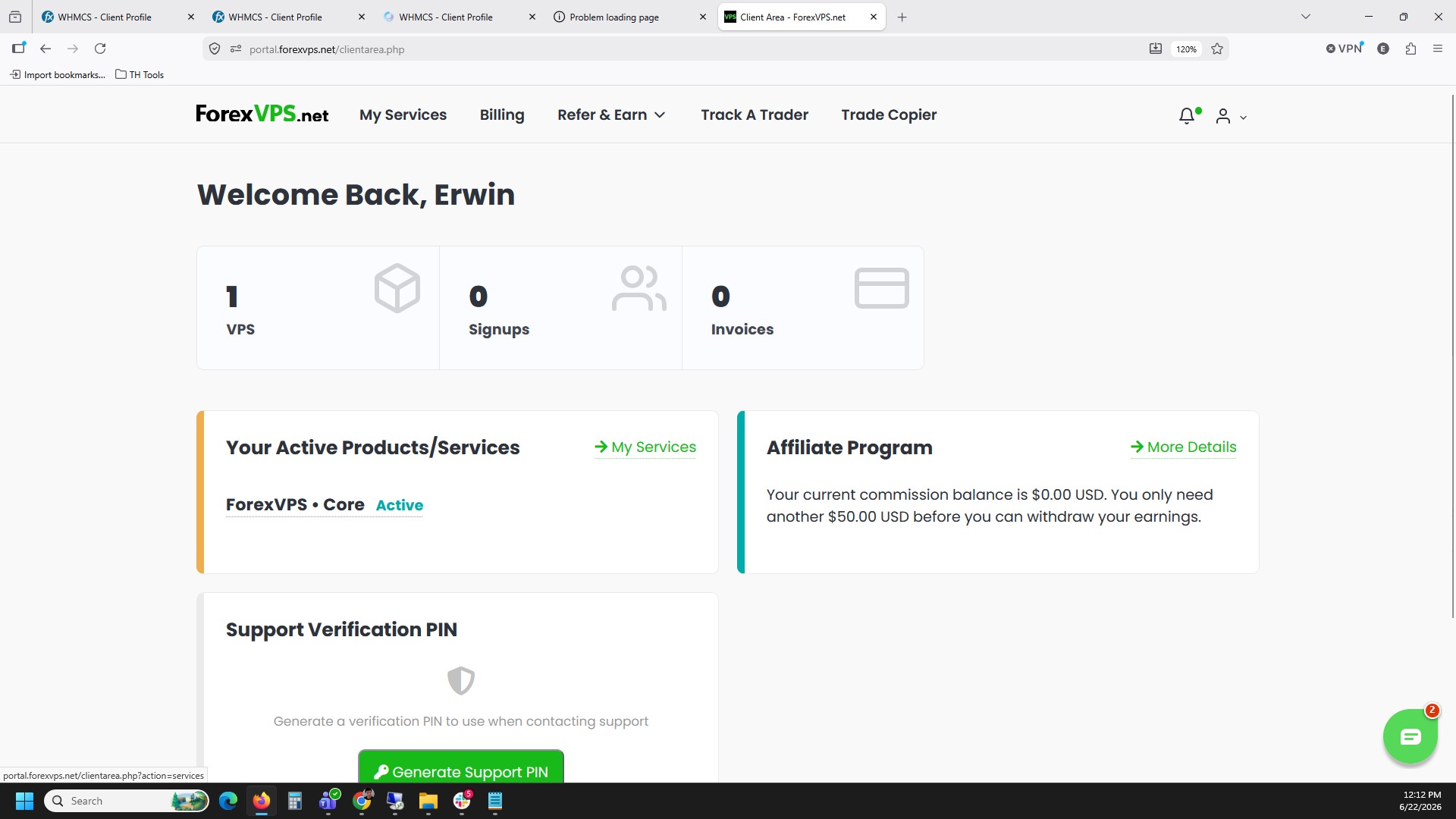
Step 1: Open My Services in your client dashboard
Log into your client dashboard and click My services to see your active VPS subscriptions.
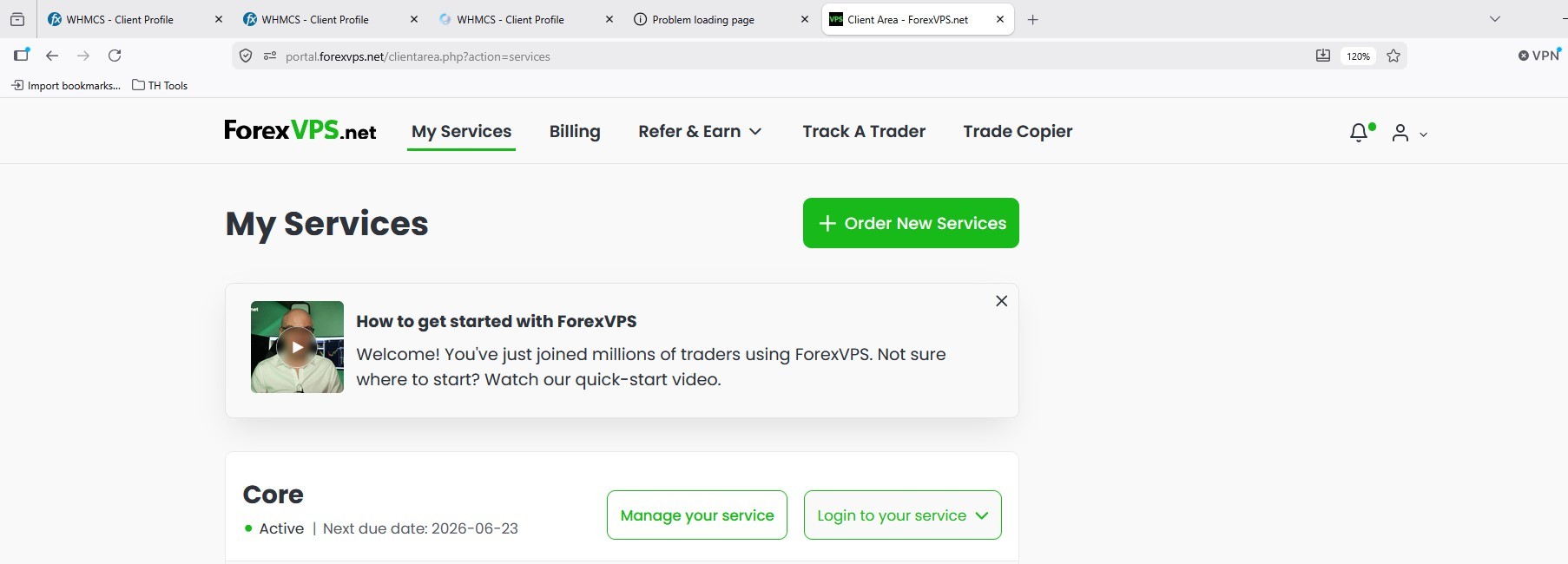
Step 2: Click Login to your service
Find your VPS in the list and click Login to your service to open the connection options.
Part 2: Start the browser session
Step 3: Select Launch in browser
Select Launch in browser from the connection options — this is the Getscreen.me option that requires no software installation.
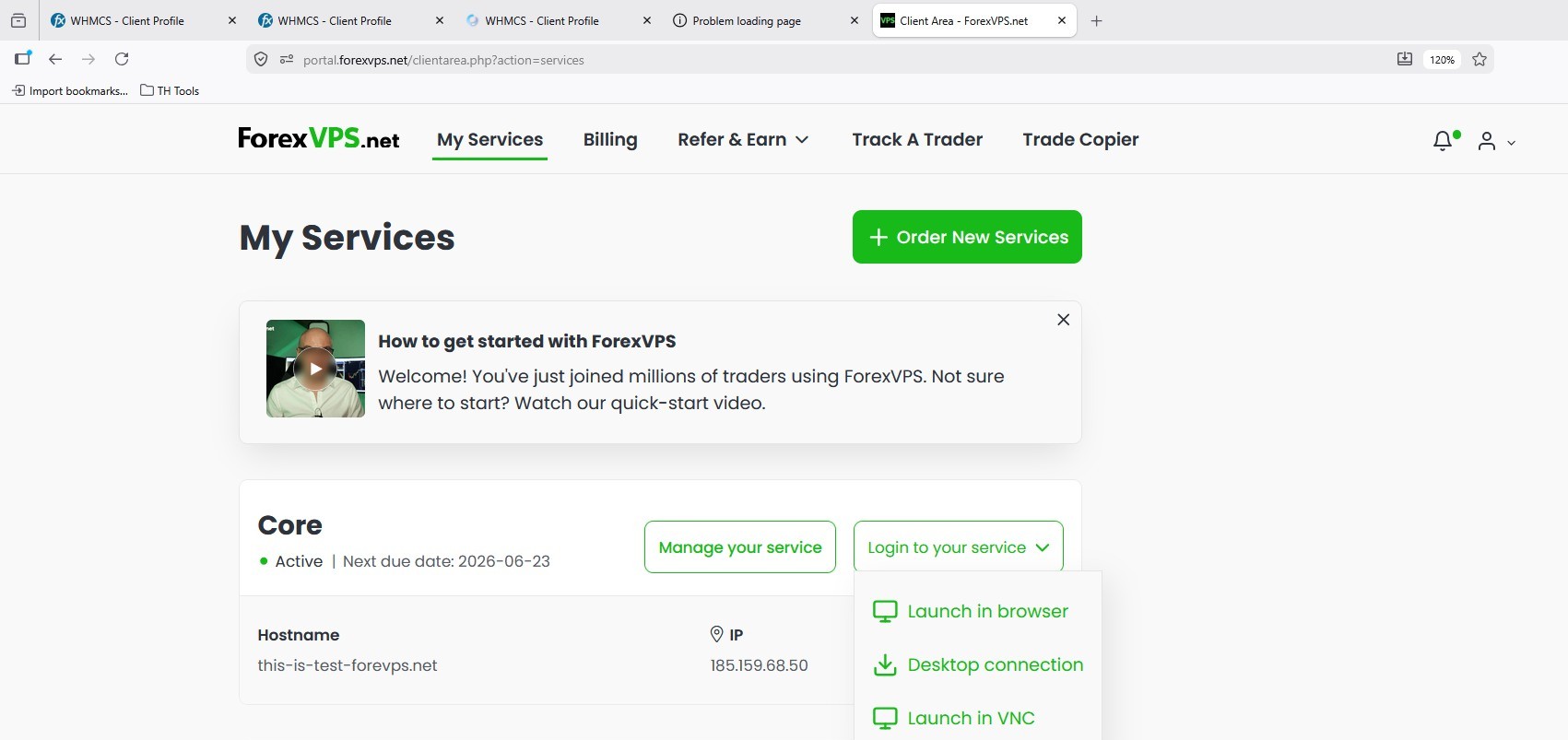
Step 4: Click New Session RDP
Click New Session RDP to begin a new Remote Desktop session in your browser.
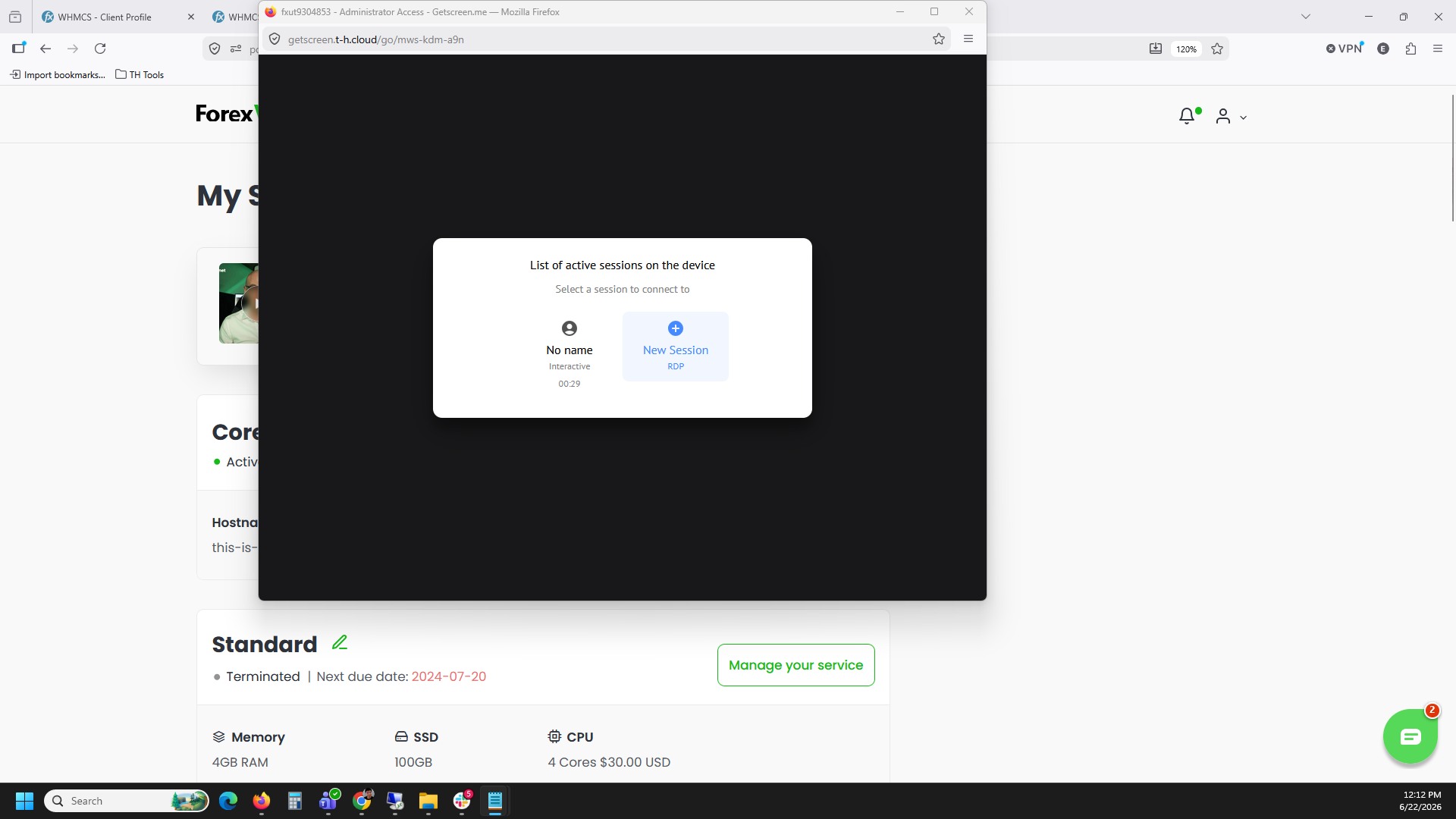
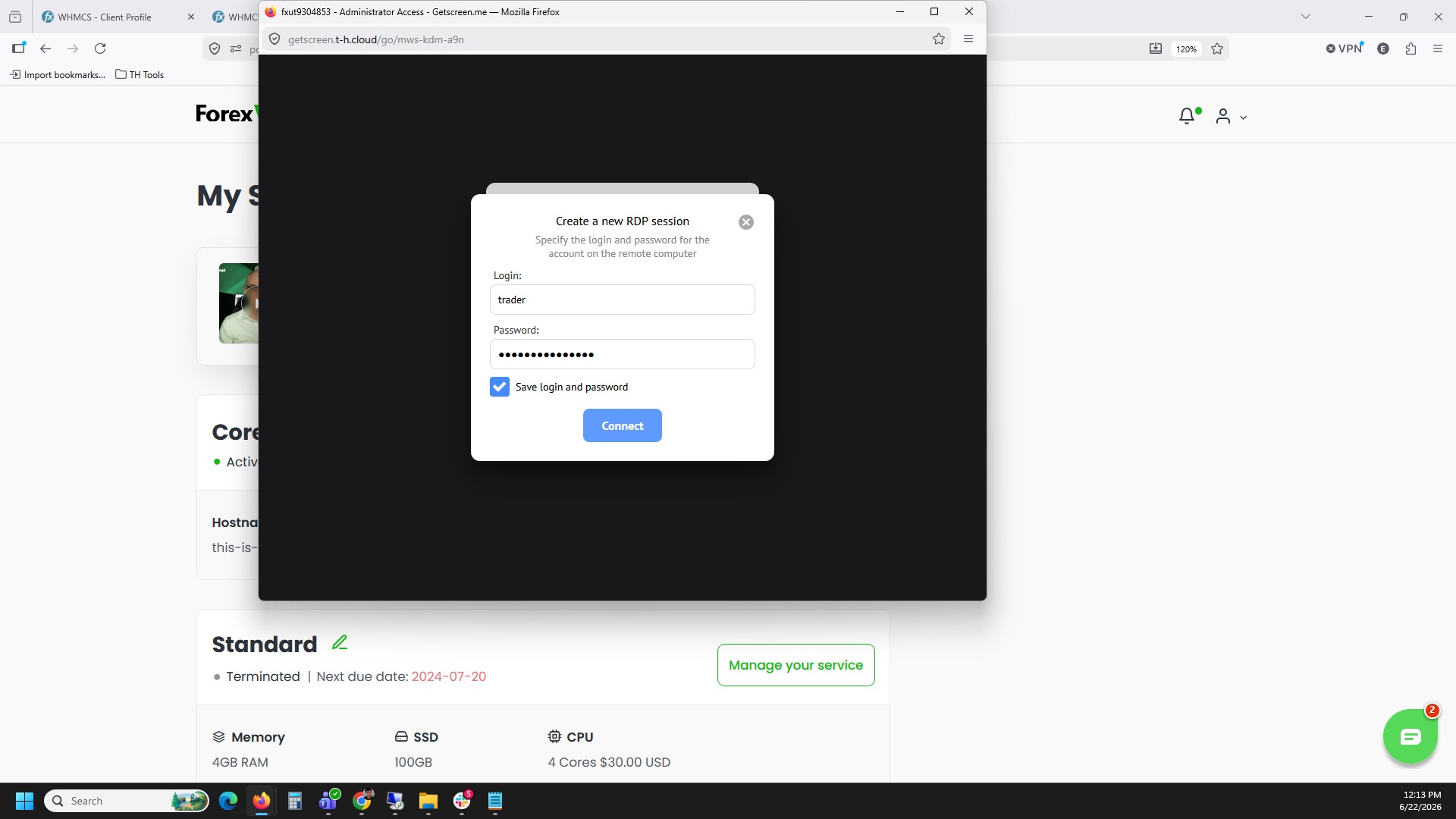
Step 5: Enter your VPS credentials and connect
Enter the username and password from your VPS welcome email. Tick the box that says Save login and password, then click Connect.
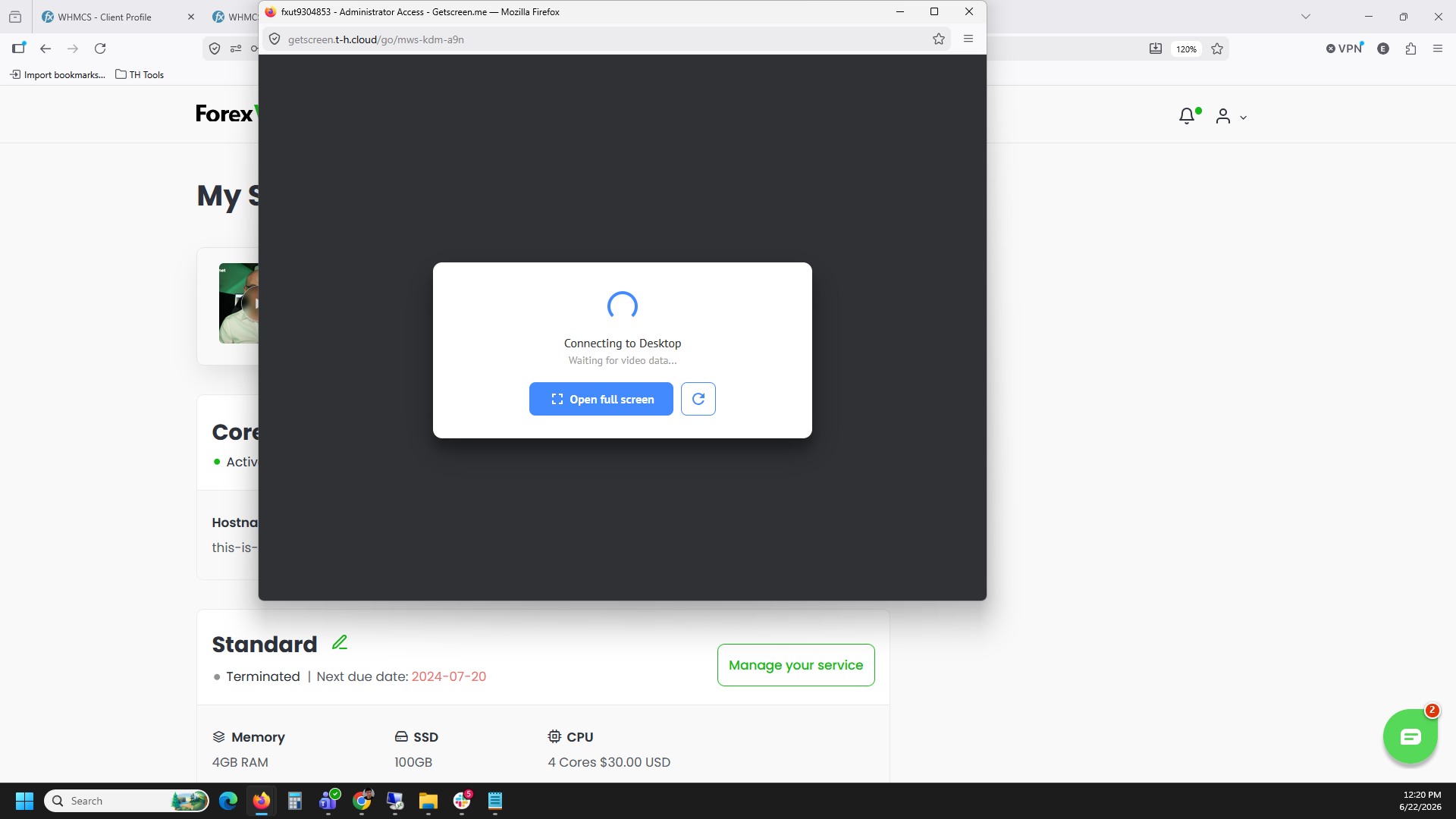
Step 6: Wait for the desktop to connect
Wait a few seconds while the browser session shows Connecting to Desktop. Your ForexVPS desktop then loads directly in the browser tab.
Troubleshooting
| Problem | Likely cause | Fix |
|---|---|---|
| Connection stuck on “Connecting to Desktop” | Slow network or VPS still starting up | Wait up to a minute, then refresh the browser tab and try Launch in browser again. |
| Login rejected on Connect | Wrong username or password entered | Re-check the credentials in your VPS welcome email and re-enter them carefully. |
| “Login to your service” button missing | VPS not yet fully provisioned | Wait for the VPS provisioning email before attempting to connect. |
Frequently asked questions
Do I need to install any software to use this method?
No. Launching your VPS through the browser using Getscreen.me requires no additional software — only a modern web browser like Firefox or Chrome.
What credentials do I enter when connecting?
Use the username and password from your ForexVPS welcome email — the same credentials used for standard Remote Desktop connections.
Should I tick “Save login and password”?
Ticking this box saves your credentials in the browser session so you won’t need to re-enter them on your next visit from the same browser and device.
Can I use this method on any device?
Yes. Since it runs entirely in the browser, this method works on any device with a modern browser, including devices where installing Remote Desktop software isn’t possible.
Related articles
- How to log in to Remote Desktop on Windows — ForexVPS setup guide
- How to properly disconnect from your ForexVPS
- How to change your VPS password