
Learn how often to run Windows Update on your ForexVPS and how to install updates safely without disrupting trading.

Keeping Windows updated on your ForexVPS is essential — outdated systems are far more vulnerable to security issues. This guide covers how often to update, when to schedule it, and the manual update process inside your ForexVPS.
Before you start: Roughly 50% of users skip Windows Update entirely, then are surprised when they get hacked or something breaks. Don’t be one of them.
Why regular Windows updates matter
Windows is a dynamic operating system that needs regular attention. Running Windows Update keeps your operating system and ForexVPS protected and stable. Our recommendation is to let Windows Update run at least every two weeks. Doing this on a weekend ensures no interruptions to your active trading hours.
Automatic vs. manual updates
You can configure your ForexVPS to run updates and reboot automatically at a specific time. This works well if your trading platforms are set to autostart with our StartupAdder script — otherwise, you’d need to log in manually to relaunch them after an automatic reboot. If you’re unsure about letting your ForexVPS reboot on its own, run updates manually instead using the steps below.
Part 1: Check for updates
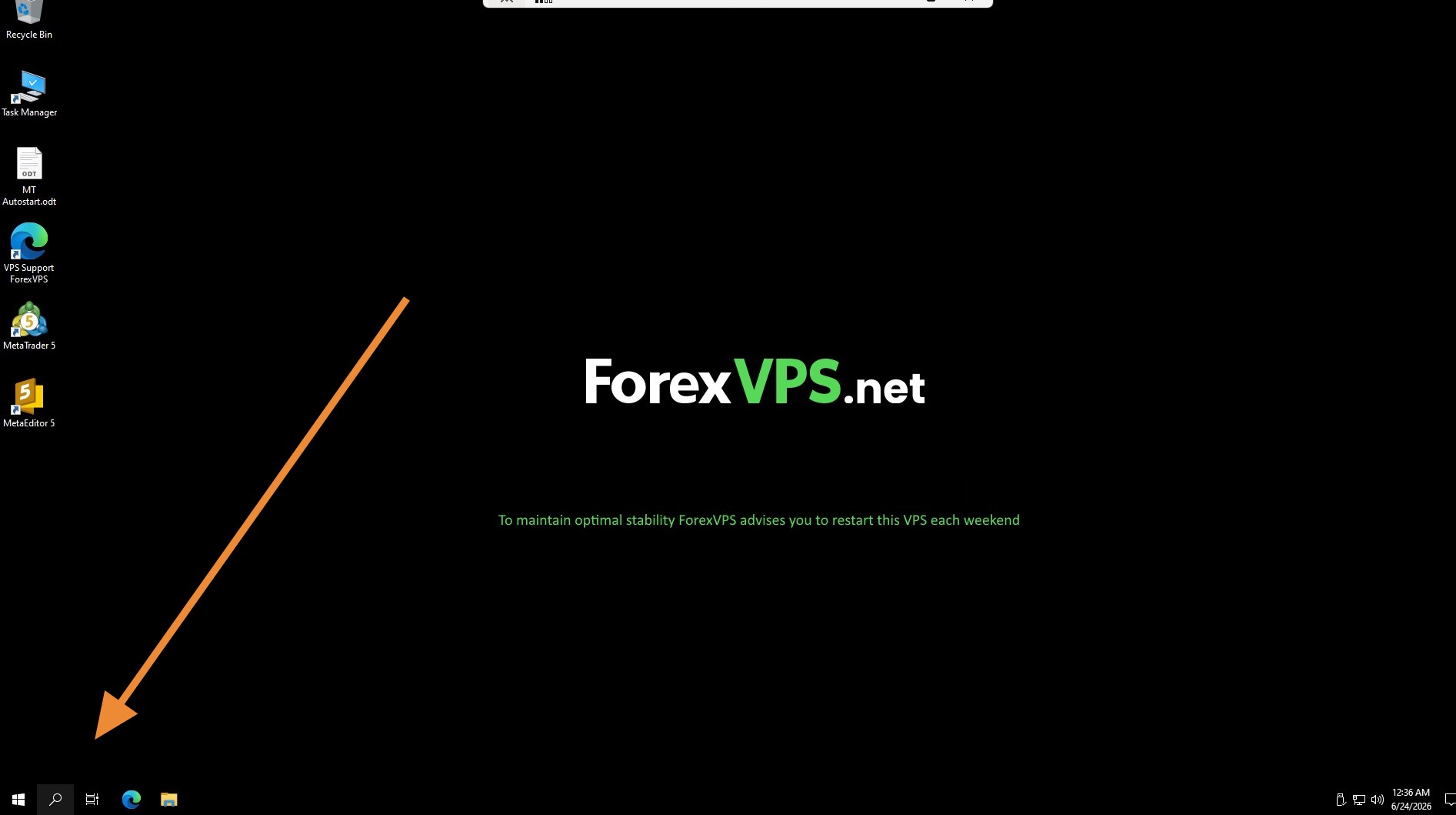
Step 1: Open the search menu
In your ForexVPS, click the search menu.
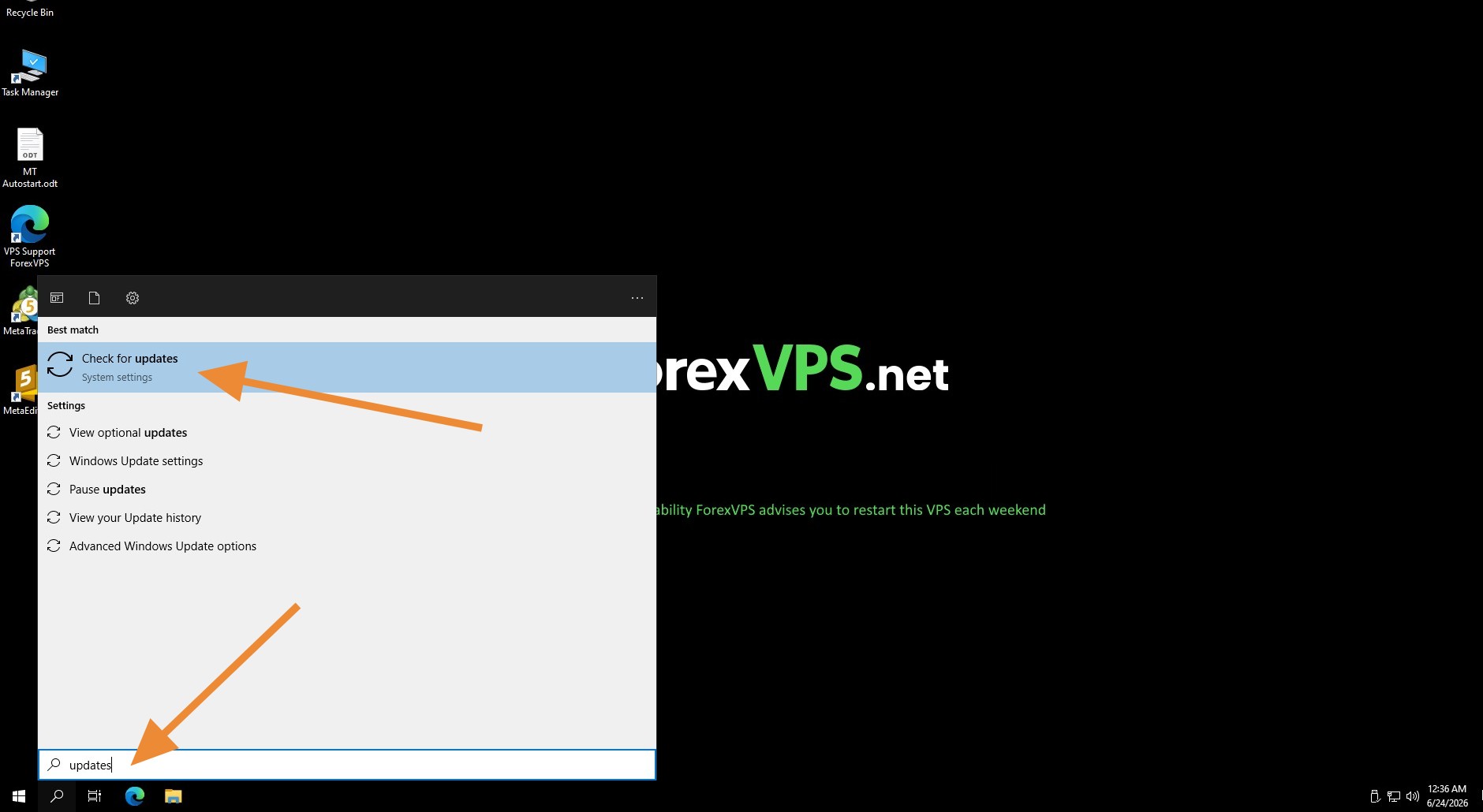
Step 2: Search for updates
Search the word update and click Check for updates.
Part 2: Install and restart
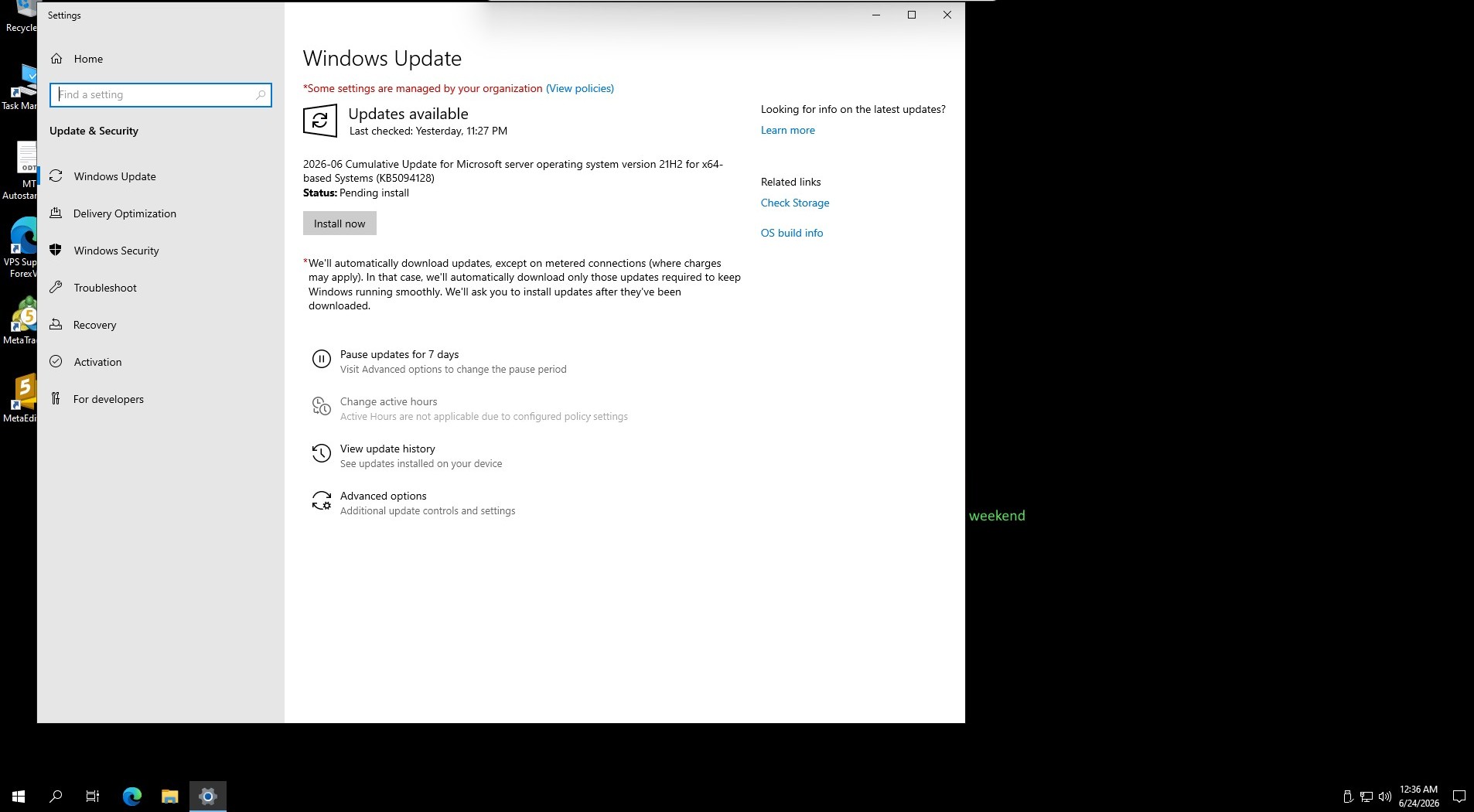
Step 3: Look for the install button
If there’s an available Windows update, you’ll see an Install now or Download and install button.
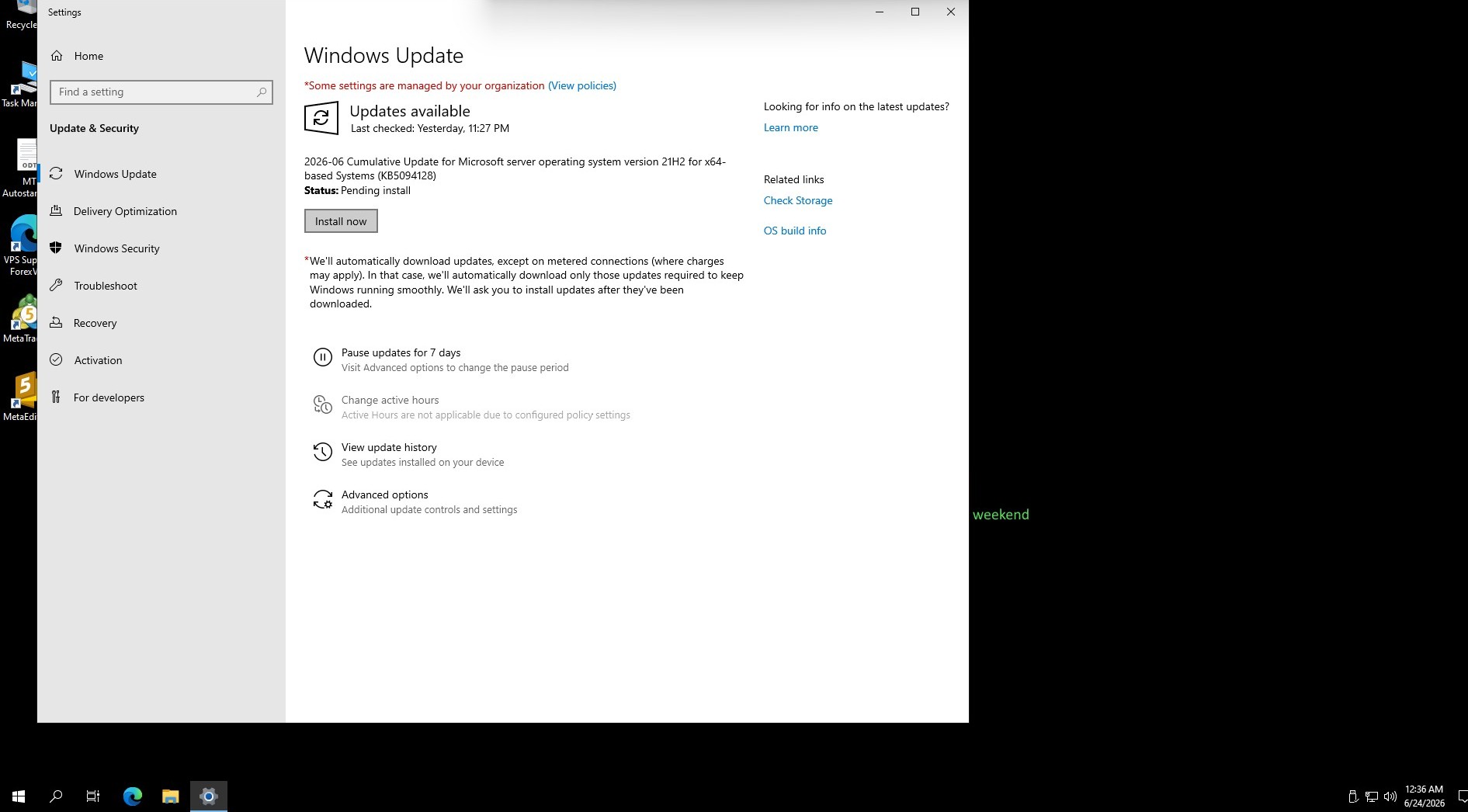
Step 4: Click Install now
Click Install now and let it finish. Installation time varies depending on update size, system performance, and other factors.
Step 5: Click Restart now
Once installation is done, click Restart now.
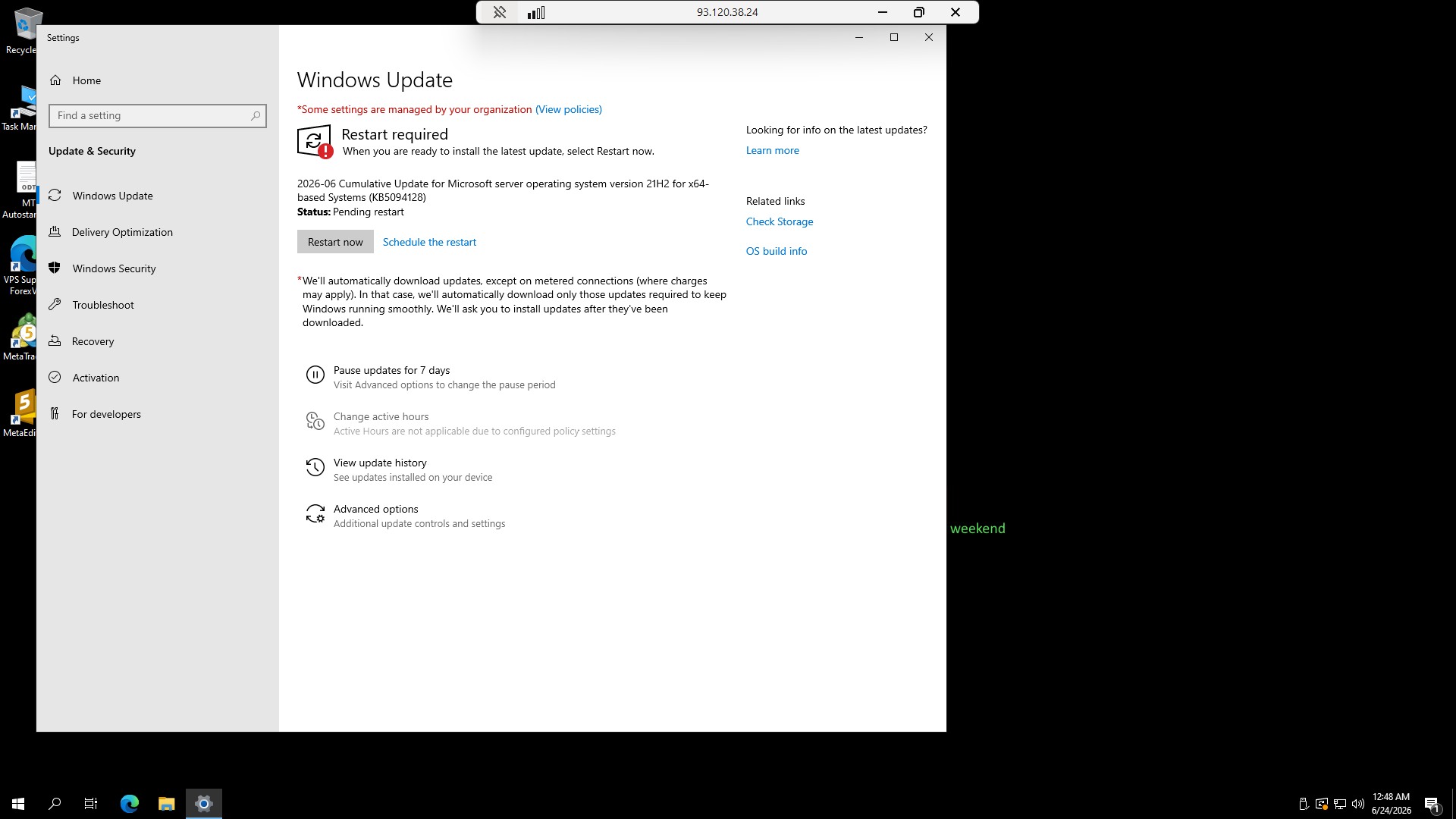
After your ForexVPS restarts, the system may need additional time to finish background processes before it becomes accessible again — this normally takes around 15 minutes, but can take longer depending on the update.
Troubleshooting Windows updates on your VPS
Running into issues with Windows Update on your ForexVPS? Here are fixes for the most common problems.
| Problem | Likely cause | Fix |
|---|---|---|
| ForexVPS unreachable right after update | Background processes still finishing after restart | Wait around 15 minutes and try reconnecting — larger updates may take longer. |
| Trading platforms don’t reopen after update restart | Platforms not set to autostart | Set up StartupAdder for your MetaTrader platforms so they relaunch automatically after any restart. |
| No updates found despite expecting one | Update already installed or not yet released | Check again in a few days — Windows rolls out updates gradually, not to all systems at once. |
Frequently asked questions about Windows updates on your VPS
Still have questions about updating Windows on your ForexVPS? Find quick answers below.
How often should I run Windows Update on my ForexVPS?
At least every two weeks. Running it on a weekend minimizes any disruption to active trading hours.
Can I automate Windows Update on my ForexVPS?
Yes, you can configure automatic updates with a scheduled reboot. Combine this with StartupAdder so your trading platforms relaunch automatically afterward.
What happens if I never update my ForexVPS?
Roughly half of users skip updates entirely, leaving their systems vulnerable to security exploits. Regular updates significantly reduce this risk.
How long does my ForexVPS stay unreachable after an update restart?
Typically around 15 minutes for background processes to finish, though larger updates can take longer.