
Learn how to log in to your broker's trading account inside MT4 or MT5 on your ForexVPS using your account credentials.

Once MetaTrader is installed on your ForexVPS, you need to log in to your specific broker account using your trading credentials and server name. This guide walks you through connecting your broker account inside MT4 or MT5.
Before you start: Your login, password, and server name should be provided directly by your broker — not by ForexVPS.
What You’ll Need
- MT4 or MT5 already installed on your ForexVPS
- Your broker account login, password, and server name
Part 1: Open the Login Dialog
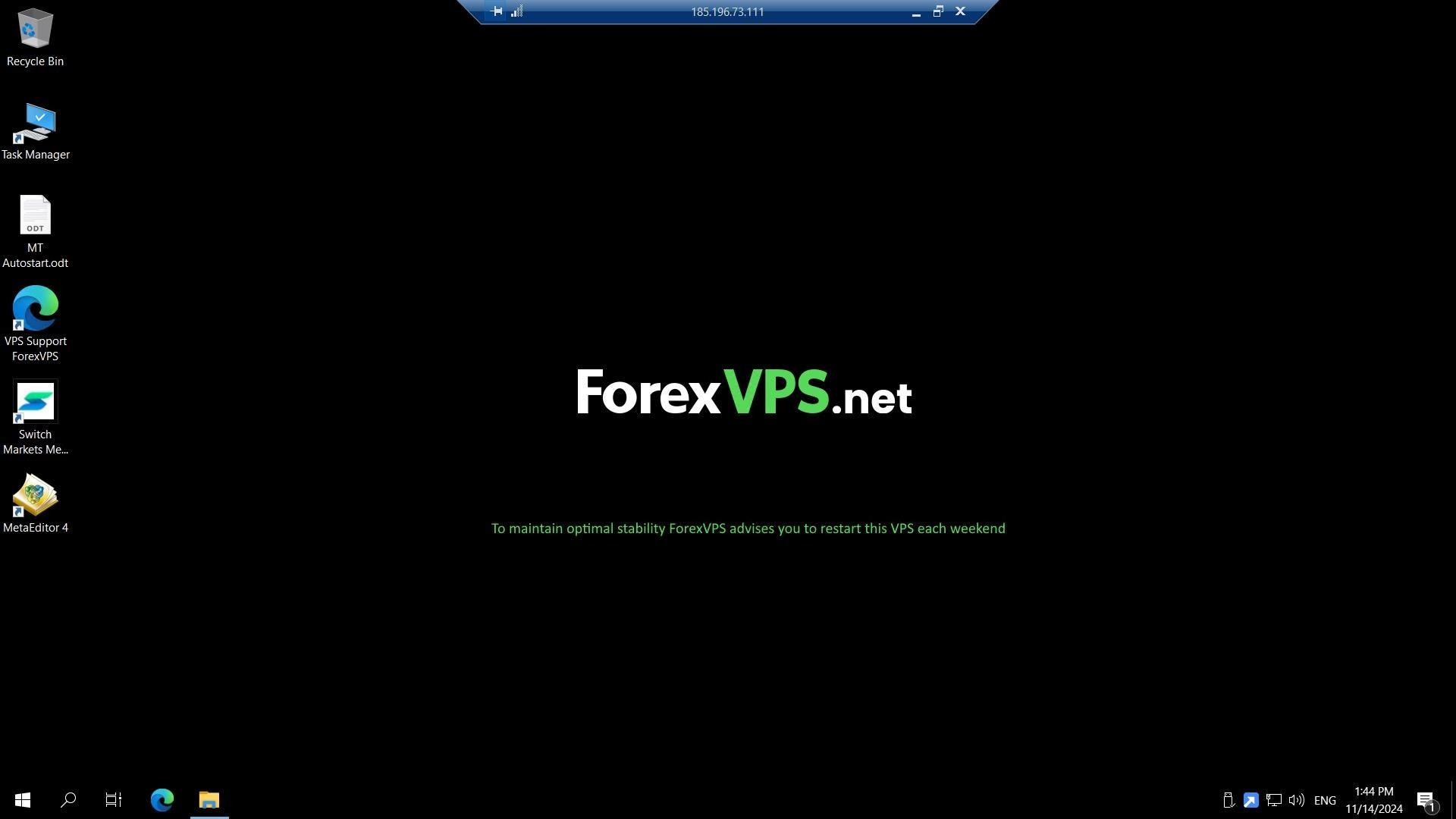
Step 1: Open your broker’s MT4 or MT5
Inside your ForexVPS desktop, open your broker’s MT4 or MT5.
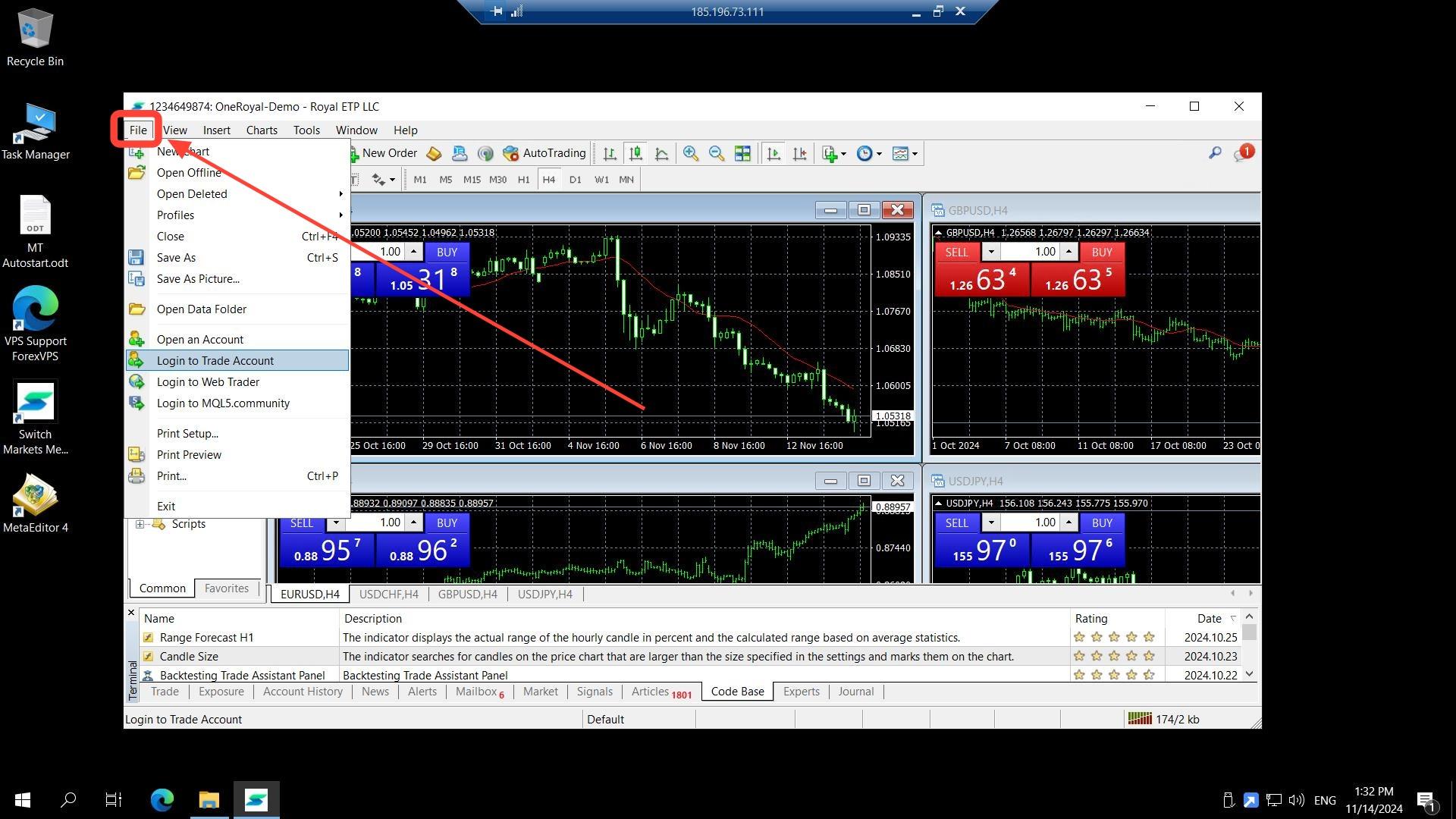
Step 2: Click File, then Login to Trade Account
Click File, then click Login to Trade Account.
Part 2: Enter Your Broker Credentials
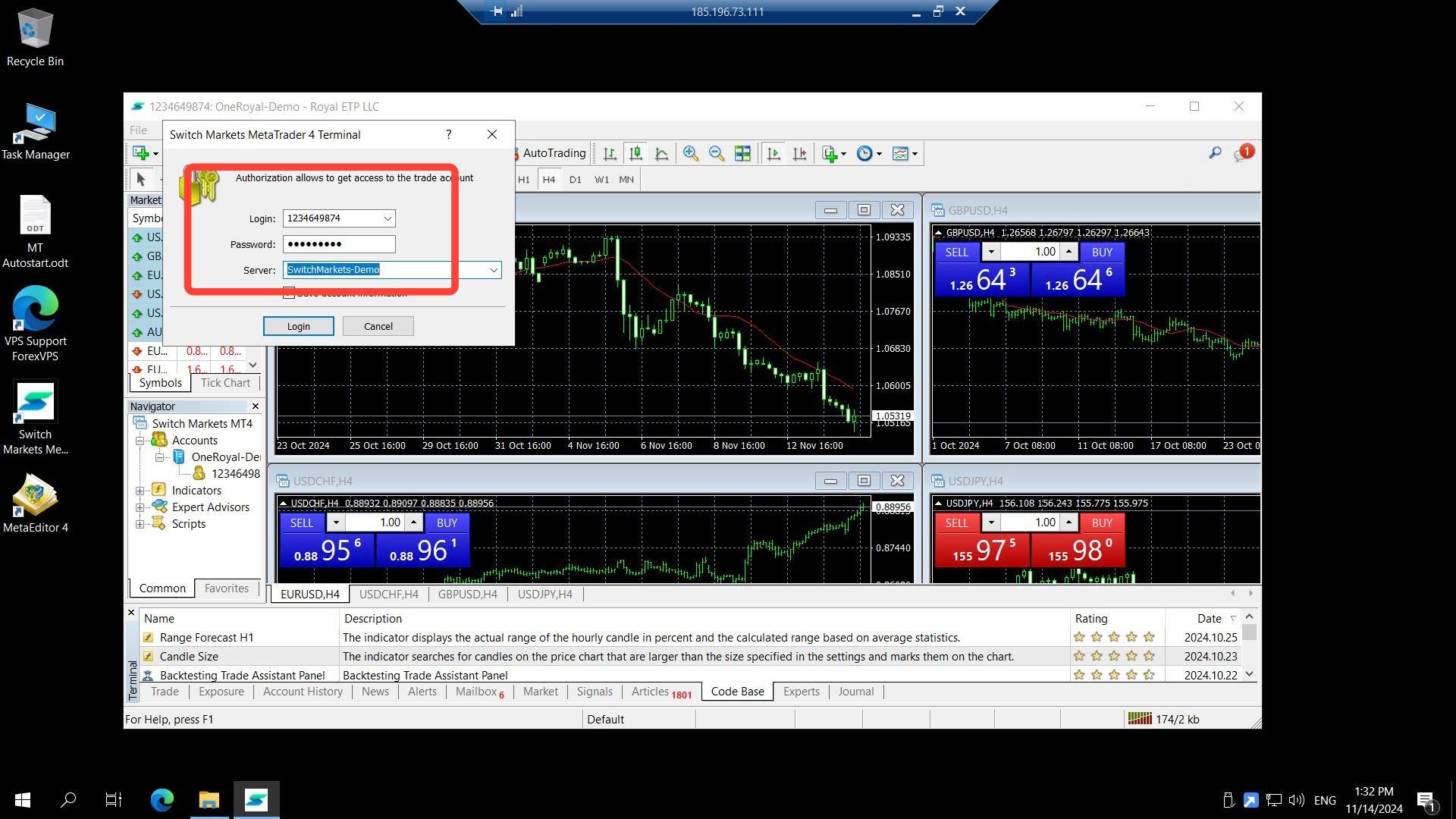
Step 3: Enter your login, password, and server
Input your broker account login, password, and server, then click Login. This information should be provided to you by your broker.
Step 4: Confirm the connection
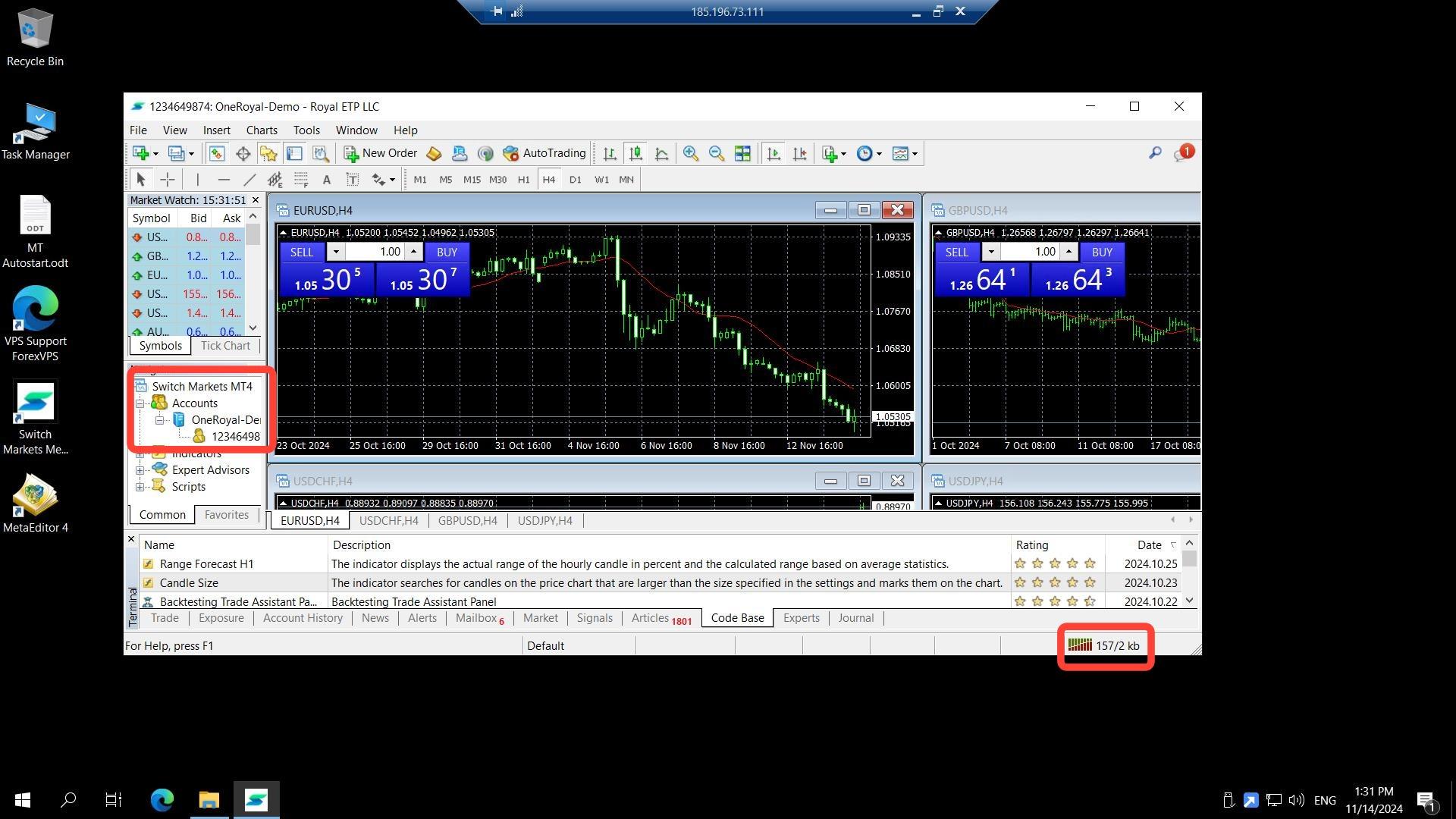
You’ve now logged in to your broker account in MetaTrader. A successful login shows your broker account in the left pane and the broker’s latency in the right corner of MetaTrader.
Troubleshooting Broker Server Login Issues
Running into problems connecting your broker account to MT4 or MT5? Here are fixes for the most common issues.
| Problem | Likely cause | Fix |
|---|---|---|
| Login fails with correct credentials | Wrong server name entered | Confirm the exact server name with your broker — server names are often specific down to a number or region. |
| Broker account doesn’t show latency | Connection not fully established | Wait a few seconds, or check your ForexVPS’s network connection if latency never appears. |
| Don’t know the server name | Not provided during account signup | Contact your broker directly — ForexVPS does not provide broker account credentials. |
Frequently Asked Questions About Adding Your Broker Server to MT4 or MT5
Still have questions about adding your broker server to MT4 or MT5? Find quick answers below.
Where do I get my broker login, password, and server name?
These are provided directly by your broker when you open a trading account — not by ForexVPS.
How do I know my broker login was successful?
Your broker account appears in the left pane of MetaTrader, and the broker’s latency is displayed in the bottom-right corner.
Can I add multiple broker accounts to the same MT4?
Yes, using File > Login to Trade Account you can switch between different broker accounts within the same MT4 installation, though only one is active at a time.
What if I want to run two broker accounts simultaneously?
Install a second MetaTrader instance and log in to the second broker account there — see the guide for installing multiple MetaTrader platforms.