ForexVPS provides two user accounts on every Virtual Machine, but the second one — trader2 — is disabled by default. This guide walks you through enabling it and setting a password using Windows Computer Management.
Before you start: Enabling trader2 is useful if you need a second Remote Desktop session or want to separate access for a colleague or team member.
What you’ll need
- An active Remote Desktop session connected to your ForexVPS
- Administrator access on your ForexVPS (default for ForexVPS accounts)
Part 1: Open Computer Management
Step 1: Search for Computer Management
When inside your virtual machine, go to START and search for Computer Management.
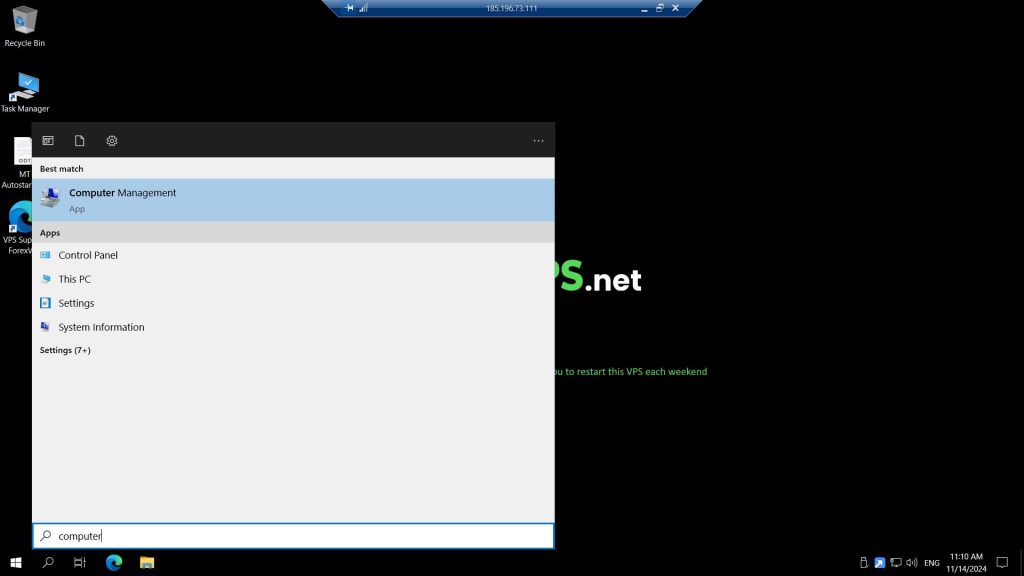
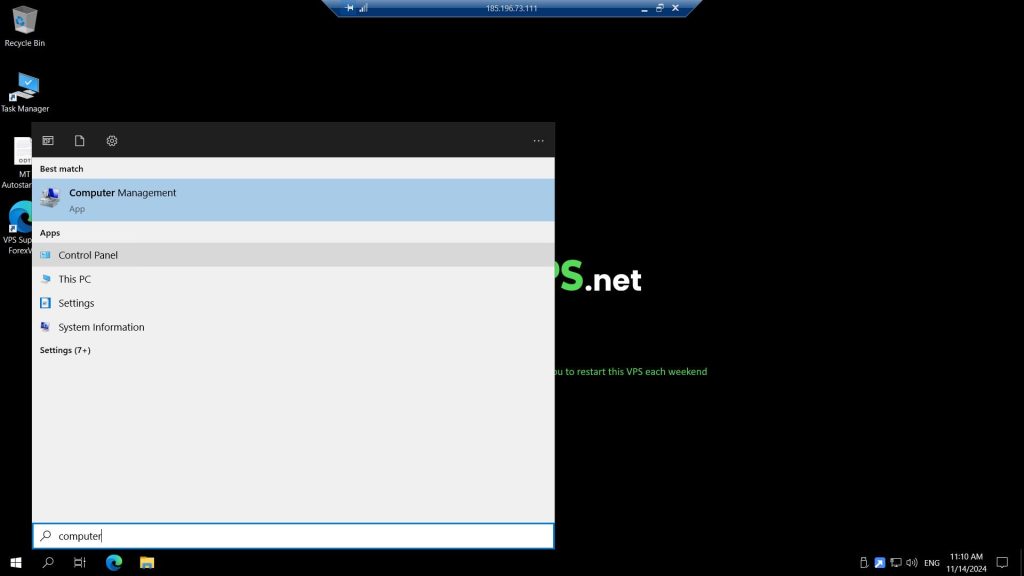
Step 2: Open Computer Management
Click Computer Management to open it.
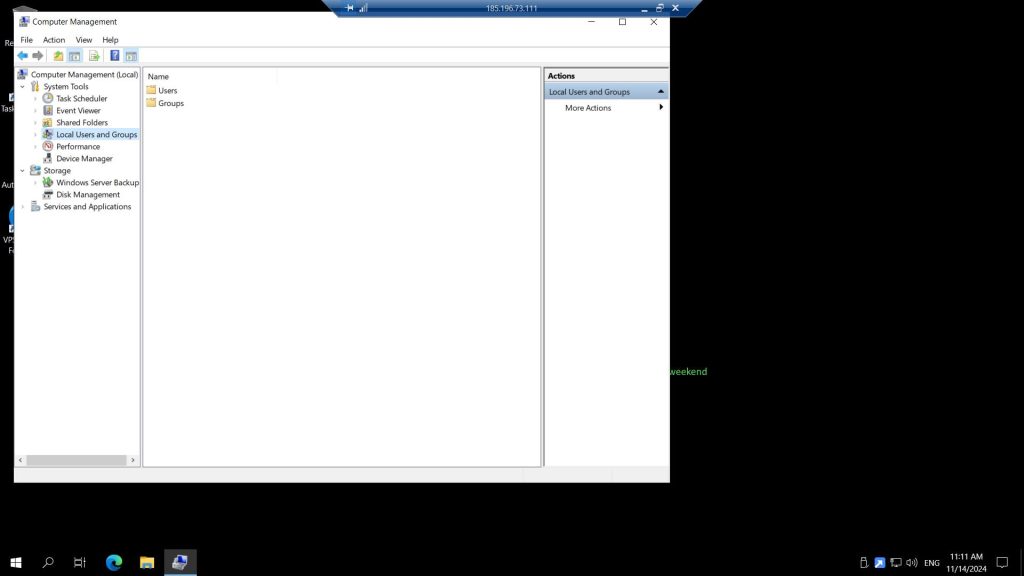
Step 3: Navigate to Local Users and Groups
Click Local Users and Groups, then double-click on Users.
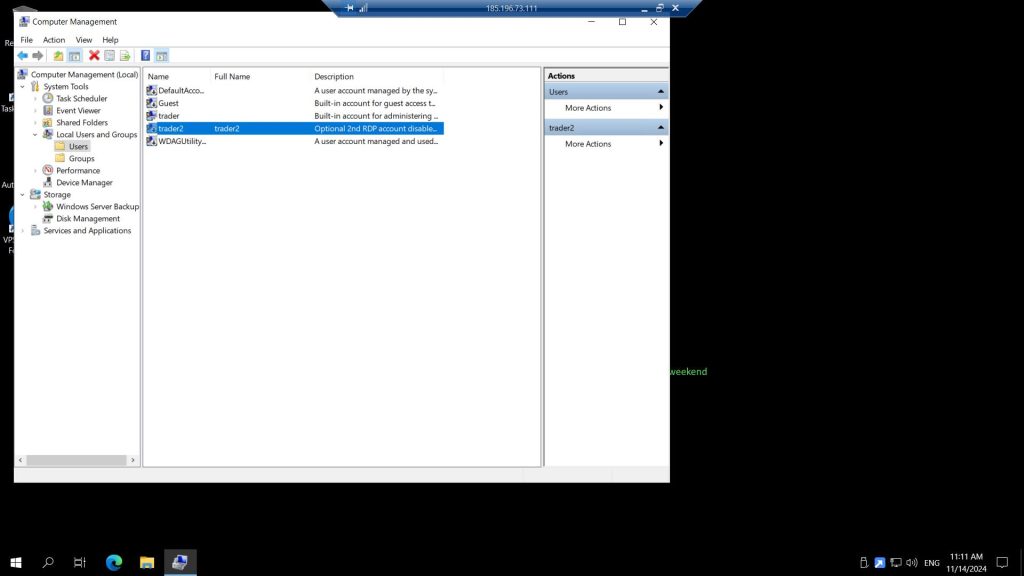
Part 2: Enable and configure trader2
Step 4: Open the trader2 user account
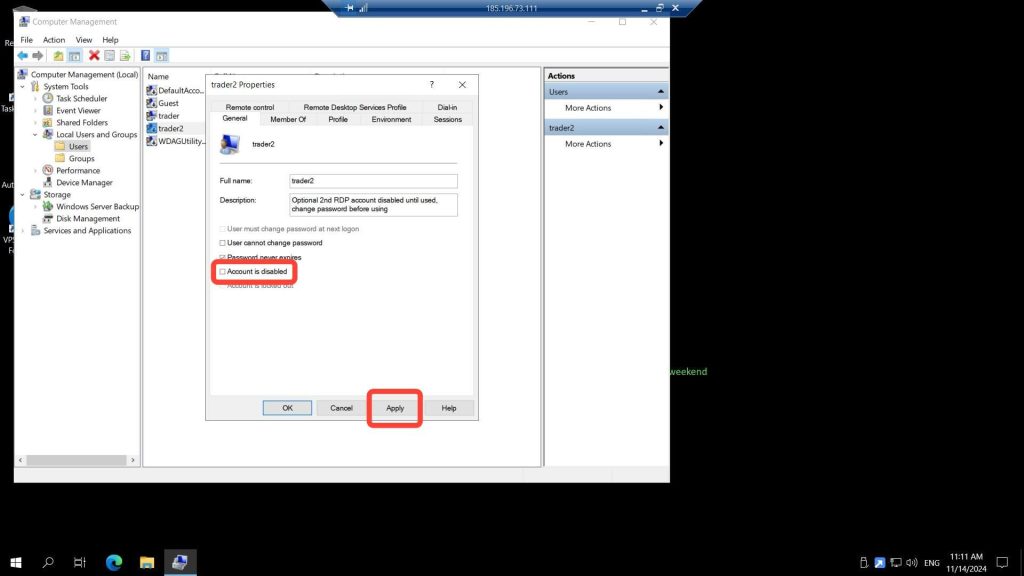
Double-click the trader2 user account to open its properties.
Step 5: Enable the account
By default, the trader2 account is disabled. Remove the check mark next to the “Account is disabled” option, then click Apply and OK.
Step 6: Set a password for trader2
Right-click on the trader2 user account, then select Set Password. Enter and confirm a new password to complete setup.
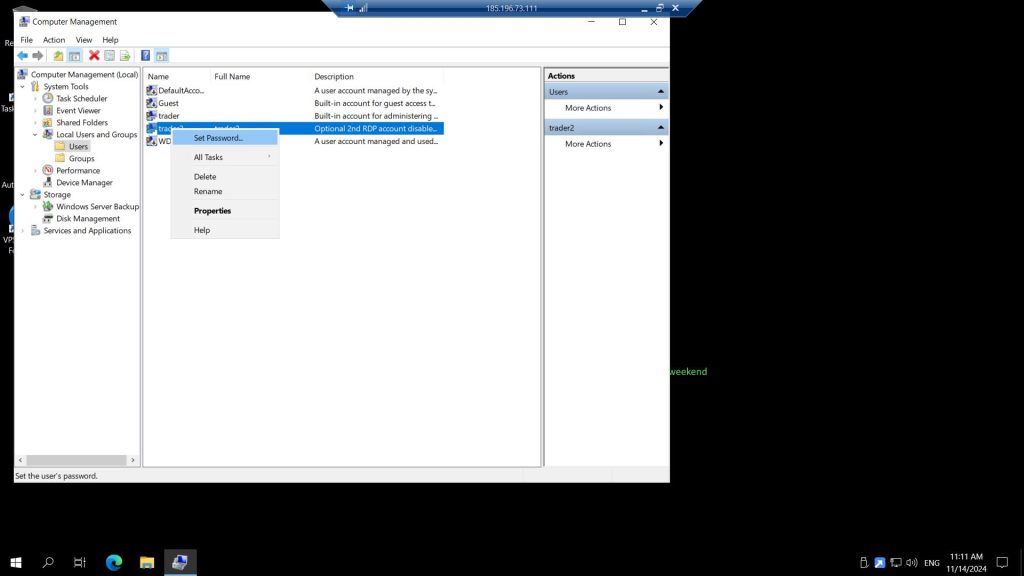
Once enabled and password-protected, the trader2 account can log in to your ForexVPS via Remote Desktop just like the primary trader account.
Troubleshooting the trader2 user account
Running into issues enabling or using trader2? Here are fixes for the most common problems.
| Problem | Likely cause | Fix |
|---|---|---|
| trader2 still can’t log in after enabling | No password set | Right-click the account and select Set Password — a blank password will block Remote Desktop logins. |
| Can’t find trader2 in the Users list | Viewing the wrong section | Confirm you’re inside Local Users and Groups > Users, not Local Groups. |
| Both accounts conflict when logging in simultaneously | Remote Desktop session limits | Check your VPS plan’s concurrent session limit — some plans restrict simultaneous logins. |
Frequently asked questions about enabling the trader2 user account
Still have questions about enabling and using trader2? Find quick answers below.
Why is trader2 disabled by default?
Every ForexVPS ships with two user accounts, but only the primary trader account is active by default to keep initial setup simple.
Can two people use trader and trader2 at the same time?
This depends on your VPS plan’s concurrent session limit. Check your plan details or contact ForexVPS support to confirm simultaneous login support.
Do I need administrator access to enable trader2?
Yes. Computer Management requires administrator privileges, which are enabled by default on the primary trader account.
Can I rename trader2 to something else?
Yes, right-click the account in Local Users and Groups and select Rename if you’d prefer a different username.