
Learn how to fix MetaTrader installation errors, connection issues, and MQL5 login problems on your ForexVPS.
This guide resolves the most common MetaTrader problems on your ForexVPS: not being able to access MQL5, MetaTrader failing to install with a proxy error, MetaTrader not connecting, and MQL.com being inaccessible. Try each method in order until the issue is resolved.
Before you start: Proxy errors during installation usually happen because the broker has blocked installation from your ForexVPS’s location. If nothing else resolves it, moving your ForexVPS to a different location is the most reliable fix.
What you’ll need
- An active Remote Desktop session connected to your ForexVPS
- Administrator access on your ForexVPS
Method 1: Delete the Hosts file
A corrupted or misconfigured Hosts file at C:\Windows\System32\drivers\etc\hosts can block MQL5 access and MetaTrader connections.
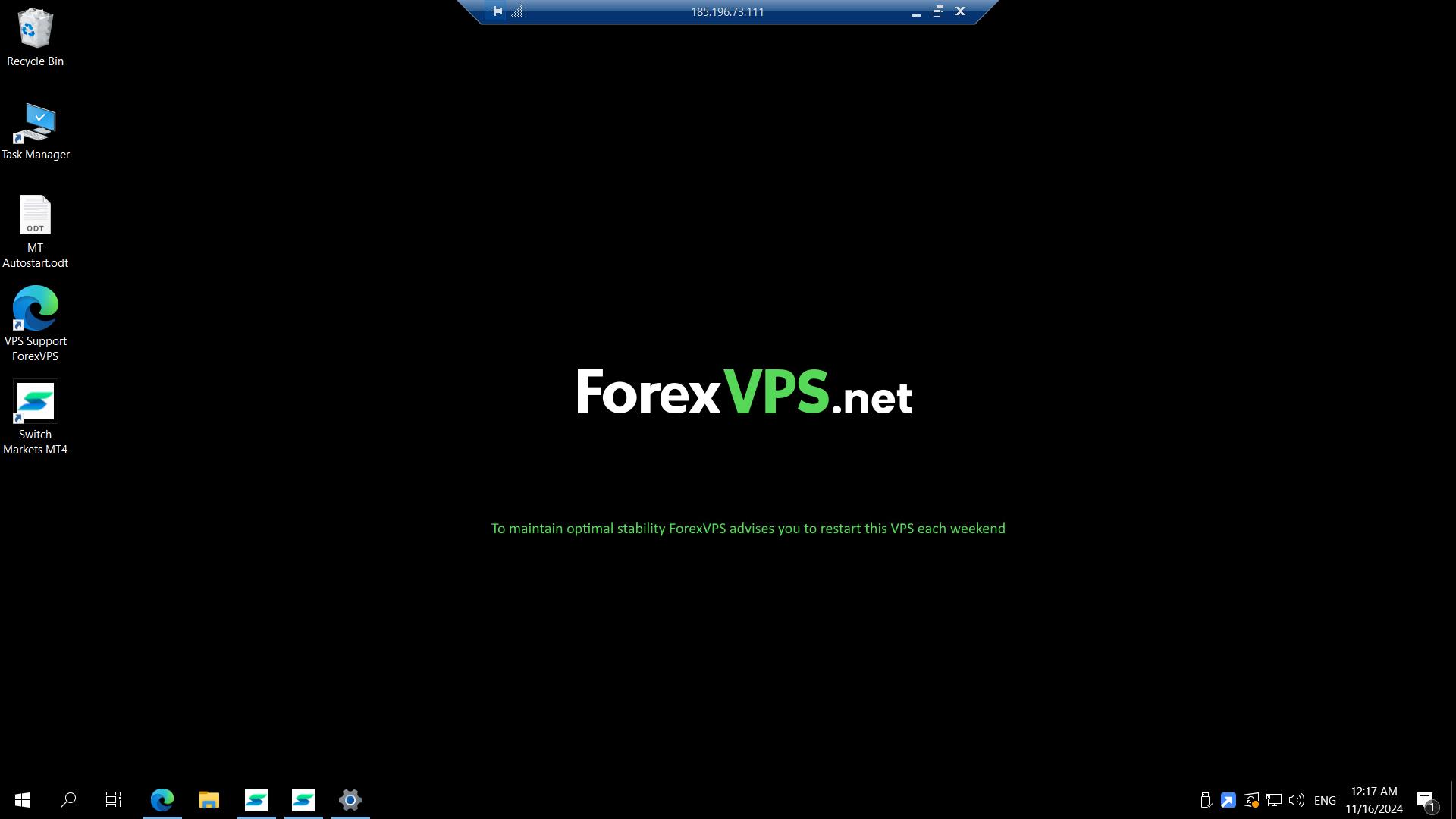
Step 1: Open File Explorer
Inside your ForexVPS, click folders (File Explorer).
Step 2: Navigate to the Hosts file location
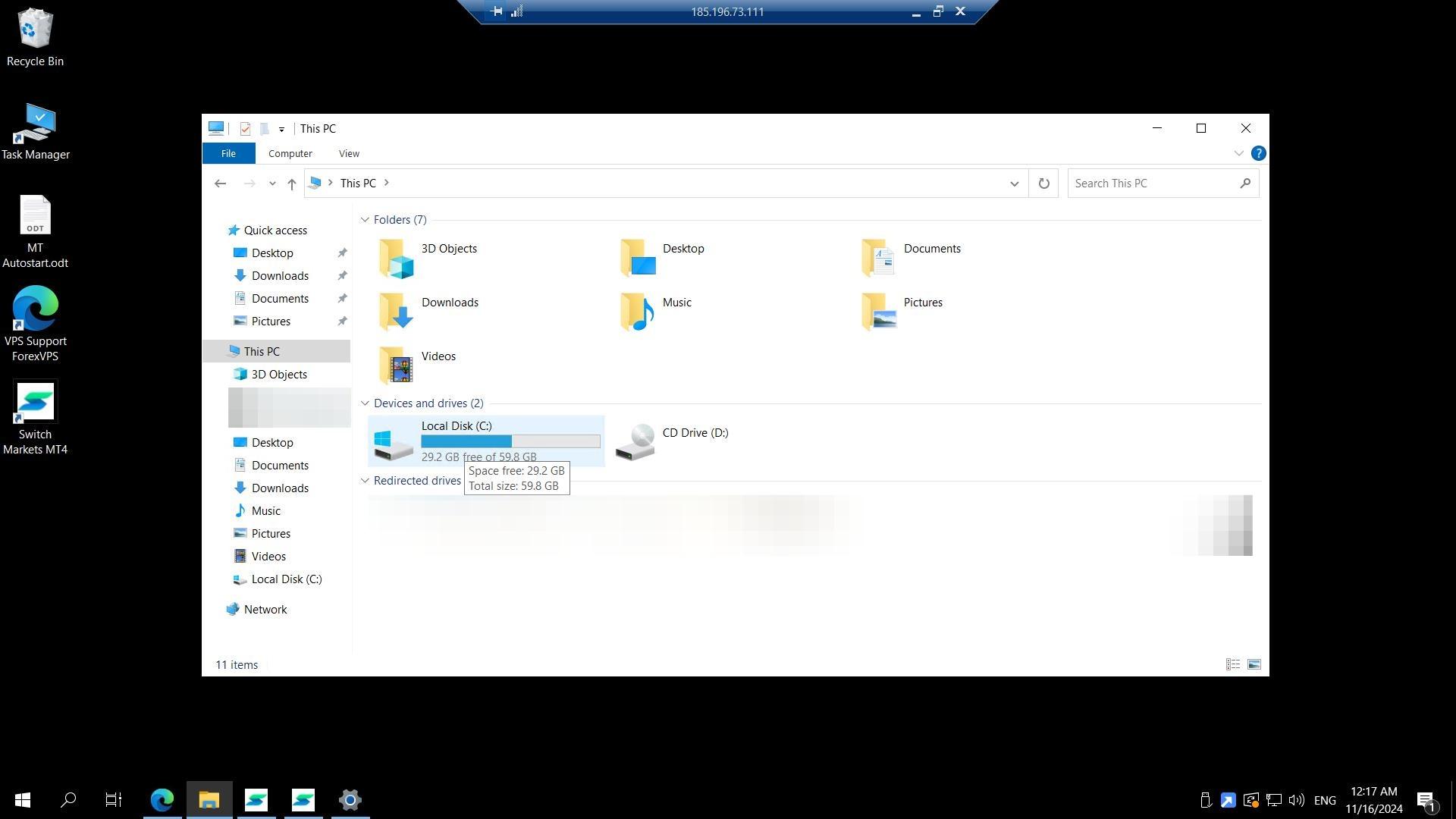
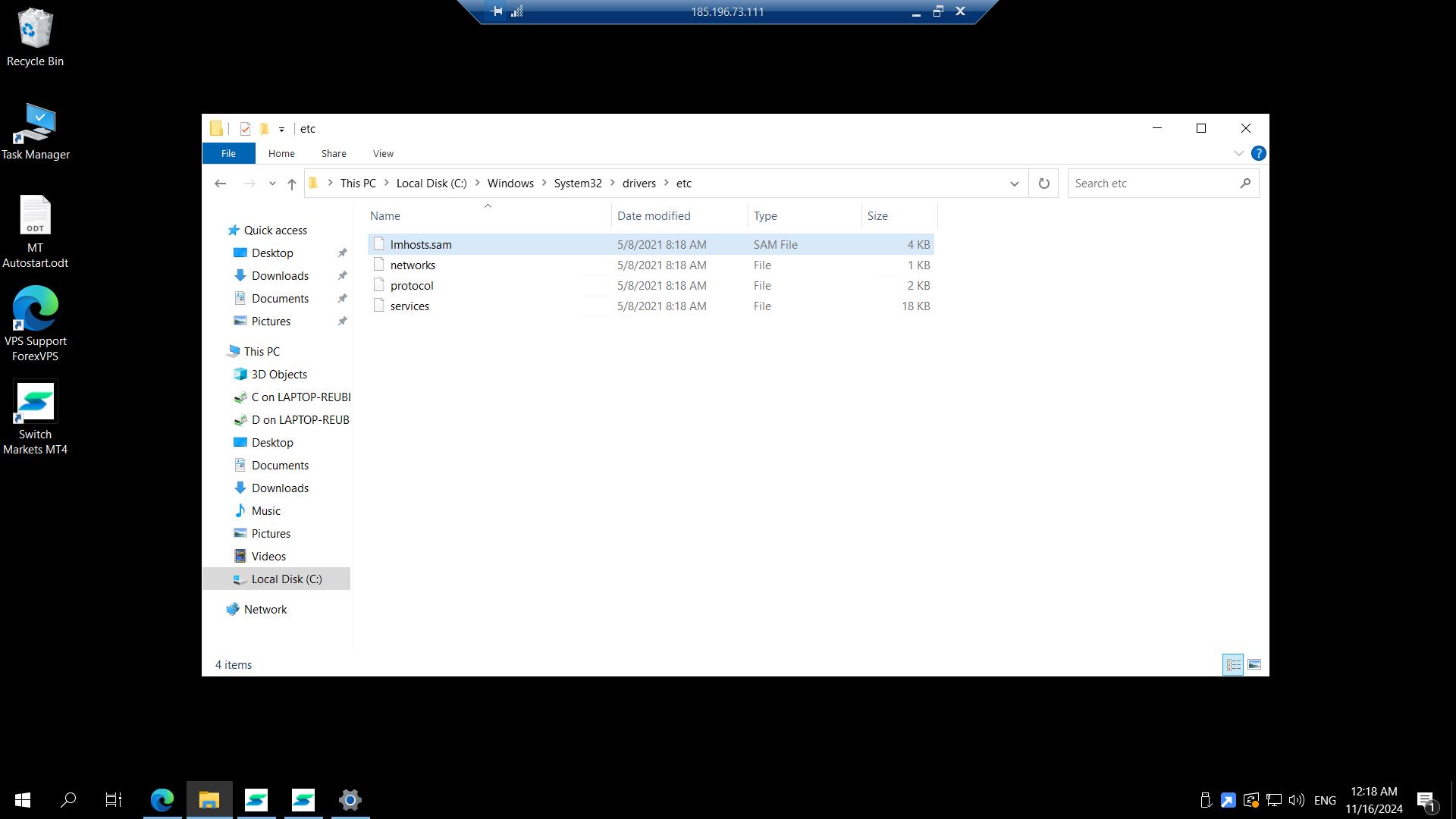
Go to C Drive, click Windows, click System32, click drivers, then click etc.
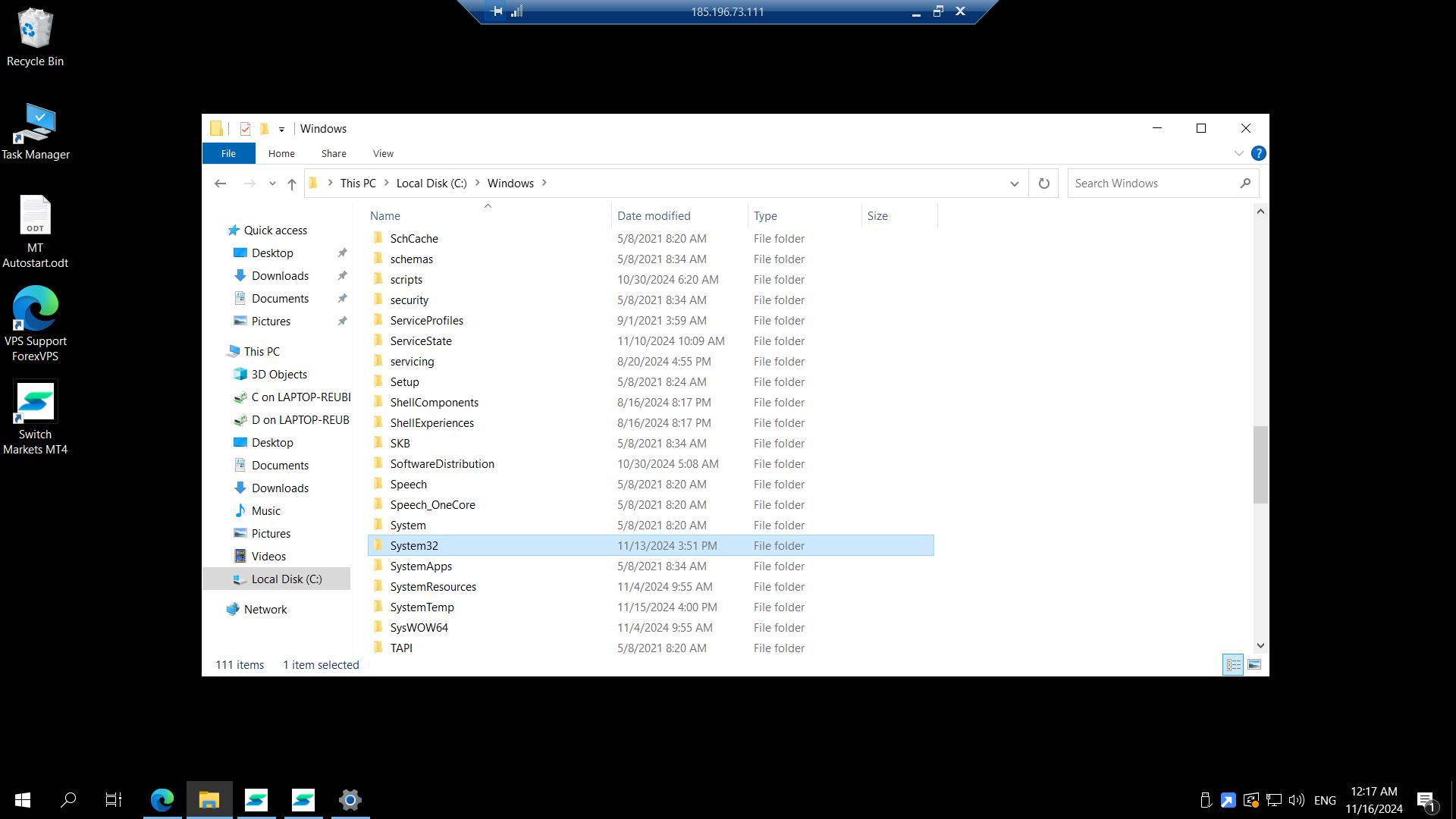
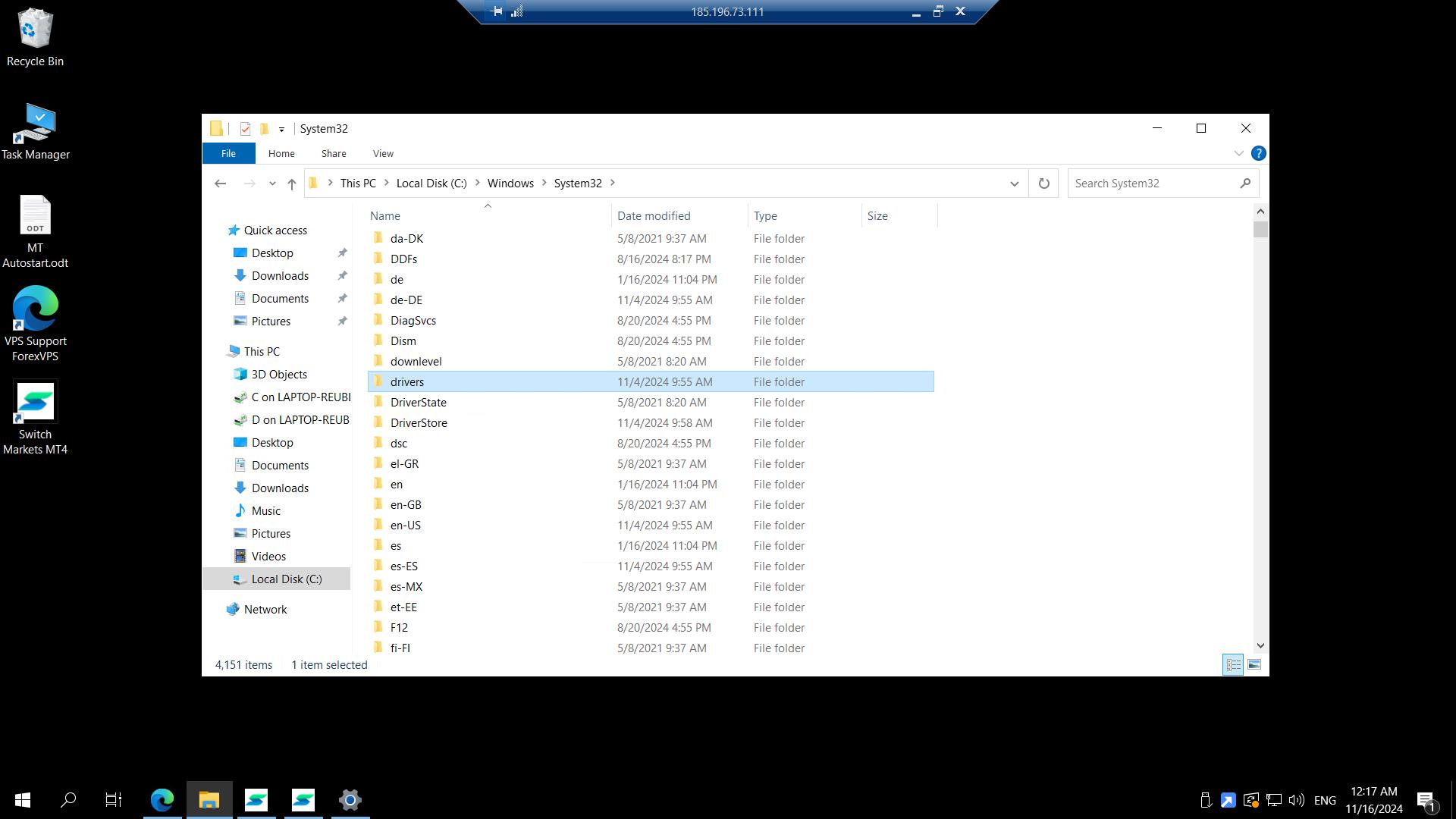
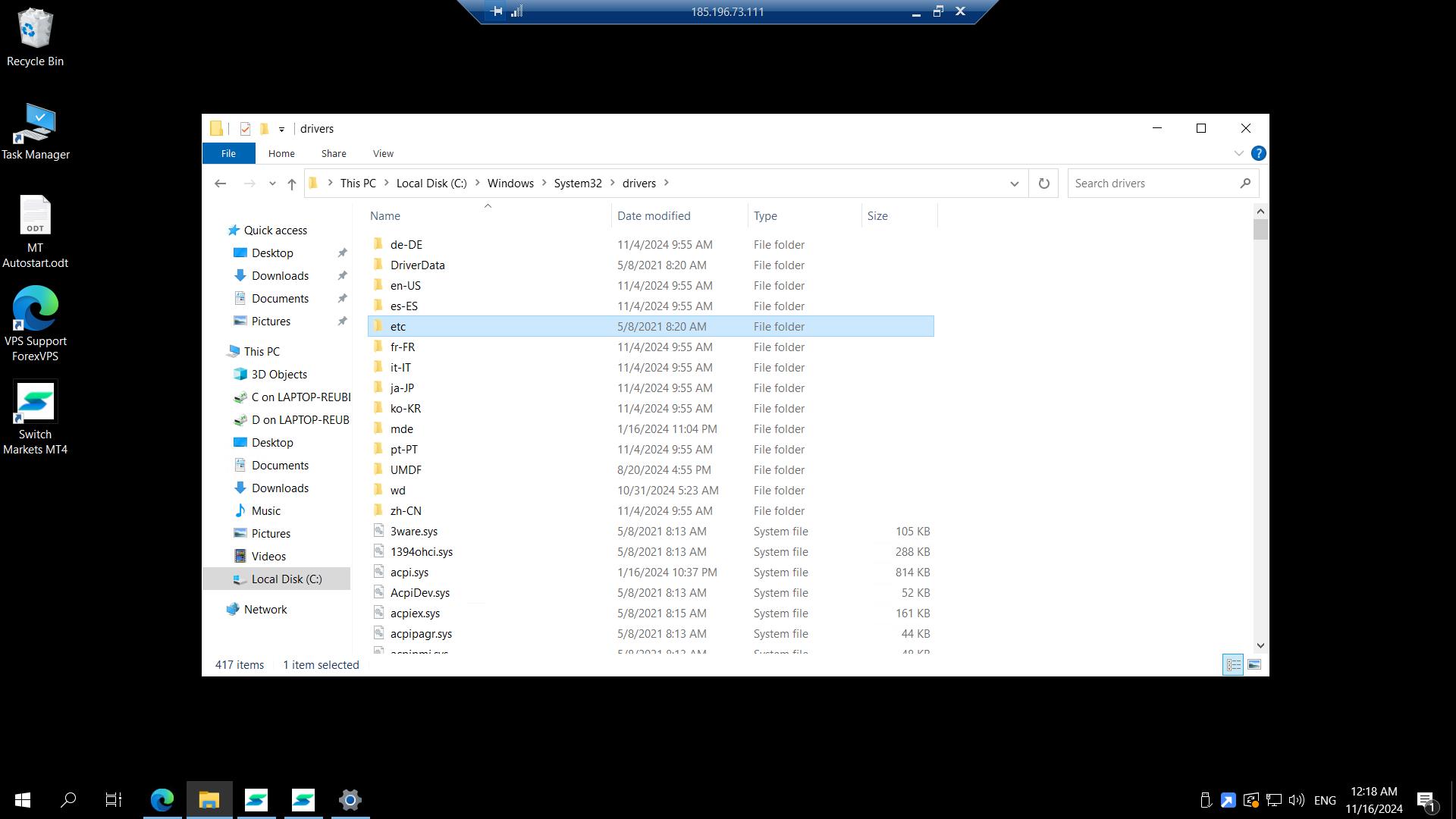
Step 3: Delete the HOSTS file
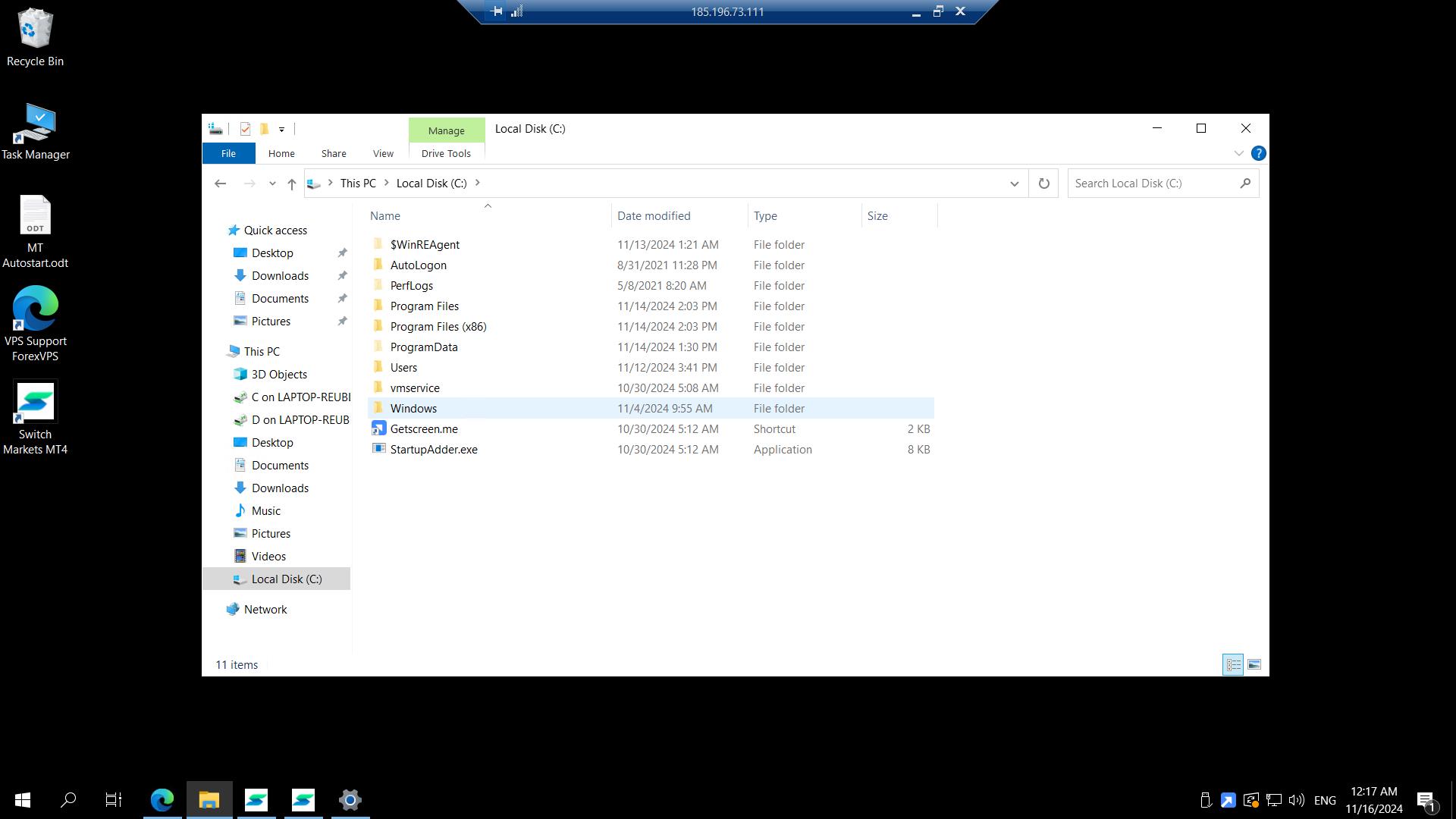
Select the HOSTS file, then delete it.
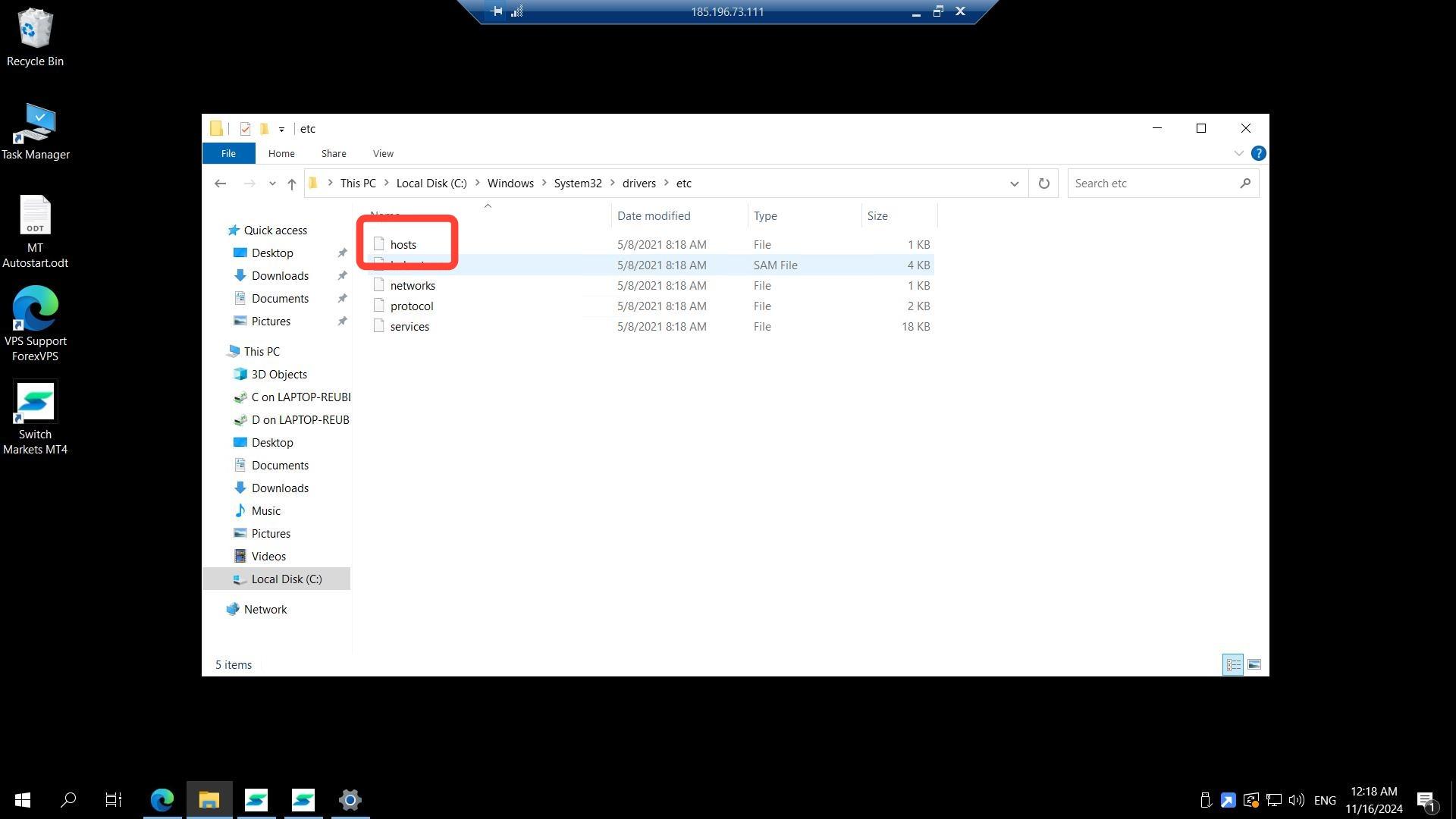
The etc folder should look like this after deleting just the Hosts file — nothing else should be removed.
Step 4: Retest MetaTrader or MQL5
Close the folder window and try to install MetaTrader again, or access MQL5 from within MetaTrader.
Method 2: Install MT4/5 from a different broker
If deleting the Hosts file doesn’t resolve the issue, test with a MetaTrader installer from a different broker to isolate whether the problem is broker-specific.
Step 5: Download another broker’s MT4/5
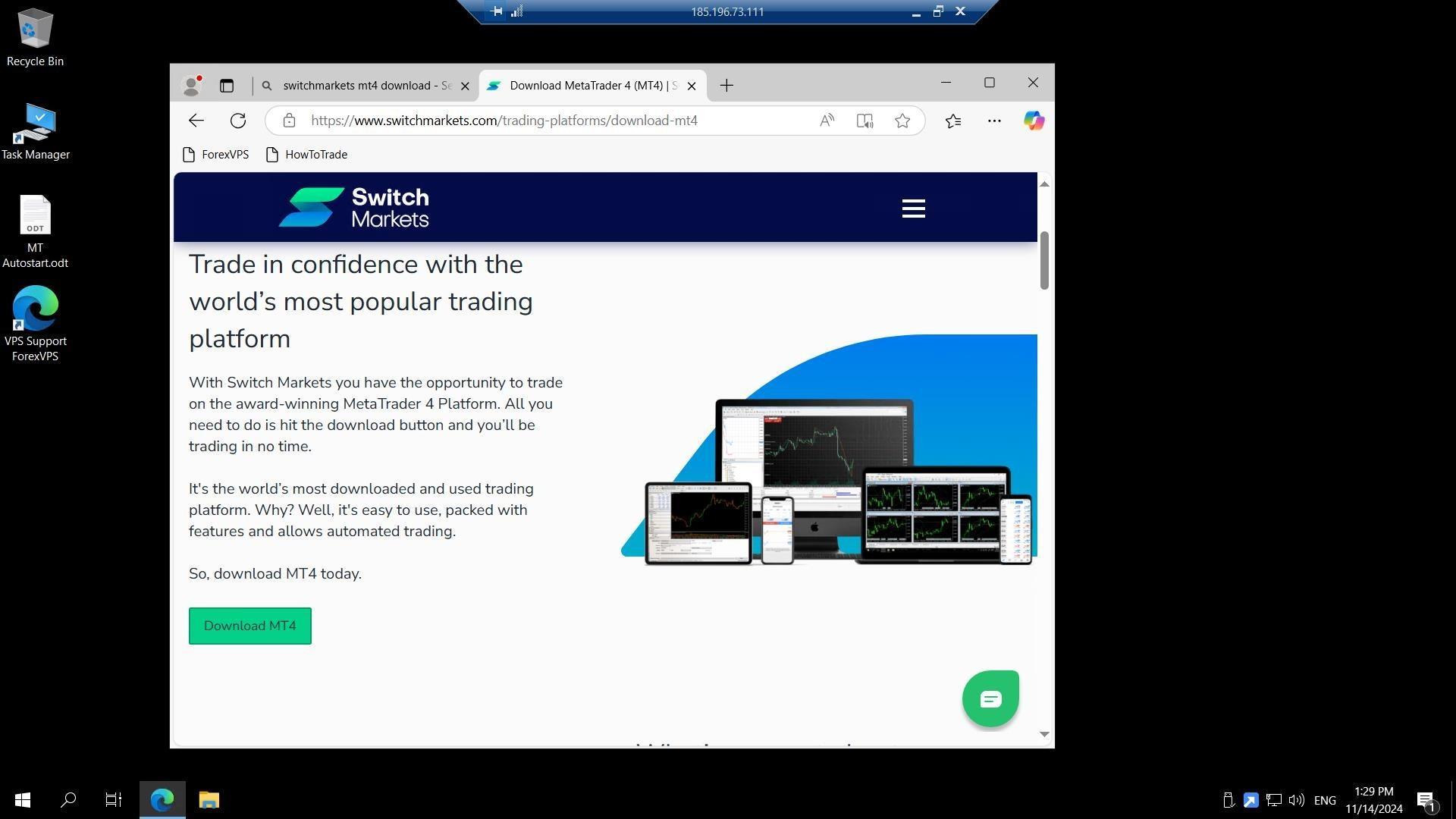
Go to another broker’s website and download their MT4/5 platform.
Step 6: Run the installer
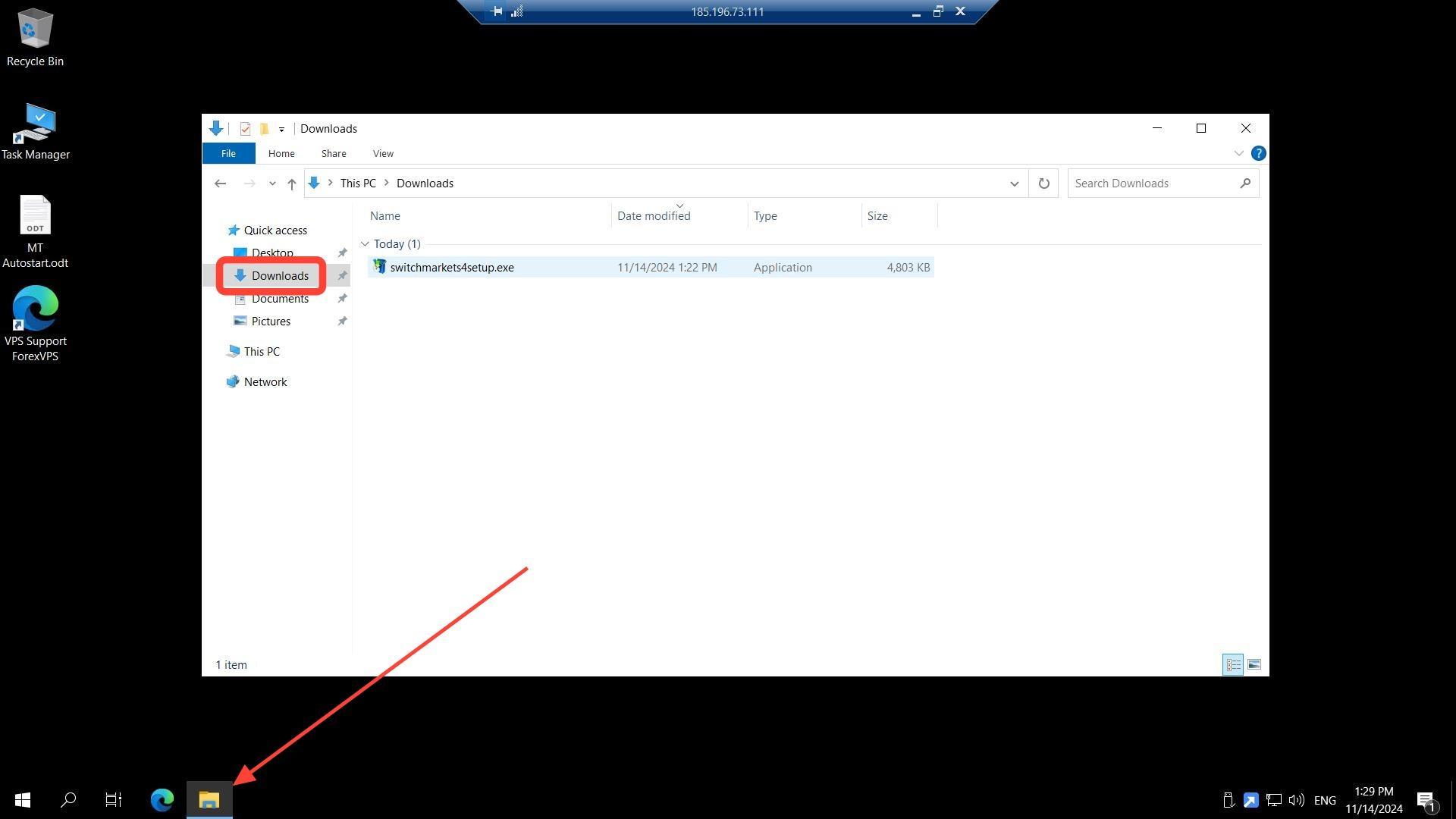
Double-click the installer once saved in the Downloads folder.
Step 7: Complete the installation
Click Next through the setup.
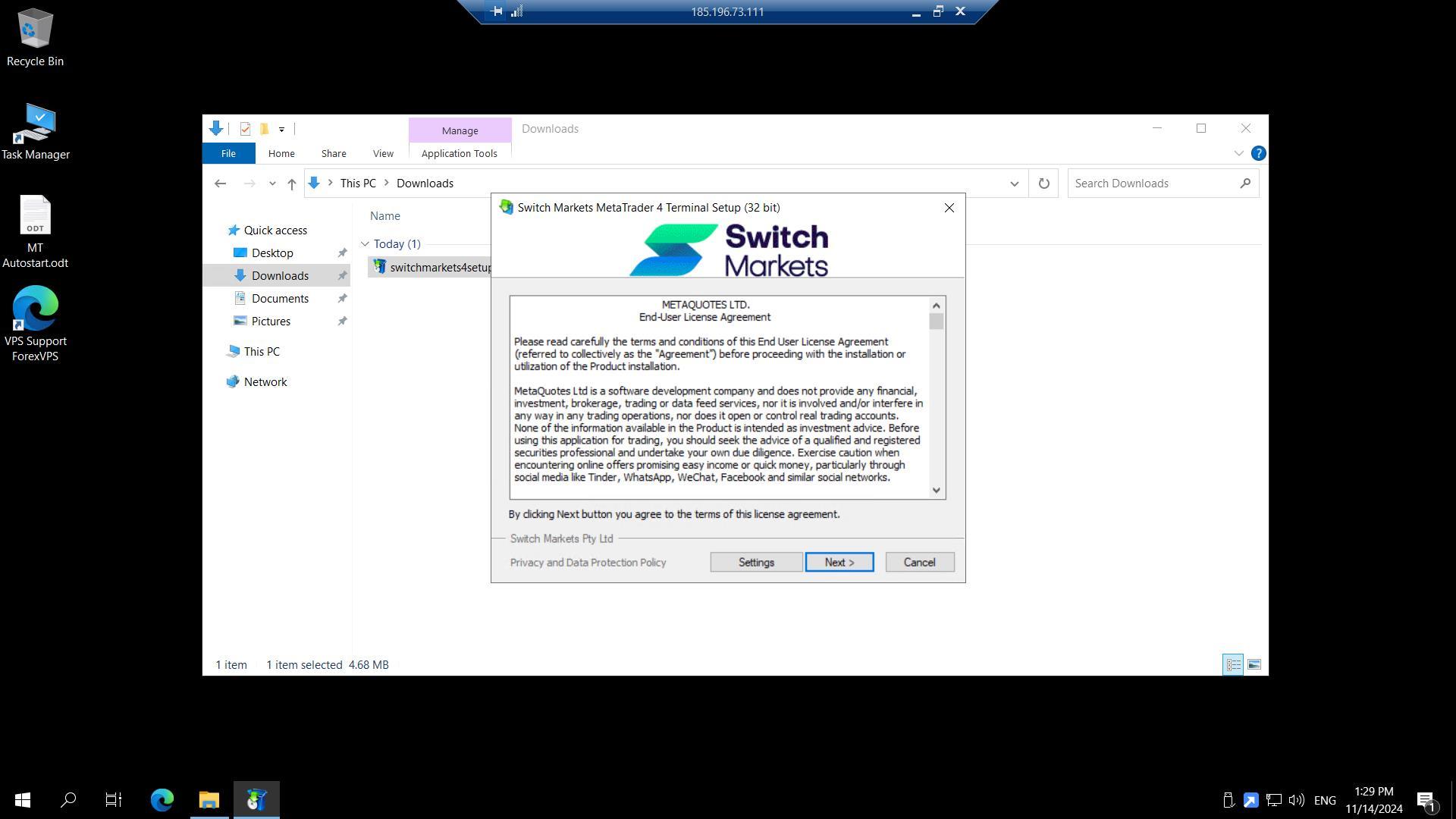
Step 8: Test again
Test the connection again once installation finishes.
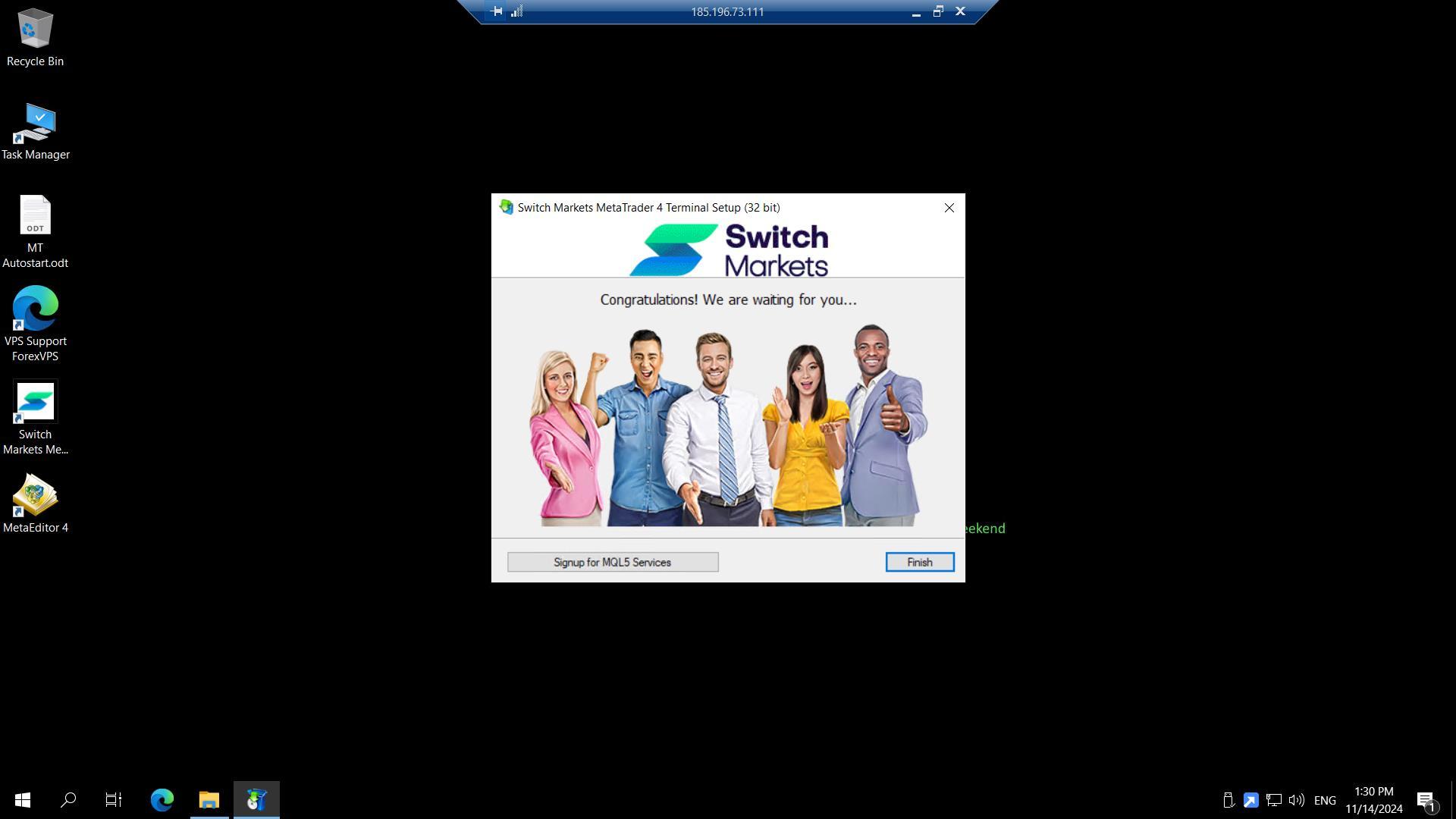
Method 3: Install on your PC and copy to your ForexVPS via RDP
If direct downloads inside your ForexVPS keep failing, install the alternate broker’s platform on your local PC and transfer it to your ForexVPS over Remote Desktop.
Step 9: Install MT4/5 on your PC
Install another MT4/5 from a different broker on your local PC and save it in a PC folder.
Step 10: Open RDP and show options
Click START and type RDP, then click Show Options.
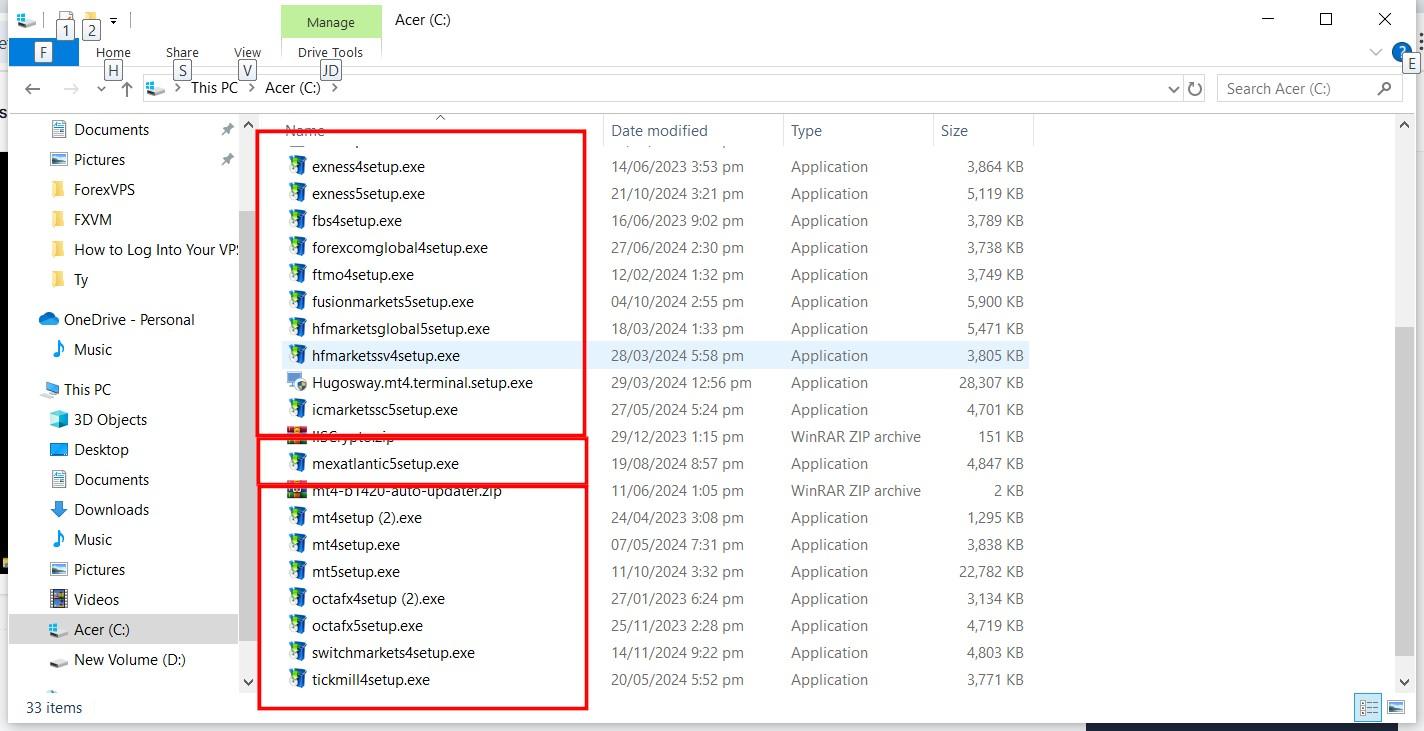
Step 11: Enable local drives under Local Resources
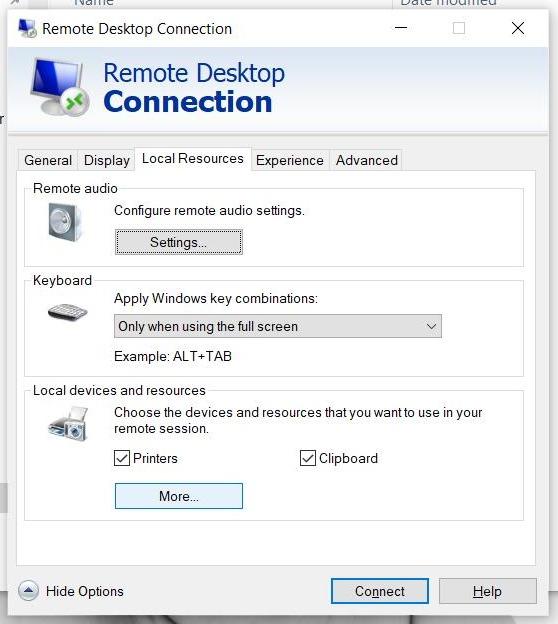
Click Local Resources, then More.
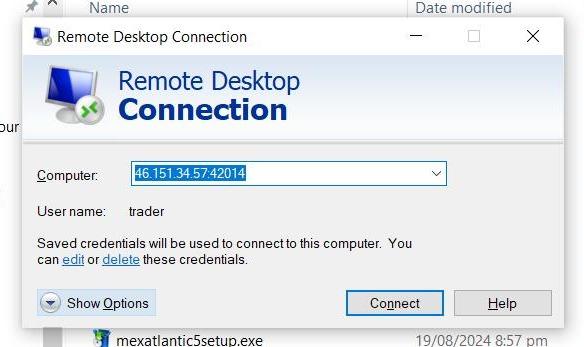
Step 12: Share the drive with the installer
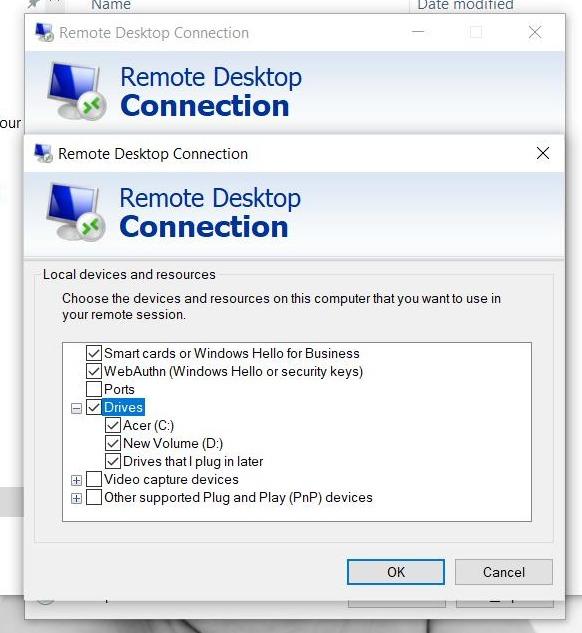
Click Drives and check the drive where you saved the MT4/5 installer, then click OK. This shares your local PC drive into your ForexVPS session so you can drag and drop the installer directly into your ForexVPS.
Method 4: Move your ForexVPS to another location
If the proxy pop-up still appears during installation after trying the methods above, the issue is most likely that your broker has blocked installations from your ForexVPS’s current location or IP geolocation is affecting MQL market access. Changing your ForexVPS’s location and IP resolves this in most cases. Contact ForexVPS support to have your ForexVPS moved to a different location.
Troubleshooting MetaTrader installation and MQL5 access
Running into problems installing MetaTrader or accessing MQL5? Here are fixes for the most common issues.
| Problem | Likely cause | Fix |
|---|---|---|
| Cannot access MQL5 from MetaTrader | Corrupted Hosts file | Delete the HOSTS file at C:\Windows\System32\drivers\etc\hosts and retest. |
| MetaTrader won’t install / proxy error | Broker blocked installation from your ForexVPS location | Try installing from a different broker to confirm, then contact support about moving your ForexVPS location. |
| MQL.com not accessible | IP geolocation issue | Request a location/IP change from ForexVPS support. |
| Can’t drag and drop installer into your ForexVPS | Local drive sharing not enabled | Enable drive sharing under Local Resources > More > Drives before connecting. |
Frequently asked questions about MetaTrader installation and MQL5 login issues
Still have questions about troubleshooting MetaTrader installation and MQL5 login issues? Find quick answers below.
Why does deleting the Hosts file fix MQL5 access?
A corrupted or manually edited Hosts file can block domain resolution needed to reach MQL5 servers. Deleting it lets Windows regenerate a clean default file.
Why does MetaTrader show a proxy error during installation?
This typically happens when your broker has blocked installation from your ForexVPS’s current geographic location or IP range.
How do I transfer an installer to my ForexVPS if downloads keep failing?
Install the platform on your local PC first, enable drive sharing under Remote Desktop’s Local Resources settings, then drag and drop the installer into your ForexVPS session.
What’s the last resort if none of these methods work?
Contact ForexVPS support to have your ForexVPS moved to a different server location — this resolves most broker-side geographic blocks.