
Learn how to properly install the Trading View software inside your Forex VPS using PowerShell in a video tutorial guide.
You can run TradingView Desktop directly on your ForexVPS alongside your existing trading platforms. This guide walks you through downloading the installer, installing a required dependency, and completing the setup using PowerShell — all in under ten minutes.
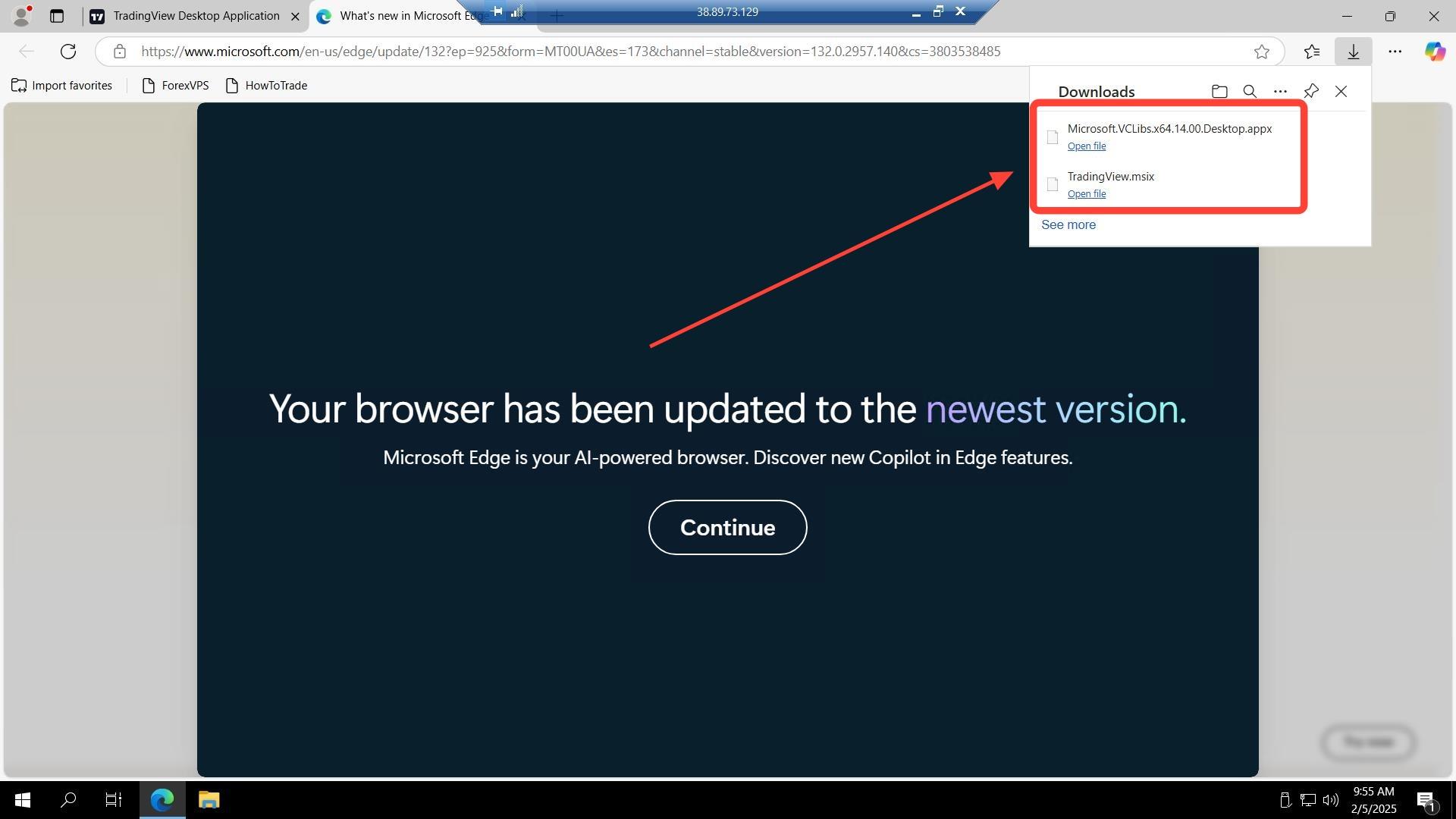
Before you start: Make sure both downloaded files end up in C:\Users\Administrator\Downloads — the PowerShell commands in this guide reference that exact path.
What you’ll need
- An active ForexVPS instance you’re already logged into
- Administrator access on your ForexVPS (default for ForexVPS accounts)
- A working internet connection inside your ForexVPS
Part 1: Download the required files
TradingView Desktop requires a Microsoft dependency package to install correctly. Download both files before running any commands.
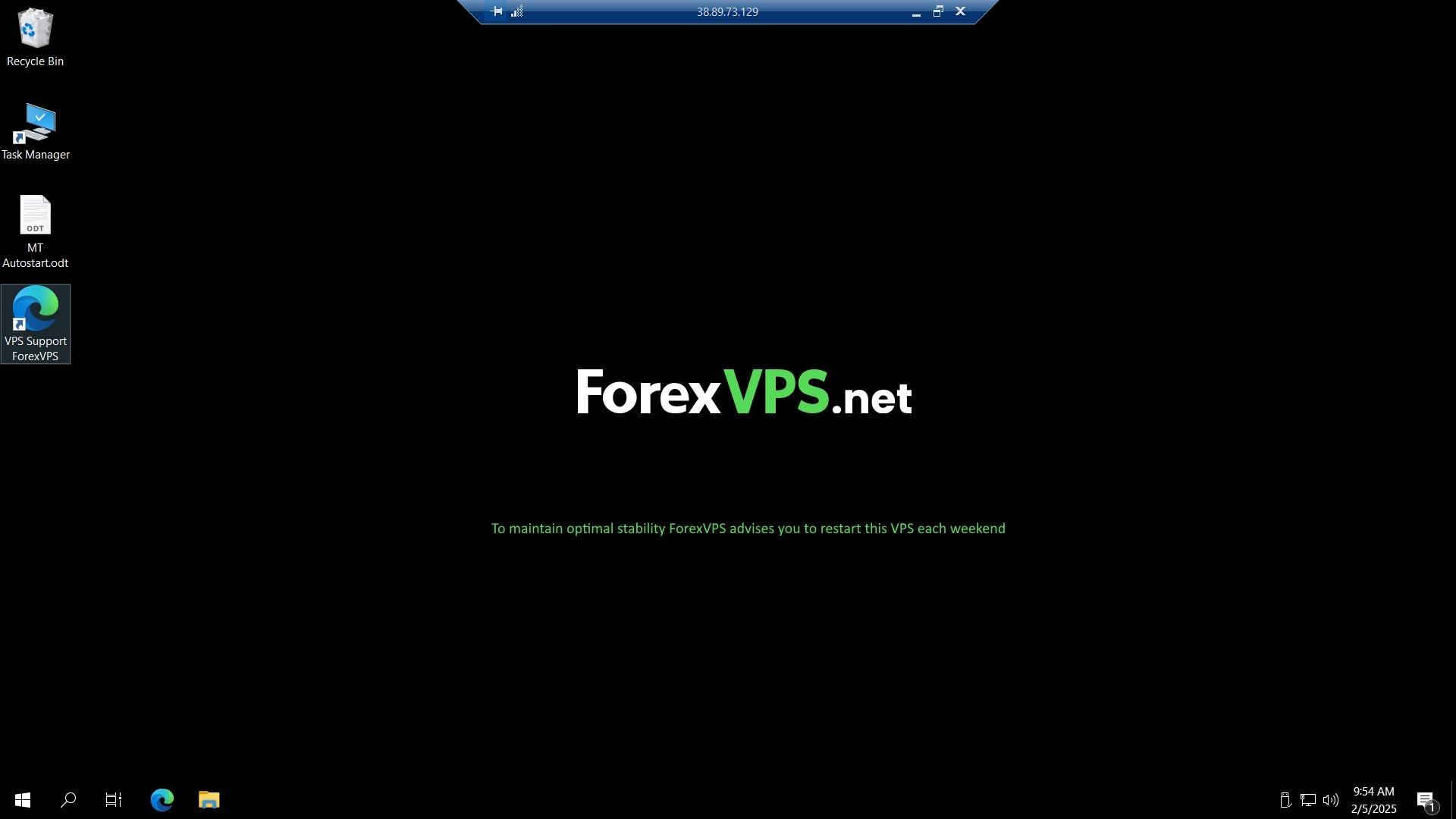
Step 1: Open the internet browser inside your ForexVPS
Once logged inside your ForexVPS, open the internet browser.
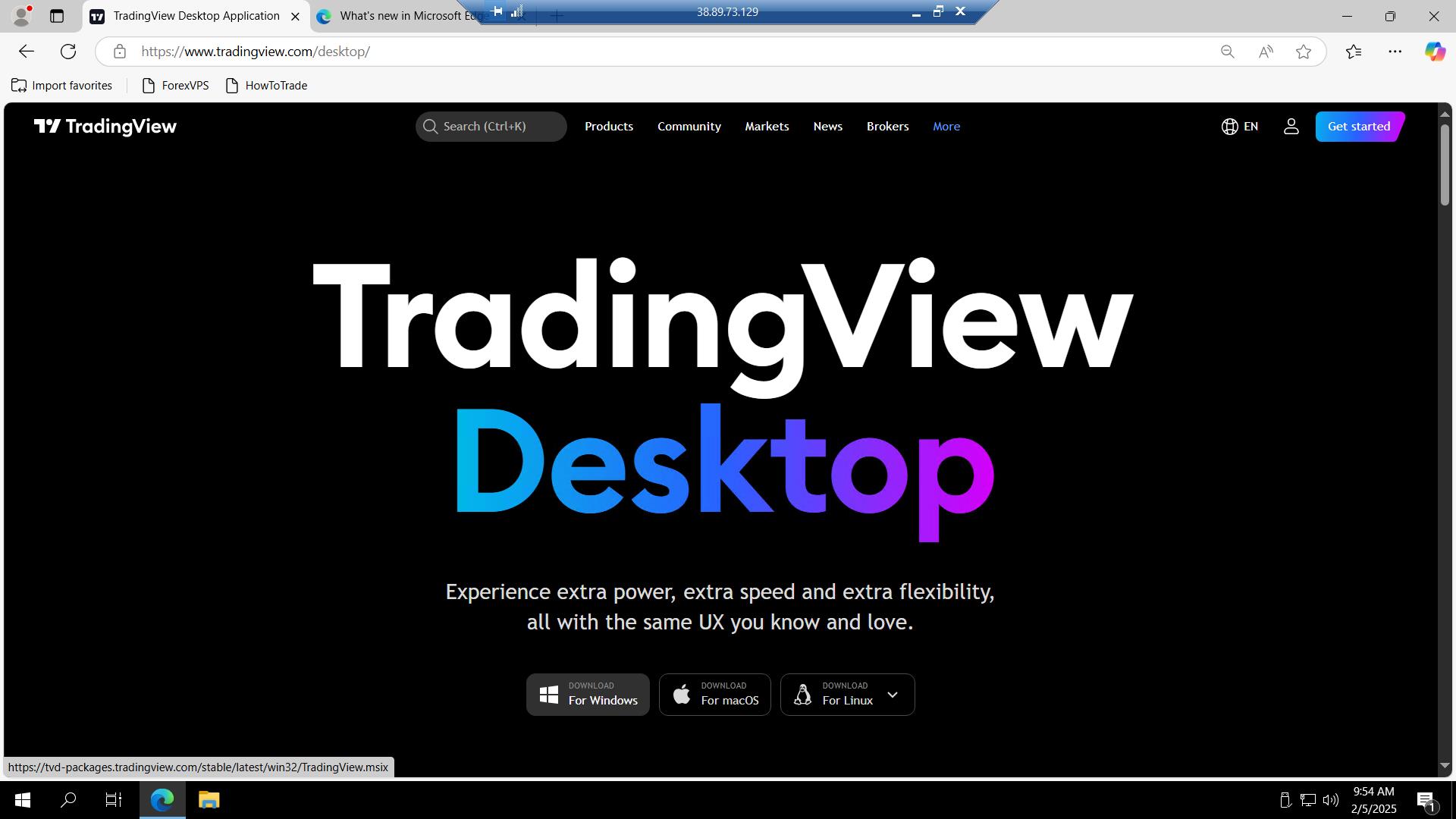
Step 2: Download the TradingView installer
Go to tradingview.com/desktop then download the installer for TradingView.
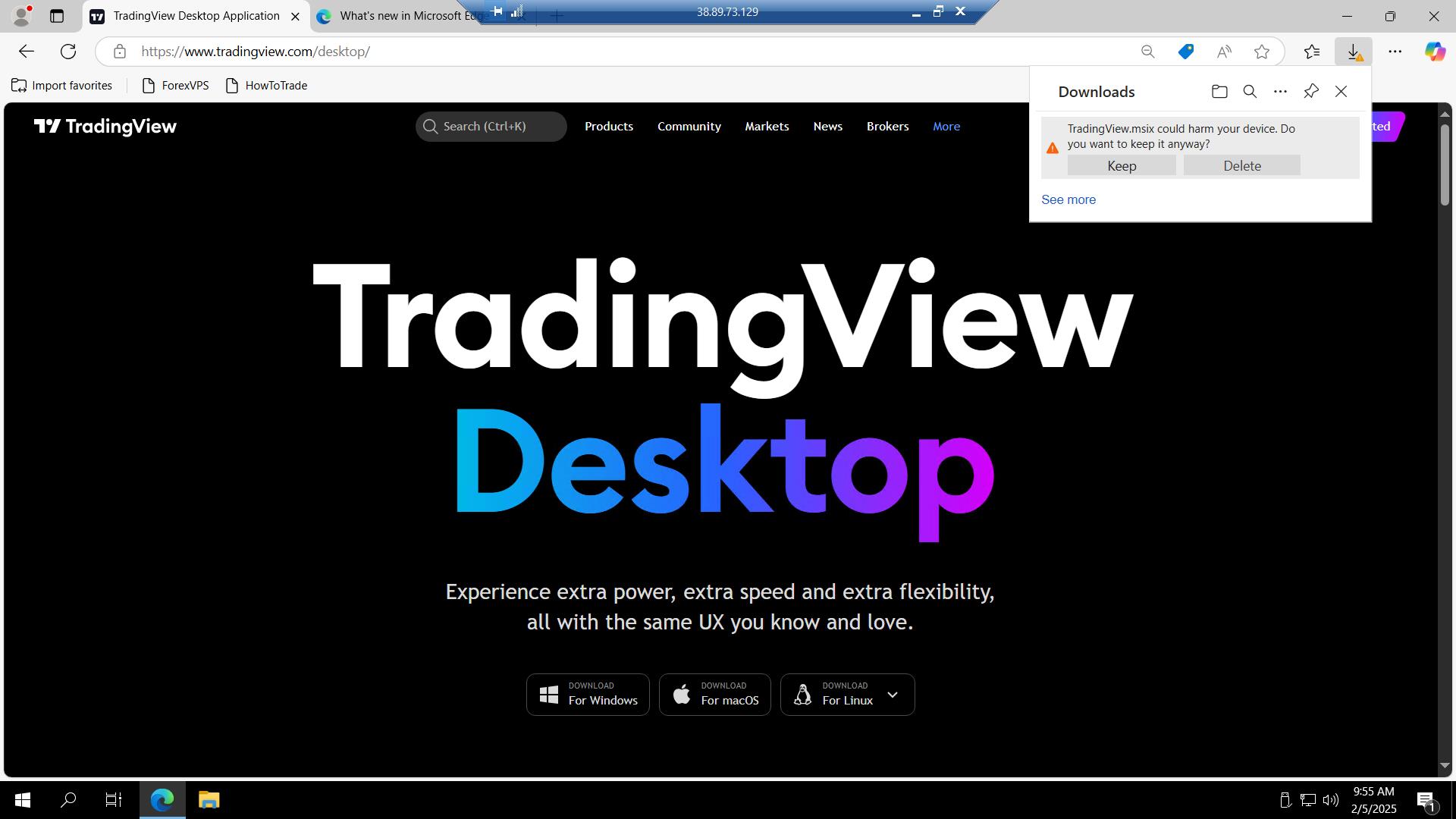
Step 3: Keep the downloaded file
Wait until the download is complete and ensure you click Keep on the downloaded file — some browsers flag installer files by default and will discard them unless confirmed.
Step 4: Download the required VCLibs dependency
On another tab, paste this URL and download it: aka.ms/Microsoft.VCLibs.x64.14.00.Desktop.appx. Make sure both files end up in the same folder: C:\Users\Administrator\Downloads.
Part 2: Install via PowerShell
With both files downloaded, use PowerShell to install the dependency first, then TradingView itself.
Step 5: Open PowerShell
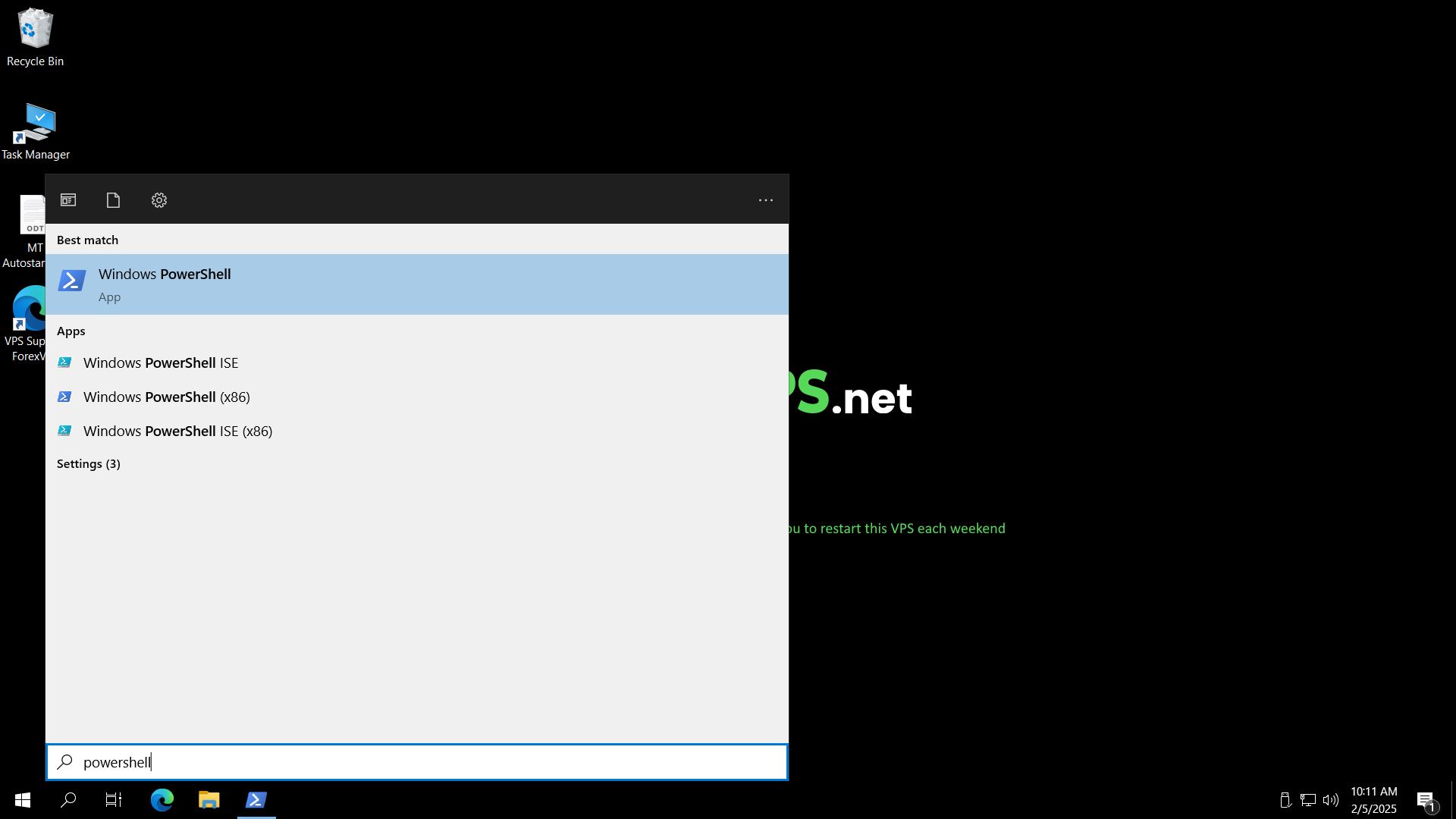
Go to Start then open PowerShell. Right-click and select Run as administrator if it doesn’t launch with admin rights by default.
Step 6: Install the VCLibs dependency
Copy and paste this command into PowerShell as admin:
Add-AppxPackage -path C:\Users\Administrator\Downloads\Microsoft.VCLibs.x64.14.00.Desktop.appx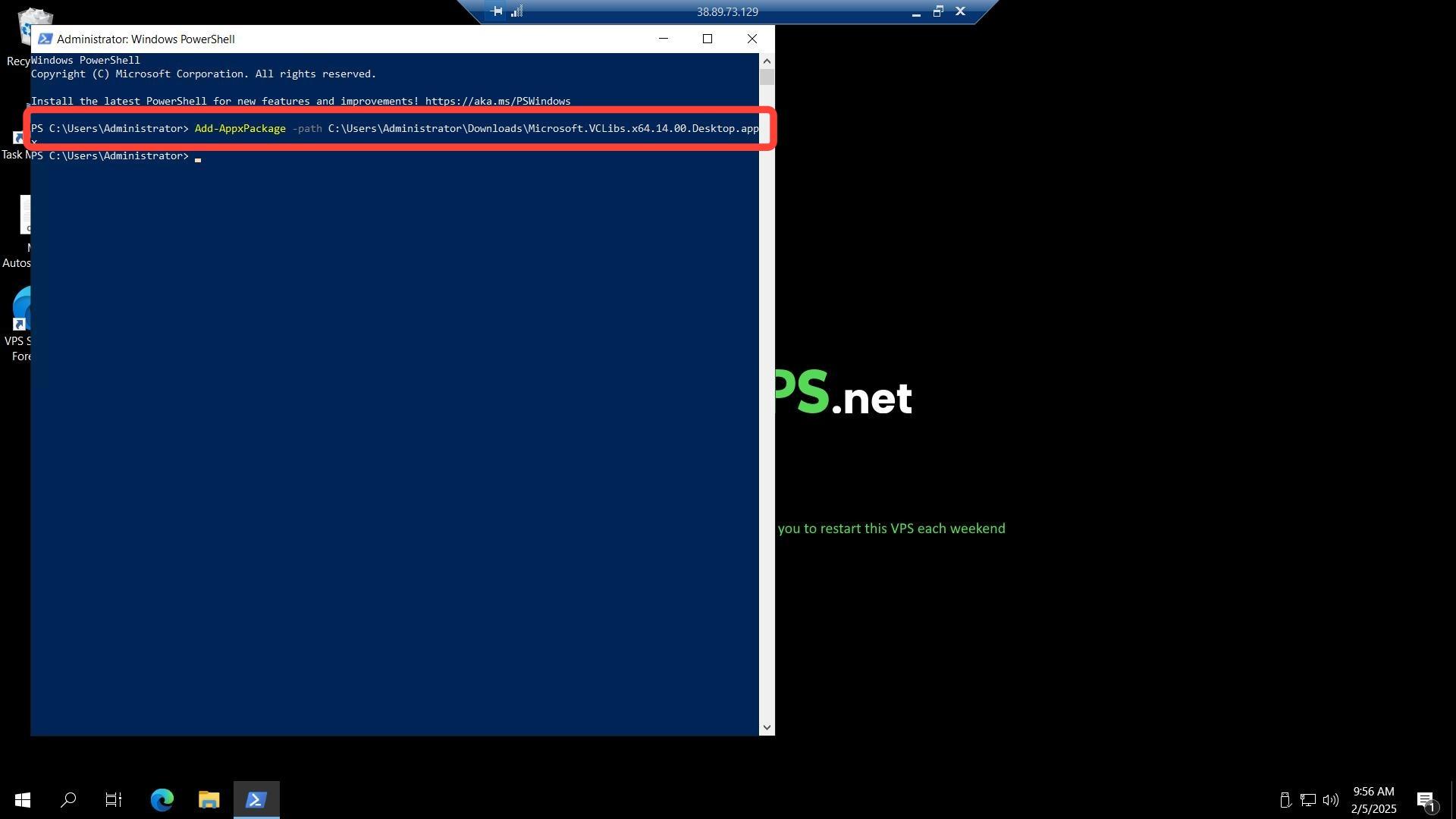
Step 7: Install TradingView
Copy and paste this command into PowerShell as admin:
Add-AppxPackage -path C:\Users\Administrator\Downloads\TradingView.msix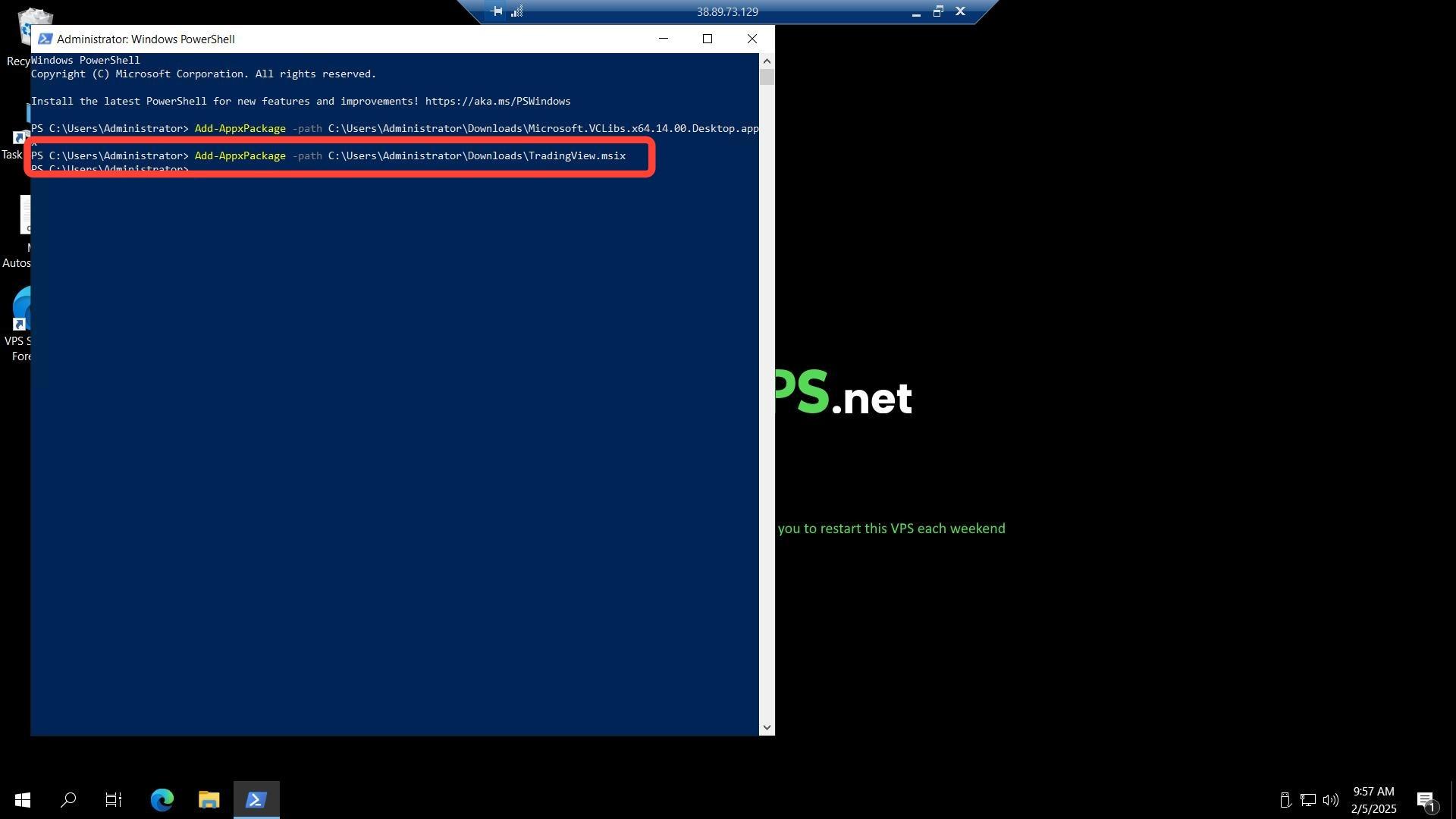
Part 3: Launch TradingView
Step 8: Search for TradingView in the Start menu
Once the installation process is done, go to Start then search for TradingView.
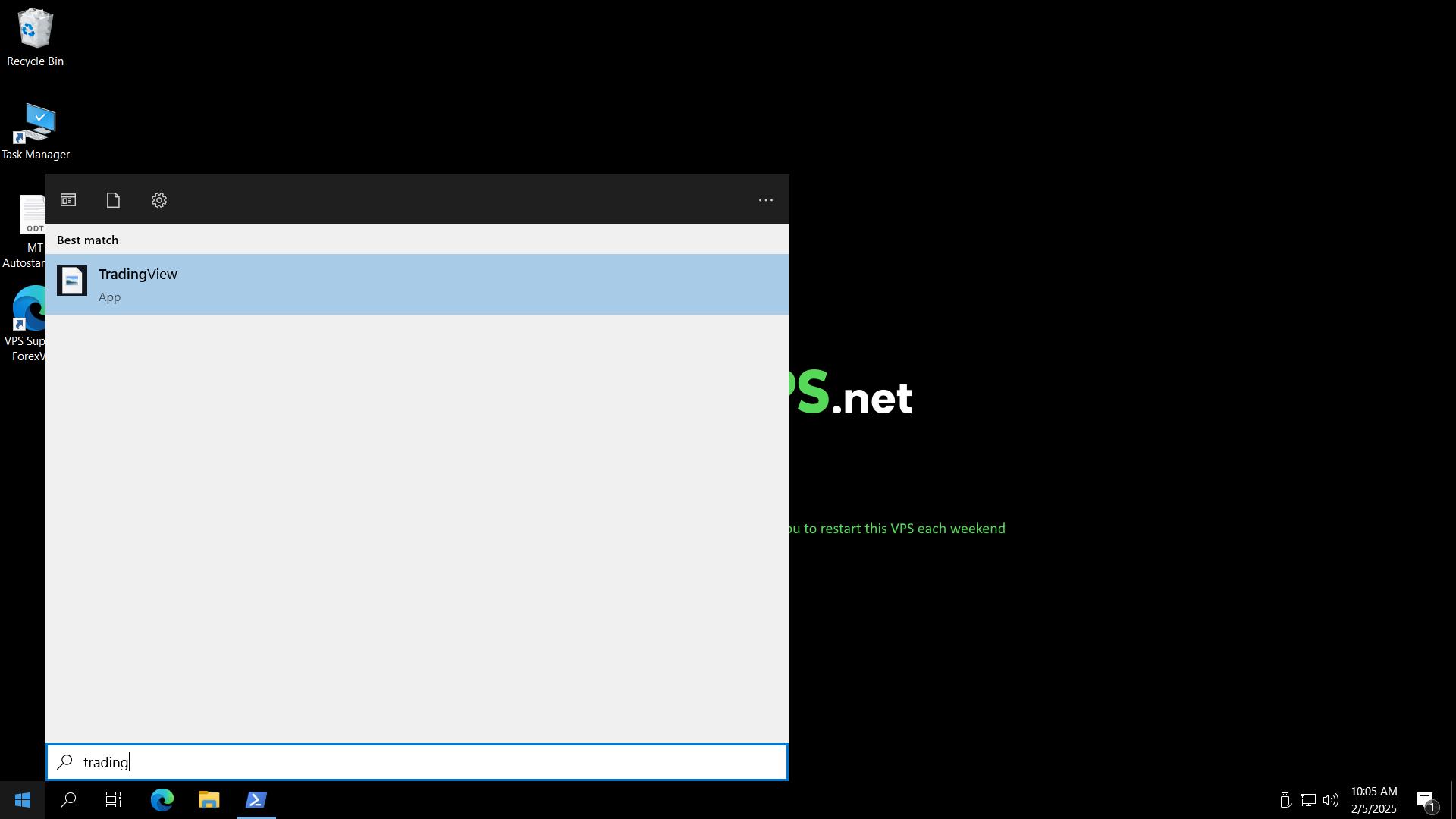
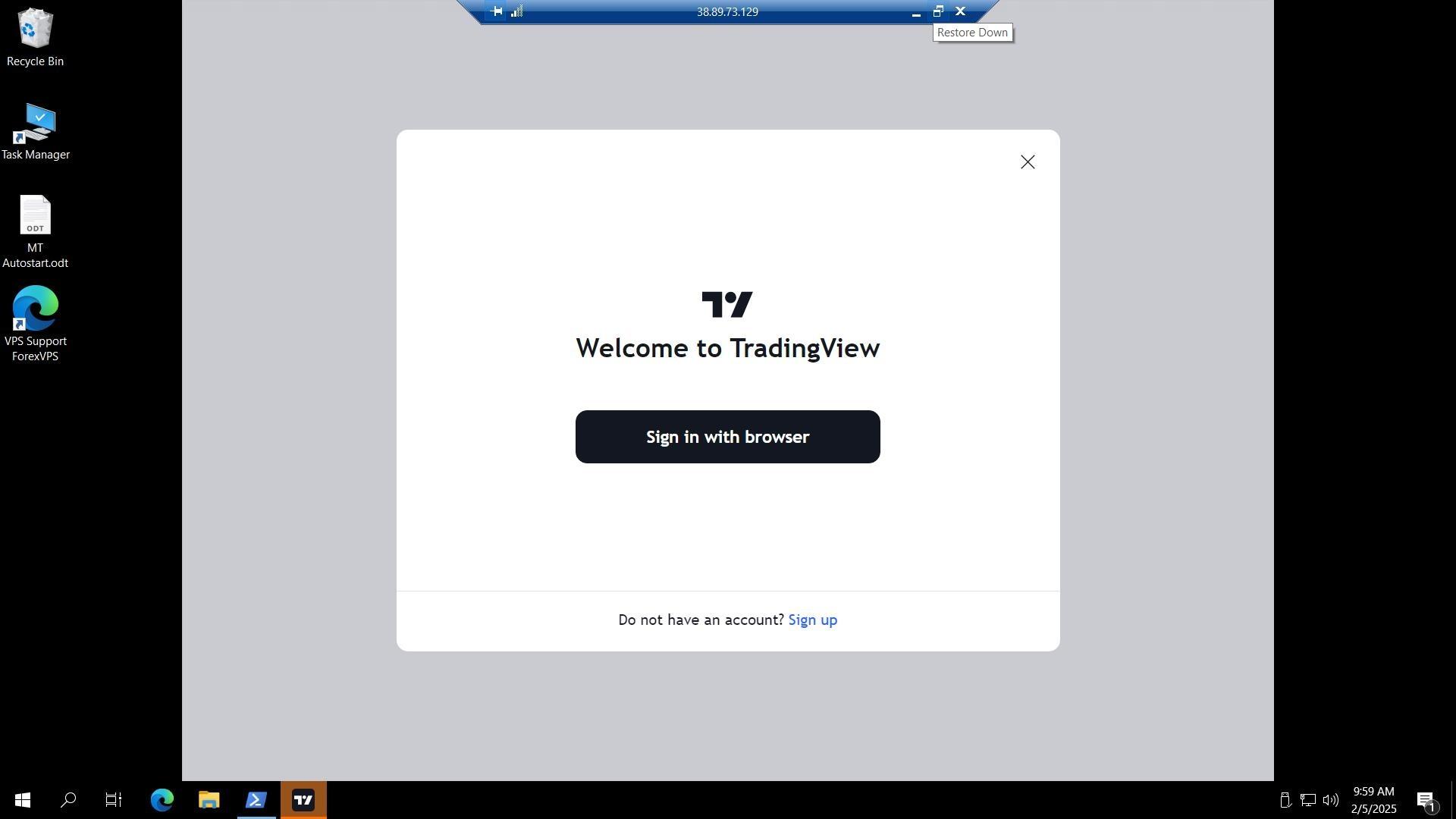
Step 9: Confirm TradingView is installed
TradingView opens and is now installed on your ForexVPS, ready to use alongside your other trading platforms.
Troubleshooting TradingView Installation
If the installation isn’t going as expected, check these common fixes.
| Problem | Likely cause | Fix |
|---|---|---|
| “Add-AppxPackage” command fails | PowerShell not running as administrator | Right-click PowerShell and select Run as administrator, then re-run the command. |
| “Cannot find path” error in PowerShell | Files not saved to the expected Downloads folder | Confirm both files are in C:\Users\Administrator\Downloads before running the commands. |
| TradingView installer blocked by browser | Browser security warning on unrecognized file | Click Keep on the download prompt to allow the installer file through. |
| VCLibs install fails with dependency error | VCLibs installed after TradingView instead of before | Always install Microsoft.VCLibs first, then TradingView — the order matters. |
Frequently Asked Questions About Installing TradingView on Your ForexVPS
Still have questions about setting up TradingView Desktop? Find quick answers below.
Why do I need to install Microsoft VCLibs before TradingView?
TradingView Desktop is packaged as an MSIX file, which depends on the Microsoft Visual C++ Libraries (VCLibs) runtime. Without installing VCLibs first, the TradingView installation will fail.
Can I install TradingView without using PowerShell?
No. TradingView Desktop is distributed as an MSIX package, which requires Add-AppxPackage in PowerShell to install on Windows Server environments like ForexVPS — double-clicking the file alone won’t complete the install.
Where should I save the installer files?
Save both the TradingView installer and the VCLibs package to C:\Users\Administrator\Downloads. The PowerShell commands in this guide reference that exact path.
Is TradingView free to use on my ForexVPS?
TradingView Desktop itself is free to install and use with a free TradingView account. Premium TradingView features require a separate TradingView subscription, unrelated to your ForexVPS plan.
Can I run TradingView alongside MT4 or MT5 on the same ForexVPS?
Yes. TradingView installs independently and runs alongside MT4, MT5, or any other trading platform already installed on your ForexVPS.