
Learn how to connect to your ForexVPS using Remote Desktop Connection on Windows — step-by-step with screenshots covering credentials, RDP setup, and login.
After your ForexVPS is provisioned, you connect to it using Windows’ built-in Remote Desktop Connection (RDP) app — letting you access and control your ForexVPS from any Windows PC. This guide walks you through finding your ForexVPS credentials inside the ForexVPS client area and establishing the connection in under five minutes.
Before you start: ForexVPS has a 15-minute provisioning period after purchase. Your ForexVPS credentials are sent to your registered email once provisioning completes. If you haven’t received anything yet, wait out the provisioning window, then follow the steps below.
What you’ll need
- A ForexVPS account with an active VPS subscription
- A Windows PC (Windows 10 or 11 recommended)
- Access to the ForexVPS client area, or your ForexVPS welcome email
Part 1: Find your ForexVPS credentials
Your Main IP, Port, Username, and Password are all in the welcome email ForexVPS sends after provisioning. You can access this email directly inside the client area — no inbox hunting required.
Step 1: Log in to the ForexVPS client area
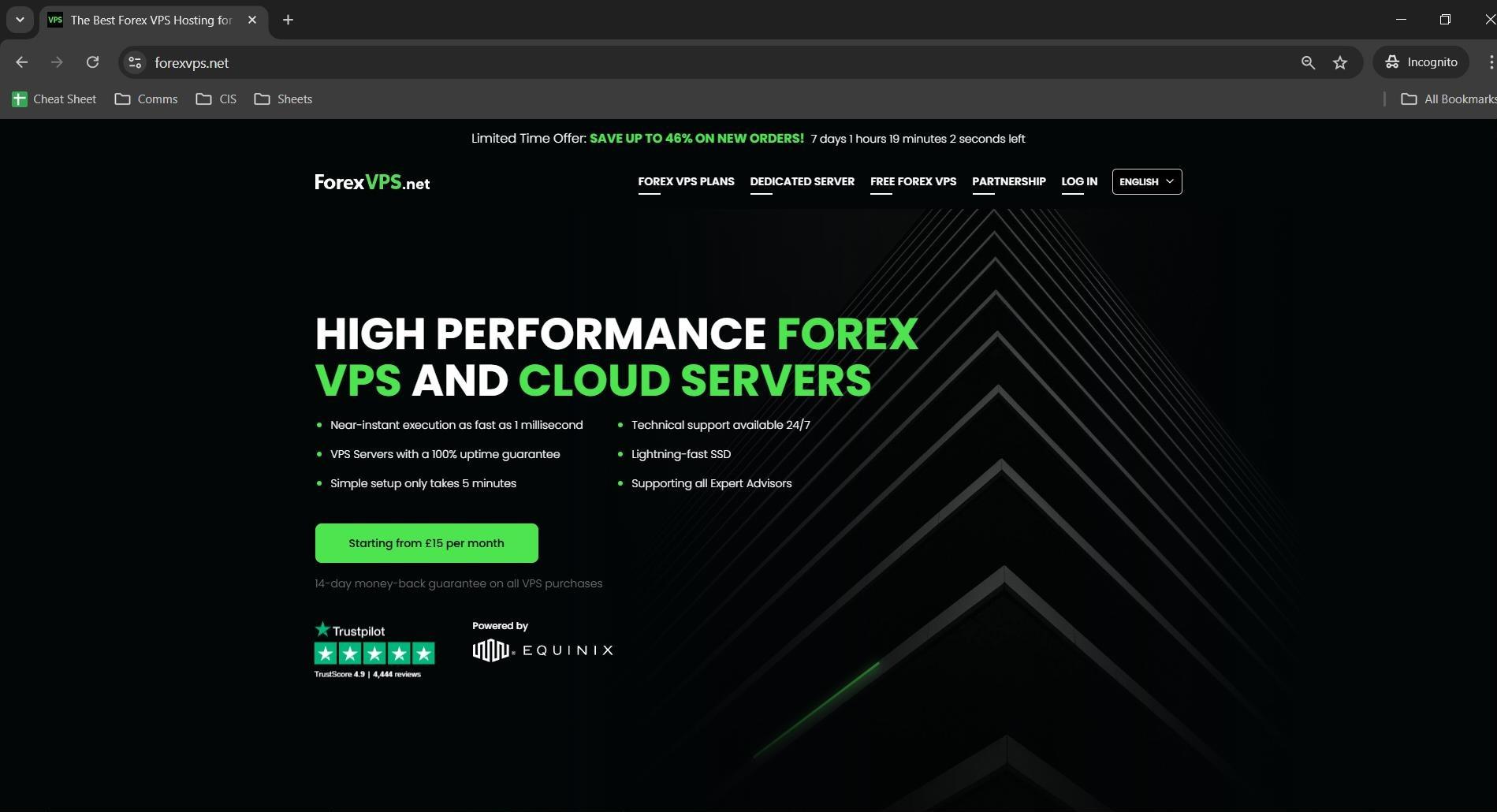
Go to forexvps.net and click Login in the top navigation to open the client area login page.
Step 2: Enter your credentials and complete the captcha
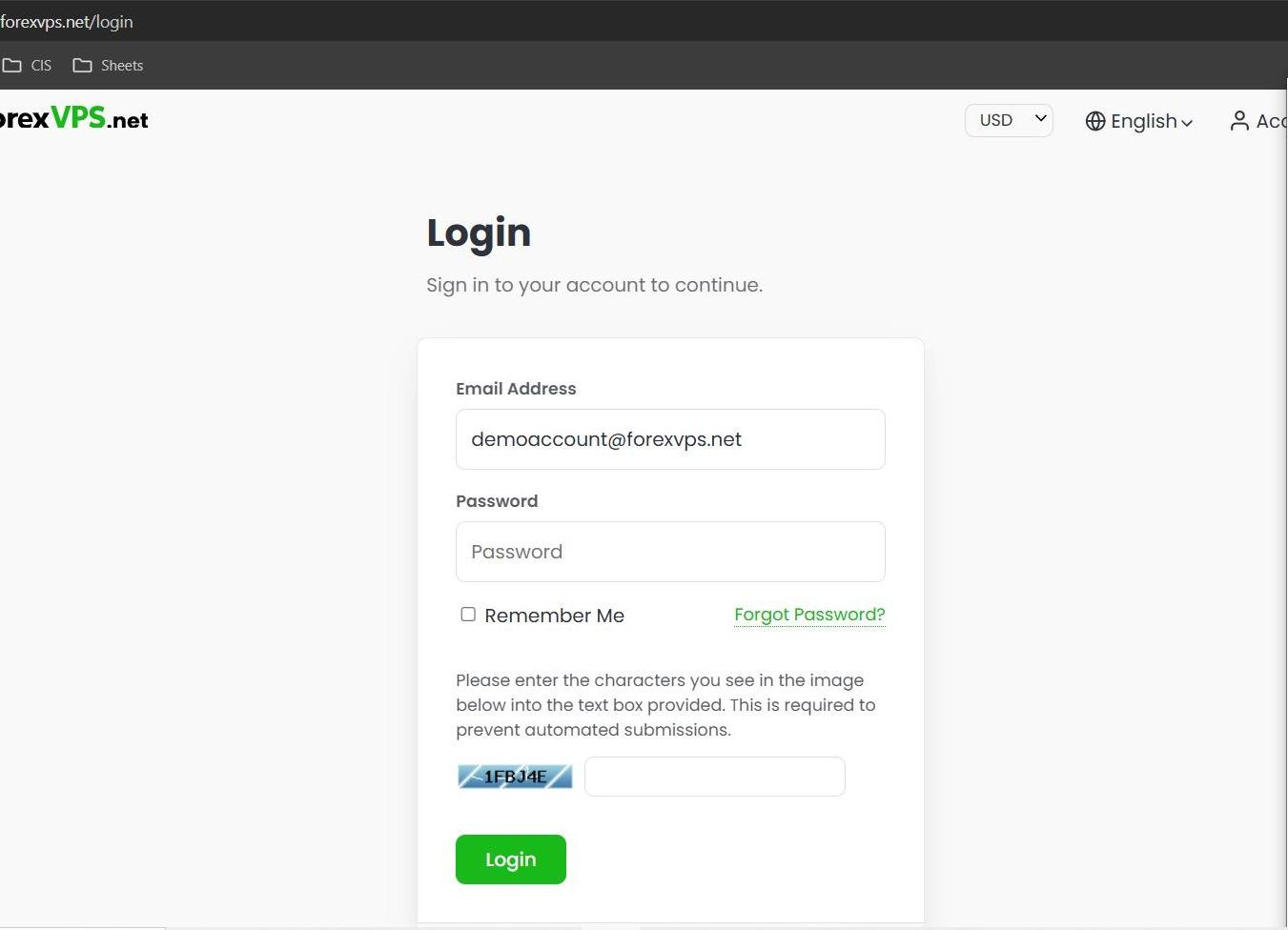
Type your Email address and Password, complete the captcha, then click Login. This logs you into your ForexVPS client account — not your ForexVPS itself.
Step 3: Open your profile menu
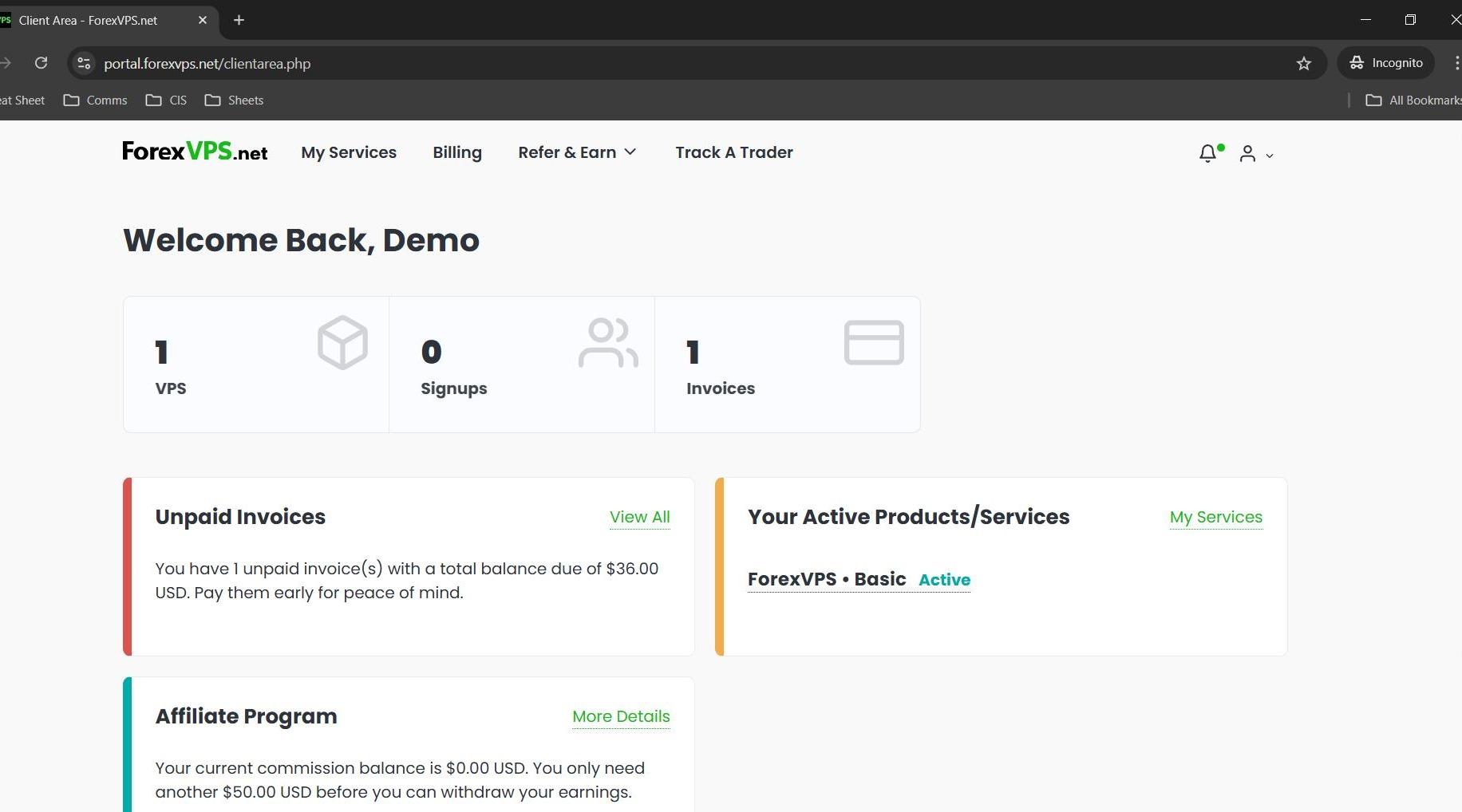
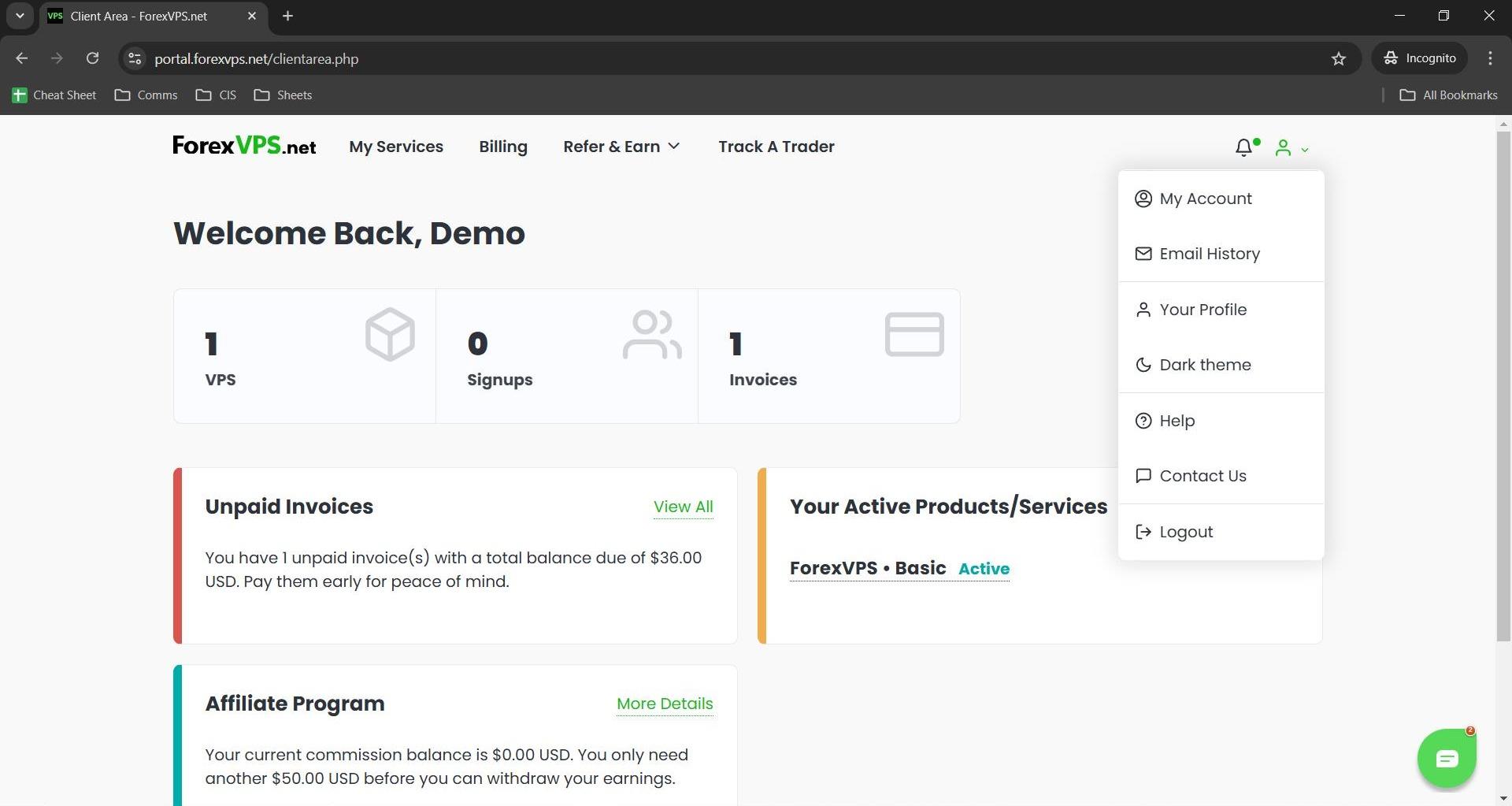
Once logged in, click your profile icon in the top-right corner of the dashboard. A dropdown menu appears with account options including Email History.
Step 4: Go to Email History
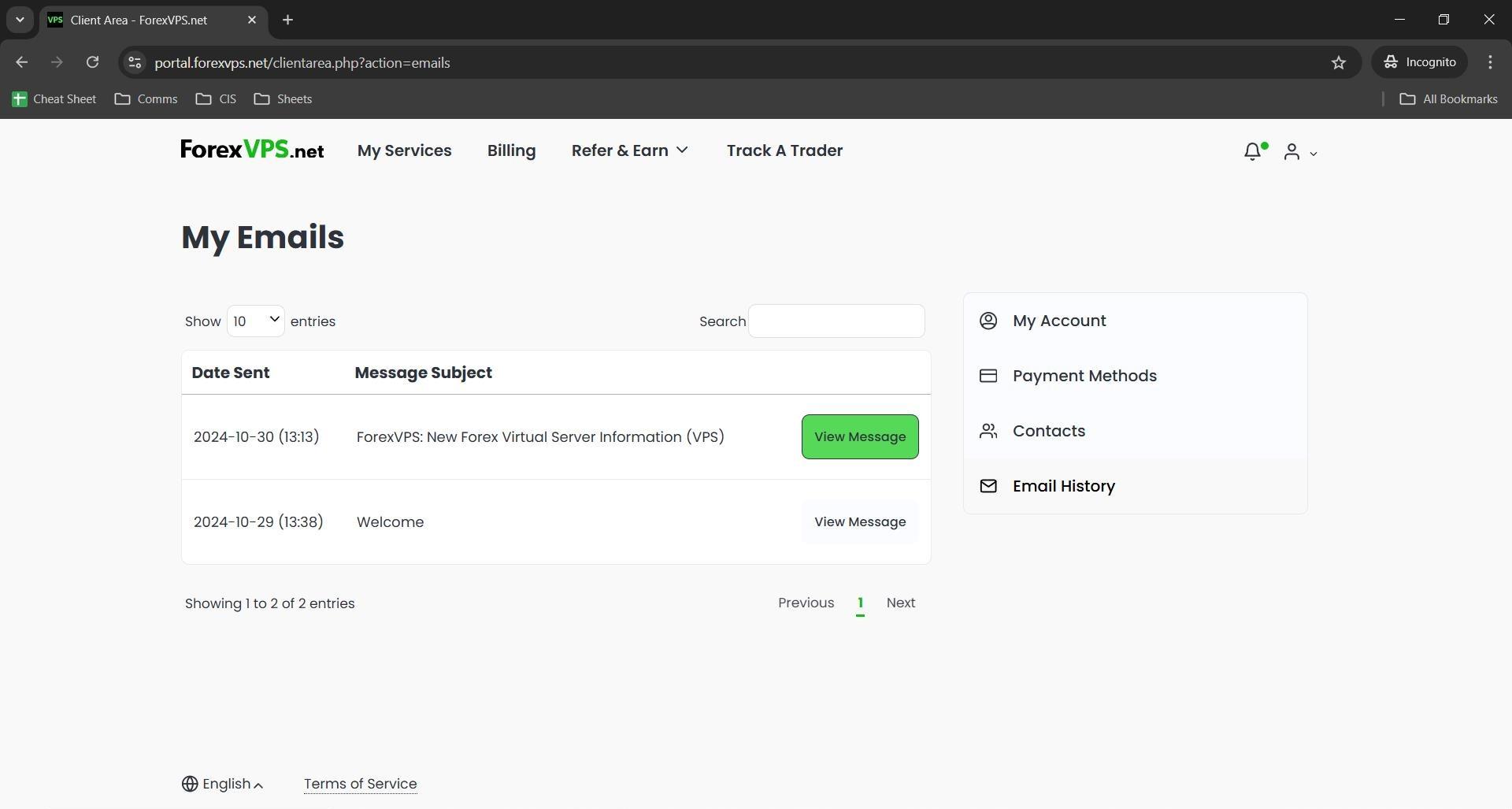
Click Email History from the dropdown. This section stores every system email ForexVPS has sent to your account — including your ForexVPS welcome email with login details. This is the most reliable place to find your credentials, regardless of your email provider’s spam filters.
Step 5: Open your ForexVPS welcome email
Locate the ForexVPS welcome email in the list and click View Message. This opens the full email with your server login details directly in the browser.
Step 6: Note your ForexVPS login details
The email contains four pieces of information you need for the connection. Keep this tab open or copy them somewhere accessible before moving on.
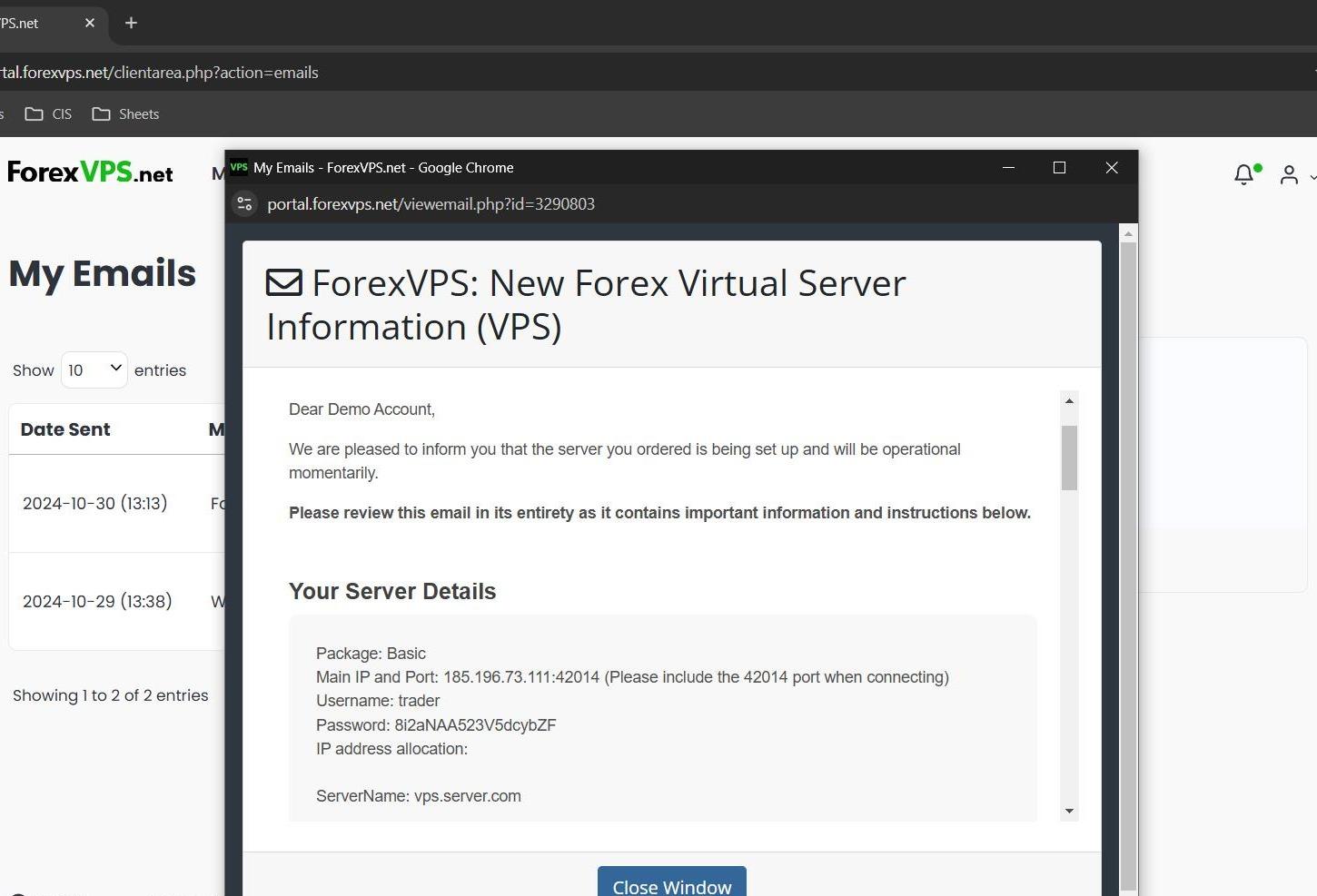
| Field | Description | Example |
|---|---|---|
| Main IP | Your ForexVPS server’s IP address | 123.456.78.90 |
| Port | The RDP port for your connection | 3389 |
| Username | Fixed for all ForexVPS plans | trader |
| Password | Unique to your ForexVPS instance | Alphanumeric string |
Part 2: Connect via Remote Desktop Connection
With your credentials ready, open Windows’ built-in Remote Desktop Connection app and log in to your ForexVPS.
Step 7: Open Remote Desktop Connection and enter your server address
Click Start, search for Remote Desktop Connection, and open it. In the Computer field, enter your Main IP and Port separated by a colon — for example: 123.456.78.90:3389. Omitting the port is the most common reason first-time connections fail.
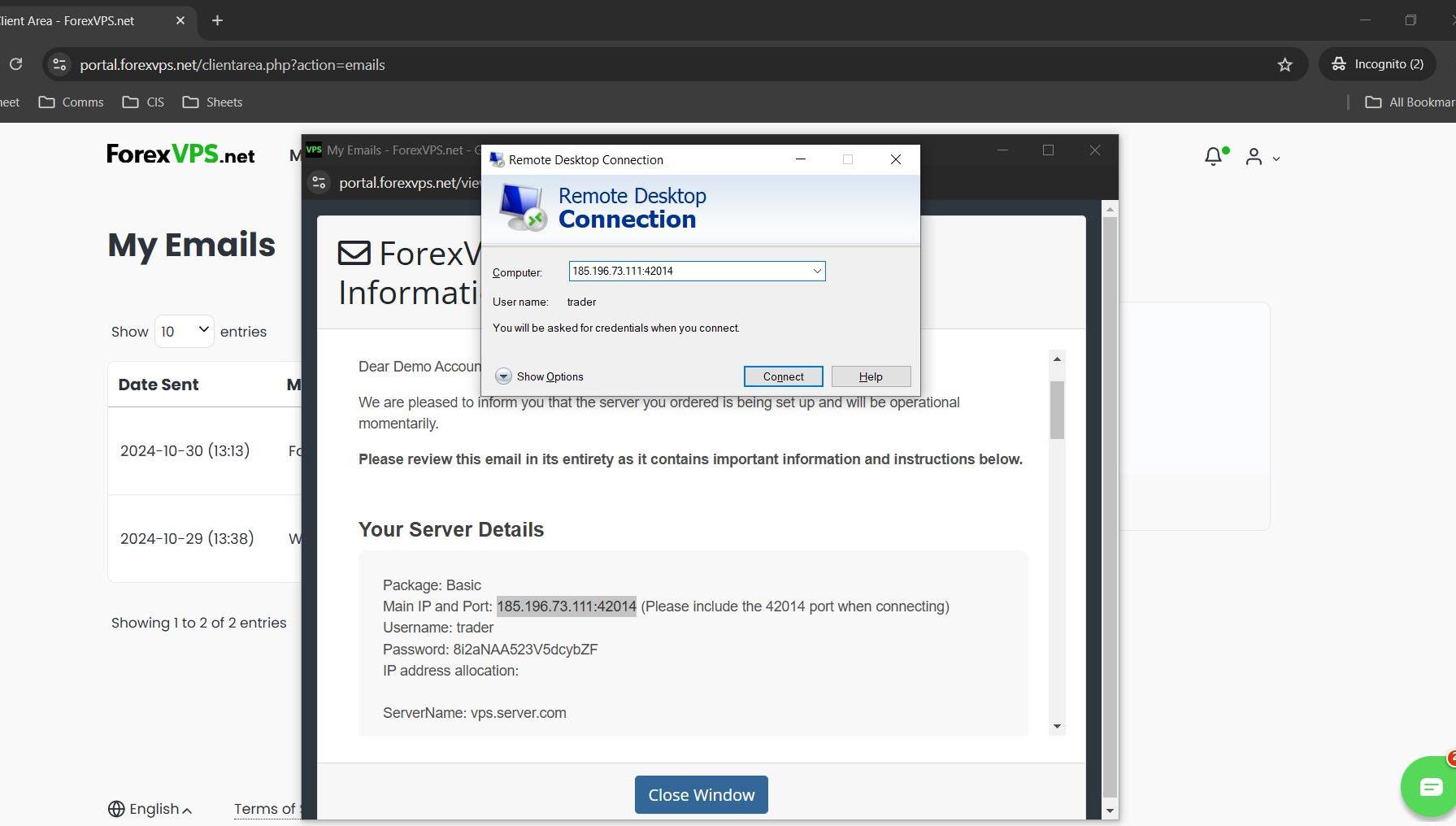
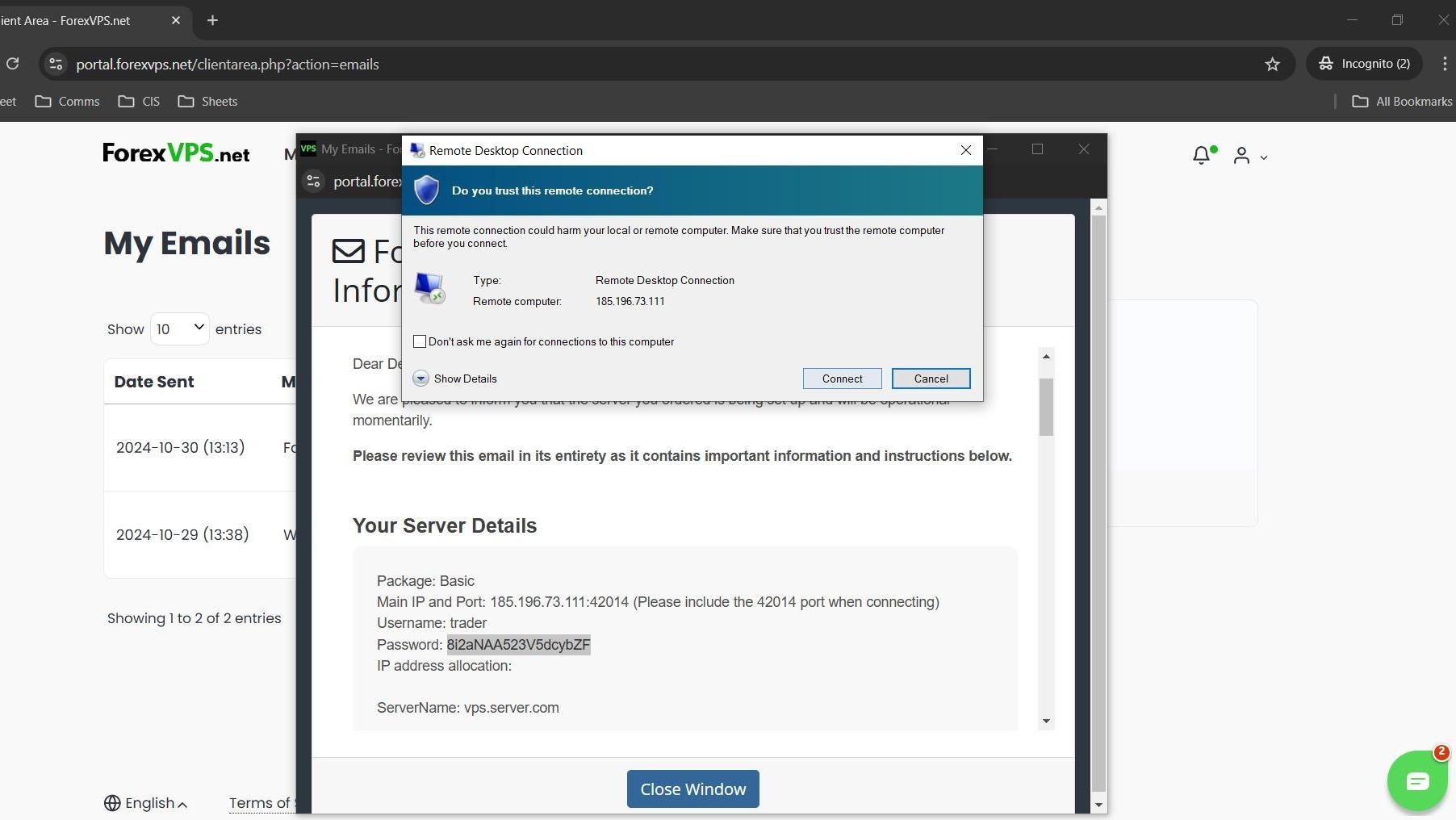
Step 8: Click Connect
Click Connect. Windows initiates the connection to your ForexVPS server. If your IP and port are correct, a credential prompt appears within a few seconds.
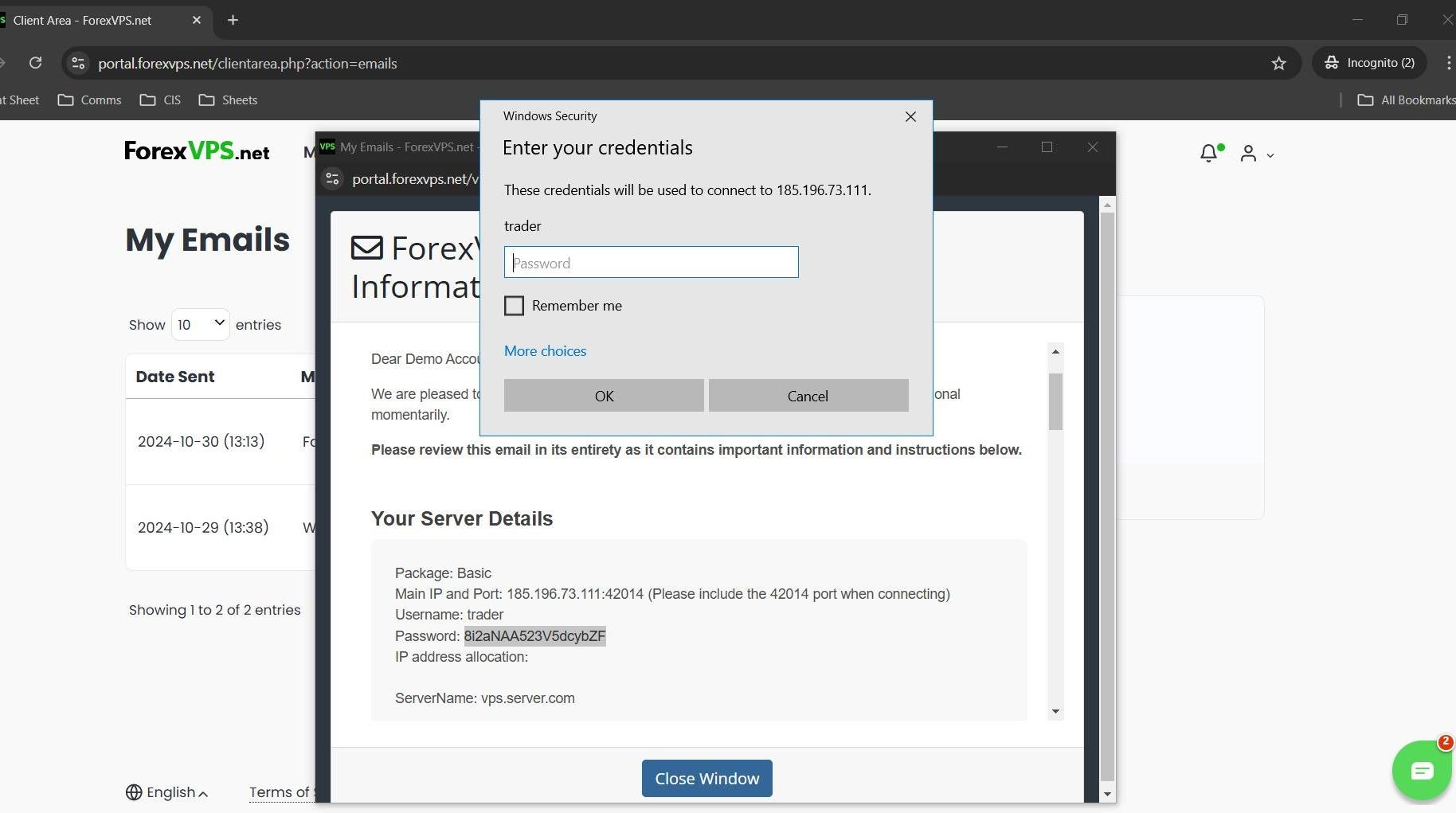
Step 9: Enter your ForexVPS username and password
In the Windows Security prompt, enter the Username (trader) and the Password from your welcome email. Click OK. Make sure you’re entering your ForexVPS server password — not your ForexVPS client account password. Copy-paste directly from the email to avoid typos.
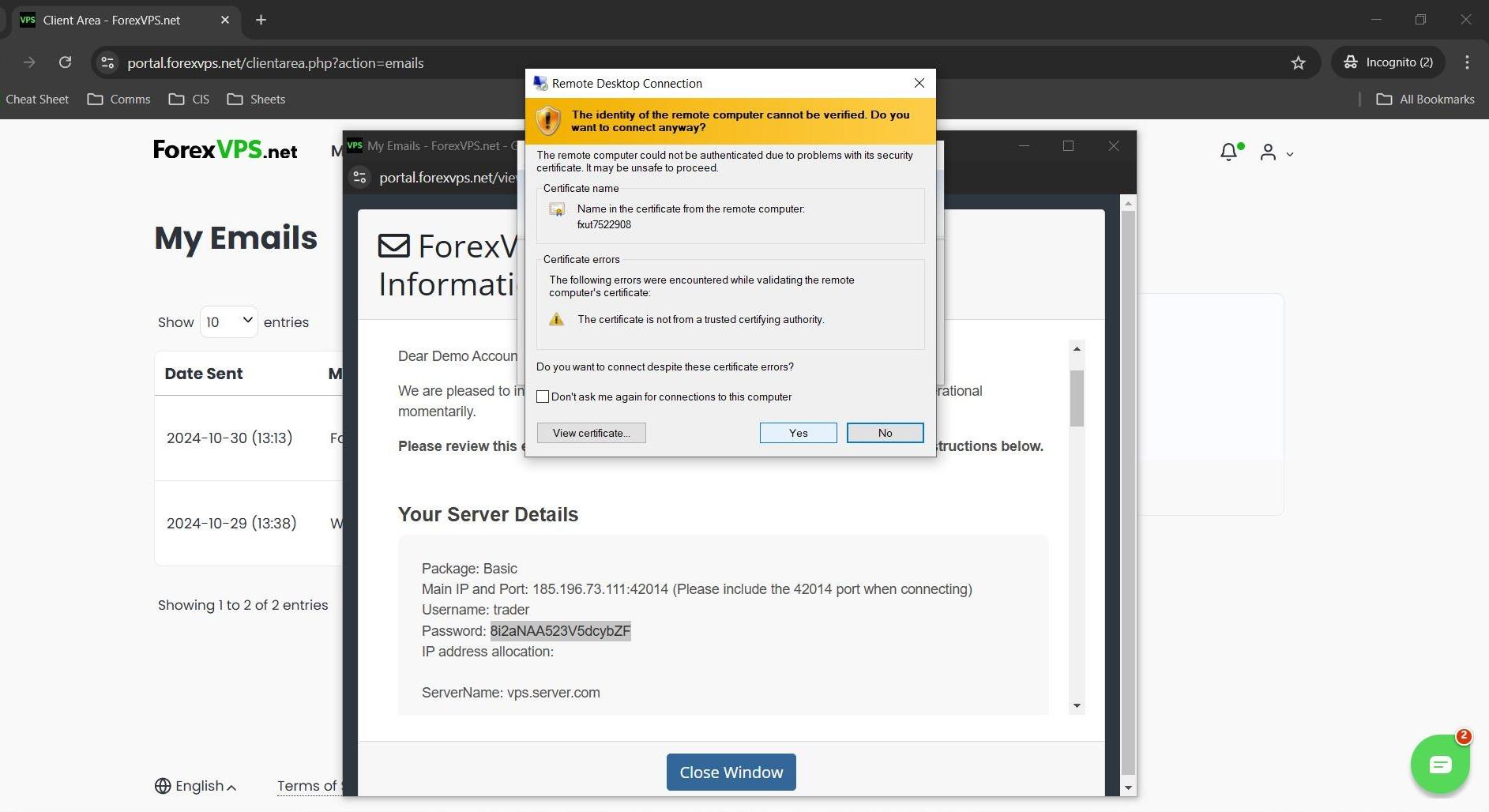
Step 10: Accept the certificate warning
A security certificate warning appears. This is expected — ForexVPS servers use a self-signed certificate, which Windows flags by default. Click Yes to proceed. This does not indicate a security risk.
Your Remote Desktop session opens and the ForexVPS Windows desktop loads. Your trading platform — MetaTrader 4, MetaTrader 5, or any other supported EA or bot — can now run on your ForexVPS around the clock, independent of your local machine’s power state or internet connection.
Troubleshooting Remote Desktop login issues
Running into issues connecting via Remote Desktop? Here are fixes for the most common problems.
| Problem | Likely cause | Fix |
|---|---|---|
| “Remote Desktop can’t connect to the remote computer” | Wrong IP:Port format, or your ForexVPS is still provisioning | Double-check Main IP and Port. Format must be IP:Port with no spaces. Wait 15 min if newly provisioned. |
| Credential prompt rejected | Wrong password entered | Re-copy the password from Email History — avoid typing manually. |
| Can’t find the welcome email in inbox | Email filtered or delayed | Check Email History in the ForexVPS client area — bypasses your email provider entirely. |
| Certificate warning appears | First-time connection to your ForexVPS | Click Yes — normal and safe on ForexVPS servers. |
Frequently asked questions about logging in to Remote Desktop
Still have questions about connecting to your ForexVPS via Remote Desktop? Find quick answers below.
Where do I find my ForexVPS username and password?
Your ForexVPS credentials are in the welcome email ForexVPS sends after provisioning. Access them at any time via Profile > Email History in the client area — no inbox required.
What do I enter in the Computer field in Remote Desktop Connection?
Enter your Main IP and Port in the format IP:Port — for example, 123.456.78.90:3389. Both values are in your ForexVPS welcome email. Omitting the port is the most common reason connections fail.
Is the certificate warning safe to accept?
Yes. ForexVPS servers use a self-signed certificate, which Windows flags by default. This is standard for VPS environments — click Yes. It does not indicate a security risk.
Why am I being asked for a password twice?
The first password logs you into your ForexVPS client account. The second logs you into your ForexVPS server itself. Use the password from your ForexVPS welcome email for the RDP step.
Can I save the connection so I don’t have to re-enter the IP every time?
Yes. In Remote Desktop Connection, click Show Options, then Save As to export a .rdp file. Double-clicking it in future opens your ForexVPS connection with the server address pre-filled.