
Learn how to check CPU, RAM usage, and uptime on your ForexVPS using Task Manager to keep your trading platform running smoothly.

You can check your ForexVPS resource usage and uptime directly using Windows Task Manager — no extra software required. This guide covers checking CPU and memory percentage, plus how long your ForexVPS has been running.
Before you start: The recommended threshold for both CPU and Memory usage is 80%. Staying under this threshold helps keep your trading platform responsive.
What you’ll need
- An active Remote Desktop or browser session connected to your ForexVPS
Part 1: Open Task Manager
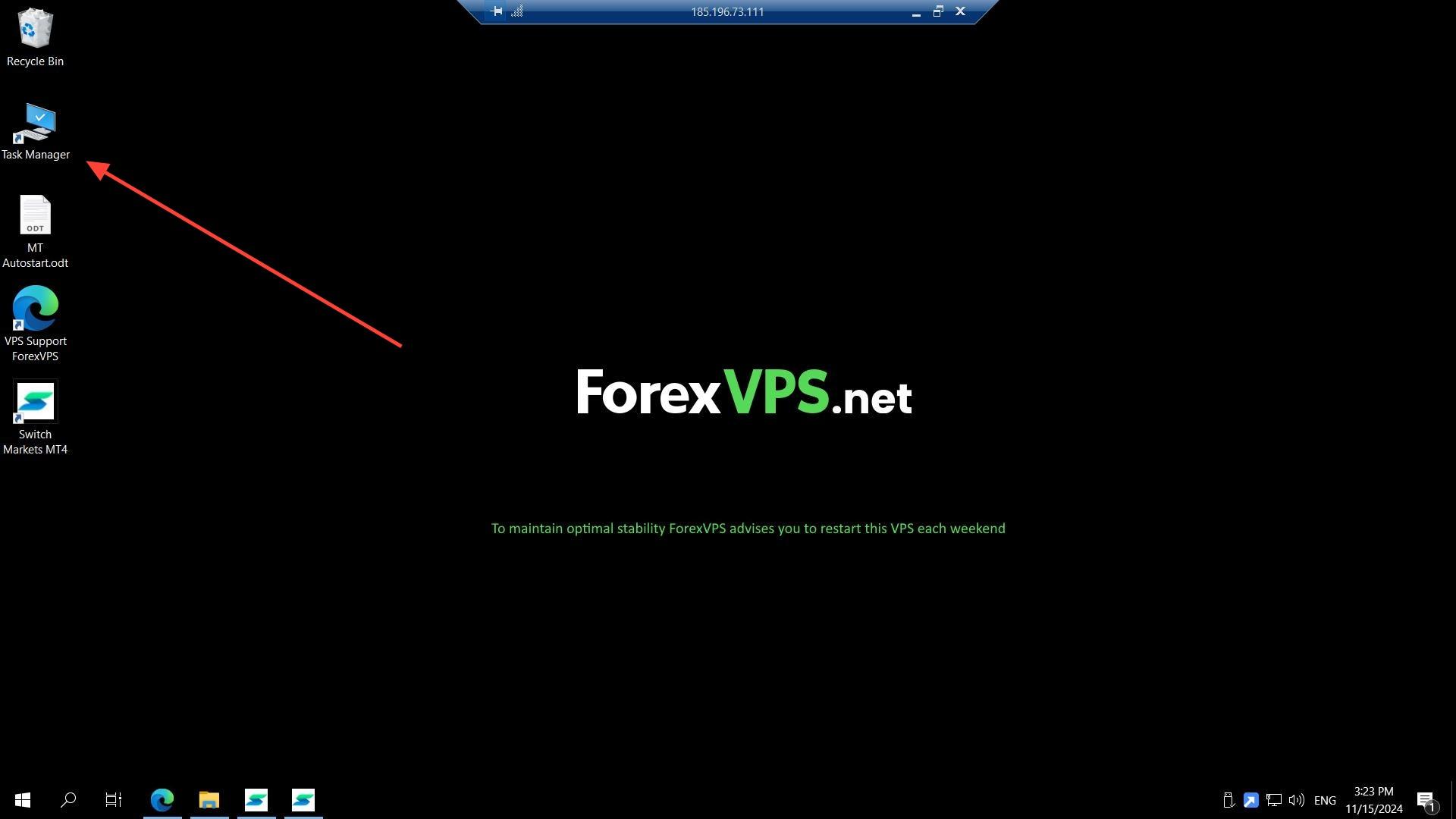
Step 1: Open Task Manager from your VPS desktop or Start menu
Log in to your ForexVPS. You can find Task Manager on your VPS desktop screen, or go to START and type Task Manager.
Part 2: Check CPU and RAM usage
Step 2: View CPU and Memory percentage under Processes
Once Task Manager is open, under Processes, you’ll see the CPU and Memory percentage currently in use.
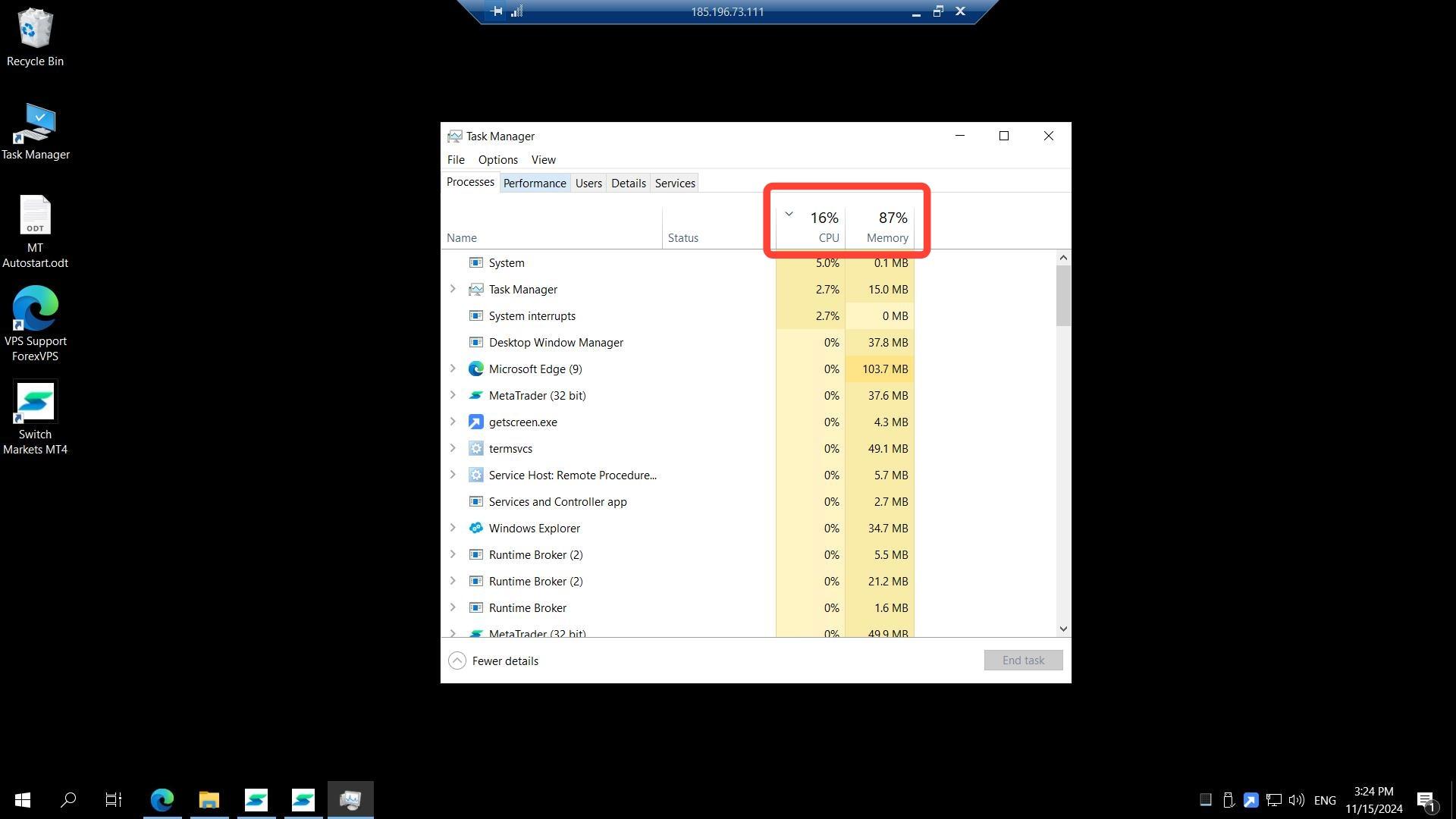
The threshold for either CPU or Memory usage is 80% — make sure not to reach that level to keep your trading platform running smoothly.
Part 3: Check VPS uptime
Step 3: View uptime in the Performance tab
Go to the Performance tab in Task Manager to see how long your ForexVPS has been running, displayed as Day:Hours:Minutes:Seconds.
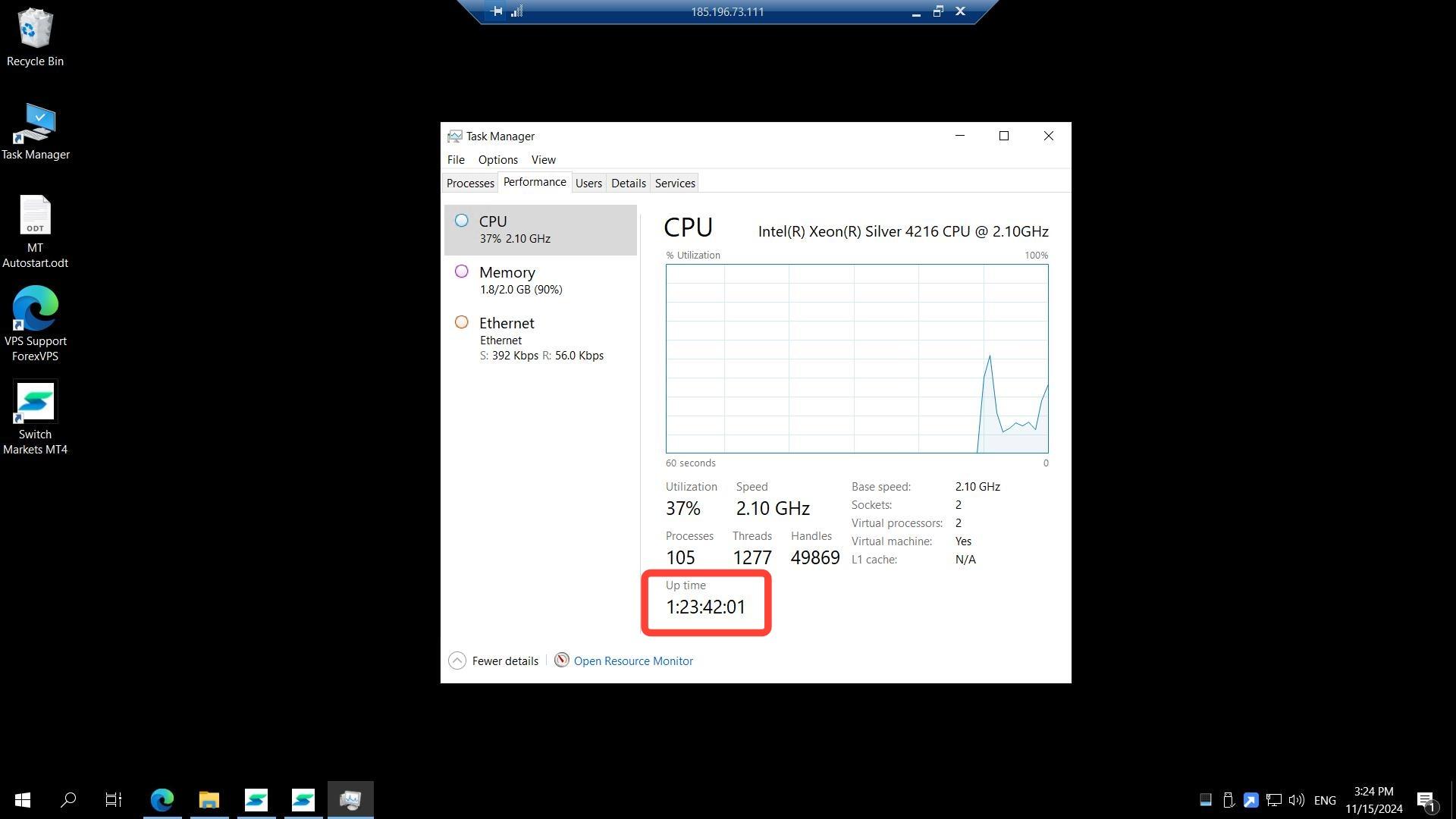
We always recommend restarting your ForexVPS at least once a week to keep performance stable.
Troubleshooting CPU, RAM, and uptime monitoring
Having trouble tracking your ForexVPS resource usage? Here are fixes for the most common issues.
| Problem | Likely cause | Fix |
|---|---|---|
| CPU or Memory usage consistently above 80% | Too many platforms or EAs running simultaneously | Close unused trading platforms or consider upgrading your VPS plan for more resources. |
| Your ForexVPS feels sluggish despite low CPU/RAM usage | Long uptime without a restart | Restart your ForexVPS — a weekly restart is recommended to keep performance stable. |
| Can’t find Task Manager | Not visible on the desktop | Go to START and type Task Manager to launch it directly. |
Frequently asked questions about monitoring CPU, RAM, and VPS uptime
Still have questions about keeping tabs on your ForexVPS performance? Find quick answers below.
What’s the safe threshold for CPU and RAM usage on my ForexVPS?
Keep both CPU and Memory usage below 80%. Going above this threshold can slow down your trading platforms and Expert Advisors.
How often should I restart my ForexVPS?
ForexVPS recommends restarting your VPS at least once a week to maintain stable performance.
How is VPS uptime displayed?
Uptime is shown in the Performance tab of Task Manager in the format Day:Hours:Minutes:Seconds.
Can I monitor CPU and RAM without connecting via Remote Desktop?
No, Task Manager runs inside your ForexVPS itself, so you need an active session — via Remote Desktop, Windows App, or browser login — to check it.