
Disconnecting from your ForexVPS the right way keeps your trading platforms running in the background while safely closing your Remote Desktop session. This
Disconnecting from your ForexVPS the right way keeps your trading platforms running in the background while safely closing your Remote Desktop session. This guide covers both ways to do it — from full-screen view and from window view.
Before you start: Disconnecting is not the same as shutting down. Your ForexVPS — and any trading platforms running on it — stays online. You can reconnect any time to check on your trades.
What you’ll need
- An active Remote Desktop session connected to your ForexVPS
- Either full screen or windowed view open
Method 1: Disconnect from full screen view
If your Remote Desktop session is running in full screen, the close control is located along the top of the screen.
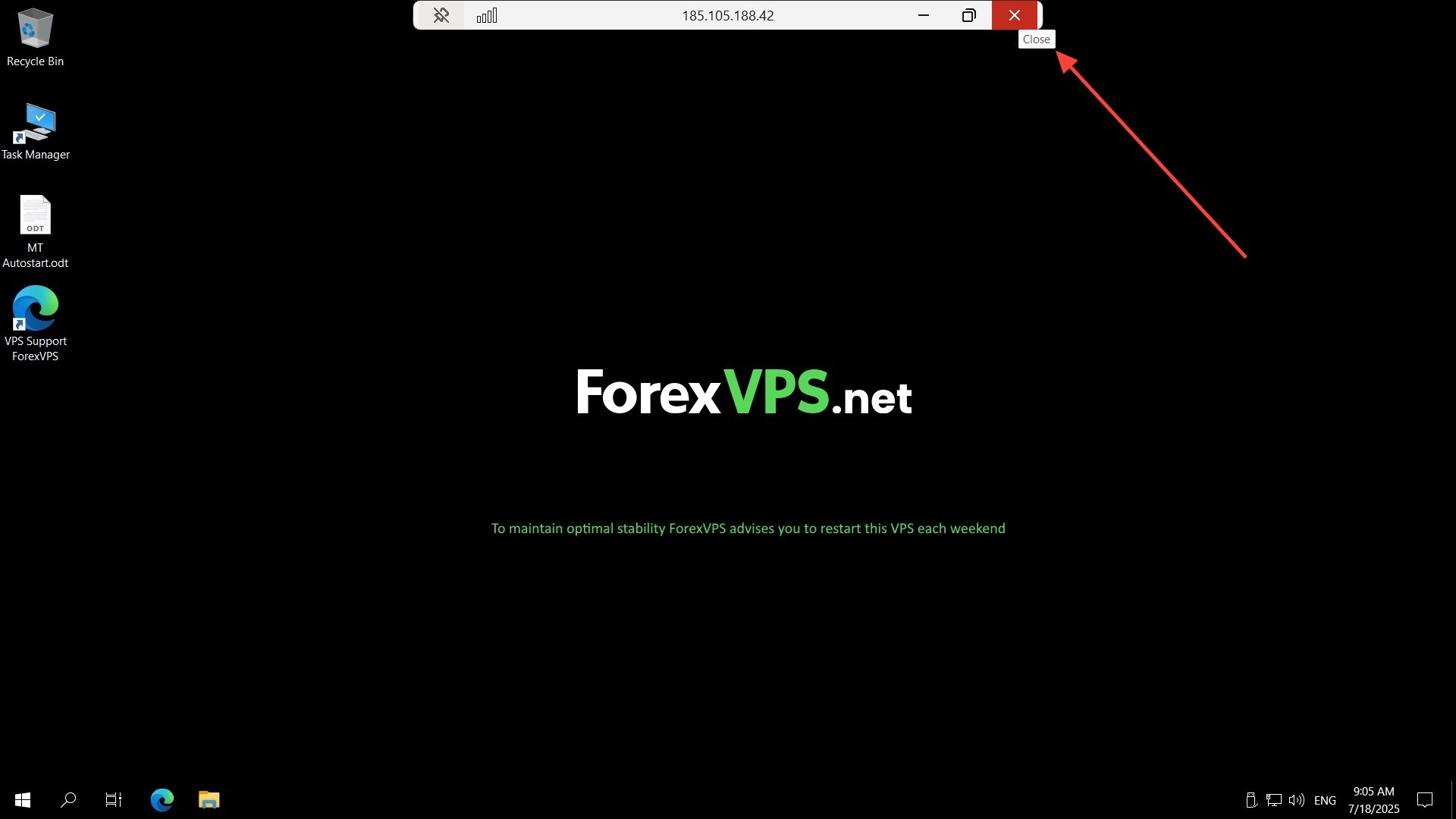
Step 1: Locate the close button in the top middle pane
The close button (X mark) is located in the top middle pane of the screen. Move your cursor to the top of the screen to reveal it if it isn’t already visible.
Step 2: Click OK to exit your ForexVPS
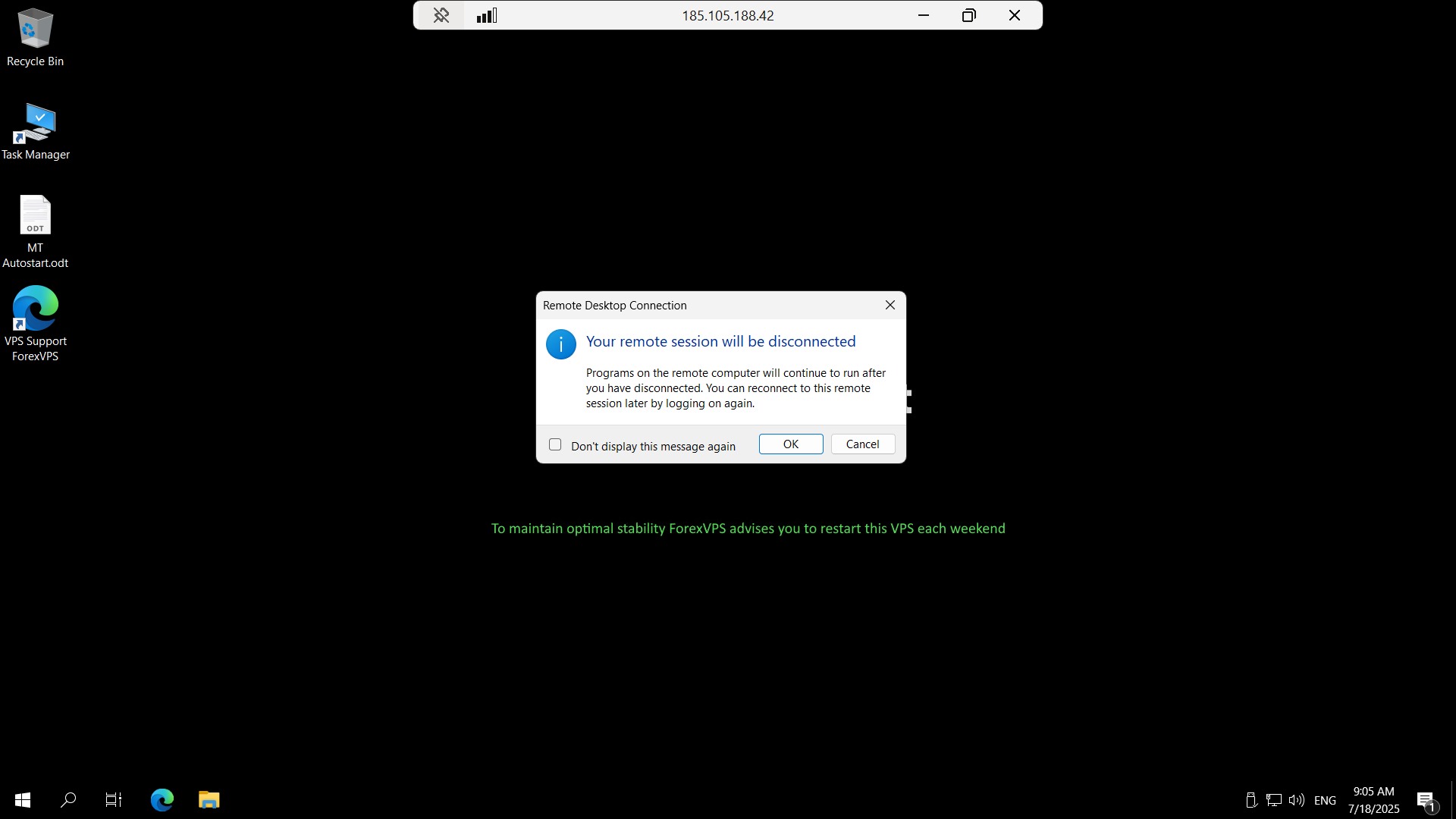
A confirmation prompt appears. Click OK to exit your ForexVPS session. Your Remote Desktop window closes, but your ForexVPS and any running trading platforms stay online.
Method 2: Disconnect from window view
If your Remote Desktop session is running in a windowed view instead of full screen, the close control is in the standard window position.
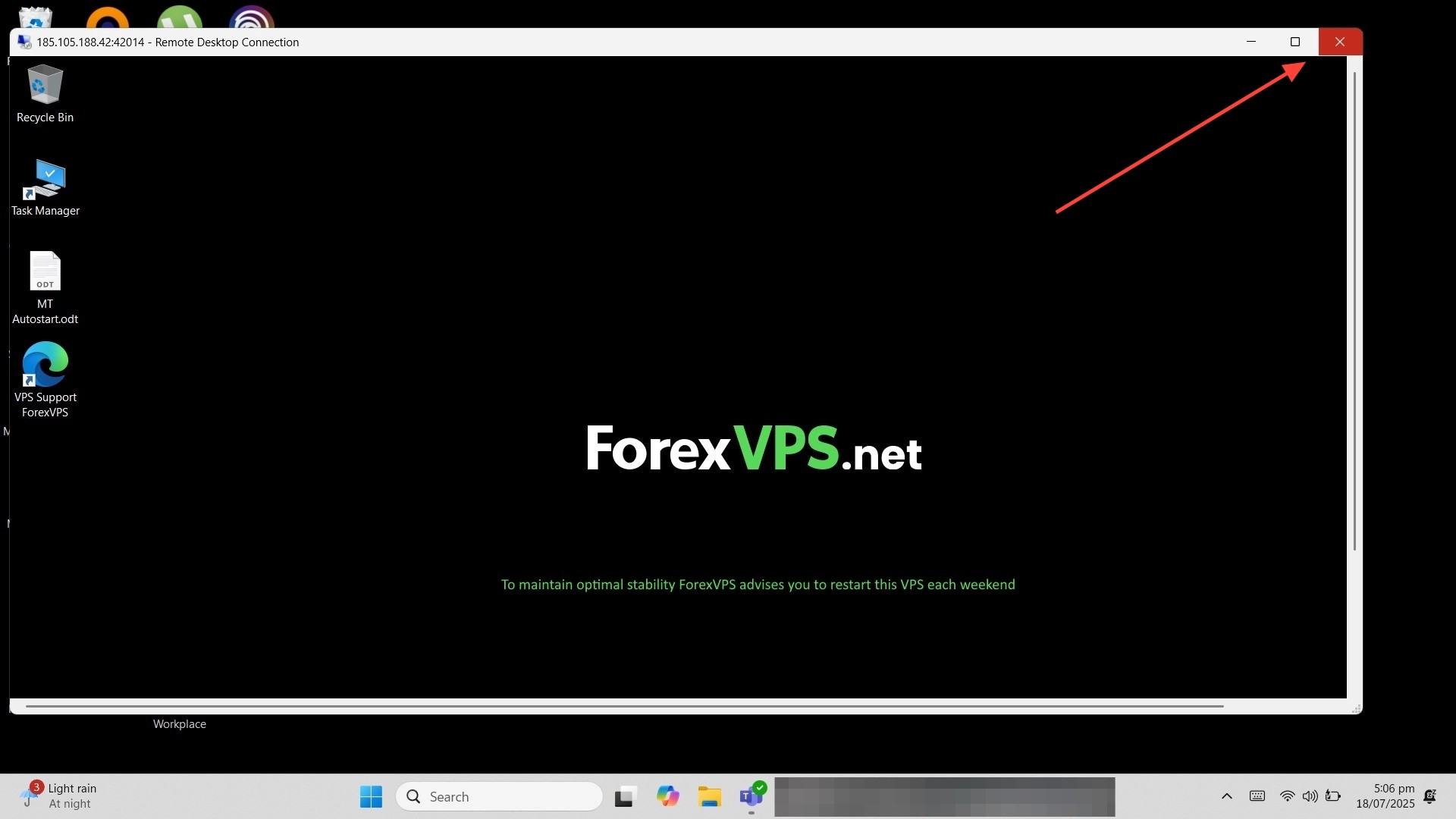
Step 3: Locate the close button in the top right corner
The close button (X mark) is located in the top right corner of the Remote Desktop window, in the same position as any standard application window.
Step 4: Click OK to exit your ForexVPS
A confirmation prompt appears. Click OK to exit your ForexVPS session and close the Remote Desktop window.
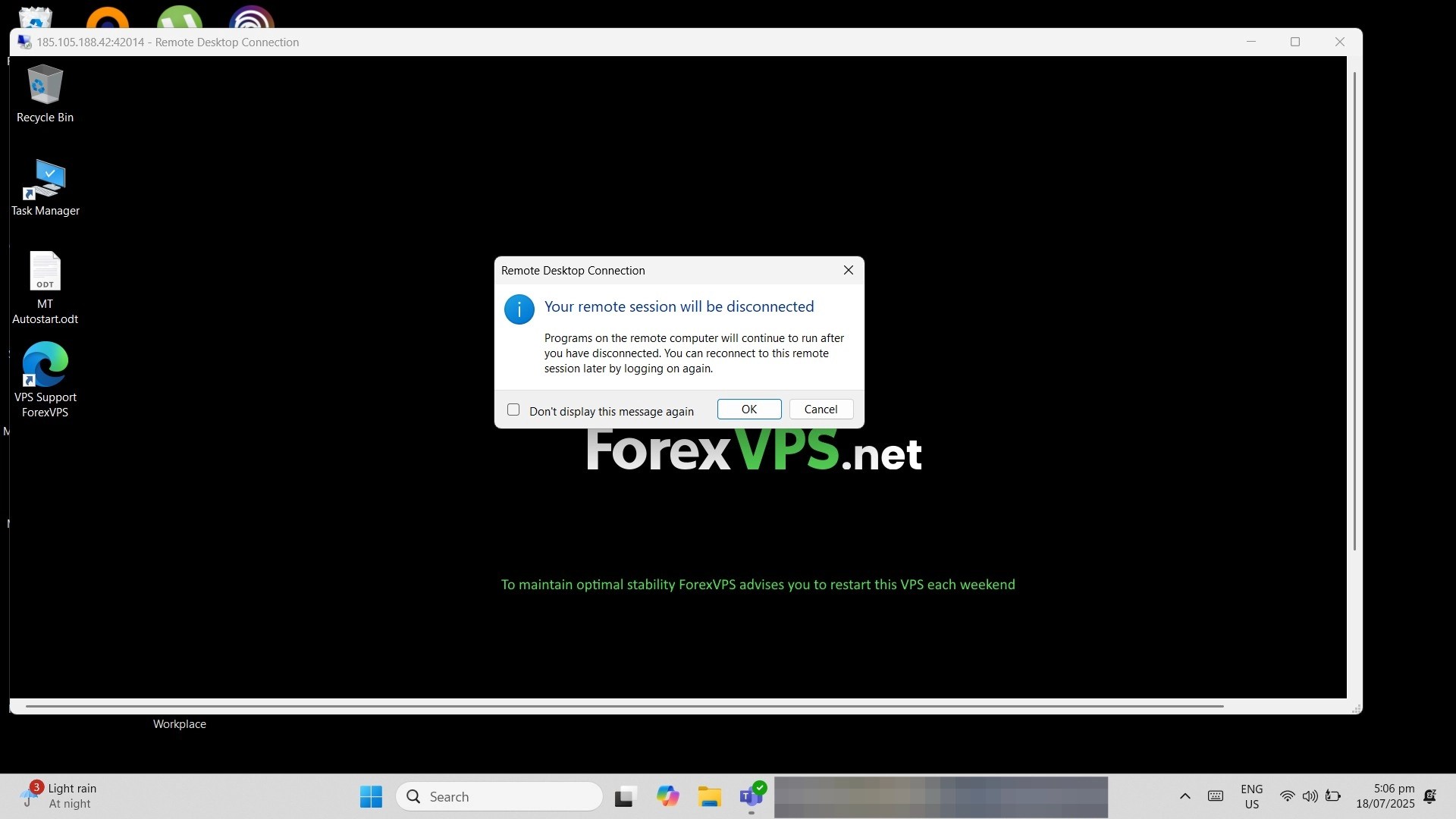
That’s it — you can reconnect any time to check on your trading platforms. Your ForexVPS keeps running independently of your Remote Desktop connection.
Troubleshooting disconnect issues
If disconnecting isn’t behaving as expected, check these common fixes.
| Problem | Likely cause | Fix |
|---|---|---|
| Close button not visible in full screen | Top pane is hidden | Move your cursor to the very top of the screen to reveal the connection bar with the close button. |
| Trading platform appears to stop after disconnecting | Confusing disconnect with shutdown | Disconnecting closes only your Remote Desktop view — your ForexVPS and platforms keep running. Reconnect to verify. |
| No confirmation prompt appears | Session already disconnected or timed out | Reconnect to your ForexVPS and try closing the session again. |
Frequently asked questions about disconnecting from your ForexVPS
Still have questions about safely closing your Remote Desktop session? Find quick answers below.
Does disconnecting from your ForexVPS stop my trading platform?
No. Disconnecting only closes your Remote Desktop view. Your ForexVPS keeps running in the background, along with any trading platforms or Expert Advisors already active on it.
What’s the difference between disconnecting and shutting down your ForexVPS?
Disconnecting closes your remote session while your ForexVPS keeps running. Shutting down powers off your ForexVPS entirely, which stops any trading platforms and requires a restart before you can reconnect.
Can I reconnect after disconnecting?
Yes. You can reconnect to your ForexVPS at any time using the same Remote Desktop credentials, and your session picks up exactly where it left off.
Which method should I use — full screen or window view?
Either works the same way. Use whichever view your Remote Desktop session happens to be running in — the close button location is the only difference.