
Learn how to reset your ForexVPS root password directly from the client portal without needing to log in to the VPS itself.
You can reset your ForexVPS root password directly from the client portal without logging in to your ForexVPS first. This is the method to use if you’ve forgotten your current password.
Before you start: This method doesn’t require your current password — it’s the right approach if you’re locked out. If you already know your current password and just want to change it, use the in-VPS Control Panel method instead.
What you’ll need
- Your ForexVPS client area email address and password
- Access to portal.forexvps.net
Part 1: Find your ForexVPS service
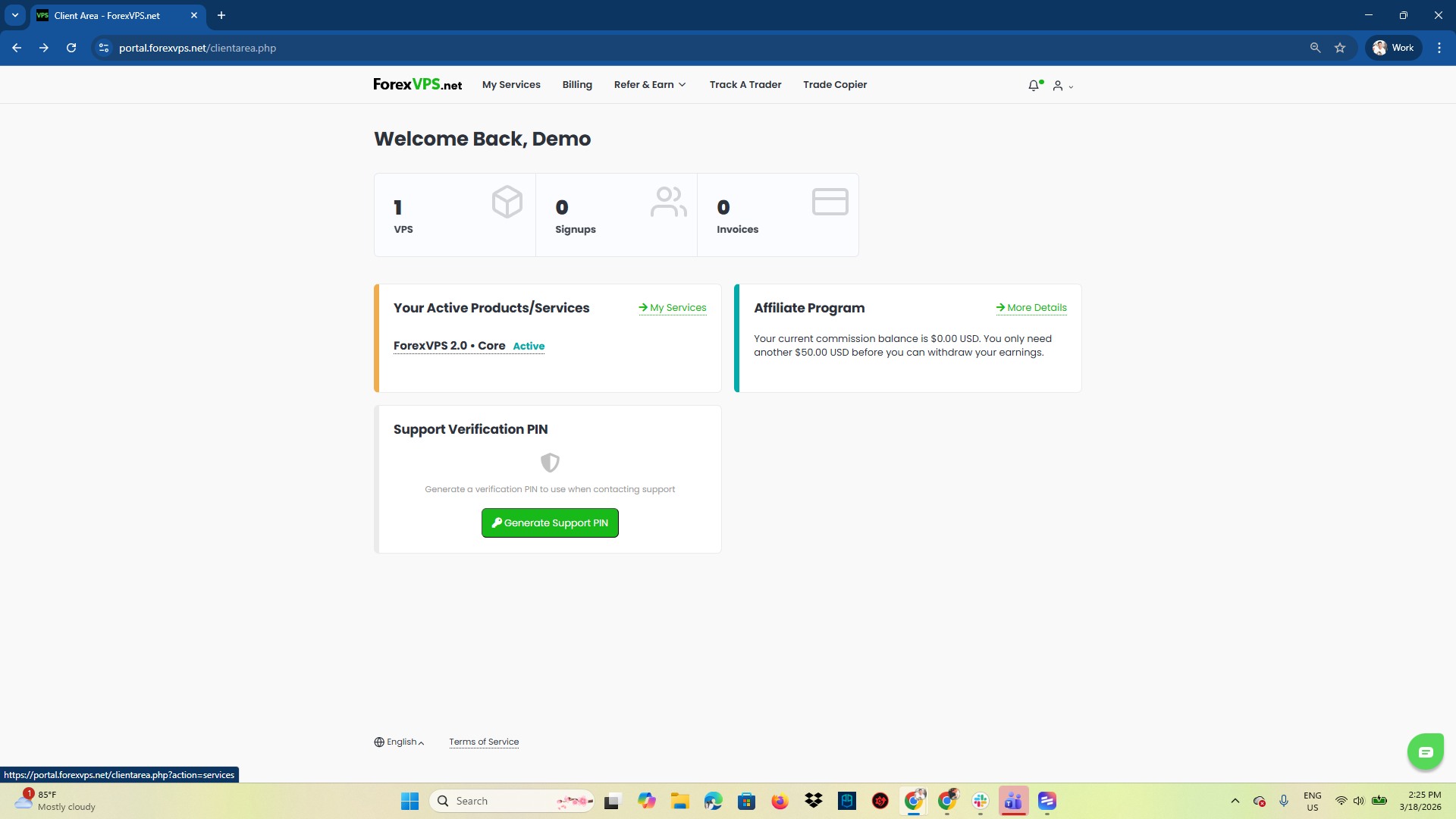
Step 1: Log in to your client area and open VPS
Log in to your client area and click on VPS.
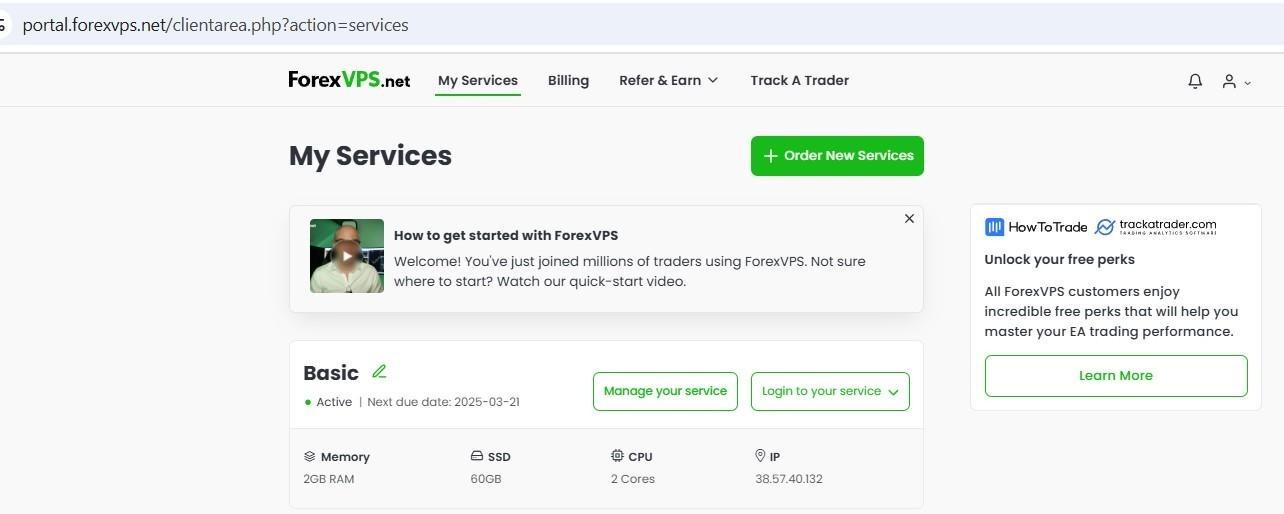
Step 2: Click Manage your service
Find your VPS in the list and click Manage your service.
Part 2: Reset the password
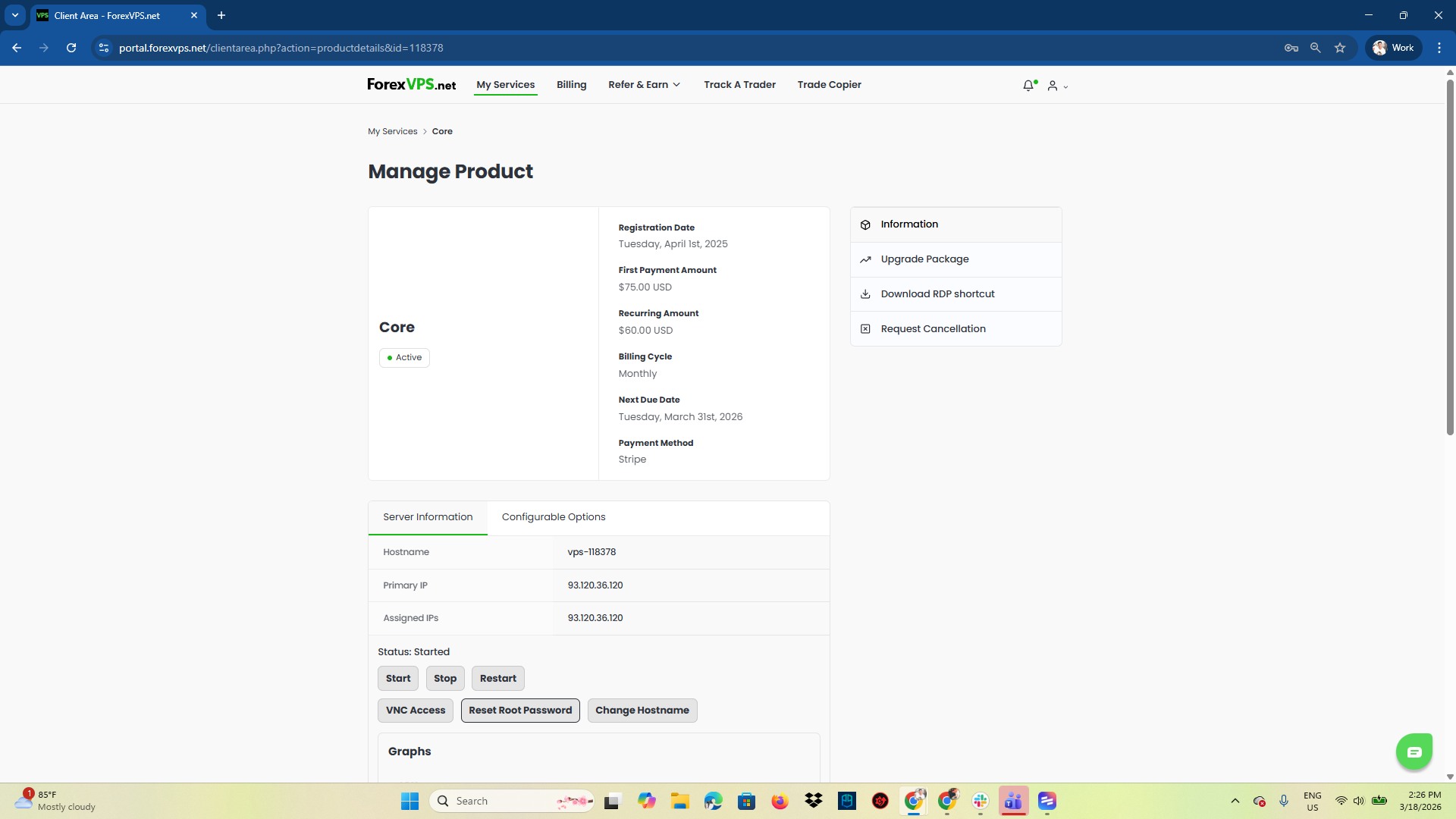
Step 3: Find the Reset Root Password button
You’ll find the Reset Root Password button under Server Information. Click it to start the reset.
Step 4: Copy the new password from the pop-up
A pop-up appears with your new password. Copy it immediately — this is the only time it’s displayed in full.
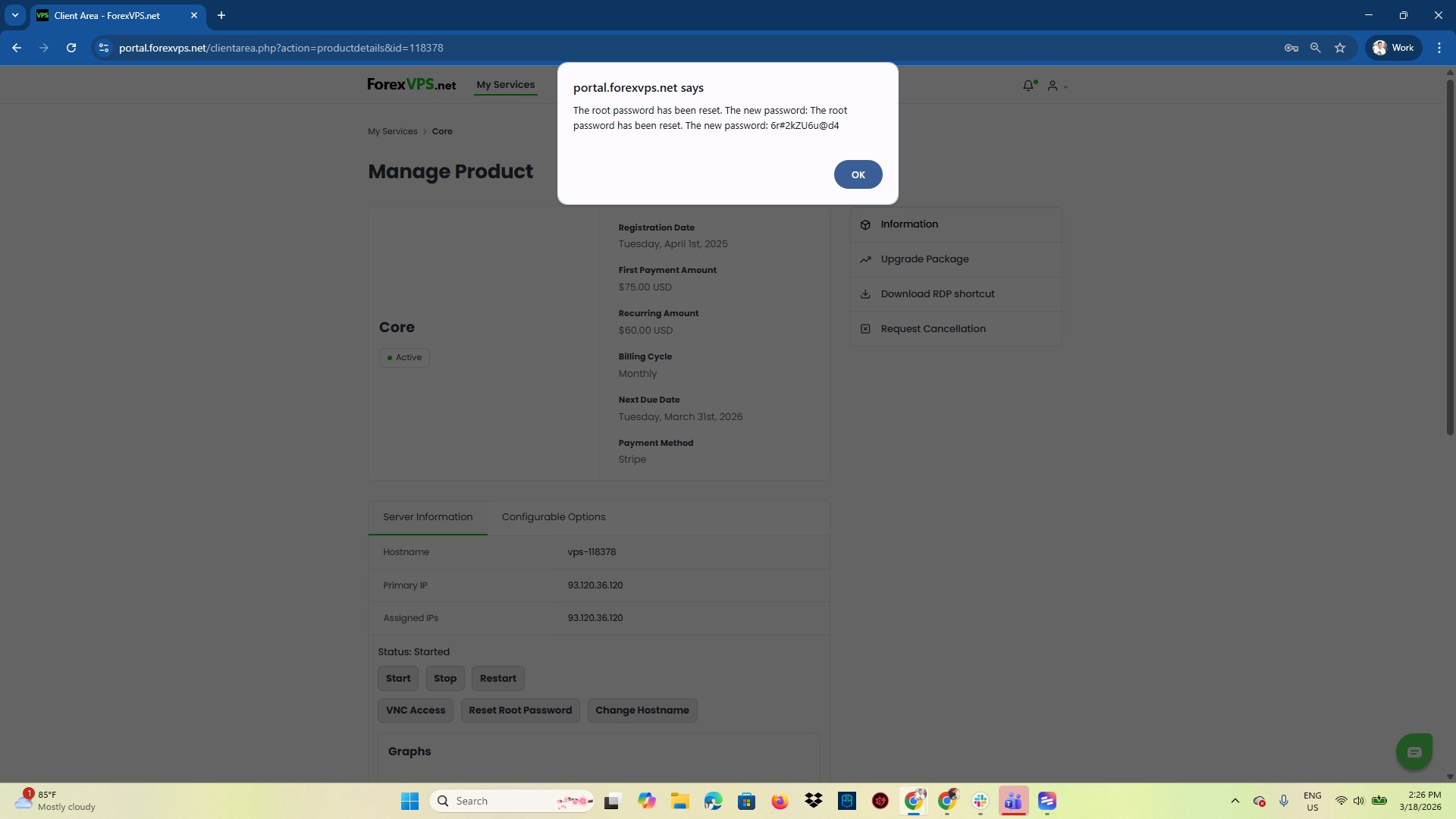
Use this new password the next time you connect to your ForexVPS via Remote Desktop, Windows App, or browser login.
Troubleshooting VPS password resets
If the reset process doesn’t go as expected, check these common fixes.
| Problem | Likely cause | Fix |
|---|---|---|
| Lost the new password before copying it | Pop-up closed too quickly | Click Reset Root Password again to generate a new one — the previous password is no longer valid regardless. |
| Can’t find the Reset Root Password button | Looking in the wrong section | It’s located under Server Information on the Manage your service page. |
| New password doesn’t work when logging in | Extra spaces copied with the password | Re-copy the password from the pop-up and check for leading or trailing spaces before pasting. |
Frequently asked questions about resetting your VPS password
Still have questions about the client portal reset process? Find quick answers below.
Do I need my current password to reset it this way?
No. This method resets the password from the client portal without requiring your current password — ideal if you’ve forgotten it or are locked out.
Where do I find my new password after resetting?
A pop-up displays the new password immediately after you click Reset Root Password. Copy it right away, as it’s only shown once.
What’s the difference between this and changing the password inside your ForexVPS?
This client portal method resets the password without logging in and doesn’t require the old one. Changing it inside your ForexVPS via Control Panel requires you to already know your current password.
Does resetting the password disconnect my active session?
Any active Remote Desktop session will need to be reconnected using the new password. Your ForexVPS itself and any running trading platforms are not affected.