Running a MyTraceroute (MTR) report combines the functions of ping and traceroute to give a clear picture of how network traffic flows between your computer and your ForexVPS. This guide walks you through generating a report with WinMTR and sending it to ForexVPS support for diagnosis.
Before you start: An MTR report helps identify exactly where a connection problem is happening — on your end, along the internet route, or at the server. Run this when troubleshooting connectivity with ForexVPS support.
What you’ll need
- Your local PC with internet access
- Your ForexVPS IP address
Part 1: Download and run WinMTR
Step 1: Download WinMTR
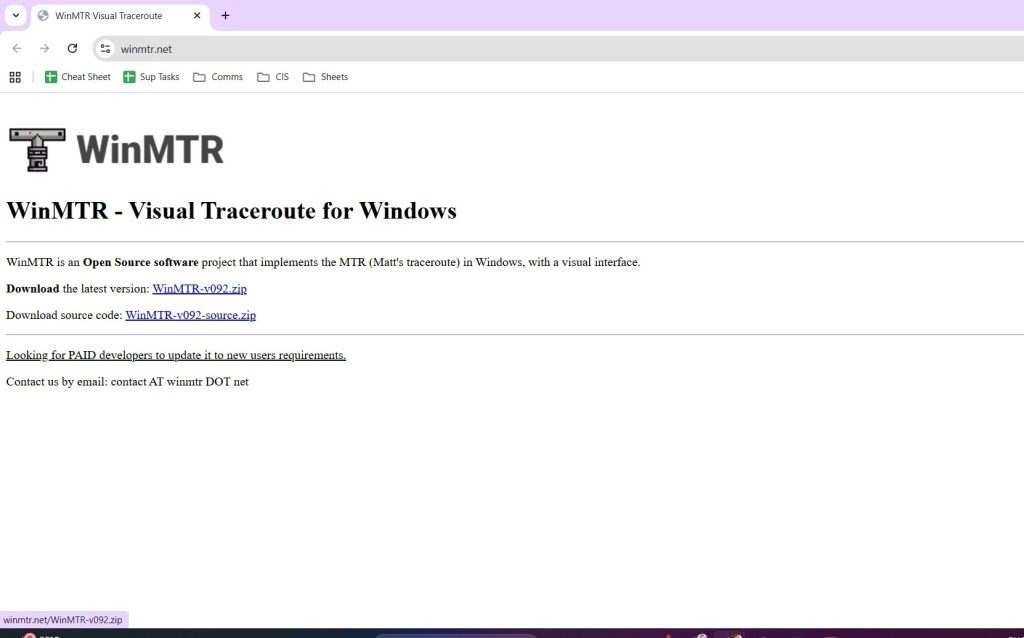
On your local PC, open your internet browser and go to winmtr.net. Download and install the zip file WinMTR-v092.zip.
Step 2: Enter your ForexVPS IP and start the test
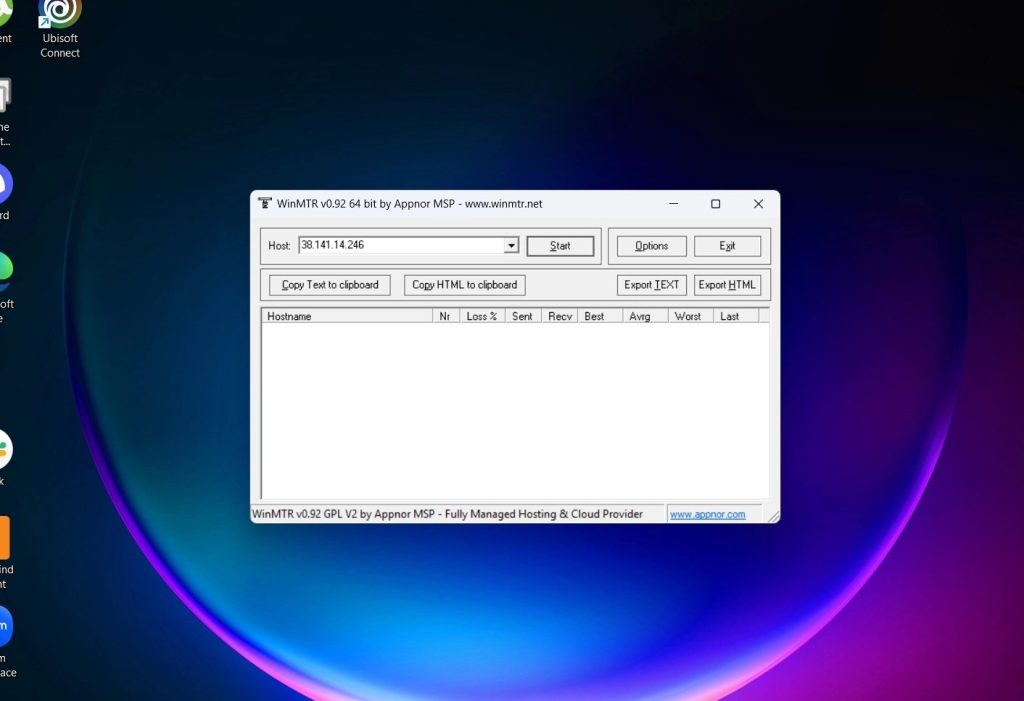
Input your ForexVPS IP in the Host field, then click Start.
Part 2: Capture and send the report
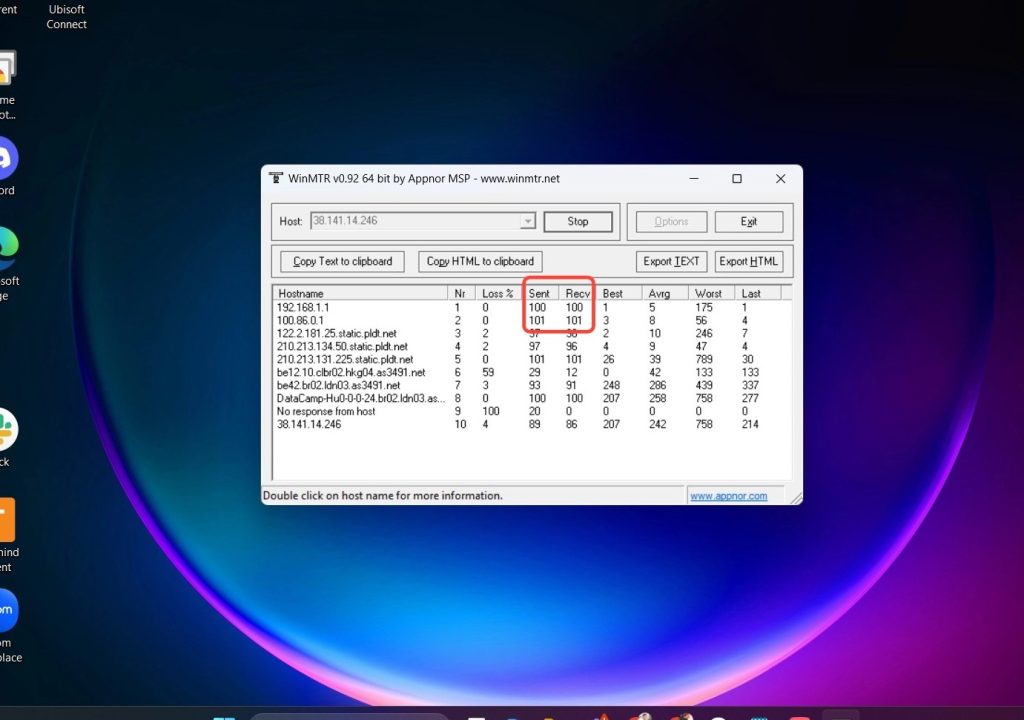
Step 3: Stop the test once it reaches 100 sent and received
Click Stop when the Sent and Receive counts both reach 100. This gives enough data points for an accurate report.
Step 4: Copy the report text
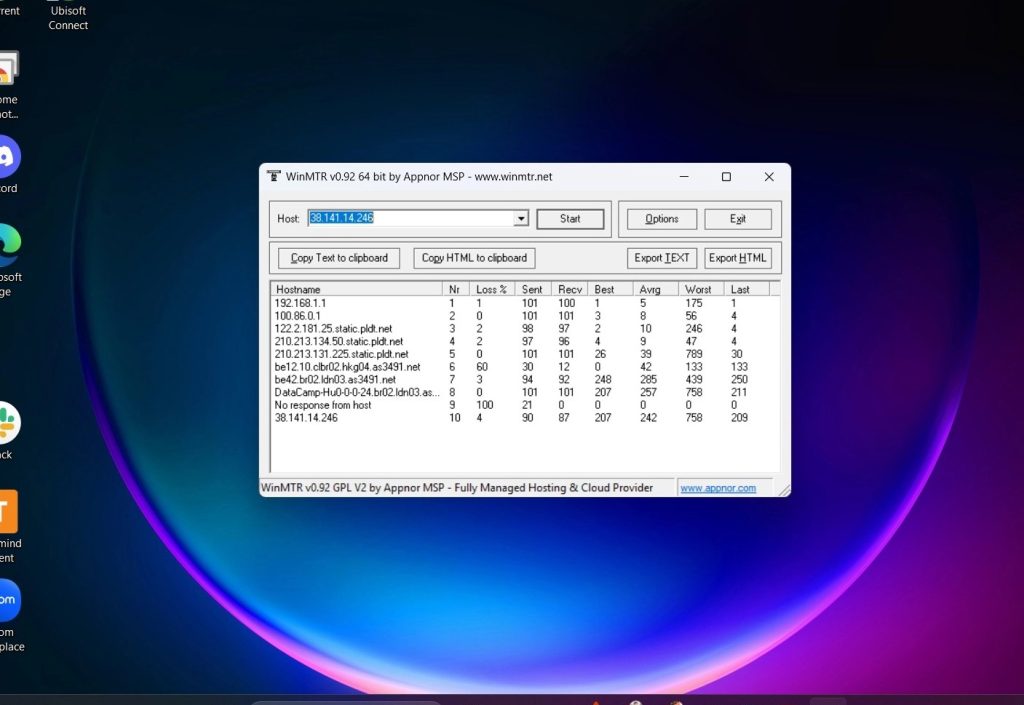
Click Copy Text to clipboard.
Step 5: Paste into Notepad and send it to support
Open Notepad and paste — this pastes the full MTR report. Save the Notepad file and send it to support@forexvps.net.
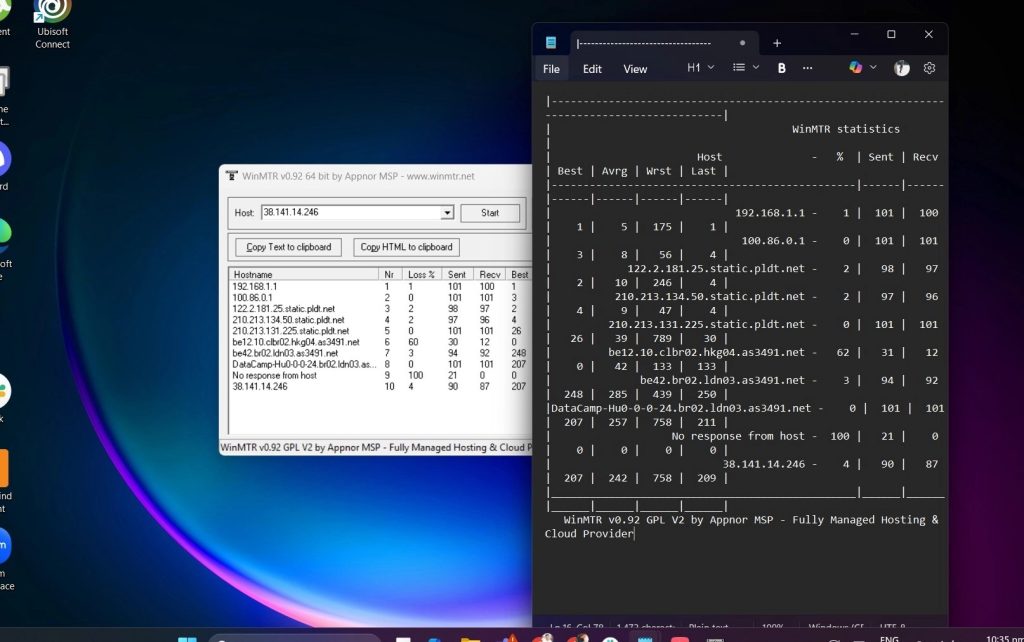
An MTR report helps ForexVPS support identify the path traffic takes, measure latency, detect packet loss, and troubleshoot connectivity issues — all in a single diagnostic file.
Troubleshooting MTR reports
Running into issues generating your MTR report? Here are fixes for the most common problems.
| Problem | Likely cause | Fix |
|---|---|---|
| Sent and Receive counts never reach 100 | Test stopped too early | Let WinMTR run longer — each row increments with every ping cycle, so give it a few minutes. |
| Copy Text to clipboard produces nothing | Test was stopped before it started producing data | Restart the test with Start and let it run until you see hop data populate. |
| Not sure where to find your ForexVPS IP | IP not readily available | Check your ForexVPS welcome email or the Email History section of your ForexVPS client area. |
Frequently asked questions about running an MTR report
Still have questions about generating or sending an MTR report? Find quick answers below.
Why does ForexVPS support ask for an MTR report?
An MTR report identifies exactly where in the network path a connectivity problem is occurring — your end, the internet route, or the server — making it much faster to diagnose issues.
How long should I let the WinMTR test run?
Run it until both the Sent and Receive counts reach 100, giving enough data points for an accurate diagnosis.
What does an MTR report actually measure?
It identifies the path your traffic takes, measures latency at each hop, detects packet loss, and helps troubleshoot general connectivity issues.
Where do I send the completed MTR report?
Save the Notepad file with the pasted report and email it to support@forexvps.net.