
Learn how to install a second copy of MetaTrader on your ForexVPS without overwriting your first installation.
If you need to run multiple trading accounts with the same broker, you can install a second copy of MetaTrader on your ForexVPS without overwriting your existing installation. This guide walks you through re-running the installer with a different installation folder.
Before you start: Use a clear identifying difference — like “new” or a number — in the installation folder and program group name to avoid confusing the two installations later.
What you’ll need
- An existing MetaTrader installation already running on your ForexVPS
- The original MetaTrader installer file
Part 1: Locate and run the installer
Step 1: Go to your ForexVPS downloads folder
Inside your ForexVPS, go to the downloads folder to find the MetaTrader installer.
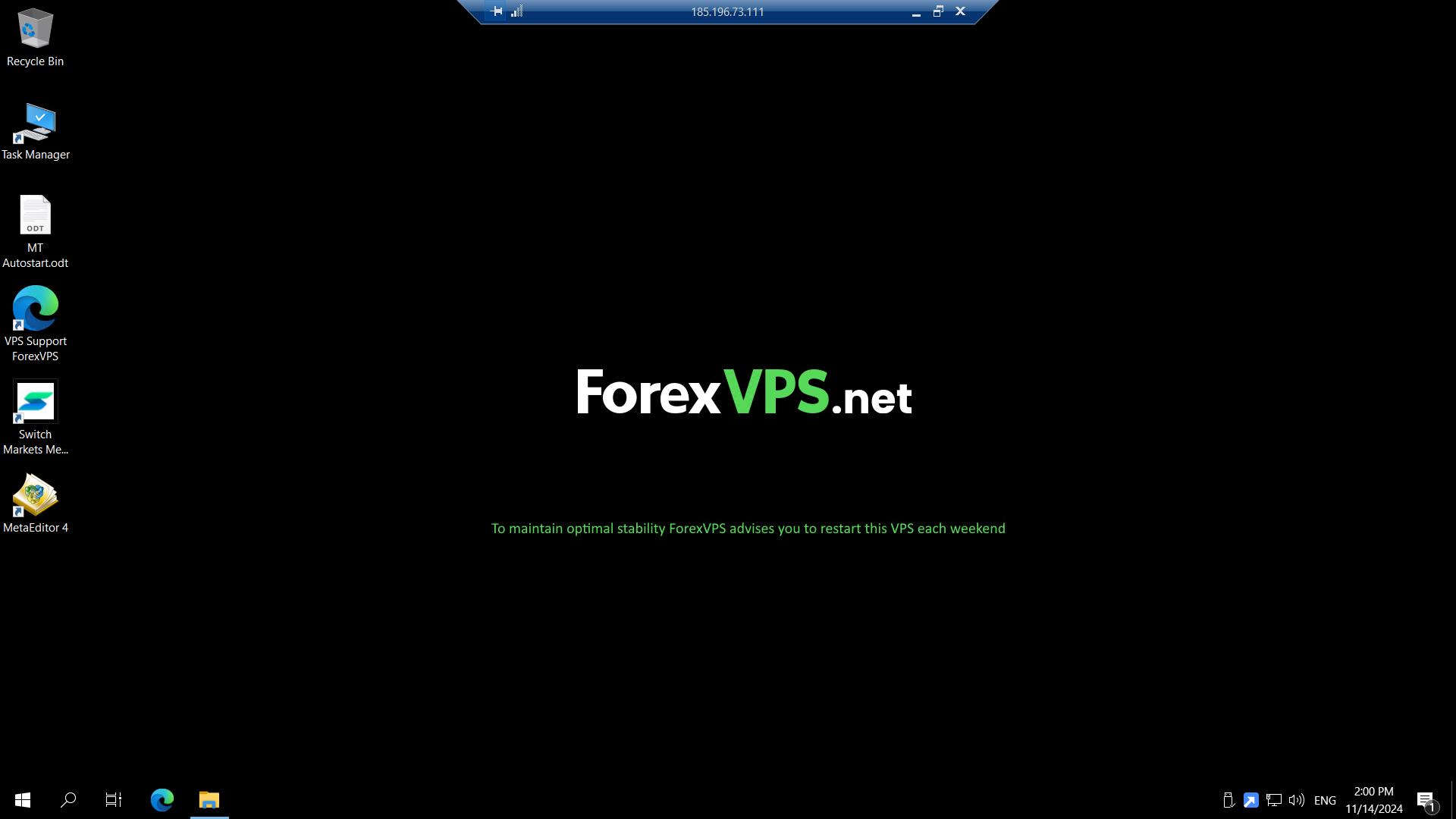
Step 2: Run the same MetaTrader installer
Run the same MetaTrader installer that you used the first time.
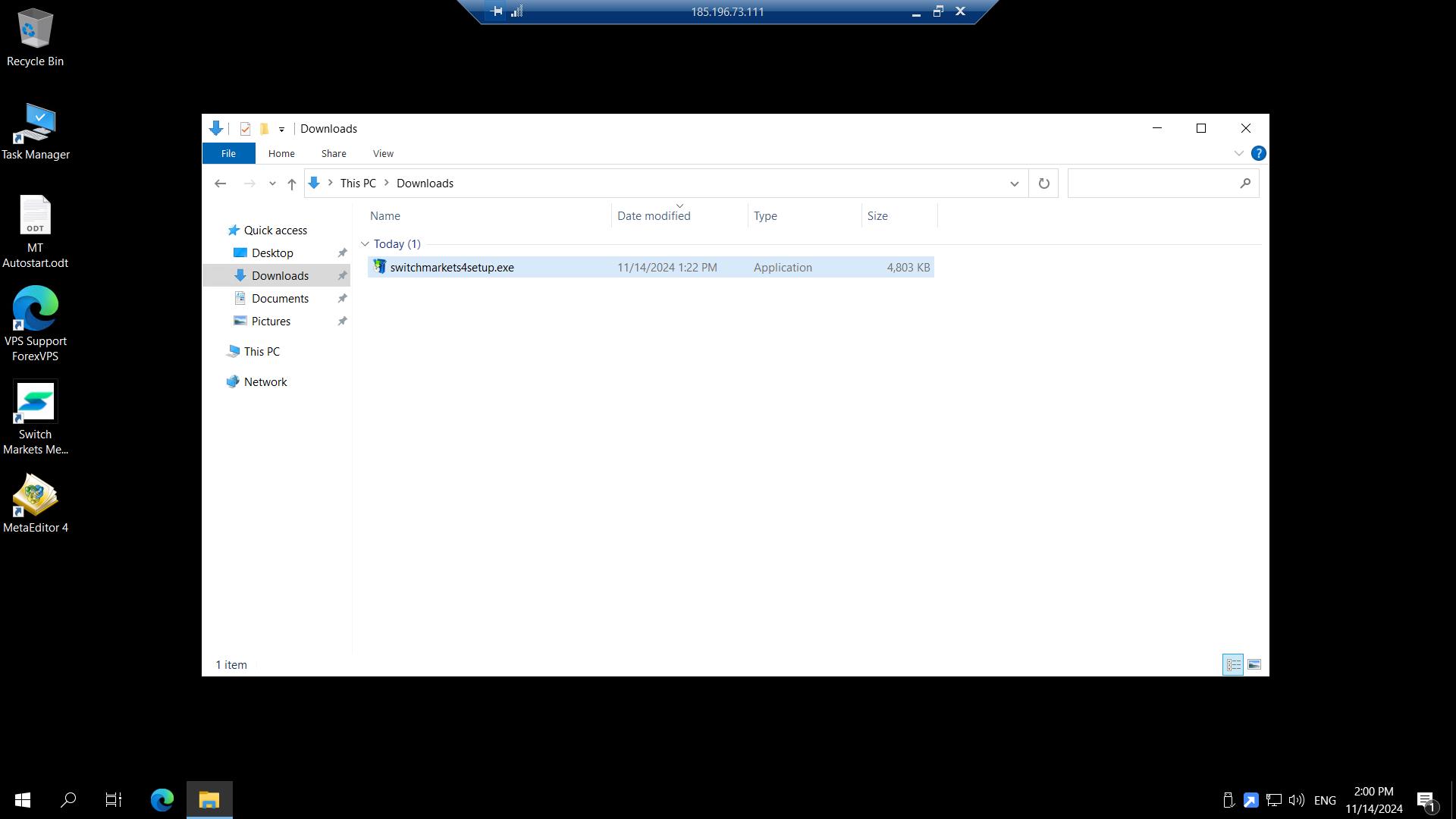
Part 2: Configure a separate installation
Step 3: Click Settings
Click Settings in the installer.
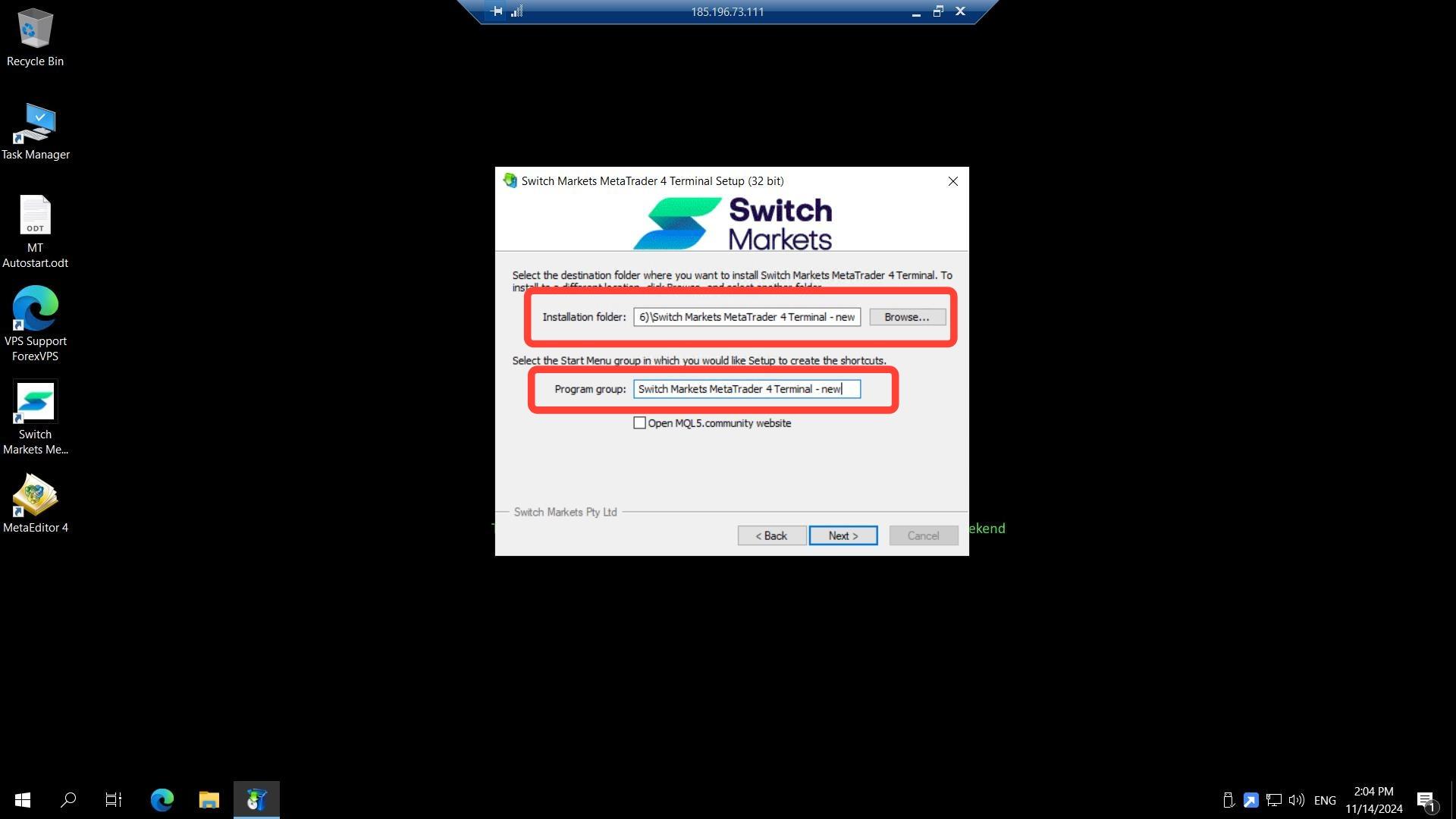
Step 4: Change the installation folder and program group
To avoid overwriting your first MetaTrader, change the Installation Folder and the Program group, then click Next. Use the word “new” or a number as an identifying difference.
Step 5: Click Finish
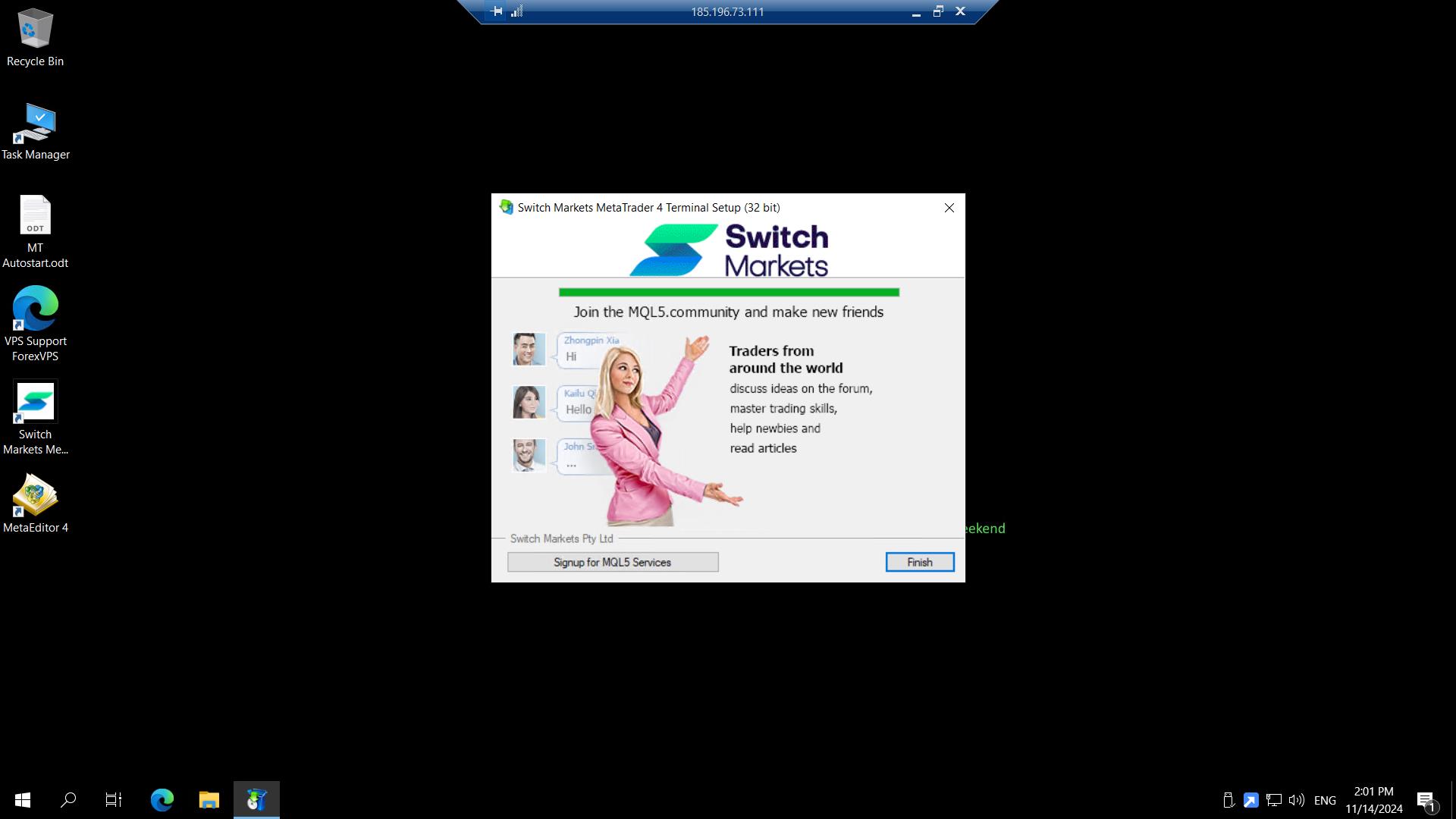
Click Finish to complete the installation.
Part 3: Verify the second installation
Step 6: Log in or close the new MetaTrader
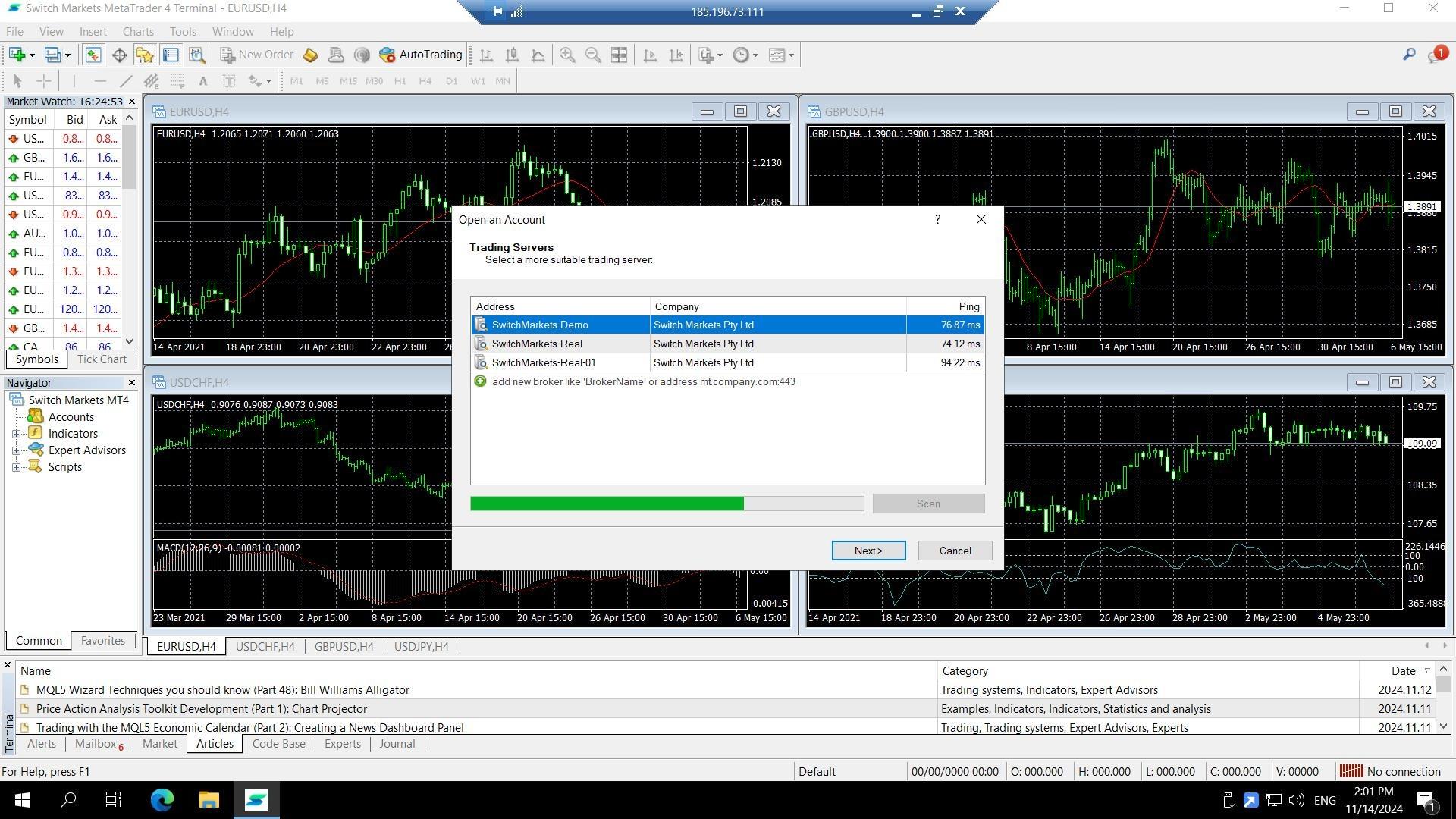
Once the new MetaTrader is installed, you can either log in to it with your second trading account or close it for now.
Step 7: Confirm both MetaTrader instances are visible
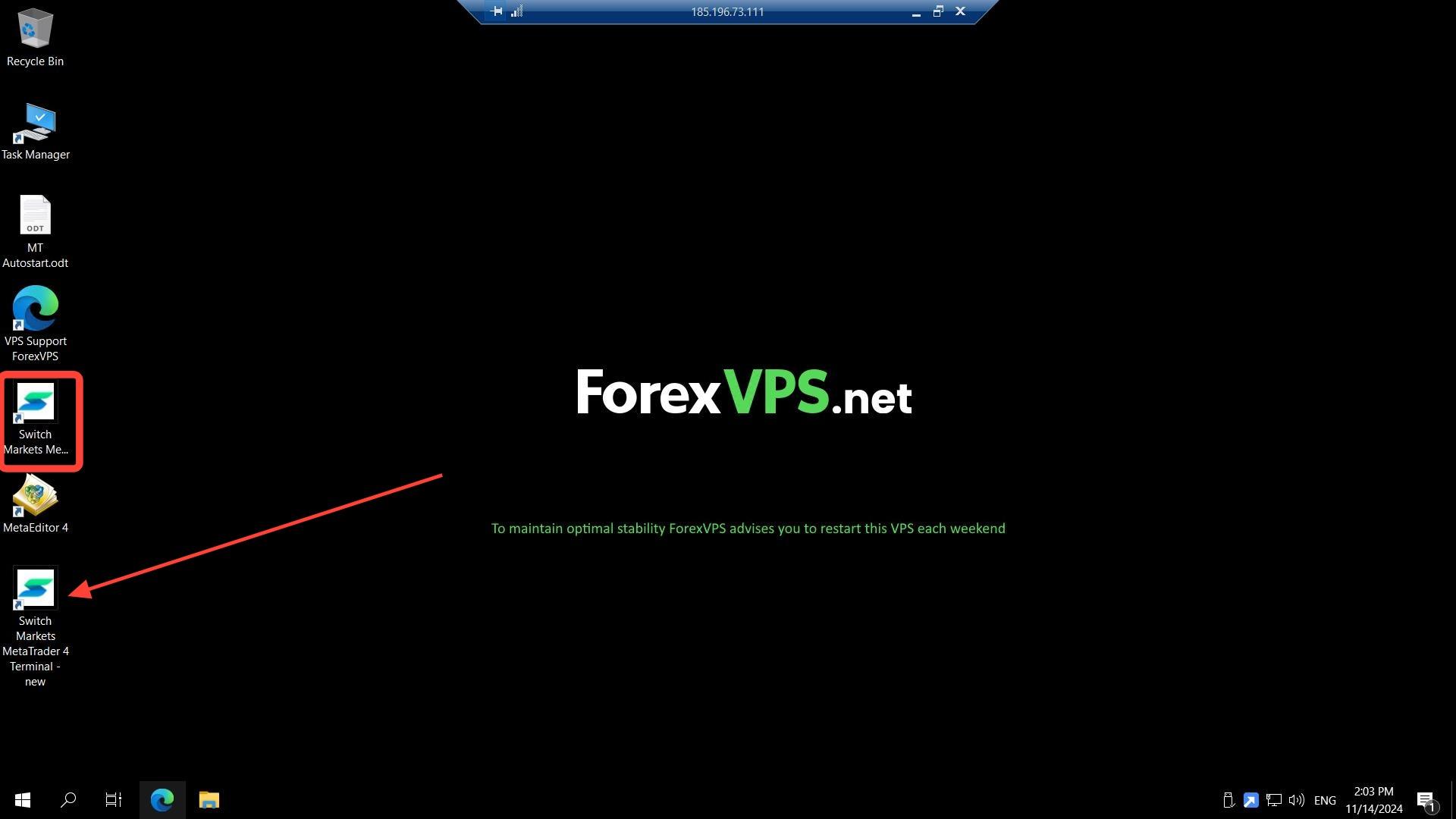
You should notice there’s now another MetaTrader from the same broker on your ForexVPS desktop screen, separate from your original installation.
Troubleshooting multiple MetaTrader installations
Running into issues installing a second MetaTrader? Here are fixes for the most common problems.
| Problem | Likely cause | Fix |
|---|---|---|
| Second installation overwrote the first | Installation folder wasn’t changed | Reinstall using a distinct installation folder and program group name at the Settings step. |
| Can’t tell which MetaTrader is which | No identifying name used | Rename desktop shortcuts to reflect the account or folder used for each installation. |
| Installer skips the Settings screen | Using a different installer version | Look for an “Advanced” or “Custom install” option instead — the wording may vary by broker. |
Frequently asked questions about installing multiple MetaTrader instances
Still have questions about running multiple MetaTrader installations? Find quick answers below.
Can I install multiple MetaTrader instances from the same broker?
Yes. Re-run the same installer and change the installation folder and program group at the Settings step to avoid overwriting your first installation.
How do I keep track of which MetaTrader is which?
Use a clear naming convention — like appending “new” or a number — to the installation folder and program group during setup.
Will this affect my existing MetaTrader installation?
No, as long as you change the installation folder and program group during setup, your original MetaTrader installation remains untouched.
How many MetaTrader instances can I run on one ForexVPS?
This depends on your VPS plan’s resources. Check your CPU and RAM usage regularly when running multiple instances to avoid performance issues.