
Learn how to view billing details, plan status, and control your ForexVPS with Start, Stop, and Restart from the client area.
Your ForexVPS client area is where you check billing details, view your plan status, and control your ForexVPS power state — all without connecting via Remote Desktop. This guide covers everything available on the Manage your service page.
Before you start: If you have multiple VPS instances on your account, you can identify which one you need by checking its IP address in the service list.
What you’ll need
- A ForexVPS account with an active VPS subscription
- Your client area email address and password
Part 1: Log in and find your VPS
Step 1: Click LOG IN on forexvps.net
On the webpage ForexVPS.net, click LOG IN.

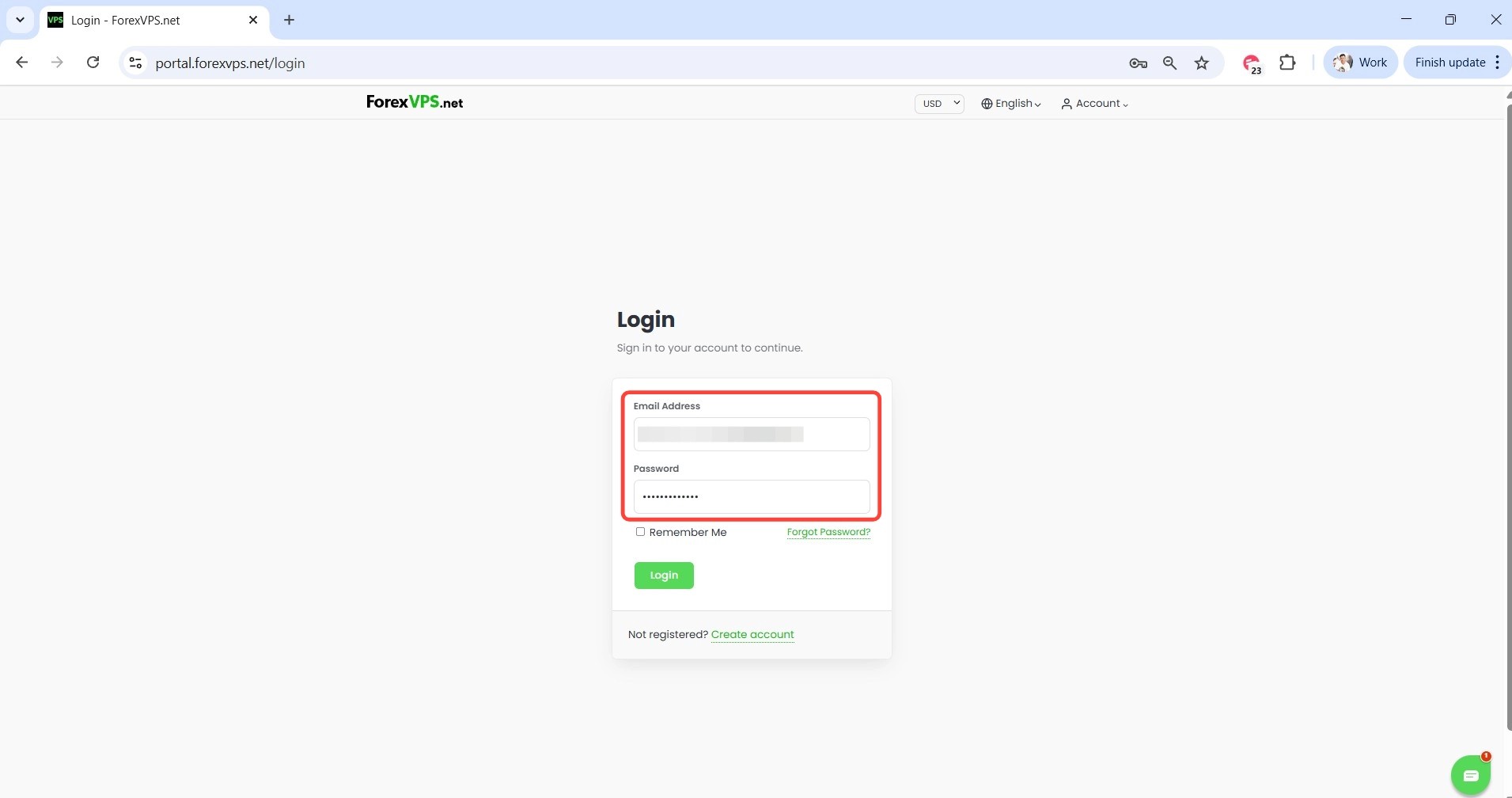
Step 2: Enter your credentials and log in
Type in your email address and the password you used when you registered, then click Login.
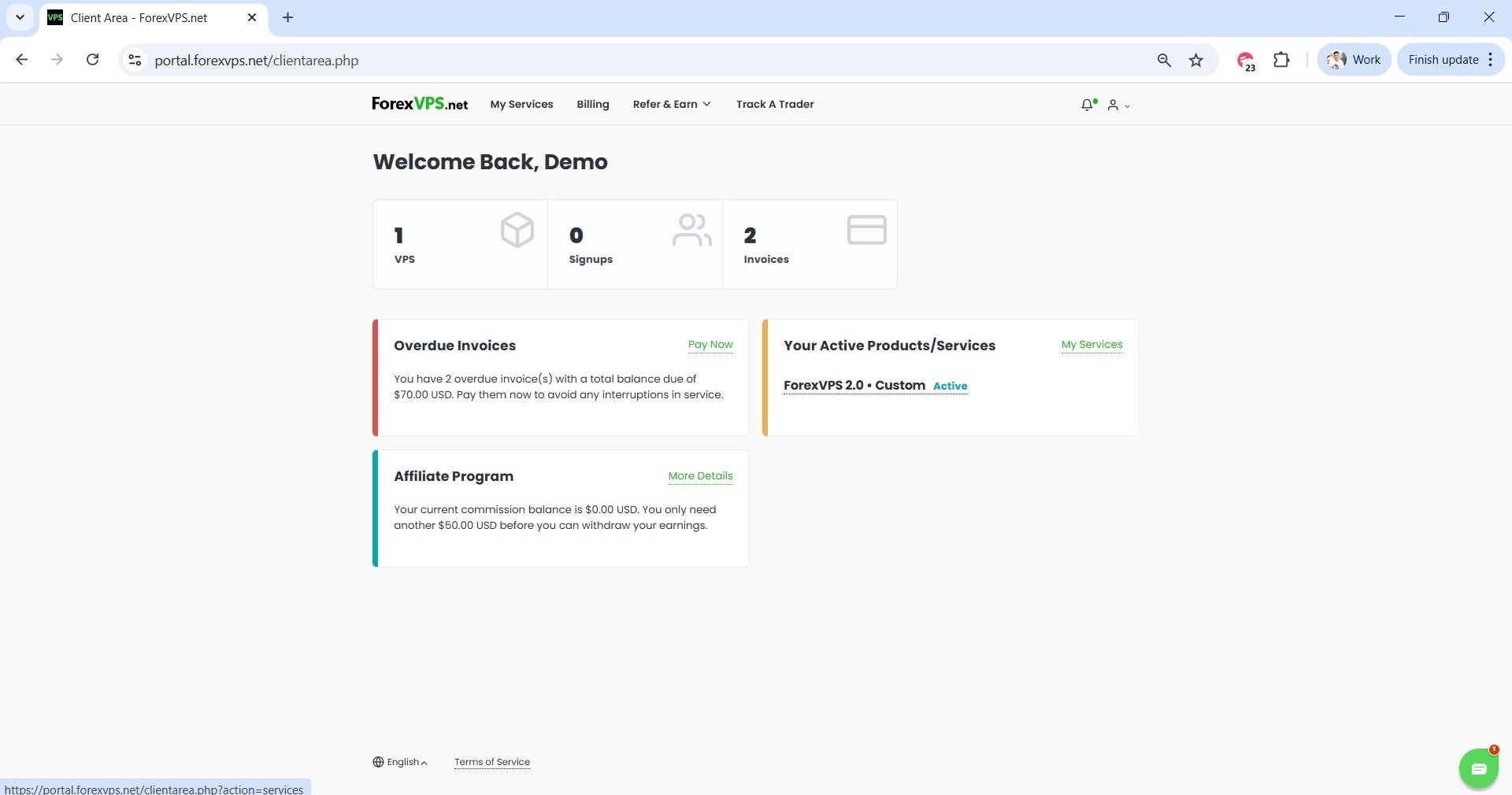
Step 3: Click on VPS
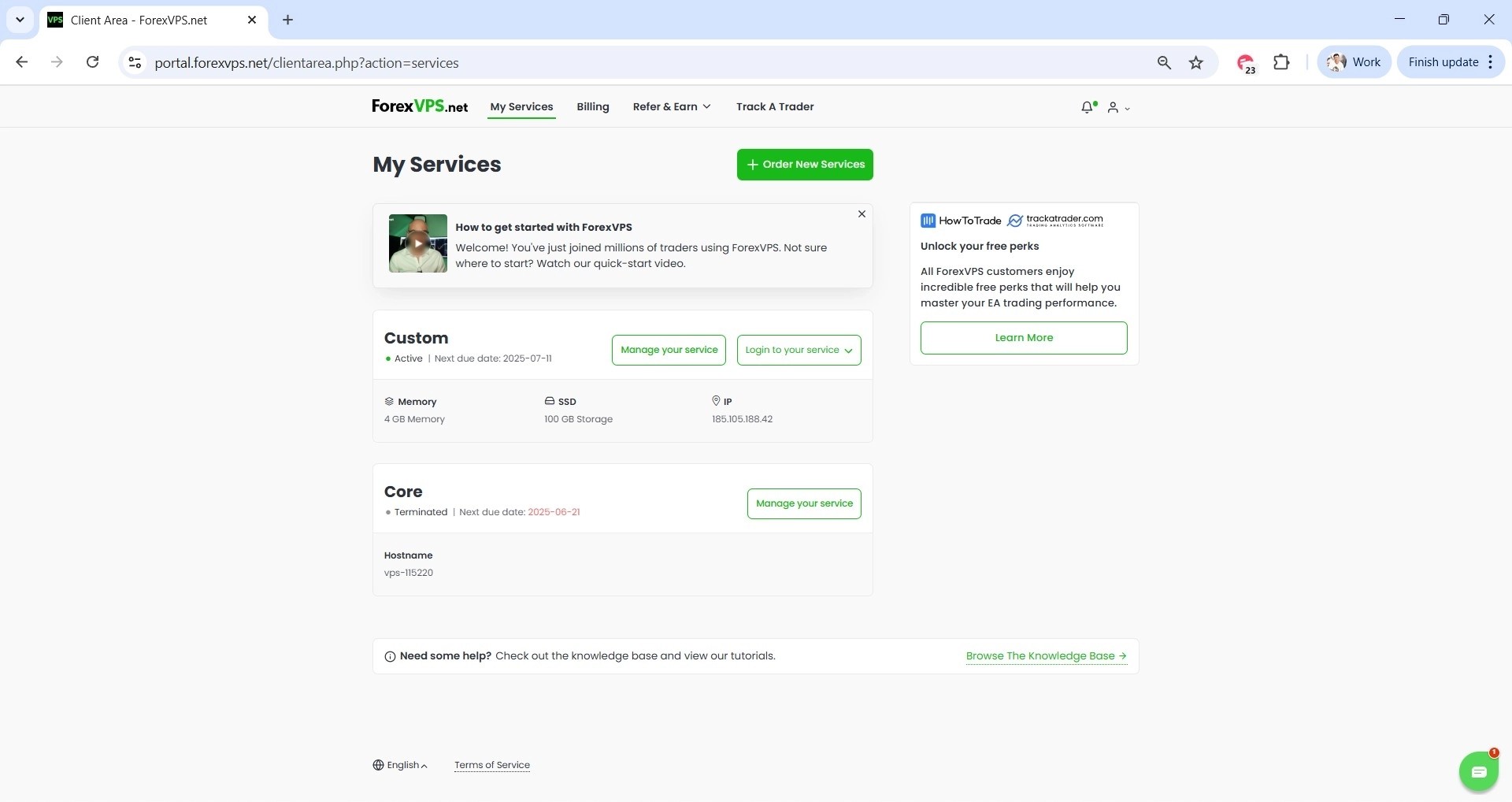
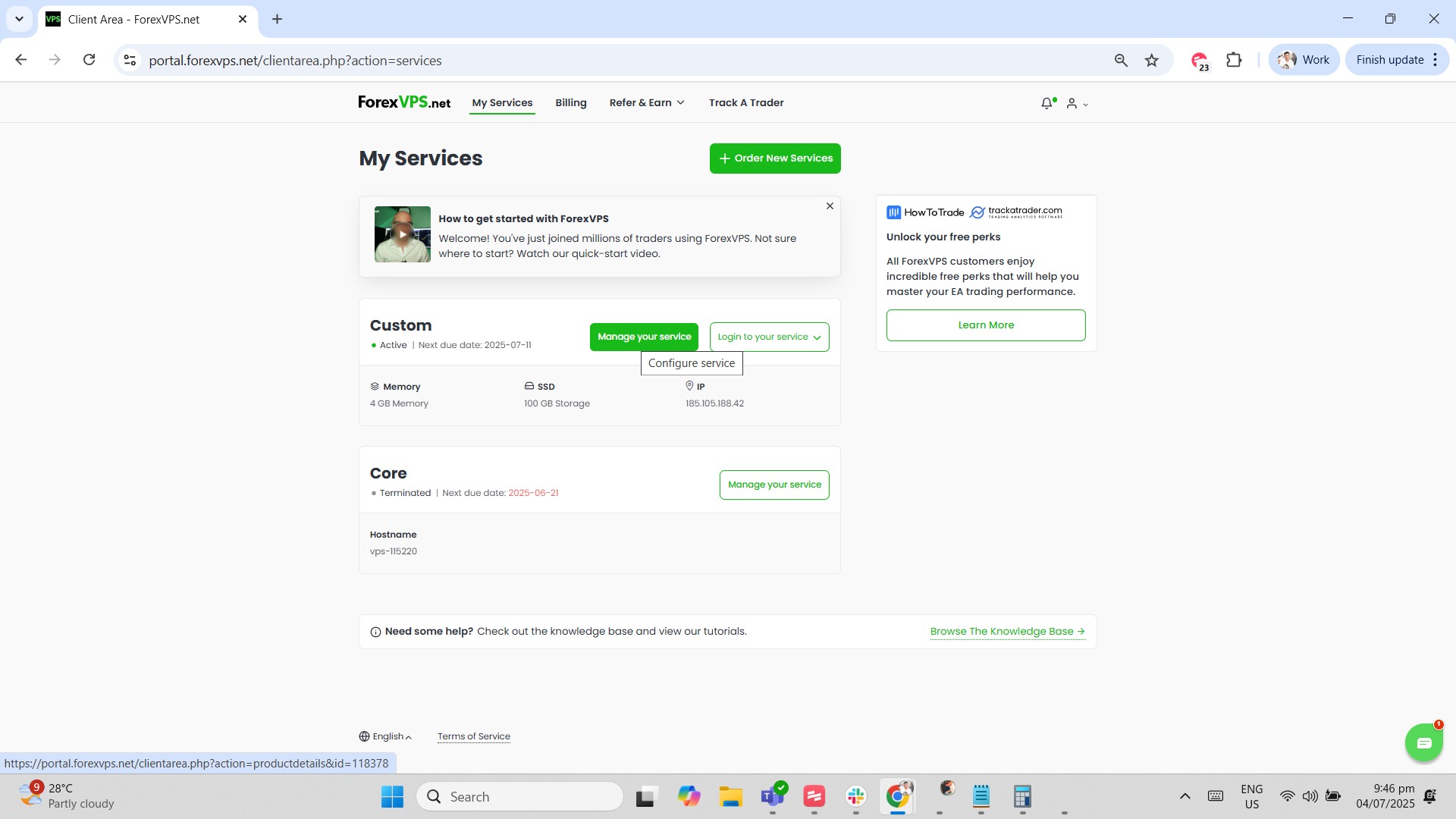
Click on VPS in your client dashboard. If you have multiple VPS instances on your account, identify the one you need by its IP address, shown next to each listing.
Part 2: View billing, status, and power controls
Step 4: Click Manage your service
Click Manage your service to open the full service details page.
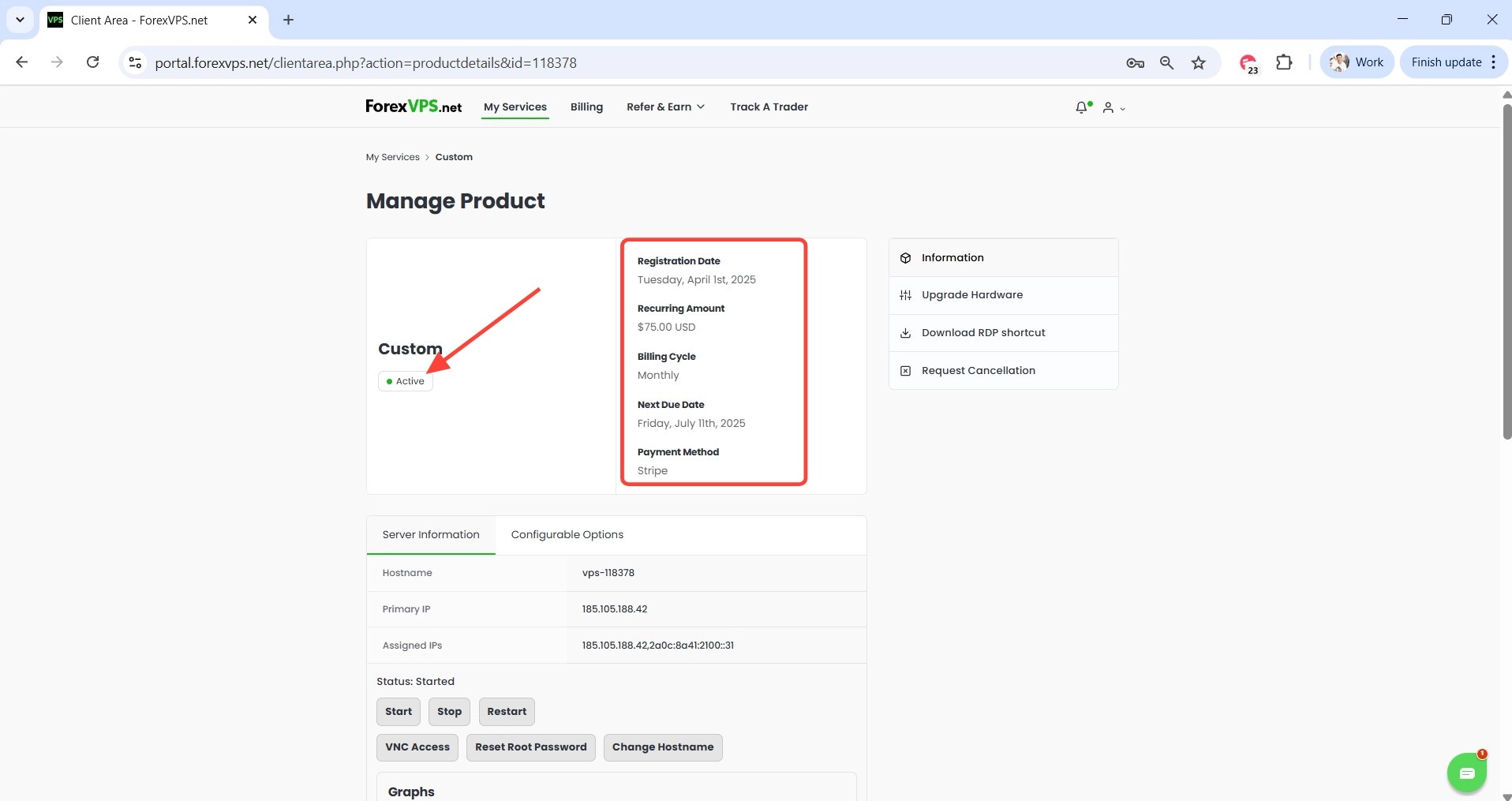
Step 5: Review billing details and plan status
Here you can find the amount you’re paying for your ForexVPS, your next due date, and your payment method. You can also see the plan name and whether your ForexVPS is currently online.
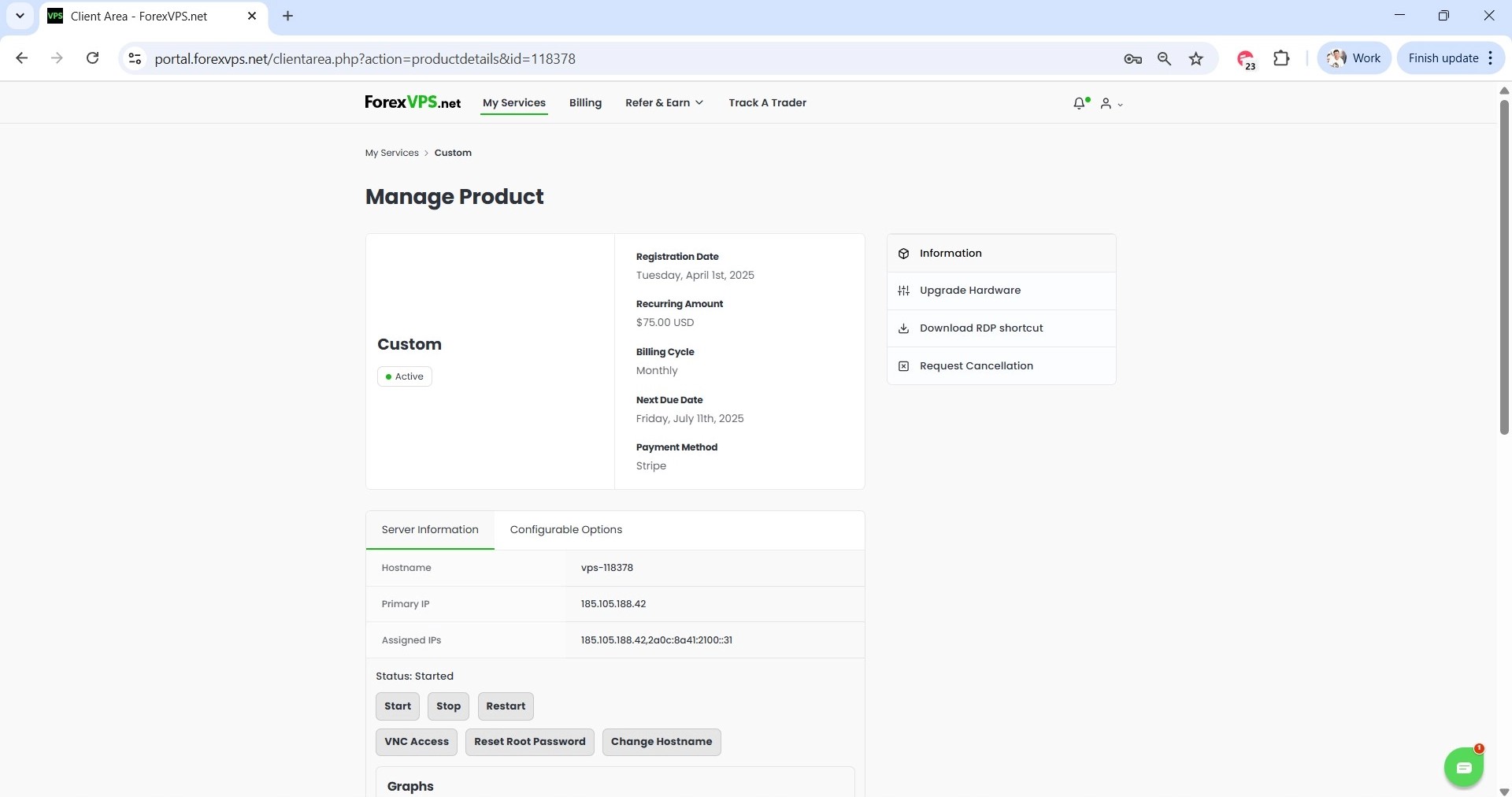
Step 6: Use the Start, Stop, and Restart controls
Under Server Information, you can control your VPS power state directly using the Start, Stop, and Restart buttons.
Troubleshooting client area access and controls
Running into issues in the client area? Here are fixes for the most common problems.
| Problem | Likely cause | Fix |
|---|---|---|
| Not sure which VPS is which | Multiple VPS instances on the account | Check the IP address listed next to each VPS in the service list to identify the correct one. |
| ForexVPS shows offline after clicking Stop | Expected behavior | Click Start to bring your ForexVPS back online — this is normal after a manual stop. |
| Billing amount looks incorrect | Recent plan change not yet reflected | Allow time for plan changes to process, or contact ForexVPS support if the discrepancy persists. |
Frequently asked questions about managing your VPS in the client area
Still have questions about billing, status, or power controls? Find quick answers below.
Where do I check my ForexVPS billing and due date?
Click VPS, then Manage your service. Billing amount, next due date, and payment method are all shown on that page.
Can I restart my ForexVPS from the client area without connecting via Remote Desktop?
Yes. The Start, Stop, and Restart buttons under Server Information let you control your ForexVPS power state directly from the client area.
How do I tell if my ForexVPS is online?
The Manage your service page shows the current status of your ForexVPS alongside the plan name and billing details.
How do I identify the right VPS if I have more than one?
Each VPS listing shows its IP address — use that to match the VPS you want to manage.