You can view, download, and pay your ForexVPS invoices directly from the client area’s Invoices tab. This guide covers accessing your invoices and changing your payment method if needed.
Before you start: You’ll need your client area login to access your invoices.
What You’ll Need
- Your ForexVPS client area email and password
Part 1: Navigate to Your Invoices
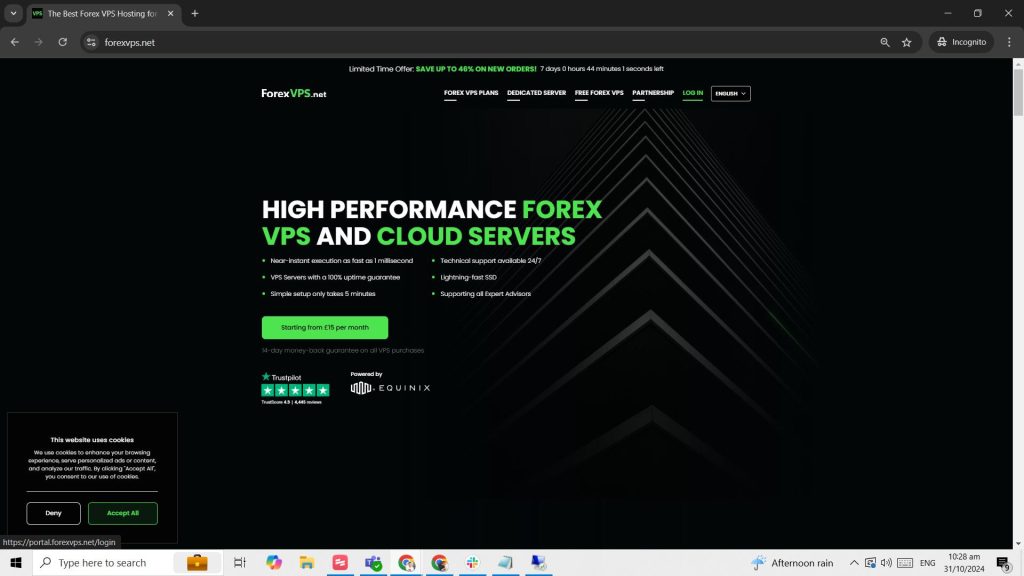
Step 1: Log in to your client area
Go to forexvps.net and log in to your client area.
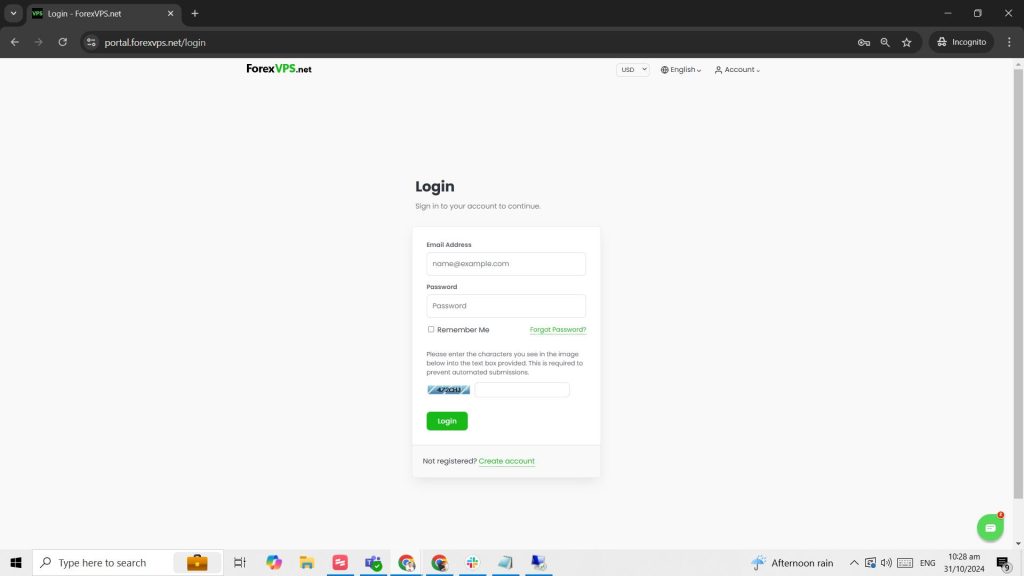
Step 2: Enter your credentials
Type in your Email address, password, and the captcha, then click Login.
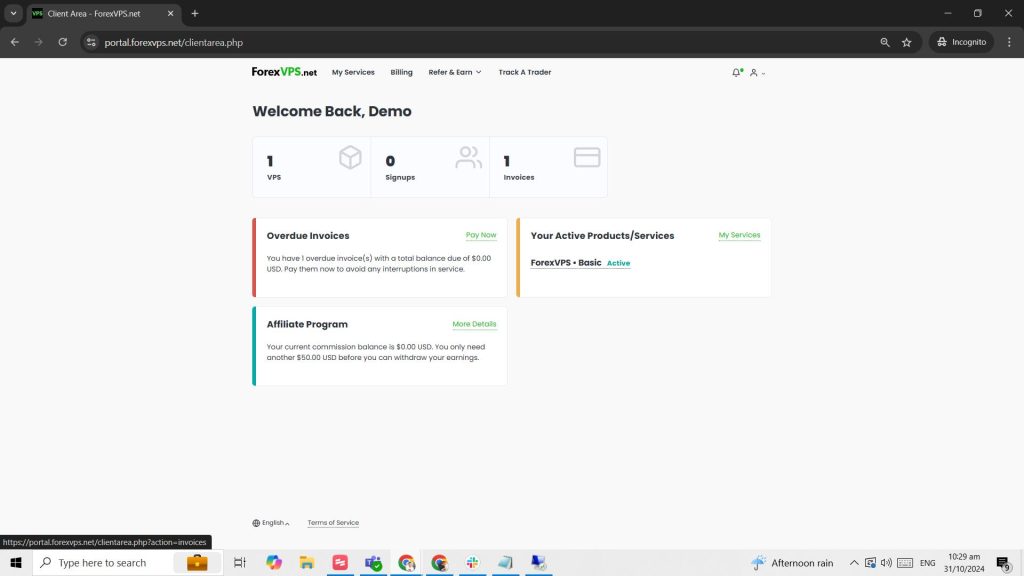
Step 3: Click on the Invoices tab
Click on the Invoices tab.
Part 2: View or Pay an Invoice
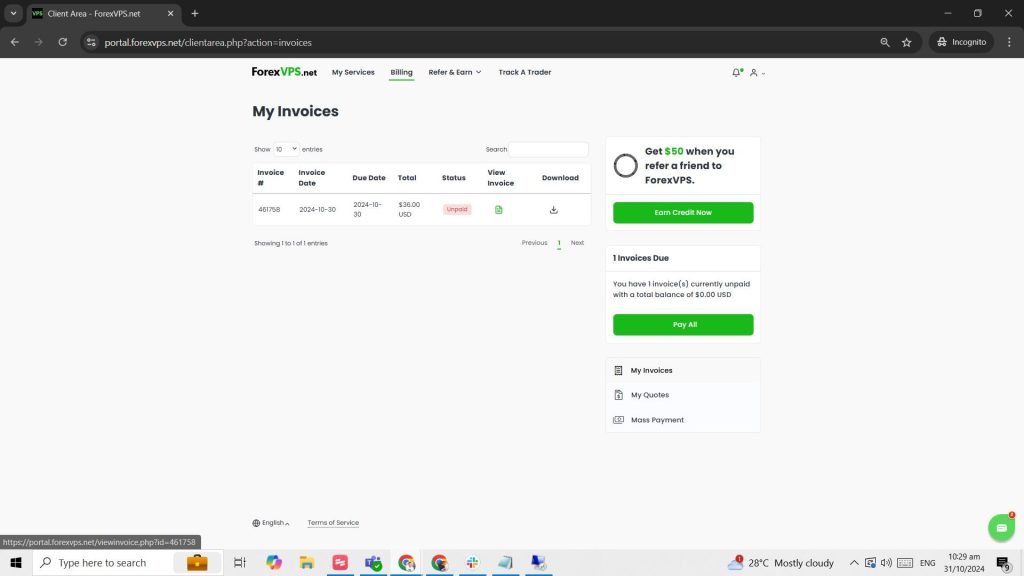
Step 4: View or download an invoice
From this list, you can either View Invoice or Download it.
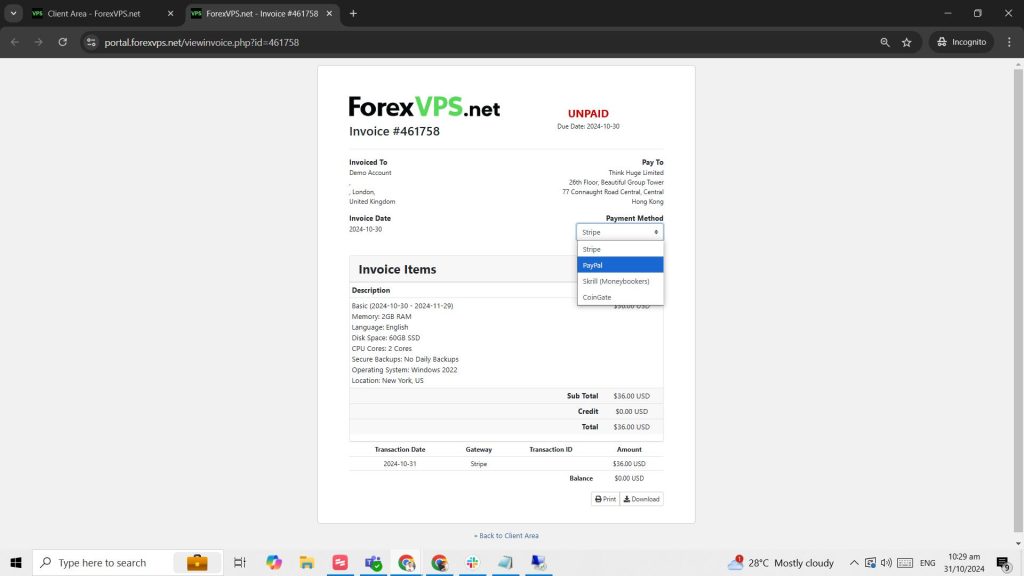
Step 5: Change your payment method if needed
Once you view the invoice, you have the option to change the payment method. A Checkout button appears once you select a payment method.
Troubleshooting Invoice Access and Payment Issues
Running into problems accessing or paying your ForexVPS invoices? Here are fixes for the most common issues.
| Problem | Likely cause | Fix |
|---|---|---|
| Can’t find a specific invoice | Invoice from a different billing period | Scroll through the full Invoices list or check the date filters if available. |
| Checkout button doesn’t appear | No payment method selected yet | Select a payment method first — the Checkout button appears immediately after. |
| Downloaded invoice won’t open | PDF viewer issue | Try opening the file with a different PDF reader, or use View Invoice in-browser instead. |
Frequently Asked Questions About Accessing and Managing Your ForexVPS Invoices
Still have questions about accessing and managing your ForexVPS invoices? Find quick answers below.
Where do I find my ForexVPS invoices?
Log in to your client area and click the Invoices tab to see your full invoice history.
Can I download my invoice as a file?
Yes. Click Download next to any invoice to save it locally, or click View Invoice to see it in-browser first.
How do I change my payment method for an invoice?
Open the invoice with View Invoice, then select a different payment method. A Checkout button appears once selected.
Does viewing an invoice charge my payment method automatically?
No. Viewing an invoice only displays the details. You need to click Checkout after selecting a payment method to complete payment.
Related Articles
- Understanding your VPS and dedicated server billing cycle
- How to cancel your ForexVPS subscription
- Managing your VPS in the client area