There are two ways to restart your ForexVPS: from inside it directly, or through the client area. This guide covers both — the best method is always restarting while logged in.
Before you start: Dedicated servers do not have a reboot option in the client area. If you need one, contact ForexVPS support directly.
What You’ll Need
- Either an active Remote Desktop session, or access to your client area
Method 1: Reboot From Inside Your ForexVPS
This is the preferred method whenever you’re already logged in.
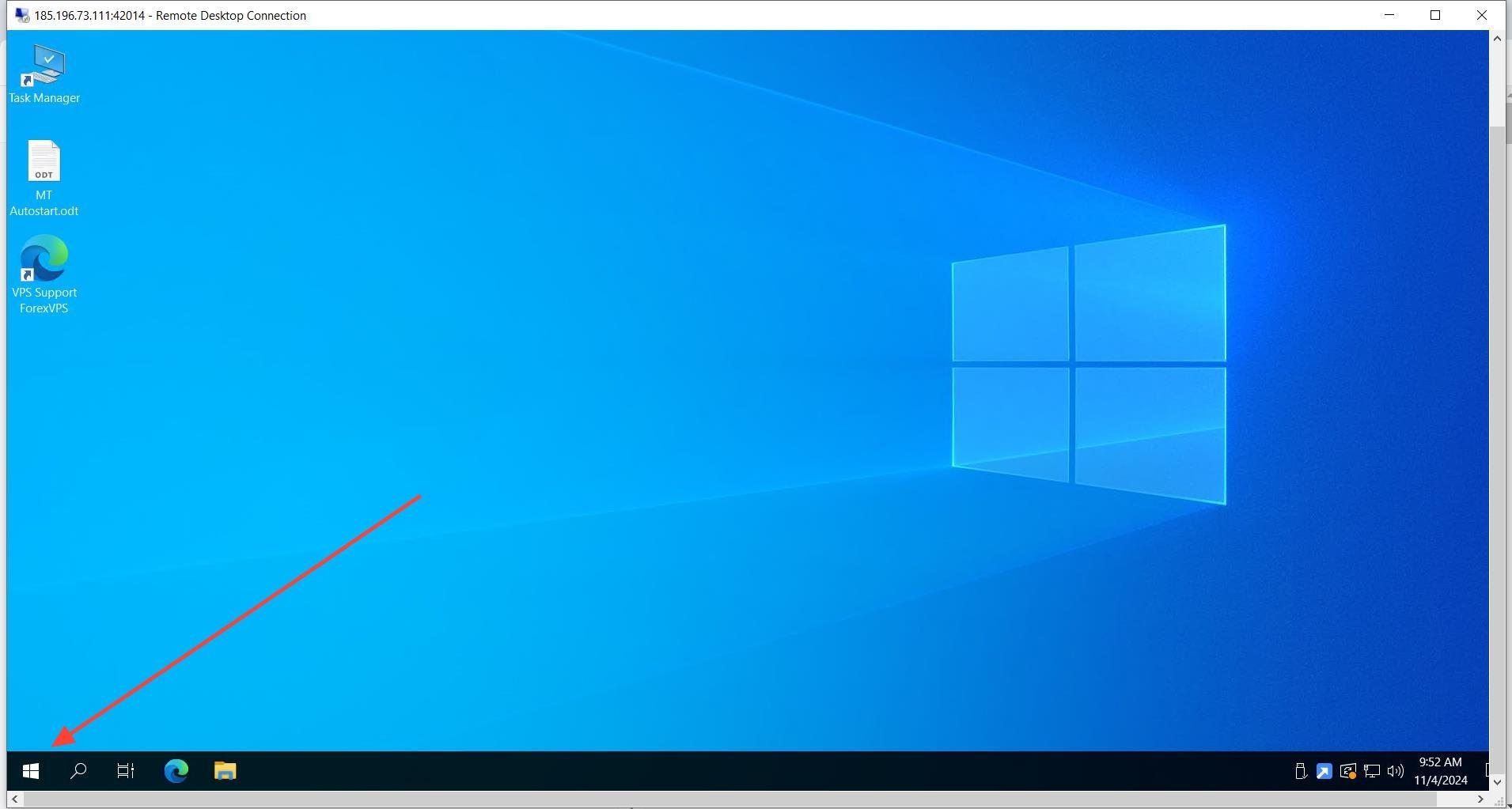
Step 1: Click START
Click START.
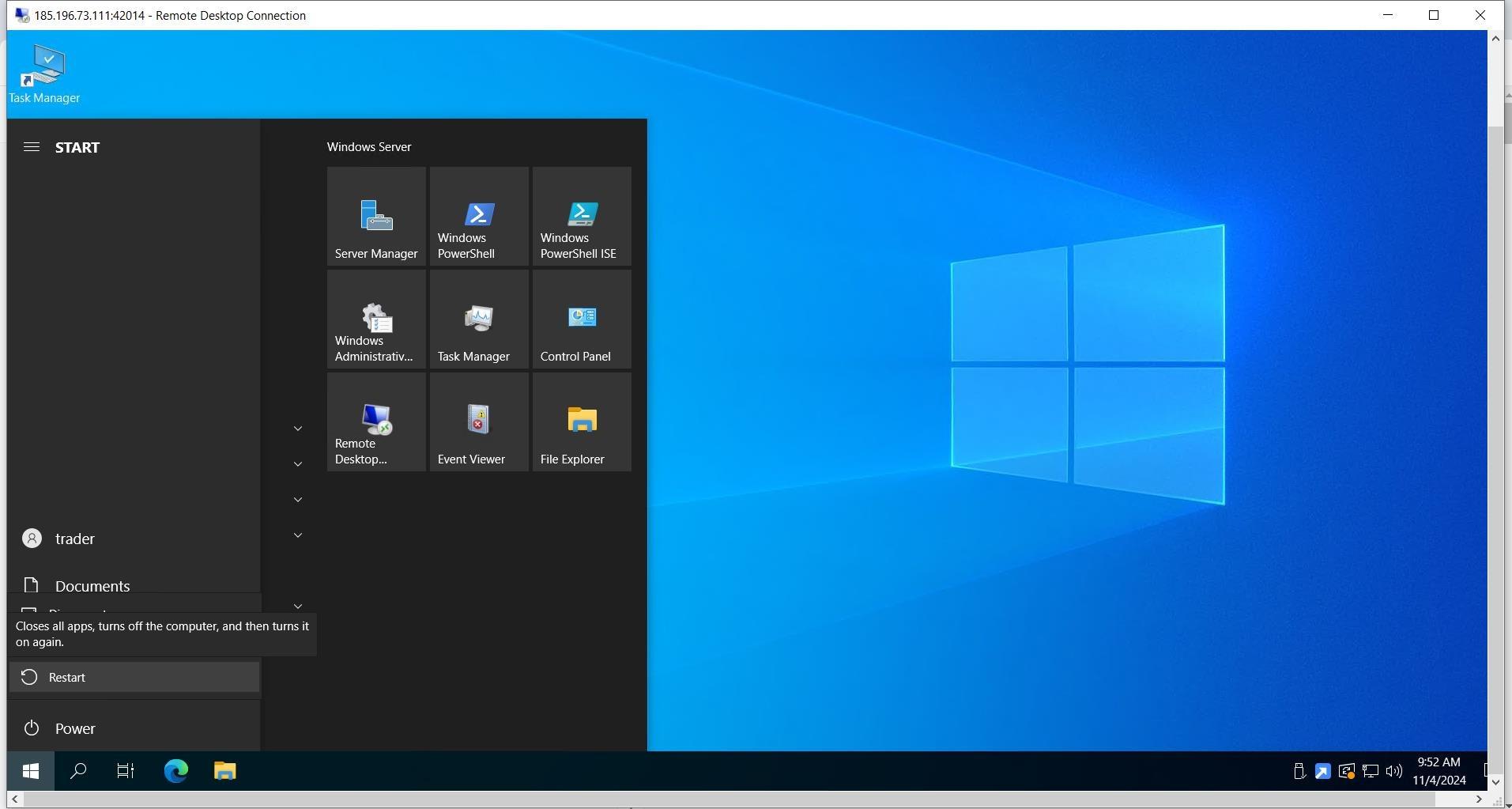
Step 2: Click the Power icon, then Restart
Click the Power icon, then Restart.
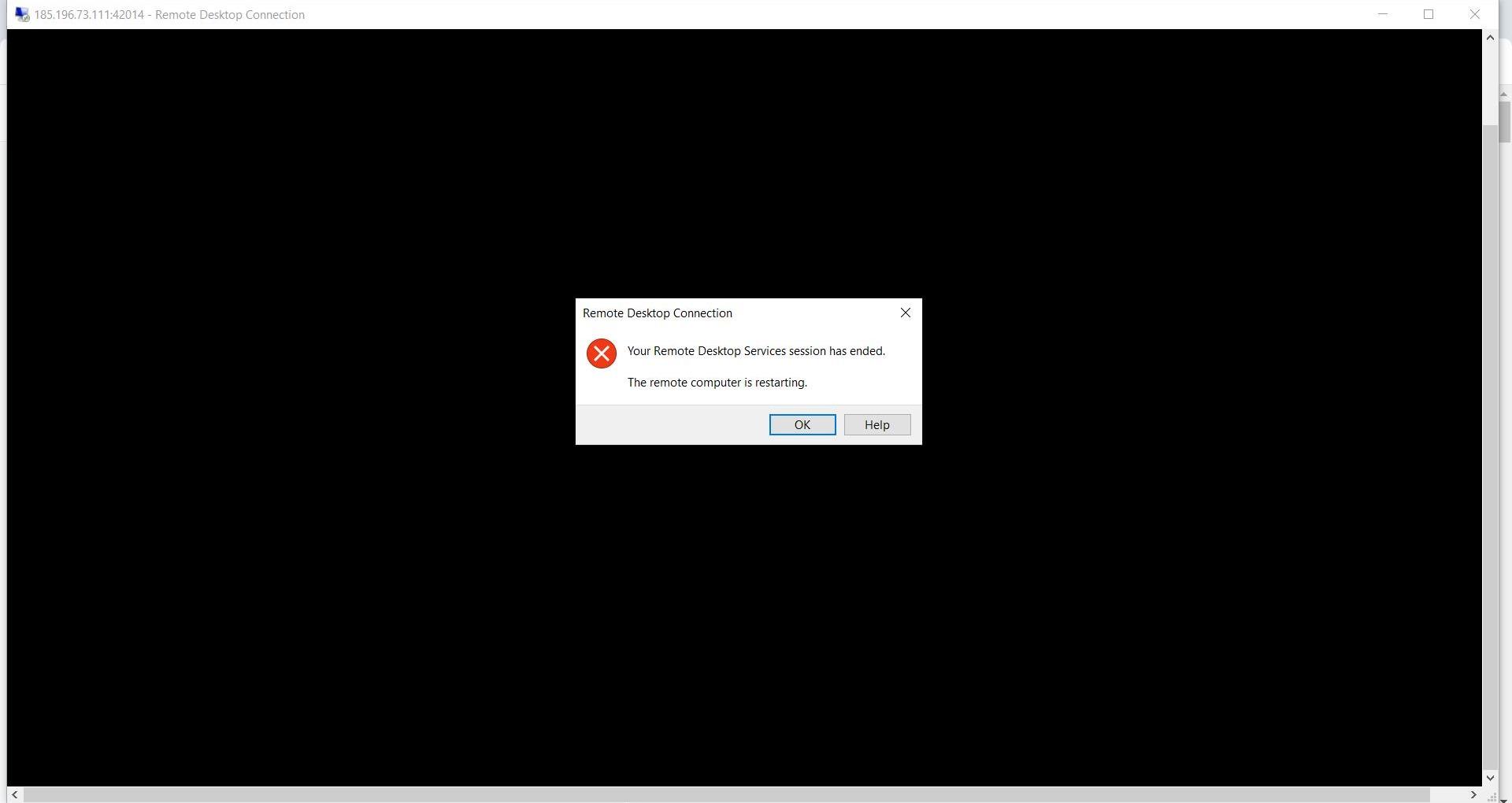
Step 3: Click OK
Click OK to confirm the restart.
Method 2: Reboot From the Client Area
Use this method if you can’t log in to your ForexVPS directly.
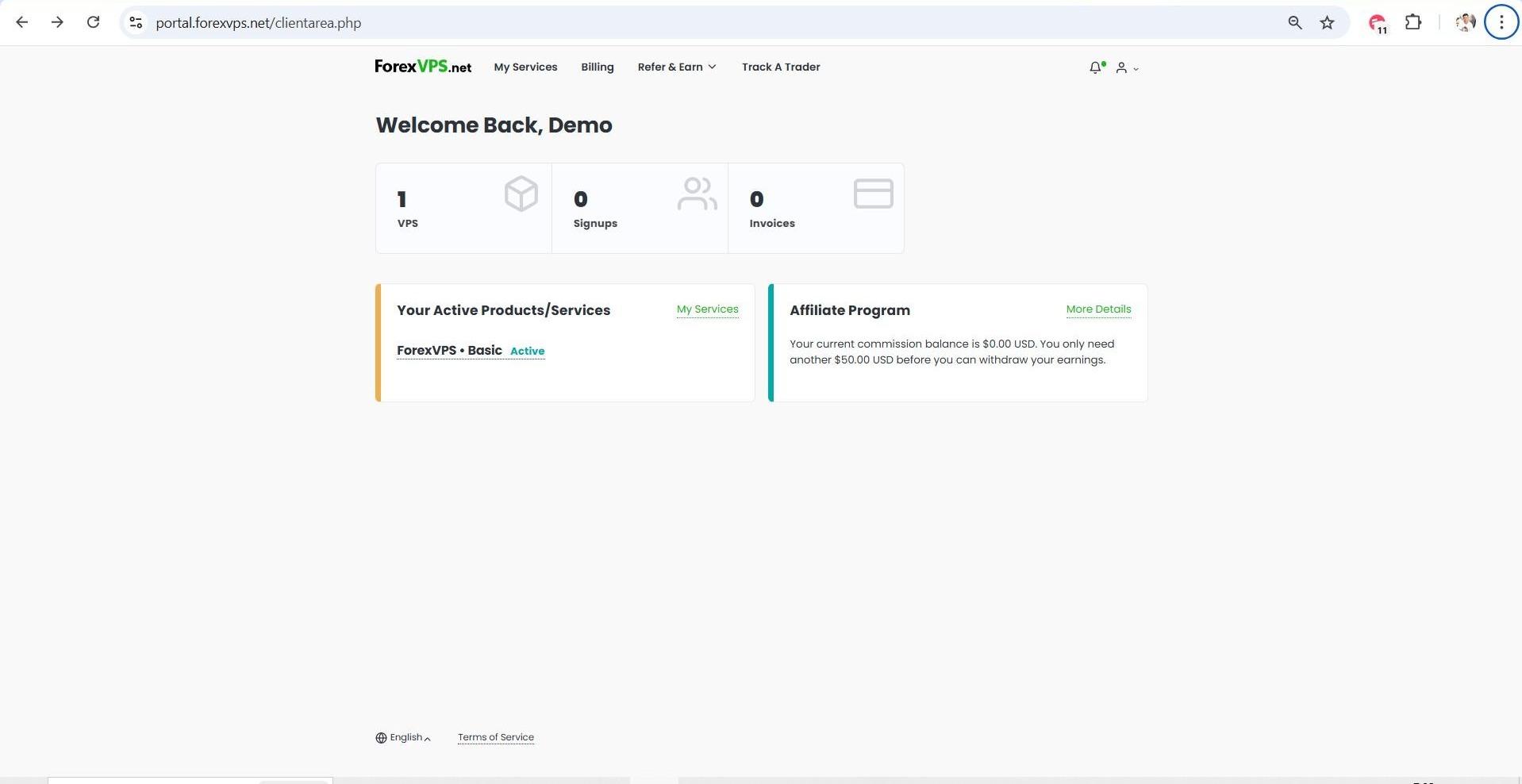
Step 4: Log in and click the VPS tab
Log in to the Client Area and click on the VPS tab.
Step 5: Select your ForexVPS and click Manage your service
Select which ForexVPS you want to access (if there are multiple) and click on the Manage your service button.
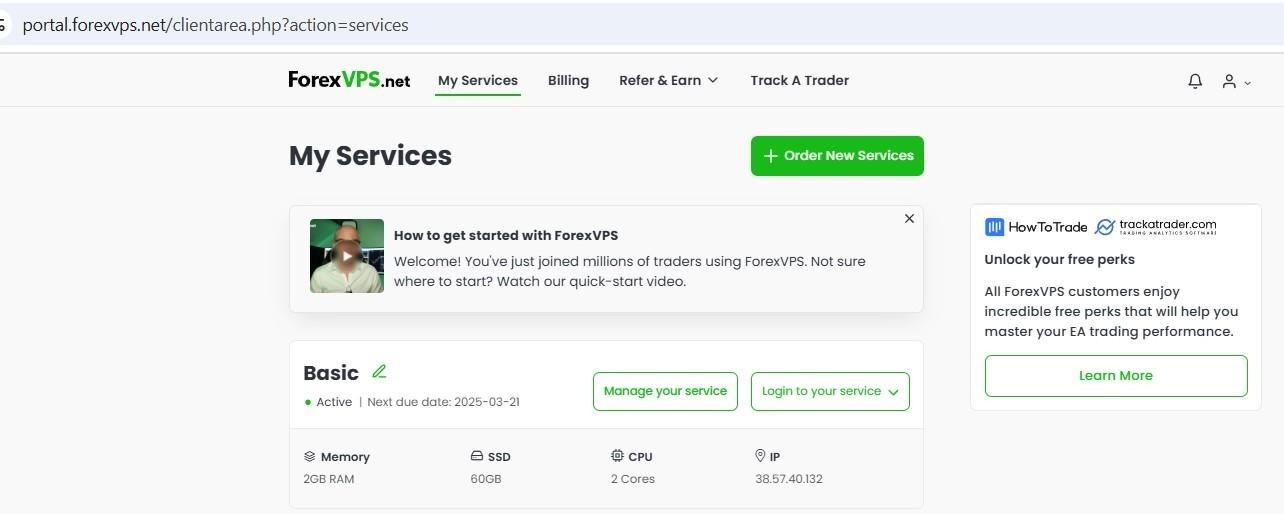
Step 6: Click Reboot
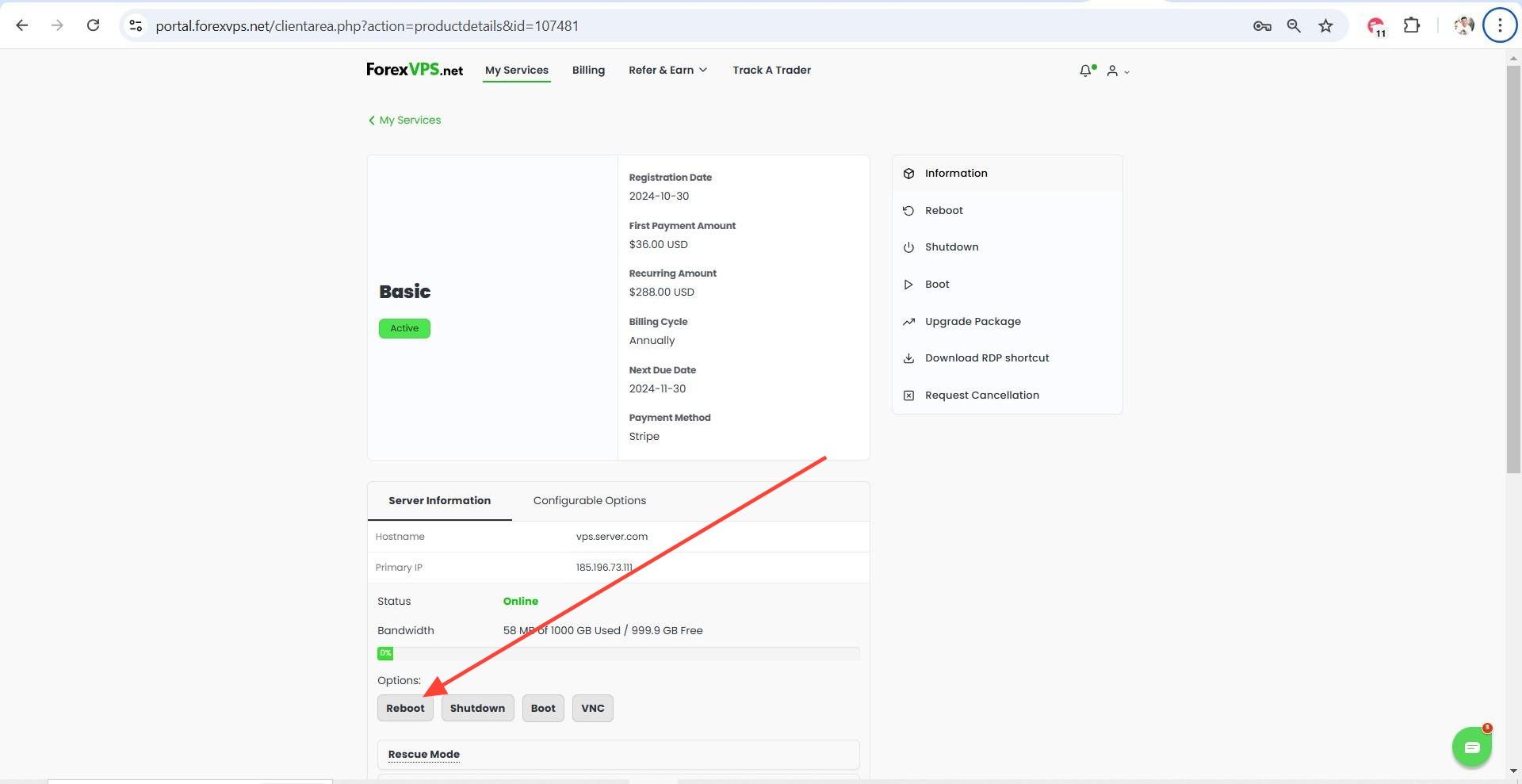
You can find the Reboot button below the Server Information section.
Dedicated servers do not have a reboot option in the client area. If you require one, contact ForexVPS support directly.
Troubleshooting VPS and Dedicated Server Reboots
Running into problems rebooting your VPS or dedicated server? Here are fixes for the most common issues.
| Problem | Likely cause | Fix |
|---|---|---|
| No Reboot button in the client area | Service is a dedicated server, not a VPS | Contact ForexVPS support directly — dedicated servers require a support request for reboots. |
| Can’t log in to reboot from inside your ForexVPS | Locked out or connection issue | Use Method 2 — reboot from the client area instead. |
| ForexVPS stays offline after reboot | Reboot still processing | Wait a few minutes and try reconnecting — reboots take longer than a simple restart. |
Frequently Asked Questions About Rebooting Your VPS or Dedicated Server
Still have questions about rebooting your VPS or dedicated server? Find quick answers below.
Which method is better — inside your ForexVPS or the client area?
Rebooting from inside your ForexVPS is always the best option when you’re logged in, since it performs a clean Windows restart.
Can I reboot a dedicated server from the client area?
No. Dedicated servers do not have a reboot option in the client area. Contact ForexVPS support if you need one rebooted.
Where is the Reboot button in the client area?
It’s located below the Server Information section on the Manage your service page.
Will rebooting interrupt my trading platforms?
Yes, briefly. Set up AutoStart for your MetaTrader platforms so they relaunch automatically once your ForexVPS comes back online.