
Learn how to setup a free MetaTrader VPS, from getting your free VPS credentials to the point of executing trades.
Setting up a free MetaTrader Virtual Private Server (VPS) takes five steps: qualify through a broker-sponsored plan, connect via Remote Desktop, install the MetaTrader trading platform (MT4 or MT5), attach your Expert Advisors, and verify the server is actually running your trades.
This guide walks through the full process from opening the account to confirming your automated trading strategies are running around the clock.
How Does a Free MetaTrader VPS Actually Work?
The word “free” in forex VPS advertising almost always means subsidized, not free. The cost is real; it is paid by your broker under conditions you have to maintain.
A free MetaTrader VPS runs on a broker-sponsorship model, usually with a third-party VPS hosting provider. Your forex broker covers the monthly VPS fee with the third-party hosting provider as long as your account activity meets their threshold. The VPS itself is a full Windows virtual machine with RDP access. You get a real trading environment, not a stripped-down container. But the arrangement is contingent on your continued trading operations.
There are three things that make broker-sponsored free VPS offers conditional in practice:
- Minimum account balance: Many brokers require you to maintain a live account balance, typically between $500 and $5,000, to keep the VPS active. Admirals, for example, requires a €5,000 account balance with no volume requirement attached.
- Minimum monthly trading volume: Some brokers measure eligibility by lots traded per month rather than balance. Switch Markets qualifies traders with a minimum of 1 standard lot per month, thanks to their partnership with us at ForexVPS.net. IC Markets requires 5 standard lots per month for their base free VPS tier in collaboration with us as well.
- Active live account: Demo accounts do not qualify under any broker-sponsored program. The VPS benefit is tied to a live funded account.
The VPS stays free only as long as the trading activity continues. If your automated strategies go quiet during a low-volatility period and your lot count drops, you may receive an unexpected charge mid-month with no warning beyond the terms you agreed to at signup.
What You’ll Need to Set Up Your MetaTrader VPS Hosting
Before requesting your free VPS, confirm you have everything on this list. Missing any item will stall the setup at a specific step.
1. Broker eligibility
Not every broker offers a free VPS. Those that do typically require one of the following:
- A minimum monthly trading volume, commonly 3 to 10 standard lots depending on the broker. For ForexVPS, this minimum comes as low as 1 standard lot
- A minimum account balance, often $1,000 to $5,000 depending on the broker’s tier
- An active live trading account (demo accounts do not qualify)
Check your broker’s VPS promotion page or contact their support team to confirm the exact threshold. Brokers that partner with dedicated forex VPS providers, such as IC Markets and Switch Markets through ForexVPS.net, will provision a full Windows VPS on your behalf once you qualify.
2. MetaTrader installer from your broker
Download MetaTrader directly from your broker’s client portal, not from a generic third-party source. Broker-branded installers come pre-loaded with the correct server list, which means you will not have to manually enter server addresses at login. The installer file is typically named mt4setup.exe or mt5setup.exe. If you need a clean generic build, official installers are available at metatrader4.com and metatrader5.com.
3. MQL5.com account (MetaQuotes Virtual Hosting only)
If you are using MetaQuotes Virtual Hosting instead of a broker-sponsored Windows VPS, you need a valid MQL5 community account. Registration is free at mql5.com. Your terminal must also be running the 64-bit build; 32-bit terminals cannot use Virtual Hosting.
4. RAM requirements: MT4 vs. MT5
This affects which VPS tier to request from your broker.
| Setup | Minimum RAM | Recommended RAM |
|---|---|---|
| Single MT4 terminal, 1-2 EAs | 1 GB | 2 GB |
| Single MT5 terminal, 1-2 EAs | 2 GB | 4 GB |
| Multiple MT5 terminals | 4 GB base | Add 1-2 GB per additional terminal |
MT5 carries a larger memory footprint than MT4 for the same indicator load because it stores full tick history and uses a more complex internal data model. A VPS that runs MT4 comfortably may hit swap on MT5 under the same chart configuration. If your broker’s free VPS tier offers only 1 GB RAM, it will work for a single light MT4 instance but is insufficient for MT5.
Critical note for MT5 users: MT5 dropped 32-bit support in September 2023. Since build 4755, which became mandatory in July 2025, older 32-bit terminals cannot connect to broker servers at all. Ensure your VPS runs 64-bit Windows Server 2019 or 2022 before installing MT5. Any broker-sponsored VPS provisioned in 2024 or later should already meet this requirement, but confirm before proceeding.
5. Your broker login credentials
Have these ready before connecting to the VPS:
- Trading account number
- Trading password (not the investor/read-only password)
- Broker server name (found in your broker’s welcome email or client portal)
How to Set Up Your Free MetaTrader VPS (Step-by-Step)
The full setup takes approximately 20 to 30 minutes from credential delivery to confirmed 24/7 operation. Each step below is self-contained; complete them in order.
Step 1: Qualify and Get Your VPS Credentials
Contact your broker’s support team or navigate to the VPS section of your client portal and submit a request. Brokers that automate this process will check your account balance or recent trading volume against their threshold and issue credentials within minutes. Brokers with manual review processes may take up to 24 hours.
Once approved, you will receive an email containing three items:
- IP address of your VPS (e.g., 192.168.1.100)
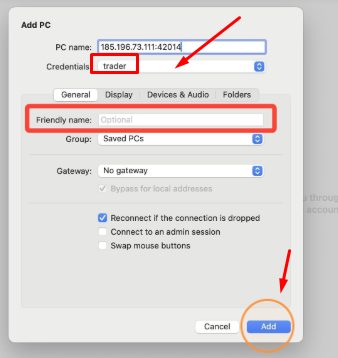
- Username, typically trader
- Password, either a temporary password you will change on first login or a permanent credential
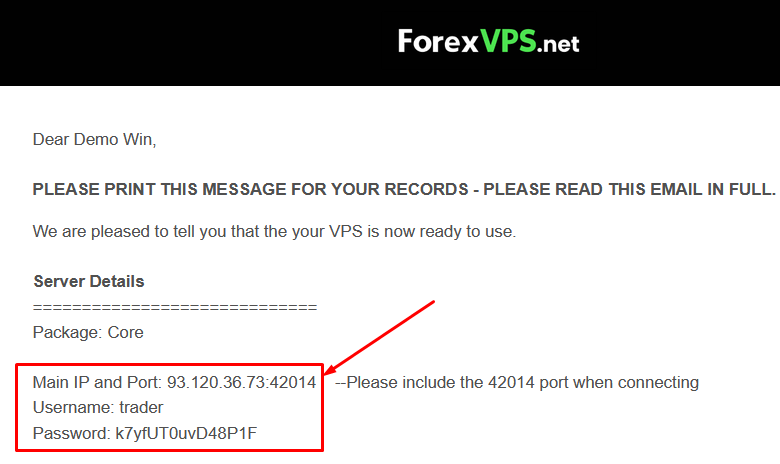
Keep this email. You will need all three values every time you reconnect via Remote Desktop.
If your broker uses ForexVPS.net for their free VPS program: Your credentials arrive via the ForexVPS client portal after approval. Log in at forexvps.net to retrieve them. The IP address, username, and password are listed under your active VPS instance.
Step 2: Connect to Your VPS via Remote Desktop
Remote Desktop Protocol (RDP) is the standard method for accessing a Windows VPS. It is built into Windows and available as a free app on macOS, iOS, and Android.
On Windows:
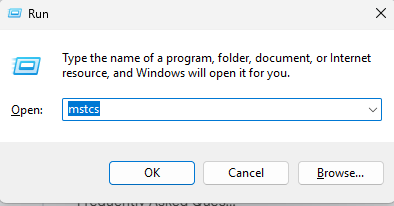
1. Press Win + R, type “mstsc”, press Enter
2. Enter your VPS IP address in the Computer field
3. Click Connect
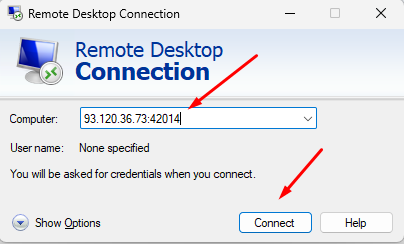
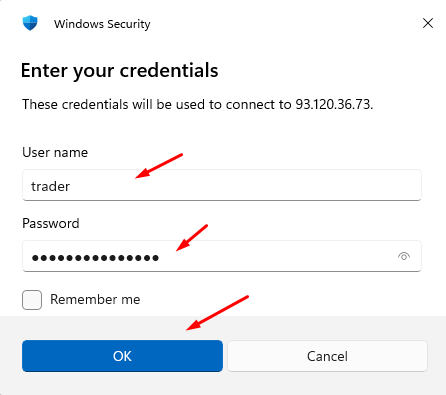
4. Enter your username and password when prompted
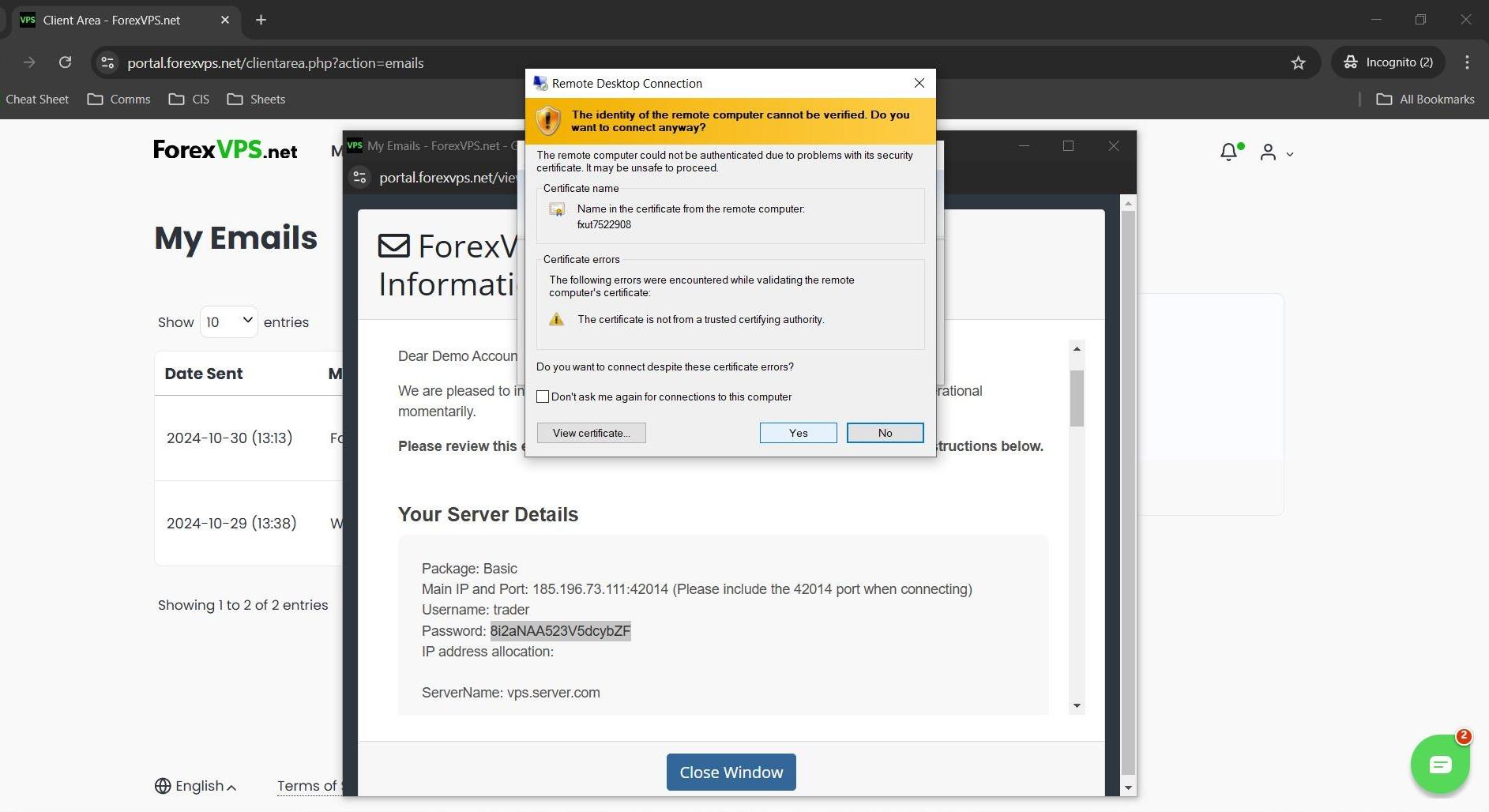
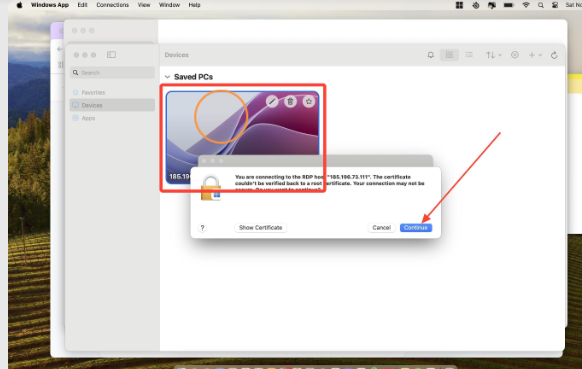
5. Accept the certificate warning (expected on first connection)
On macOS:
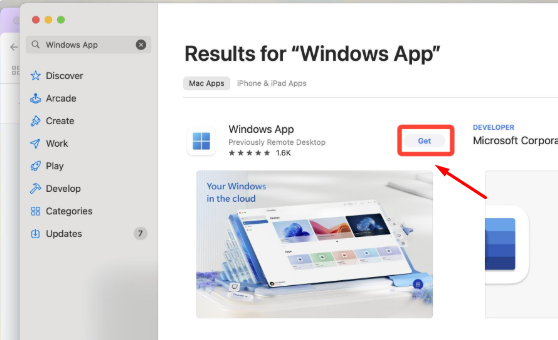
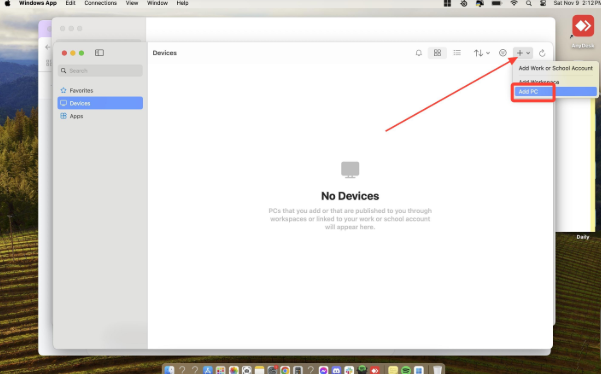
1. Download Windows App from the Mac App Store
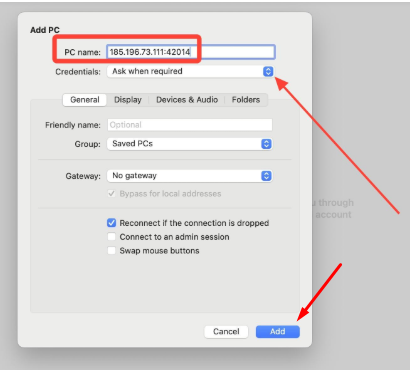
2. Click Add PC, enter your VPS IP address
3. Add your credentials under User Account
4. Double-click the connection to launch
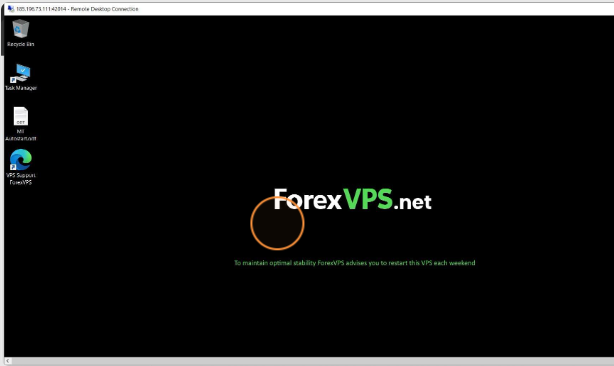
On mobile: Use the Windows App available on both iOS and Android. Useful for checking EA status from a mobile device without sitting at a computer.
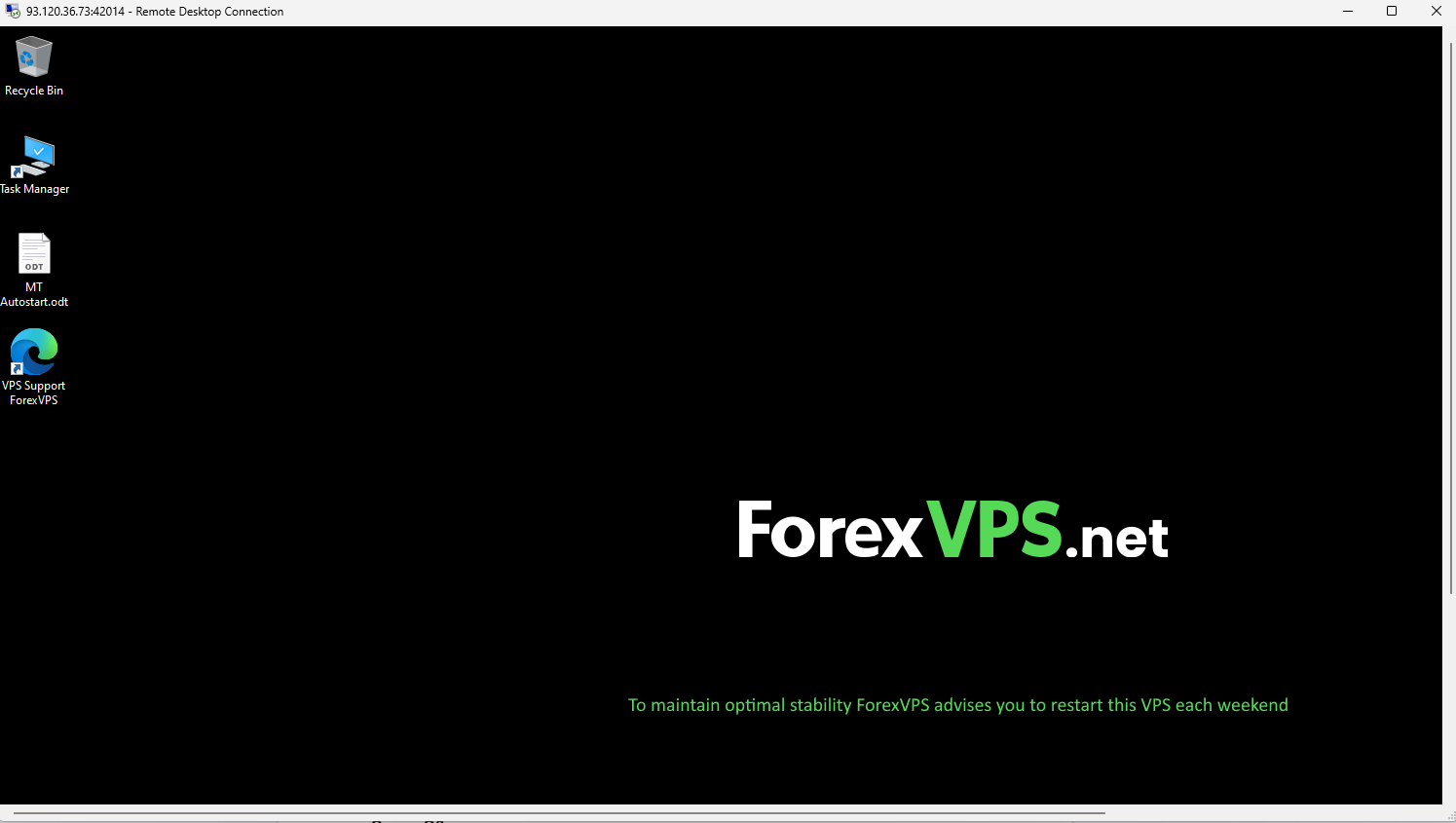
Important: When you are done managing your VPS, close the Remote Desktop window using the X button. Do not click Log Out or Sign Out. Logging out closes all running applications, including MetaTrader. Closing the window disconnects your session while leaving MetaTrader running in the background.
Step 3: Install MetaTrader on Your VPS
Once inside the VPS desktop, open the browser (Edge is pre-installed on Windows Server 2022) and download the MetaTrader installer from your broker’s website. The steps differ slightly between MT4 and MT5.
Installing MT4
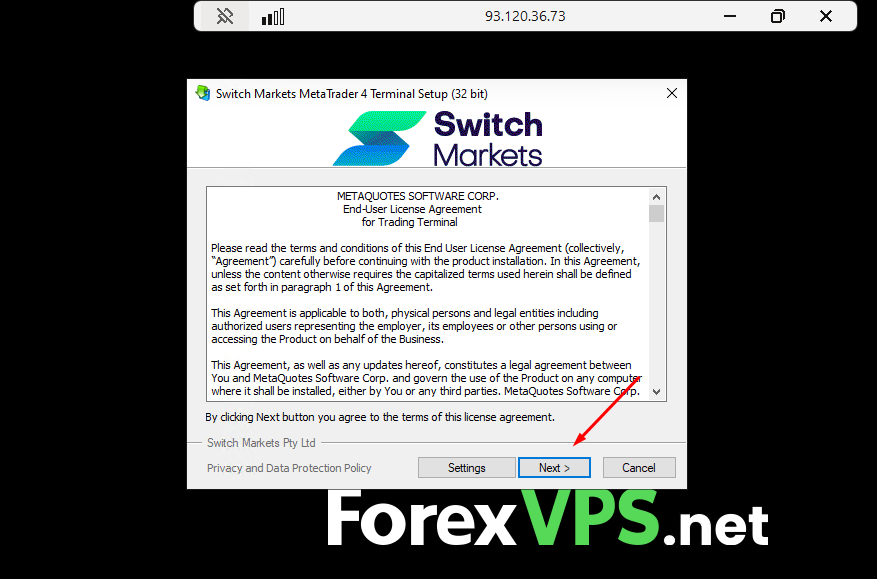
1. Download the broker-branded mt4setup.exe from your broker’s client portal
2. Run the installer as Administrator (right-click > Run as administrator)
3. Accept the license agreement and keep the default installation path (C:\Program Files\MetaTrader 4\) unless you are running multiple instances, in which case use a named path such as C:\MT4_BrokerName\
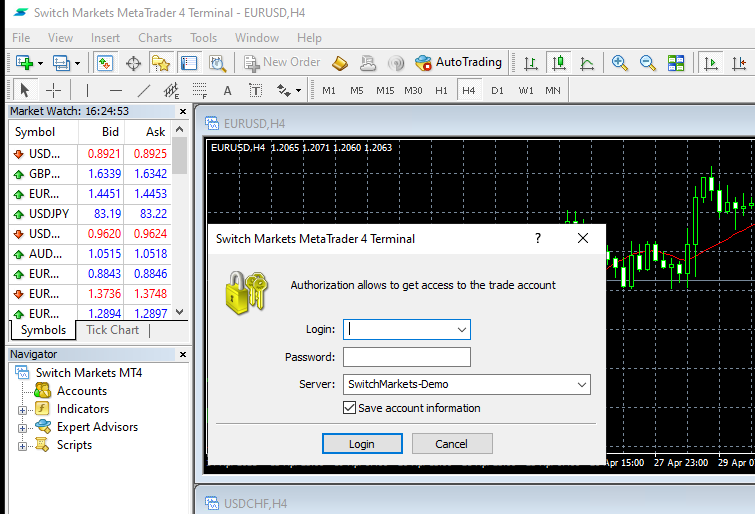
4. When the terminal launches, log in with your account number, trading password, and select your broker’s live server from the dropdown
Installing MT5
- Download the broker-branded mt5setup.exe from your broker’s client portal
- Run the installer as Administrator
- Keep the default installation path or use a named path for multiple instances
- On first launch, MT5 may prompt you to select an account mode: Netting or Hedging. This is determined by your broker’s account type, not a personal preference. Check your broker’s account documentation. Selecting the wrong mode at setup requires a full reinstall to correct.
- Log in with your account credentials and select the correct live server
MT5 32-bit warning: If you are migrating an older setup from a personal computer that was running a 32-bit MT5 build, do not copy that installation to your VPS. Download a fresh installer from your broker. Since build 3930 (September 2023), 32-bit MT5 installs stopped accepting new connections. Since build 4755 (mandatory from July 2025), they cannot connect to broker servers at all. The current installer from your broker will always be 64-bit.
Step 4: Attach EAs and Indicators, Enable AutoTrading
Transfer your EA files (.ex4 for MT4, .ex5 for MT5) to the VPS by copying them on your local machine and pasting directly into the Remote Desktop session, then placing them in the correct directory.
File locations:
- MT4: [Data Folder]\MQL4\Experts\
- MT5: [Data Folder]\MQL5\Experts\
Use File > Open Data Folder inside the terminal to navigate to the correct path without memorizing it.
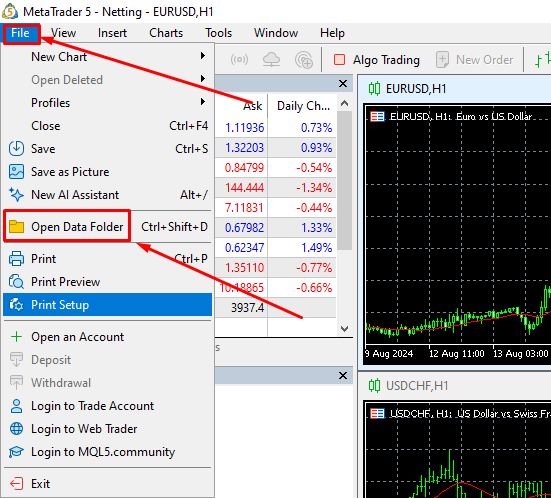
After placing the files:
1. Right-click Expert Advisors in the Navigator panel and select Refresh
2. Drag your EA from the Navigator onto the chart of the instrument you want to trade
3. In the EA properties dialog, go to the Common tab and confirm Allow live trading is checked
4. Click the AutoTrading button in the toolbar; it should display a green icon. A red icon means automated trading is globally disabled.
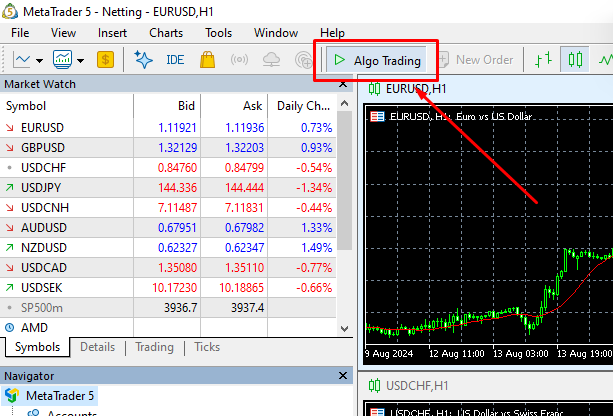
5. Go to Tools > Options > Expert Advisors and verify Allow automated trading (MT4) or Allow algorithmic trading (MT5) is checked
6. If your EA uses DLL imports or web requests, also enable Allow DLL imports and Allow WebRequest for listed URL
One setting most traders miss: Under Tools > Options > Expert Advisors, uncheck Disable automated trading when the account has been changed. If this box is checked, your EAs will stop running after any VPS reboot that causes MetaTrader to reconnect. Leave it unchecked.
Step 5: Verify Your Setup Is Actually Running 24/7
Connecting and installing is not the same as verifying. Before you close Remote Desktop and walk away, confirm that your trading environment will survive a disconnect and a reboot.
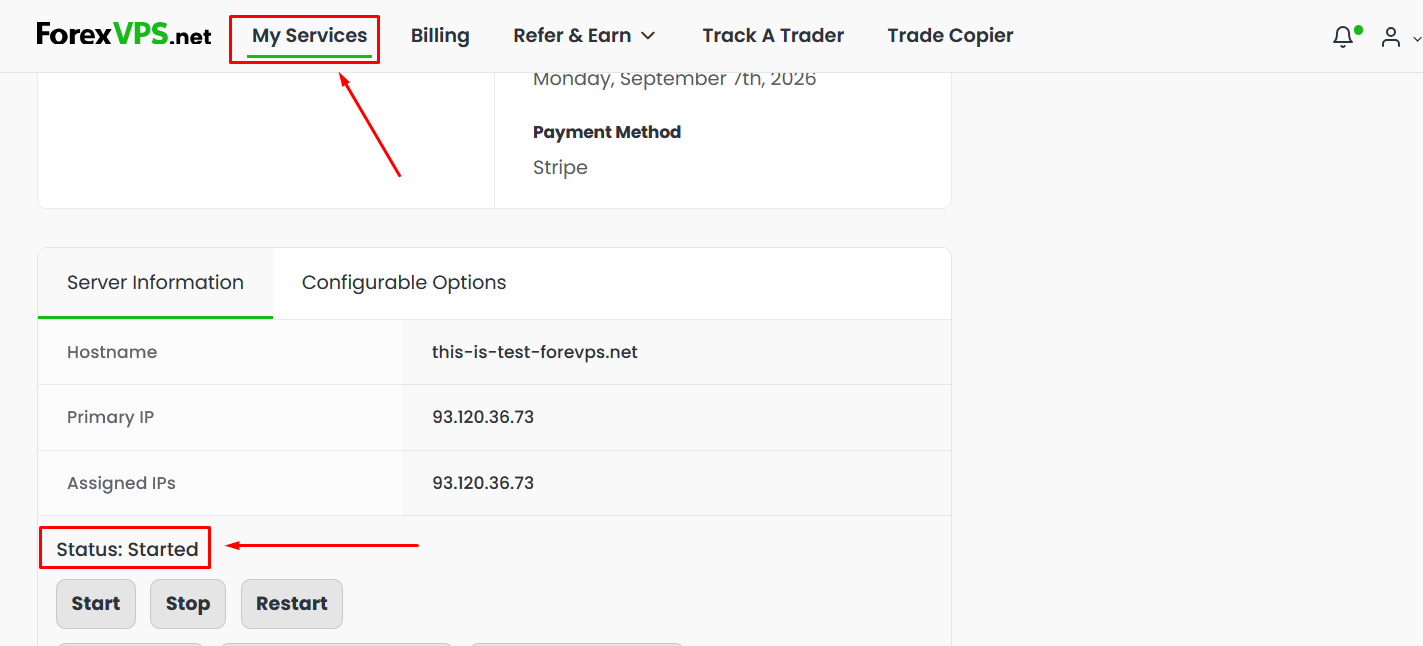
Verify EA is live:
- A smiley face icon in the upper-right corner of the chart confirms the EA is attached and authorized to trade on the MT4.
- Check the Journal tab at the bottom of the terminal for initialization messages from your EA
- In MT5, right-click your VPS entry in the Navigator under Virtual Hosting and select Details to view CPU, RAM, and disk usage in real time
For broker-sponsored Windows VPS setups, you can monitor uptime and connectivity from the ForexVPS client portal. Disconnect from Remote Desktop using the window’s X button, wait 60 seconds, and reconnect to confirm MetaTrader is still running without your session active.
When Does a Paid Plan Make More Sense Than the Free MetaTrader VPS Setup?
The free setup works well for traders who qualify and whose EA requirements are straightforward. It stops being the right choice when any of the following conditions apply.
1. Your trading volume is inconsistent
Broker-sponsored VPS programs are conditional. If you run automated strategies that trade heavily during high-volatility periods and go quiet during range-bound months, your volume may fall below the threshold in low-activity months. The result is an unexpected bill or a suspended VPS mid-session. A paid plan eliminates this dependency entirely.
2. You need more than one terminal or broker
Most free VPS tiers are sized for a single terminal, typically 1 to 2 GB RAM. Running two MT5 terminals with multiple EAs and indicator-heavy charts will exhaust that allocation. A paid VPS with 4 GB RAM and a dedicated CPU allocation provides the headroom to run multiple accounts across different brokers without resource contention.
3. Your EA uses DLLs or external connections
MetaQuotes Virtual Hosting does not support EAs that use DLL imports, external socket connections, or custom indicators that call system libraries. If your strategy relies on any of these, MetaQuotes Virtual Hosting is not a viable path. You need a full Windows VPS where you control the environment.
4. Latency to your broker server matters
Broker-sponsored free VPS programs place your server in a single region, usually wherever the VPS provider has capacity. If your broker’s trading server is in Equinix NY4 (New York) and your free VPS is provisioned in a European data center, you are adding 80 to 120 ms of round-trip latency to every order. For scalping strategies or high-frequency EAs, that gap is the difference between fill and slippage. A paid plan from a provider with 22 global data center locations near major financial hubs lets you co-locate with your broker’s server directly.
5. You run a prop firm account
Prop firm trading accounts have strict drawdown rules. An EA that misbehaves during a VPS restart, a missed reconnect, or a resource-constrained environment can breach drawdown limits and void a funded account. The risk profile of running a prop firm account on a free, conditionally provisioned VPS is higher than the monthly cost of a dedicated paid plan. See the considerations for prop firm traders using VPS before committing to the free route.
Frequently Asked Questions About Setting Up a Free MetaTrader VPS
Do you have more unanswered questions about the process of setting up a free MetaTrader VPS hosting? Find answers to some of these questions here:
What does the free setup actually cost after it’s running?
For a broker-sponsored Windows VPS: nothing, as long as you meet the monthly trading volume or minimum balance requirement. If you fall below the threshold, your broker will either suspend the VPS or charge you the standard monthly rate for the VPS tier you are using. The charge amount depends on the VPS provider your broker partners with.
For MetaQuotes Virtual Hosting: $12.80/month on an annual plan or $15/month on a monthly basis, unless your broker covers it. The 24-hour trial is free but auto-converts to paid at expiration.
Is MetaQuotes Virtual Hosting actually free?
No. MetaQuotes Virtual Hosting is a paid subscription service operated by MetaQuotes Ltd. and accessed through the MT4 or MT5 platform. A 24-hour free trial is available, but it converts to a paid plan automatically unless cancelled. Some brokers subsidize the cost for qualifying clients, which is why it is often described as free. Confirm with your broker whether they cover the subscription before assuming you will not be billed.
Can you run MT4 and MT5 on the same free VPS?
On a broker-sponsored Windows VPS: yes, provided the VPS has sufficient RAM. Running one MT4 terminal and one MT5 terminal simultaneously requires at minimum 3 to 4 GB of RAM, accounting for OS overhead. Most free VPS tiers provide 1 to 2 GB, which is insufficient for both platforms running concurrently. If your free VPS has 4 GB RAM or more, the setup is viable.
On MetaQuotes Virtual Hosting: no. Each Virtual Hosting subscription is tied to a single terminal instance. Running MT4 and MT5 simultaneously requires two separate subscriptions.
How much RAM does MT5 need on a VPS?
A single MT5 terminal with 3 to 5 charts and one or two EAs operates comfortably on 4 GB RAM, including OS overhead. Add 1 to 2 GB per additional terminal depending on chart count and EA complexity. MetaQuotes Virtual Hosting caps available RAM at 3 GB per instance. For a broker-sponsored Windows VPS, request the 4 GB tier if you are running MT5; the 2 GB tier is marginal and will hit swap under moderate indicator load.
What happens if you miss the monthly volume requirement?
The outcome depends on your broker’s policy. Common responses include:
- Automatic billing: The VPS cost is charged to your trading account or the payment method on file
- VPS suspension: The VPS is deactivated until you re-qualify or pay directly
- Grace period: Some brokers allow one missed month before taking action
Check your broker’s free VPS terms of service for the exact policy. The safest approach is to set a calendar reminder mid-month to check your lot count against the requirement.
Can you migrate an existing MetaQuotes Virtual Hosting setup to a different VPS?
Yes, but the process is manual. MetaQuotes Virtual Hosting does not export to a standard VPS format. To migrate to a broker-sponsored Windows VPS or a paid plan:
- From your local MetaTrader terminal, go to File > Open Data Folder
- Copy your MQL4\Experts\ or MQL5\Experts\ folder and your profiles folder to a USB drive or cloud storage
- Connect to the new VPS via Remote Desktop and install MetaTrader fresh
- Paste your EA and profile files into the corresponding data folder on the new VPS
- Log in to your broker account, attach your EAs, and re-enable AutoTrading
Your trading history remains on the broker’s server. Only the local configuration files (EAs, indicators, profiles, templates) need to be transferred.