
See how MT5 Build 6060 MCP use cases work, from AI market analysis to autonomous execution, and why ForexVPS keeps them online 24/7.
- MT5 Build 6060 gives AI agents direct access to MetaTrader 5. With native MCP support, models can pull market data, inspect trading account state, review history, and interact with MetaEditor inside the terminal.
- This is MT5-specific. MT4 does not have native MCP support, and MetaQuotes has not announced an equivalent for it.
- The biggest constraint is infrastructure, not capability. MT5 MCP workflows depend on the terminal staying online, connected to your broker, and reachable when the agent needs it.
- A trading VPS makes MT5 MCP practical for real trading workflows. It provides the uptime, stability, and low-latency environment needed for analysis, EA development, execution, and persistent monitoring.
MetaTrader 5 Build 6060 changed what systematic traders can do inside MT5 by adding native Model Context Protocol support directly into the terminal. That means Claude, GPT-4o, Cursor, or any MCP-compatible agent can now connect to a live MT5 terminal.
From there, it can pull quotes, inspect positions, analyze trade history, write and test Expert Advisors, and execute trades. The catch is that every one of those workflows depends on the terminal being online at the exact moment the agent needs it. If the terminal sleeps, reboots, or loses its broker connection, the workflow breaks. That is why the real story is not just about what MT5 MCP can do as much as it is about what infrastructure you need to run it reliably.
ForexVPS is the infrastructure layer that makes this MetaTrader 5’s native MCP server usable in production. It keeps the MT5 terminal online, connected to your broker, and available for AI agents to access in real time for analysis, EA development, and trade execution.
What Actually Changed in MT5 Build 6060?
Before Build 6060, AI could tell you how to write an EA, but it generally sat outside the live trading environment. You’d chat with a model, copy the code it gave you, and paste it into MetaEditor by hand.
Now, MT5 and MetaEditor give agentic AI direct tools to inspect the trading environment and work with market data, account data, source code, and projects. Subject to permissions, it can participate in trading workflows too, and external MCP-compatible systems such as Codex and Claude Code can connect as well.
You do not need Claude, Codex, or any external client just to try this. Every user gets free access to the built-in MQL5 Lite AI provider after updating to Build 6060, with no configuration required, or you can supply your own API key for OpenAI, Anthropic, Gemini, DeepSeek, or Ollama instead.
What Is the MetaTrader 5 MCP Server?
The MetaTrader 5 MCP server is MetaQuotes’ native implementation of the Model Context Protocol, built directly into the MT5 terminal starting with Build 6060. It lets AI agents connect to your trading terminal to pull data, inspect the account, and execute trades.
When you enable it, the terminal exposes a local server that any MCP-compatible client can connect to. The AI agent sends structured requests (“get me the last 100 EURUSD H1 bars”), the server translates that into native MT5 function calls, and the result comes back as structured data the model can reason over.
MCP itself stands for Model Context Protocol, an open standard originally developed by Anthropic that defines how AI agents communicate with external tools and data sources generally. Think of it as a standardized API layer that lets a language model call functions in the real world: read a file, query a database, execute a command.
The full capability list for MT5’s implementation is documented in the MetaTrader 5 Build 6060 release notes.
What Access Does the MT5 MCP Server Offer?
According to the Build 6060 release notes, the server provides access to four core capability areas:
| Capability | What It Gives the AI Agent |
|---|---|
| Market data | Real-time quotes, OHLCV history, symbol specifications |
| Account state | Open positions, pending orders, account balance, margin levels |
| Trade history | Closed deals, historical P&L, drawdown data |
| MetaEditor | Code generation, compilation, and EA testing inside the integrated development environment |
This is a meaningful surface area. A well-prompted agent with access to all four can do things that previously required custom broker APIs, expensive data feeds, or brittle screen-scraping setups.
Nine MT5 MCP Use Cases Worth Building On
MT5’s native MCP support unlocks nine practical workflows, from real-time market analysis to fully autonomous execution, each with different infrastructure demands.
Use Case 1: AI-Assisted Real-Time Market Analysis
The most immediate use case is also the simplest: feeding live market data into an AI model and asking it to reason about conditions, correlations, or setups.
With the MCP server running, an agent can make an API call and receive the last 200 hourly candles as structured JSON. It can then make another API call to pull spread, contract size, and tick value. From there, the model can do things no indicator can do natively in MT5:
- Identify structural patterns across multiple timeframes simultaneously
- Cross-reference price action against news sentiment from a separate data source
- Write a plain-English summary of current market conditions for a morning brief
- Flag divergences between correlated pairs, such as EURUSD vs. DXY, and explain them
Use Case 2: AI-Powered EA Development in MetaEditor
MT5’s MCP server exposes MetaEditor, the integrated development environment for MQL5, which is the use case that gets EA developers genuinely excited. An AI agent can write code, compile it, and run it in the Strategy Tester. It can then iterate on automated trading strategies based on results, all without you touching the keyboard.
The workflow looks like this:
- You describe a strategy in plain English to your AI agent.
- The agent generates MQL5 code and pushes it to MetaEditor via the MCP server.
- MetaEditor compiles the code and returns any errors.
- The agent reads the errors, fixes them, and recompiles.
- Once compiled, the agent triggers a Strategy Tester run against historical data.
- It reads the test results, identifies weaknesses, and proposes parameter adjustments.
How Does this AI-Powered MetaEditor Change EA Development Timelines?
An AI agent driving MetaEditor through MCP compresses the iteration cycle dramatically, since it can write, compile, test, and adjust code without you touching the keyboard. Before MCP, this loop took hours per iteration: you wrote code, compiled manually, ran a backtest, exported results to a spreadsheet, analyzed them, and started over.
Use Case 3: Autonomous Trade Execution via AI Agents
An AI agent with access to the MT5 MCP server can place, modify, and close trades directly, moving MCP from analytical to operational. It can read your open positions, check margin levels, assess current market conditions, and make execution decisions based on a strategy you defined in a system prompt.
The agent sits between your strategy logic, encoded in the prompt or a separate rules file, and the broker. It pulls current market data to assess conditions, checks account state to confirm margin availability, and sends an order if the criteria are met.
What Are the Three AI Trading Permission States in MT5?
MT5’s security settings for AI operations are explicit, not implicit. You choose one of three states for AI-initiated trading:
- Prohibited. The AI cannot place, modify, or close a trade under any circumstance, regardless of what it recommends in chat.
- Manual confirmation required. The AI can prepare an order, but nothing reaches the broker until you approve it.
- Allowed. The AI can execute trades directly, within whatever guardrails you’ve configured (see the risk limits and kill switches use case below).
Network access and command-line access are governed by their own separate settings. Allowing AI-initiated trading does not automatically grant the AI the ability to make external network calls or run system commands, and vice versa.
For any new autonomous execution workflow, start with manual confirmation or a demo account before moving to live, unattended trading. That sequencing lets you verify the agent’s decision-making actually matches your expectations before real capital depends on it.
What Makes This Different From Standard Automated Trading EAs
The core difference is reasoning: an AI agent operating through MCP can weigh context that a traditional Expert Advisor has no way to consider. A traditional EA executes rules deterministically, with no ability to handle edge cases the developer did not anticipate. If RSI crosses 30 and price is above the 200 EMA, it buys, with no room for judgment.
An AI agent, by contrast, can recognize that a news event is 10 minutes away and hold off on entering. It can notice that the spread on GBPJPY widened to 8 pips and decide the setup is not worth taking at current cost. It can cross-reference recent trade history and recognize that similar setups in the last 30 days produced a positive expectancy. This is not replacing the EA. It is adding a reasoning layer on top of execution.
Worth repeating before moving on: none of the autonomous behavior described above happens by default. Every permission starts prohibited until you deliberately turn it on.
Use Case 4: Risk Limits and Kill Switches for Autonomous Execution
One of the most important new use cases is using MCP to manage positions by enforcing risk limits and kill switches around autonomous execution.
An agent can monitor account-level and strategy-level guardrails in real time. That includes:
- Daily loss limits
- Maximum open exposure across symbols
- Maximum spread thresholds
- Consecutive loss limits
- Margin floor alerts
- Session-based trading cutoffs
If any of those thresholds are breached, the agent can stop sending new orders, close high-risk exposure, disable a strategy, or escalate an alert for manual review. That is a major step up from relying on a single EA to police only its own internal logic.
In practice, this turns MCP into a control layer, not just an execution layer. Instead of asking only, “Should the trade be placed?” the system can also ask, “Should this strategy still be allowed to trade at all?”
Use Case 5: Trade History Analysis, Strategy Decay Detection, and Performance Attribution
Most traders underuse their own trade history, and the MCP server can do something a standard MT5 report cannot: interpret the data rather than just display it. MT5 stores every deal, every order, and every position change, and the MCP server exposes all of it to an AI agent.
An agent with access to your trade history via MCP can answer questions like:
- What is my average R-multiple on EURUSD setups taken during the London session vs. the New York session?
- Show me the 10 worst trades from the last 90 days and identify what they have in common.
- How does my win rate change when I enter within 30 minutes of a news release vs. avoiding that window?
- What is my actual slippage per trade on XAUUSD compared to the theoretical fill price?
Use Case 6: Strategy Decay Detection
MT5 MCP becomes especially useful for spotting strategy decay before it shows up as a losing streak.
A strategy can look excellent in the Strategy Tester and still fail in live conditions. The reasons are familiar to experienced algo traders: spread expansion, execution friction, market-regime shifts, overfitting, and behavior that was optimized around historical quirks that no longer exist.
An MCP-connected agent can compare live results against backtest expectations continuously. It can track whether:
- Win rate is drifting below modeled ranges
- Average trade duration has changed materially
- Slippage is consistently worse than assumed
- Drawdown is deeper than the backtest distribution suggested
- A setup that once had positive expectancy is now degrading
This gives you an early-warning system instead of a post-mortem.
Use Case 7: Live Performance vs. Backtest Expectations
Catching a backtest-to-live mismatch early is the practical version of decay detection, and one of the strongest real-world MCP use cases.
Say an EA showed a smooth equity curve in backtesting on EURUSD H1. Two weeks into live trading, the behavior changes. The system still takes trades, but the fills are worse, the stop-outs are tighter, and the market conditions it was optimized for are no longer dominant. A normal MT5 report may show the losses, but it will not explain them.
An MCP-connected agent can compare the live trade stream against the original backtest assumptions and flag the mismatch. It can tell you that average spread at entry is 35% higher than the test environment, or that trades placed during specific hours are underperforming. It can also flag when the strategy’s win rate has fallen below its expected range for a statistically meaningful sample.
That is the difference between noticing a problem late and catching it while the account damage is still manageable.
Why Does This Matter for Systematic Improvement?
The difference between a trader who improves over time and one who plateaus is usually not strategy alone; it is feedback quality. Manual review of trade history is slow, biased, and inconsistent. An AI agent running a structured post-session analysis every evening, pulling fresh data from the MCP server, gives you objective attribution every single day.
The practical setup is simple: schedule an agent to run at market close, pull the day’s closed deals, compare them against conditions at entry, and produce a structured report. Over weeks and months, patterns emerge that would take a human analyst hours to surface.
Use Case 8: Running and Monitoring Multiple EAs Across Accounts
This use case is about orchestration: monitoring and coordinating multiple EAs at once, not just running one. Many serious traders do not run one EA on one chart. A common setup looks like 4 EAs spread across 3 accounts at 2 different brokers, each with its own risk profile and execution environment.
An agent can connect to several MT5 terminals, or several account contexts, and answer higher-level questions such as:
- Which EA is contributing most of today’s drawdown?
- Are two strategies taking overlapping risk under different names?
- Is one broker feed causing materially worse fills than another?
- Which account is approaching margin stress first?
- Which strategy should be paused if total portfolio exposure exceeds limits?
Why Does This Ability to Run and Monitor Multiple EAs Matter in Production?
Once you are running several automated strategies, the problem is no longer just execution; it is supervision.
An MCP-connected agent can produce a portfolio-level view across EAs and accounts that MT5 by itself does not surface cleanly. It can detect when one strategy is quietly degrading while others are stable. It can identify when three different EAs are all leaning into the same USD exposure. It can also tell you when a strategy is behaving normally on one broker connection and abnormally on another.
This becomes much more valuable when you are running accounts continuously and cannot monitor every terminal manually.
Use Case 9: Running Persistent 24/7 Agentic Loops
This use case is different from the ones above. It is a persistent agent loop that runs continuously, monitoring conditions and acting when criteria are met, rather than a scheduled or event-driven task.
Think of it as an always-on trading assistant. The agent wakes on a configurable interval, connects to the MT5 MCP server, checks a defined set of conditions, and either acts or goes back to sleep. No manual trigger is required.
What Can a Persistent Loop Metatrader5 MCP-Enabled AI Agent Monitor?
- Position health: Check open trades for drawdown thresholds and alert or close if limits are breached.
- Correlation exposure: Detect when multiple open positions are effectively the same directional bet.
- Spread anomalies: Monitor spread on active symbols and pause trading when spread exceeds a defined threshold.
- Session transitions: Adjust trading behavior as the market moves from one session to another.
- Agent health: Confirm that the strategy logic is still firing, the terminal is connected, and the workflow is not silently failing.
Why Do You Need a Trading VPS for Your MetaTrader MCP?
You need a trading VPS for MetaTrader MCP because the MCP server only works when the MT5 terminal is actively running. It also needs to stay connected to your broker and reachable by the AI agent that depends on it. If MT5 is installed on a home PC that sleeps, reboots, loses internet, or drops its broker session, every MCP workflow breaks along with it.
This is the part many traders miss. MCP is not a cloud feature you turn on and forget. In MT5, it is a local server running inside the terminal process. That means the reliability of your AI workflow is tied directly to the reliability of the machine hosting MT5.
A trading VPS solves that problem by giving you an always-on Windows environment built for continuous platform uptime. Instead of relying on your laptop to stay awake through the London session, New York open, or overnight optimization runs, you run MT5 in a stable hosted environment. That environment is designed to stay online 24/7, weekend maintenance windows included.
What Breaks in Your MT5 MCP Without a Forex VPS?
If you run MetaTrader MCP on a local machine, common failure points show up fast:
- Your computer goes to sleep, and the MCP server stops responding
- A Windows update restarts the terminal in the middle of a workflow
- Your home internet drops and the broker connection dies
- The AI agent can no longer pull quotes, inspect positions, or send orders
- Scheduled analysis jobs fail silently when the terminal is offline
- Live execution logic loses oversight at the worst possible moment
That last point matters most. If an autonomous agent places a trade and then loses access to MT5 because your machine rebooted, the position may remain live while the control layer disappears. That is not just inconvenient. It is a trading risk.
Why Does a Trading VPS Fit MCP Better Than a General-Purpose Machine?
MetaTrader MCP creates production infrastructure requirements, not just software requirements. The terminal has to stay online, and the broker session has to stay stable. The environment also has to support continuous access for both the trading platform and the agent using it.
A trading Virtual Private Server is a better fit because it gives you:
| Requirement | Why It Matters for MT5 MCP |
|---|---|
| 24/7 uptime | MCP workflows fail if the terminal is offline when the agent calls it |
| Persistent broker connection | The agent is only useful if MT5 remains logged in and synced |
| Windows-based environment | MT5 and MetaEditor run natively and are easier to manage remotely |
| Low-latency hosting near brokers | Execution-sensitive workflows benefit from shorter terminal-to-broker paths |
| Dedicated resources | Multiple terminals, EAs, and agent processes create real CPU and RAM demand |
| Remote access | You can manage the terminal, logs, and settings without depending on your personal device |
How to Set Up MT5 MCP on a Forex VPS Instance
The setup is more straightforward than most retail forex traders expect. Here is the full sequence from a fresh Forex VPS instance to a working MCP connection. For this, we’ll be using the best Forex VPS provider for MT5 MCP servers: ForexVPS.net
Step 1: Provision Your ForexVPS Node
Choose a server location near your broker’s execution server. For most retail traders, being in the same major hub is usually enough, even if they do not need ultra-low latency to every broker. For most ECN and STP brokers, NY4 (New York) or LD4 (London) are the right choices. ForexVPS offers VPS plans with dedicated CPU, RAM, and SSD storage plus RDP access, tailored to different trading needs so you get a full Windows environment from day one.
Step 2: Install MT5 and Update to Build 6060 or Later
Download the MT5 terminal from the official MetaTrader 5 website and install it on your virtual server. This uses the same setup approach commonly used for general MT4/MT5 installs, before narrowing to the MCP-specific requirement.
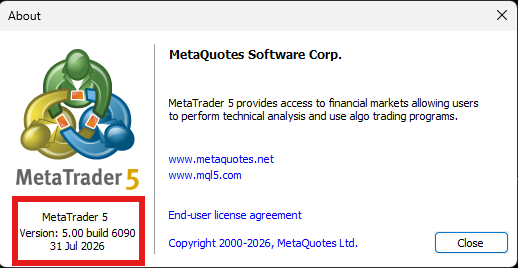
Once installed, go to Help > About to confirm the build number. If you are below Build 6060, update via Help > Check for Updates.
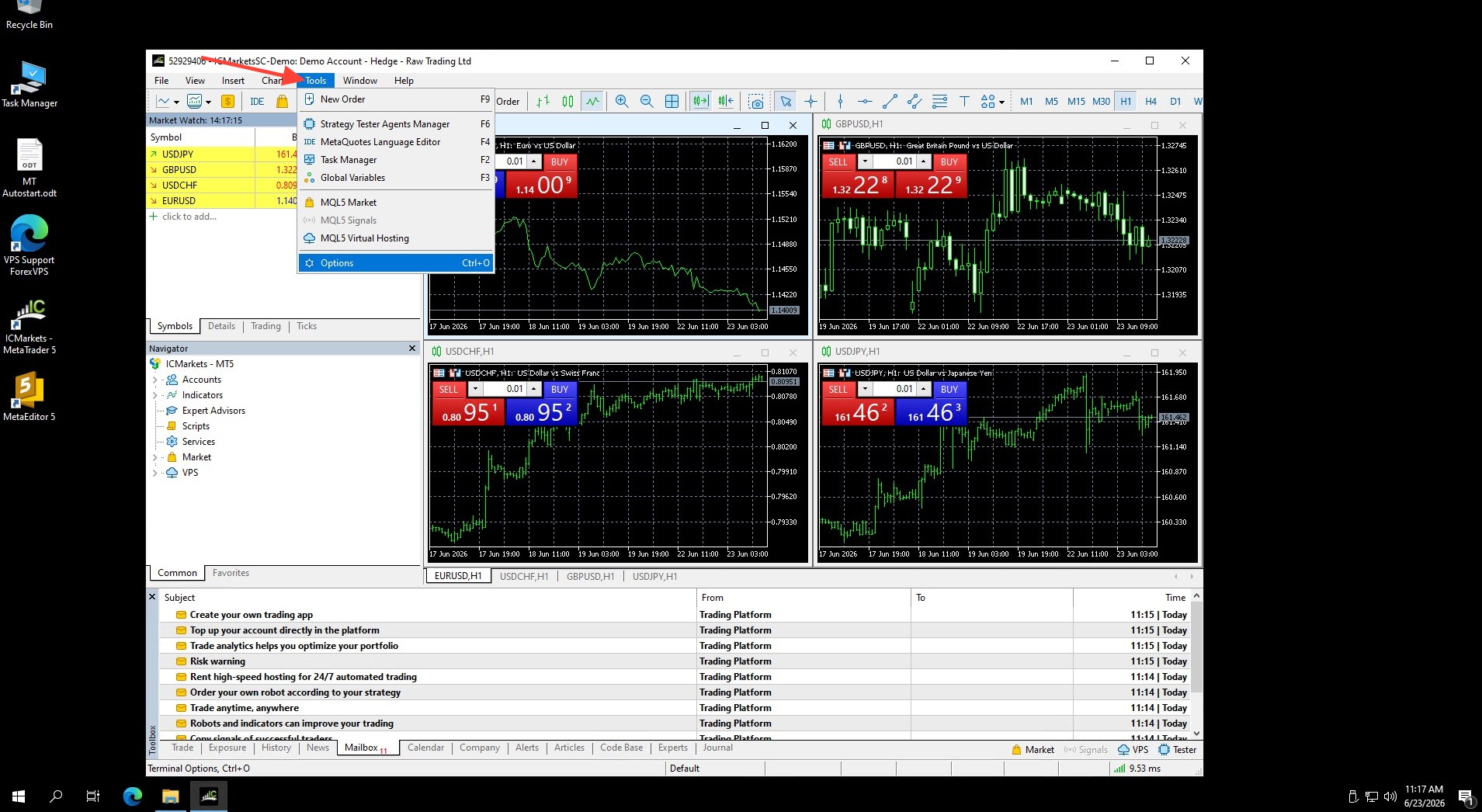
Step 3: Enable the MCP Server in MT5
Navigate to Tools > Options
You will find the MCP server toggle in this panel. Enable it and note the local port it binds to.
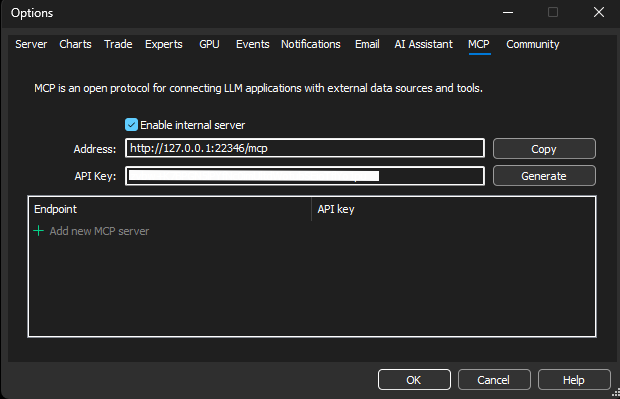
The server only accepts connections from localhost by default. This is the correct security posture for a VPS setup and aligns with standard guidance for keeping remote services bound to the local machine. ForexVPS also provides full admin access if you need to adjust firewall rules or other custom security features. Windows Server remote management is designed around this kind of administrative control.
Step 4: Connect Your AI Agent
MT5’s Build 6060 MCP support gives you two distinct paths into an AI-assisted workflow, and most traders should start with the simpler one.
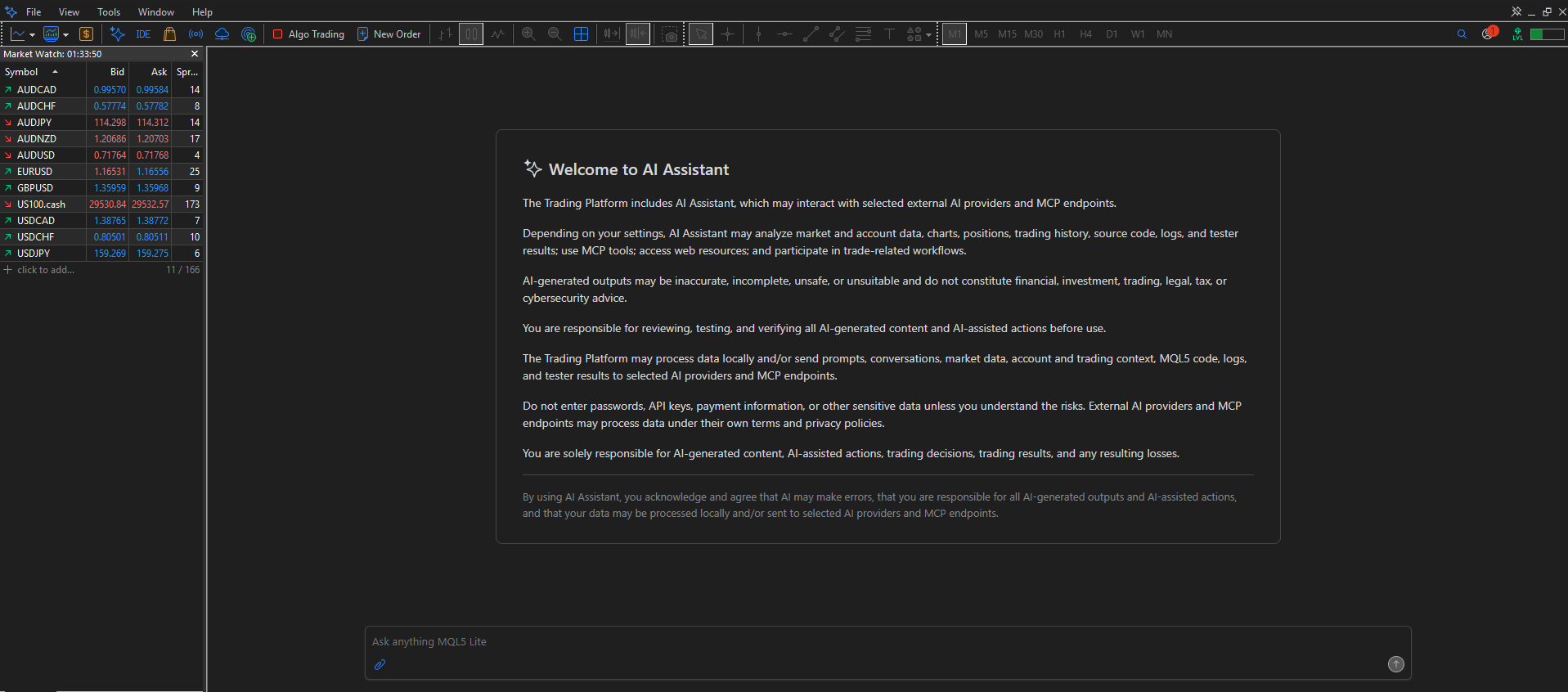
Option A: MT5 offers a Built-in AI Assistant. Open the Chats tab inside MT5 and start asking questions.
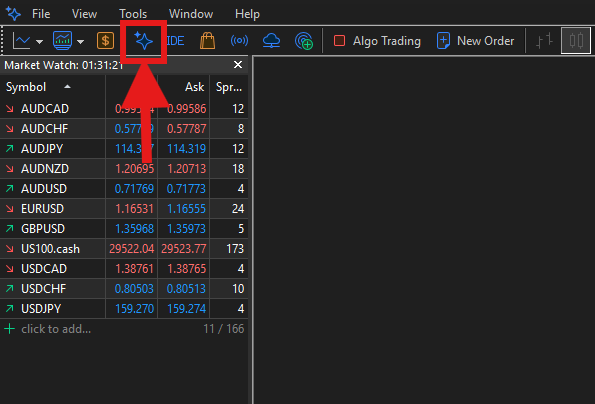
The built-in assistant uses MT5’s tools internally and answers directly inside Chats, with no extra setup required.
Option B: You can also use external AI agents, such as Cursor, Claude, Codex, or another MCP client. This path exposes 40+ MCP tools (account data, quotes, positions, and more) to an external AI client, and takes five steps:
- Go to Tools > Options > MCP
- Enable the internal server
- Click Copy to grab the connection URL and Bearer key. The key is case-sensitive, so always use Copy rather than retyping it
- On the same VPS, configure your client with that URL (http://127.0.0.1:[port]/mcp, localhost only) and the Bearer key from Copy
- Restart or reload the client and confirm the tools show as connected
Keep the AI client on the same VPS as MT5. That keeps the connection local and secure over localhost, and it’s the setup this guide assumes throughout. Running the agent on a separate machine is possible but not the default; it requires advanced remote access, such as an SSH tunnel. The MCP port should never be opened directly to the public internet.
Step 5: Test the Connection
A quick sanity check: ask your agent to look up a symbol and return the current spread. If you get a valid response with tick size, contract size, and spread data, the MCP server is working correctly.
| Step | Action | Where |
|---|---|---|
| 1 | Provision VPS | ForexVPS dashboard |
| 2 | Install MT5, confirm Build 6060+ | MT5 terminal |
| 3 | Enable MCP server | Tools > Options |
| 4 | Configure AI client | Claude Desktop / Cursor / Python |
| 5 | Test with a symbol lookup | AI agent console |
Why ForexVPS Is the Right Infrastructure for MT5 MCP
The MT5 MCP server is a local process, so every AI use case built on top of it inherits the reliability characteristics of the machine the terminal runs on. If that machine is a home PC or a general-purpose cloud VM, you are building a trading system on infrastructure that was not designed for continuous financial operation.
ForexVPS was built specifically for this trading environment. This is VPS hosting built for forex trading, not a generic cloud VM. Here is what that means in practice:
| Requirement | Why It Matters for MCP | ForexVPS Spec |
|---|---|---|
| 24/7 uptime | Agent loops and scheduled tasks break on any downtime | 99.99% uptime SLA |
| Low latency to broker | Order execution speed from agent decision to fill | 22 server locations near major brokers’ servers |
| Stable broker connection | Terminal must stay connected for MCP server to function, and automatic backups help protect trading data | Tier-1 network infrastructure |
| Windows environment | MT5 runs natively on Windows; RDP access required | Full Windows Server RDP included |
| Dedicated resources | MT5 + MCP + agent process competing for CPU/RAM | Dedicated CPU, RAM, SSD (not shared hosting) |
When comparing a forex VPS provider or any VPS provider, practical checks include support quality and review depth. ForexVPS offers 24/7 customer support via email and contact form, and has more than 6,000 reviews with a 4.9/5 rating on Trustpilot.
The Bottom Line: Choosing Infrastructure for MT5 MCP Workflows
MT5 Build 6060’s native MCP support is one of the most significant updates MetaQuotes has shipped in years. It turns the terminal from a standalone trading platform into a programmable interface that AI agents can drive directly. The use cases are real, and they are available right now: market analysis, EA development, autonomous execution, trade history attribution, and persistent monitoring loops.
None of the nine use cases above work reliably on a laptop or a shared cloud VM. They all require a terminal that stays online, stays connected to the broker, and stays responsive under load. That is the trading infrastructure problem ForexVPS solves: the right VPS depends on your trading needs, but ForexVPS plans start at $32/month with dedicated resources, RDP access, and a service-level agreement covering any drop below 99.99% uptime, putting your terminal in the same data centers your broker uses.
If you are building AI workflows on top of MT5, get started with ForexVPS and run them on infrastructure that was designed for exactly this. And if your AI trading agent needs to trade beyond MetaTrader, against a crypto exchange or an API-enabled CFD broker, for example, the same build-with-AI approach works one level up the stack. TradingHost lets you write a strategy with Claude or Cursor, push it to GitHub, and have it deployed automatically into an MCP-native cloud container that runs 24/7 next to your broker or exchange. Worth a look once your MT5 MCP workflow starts outgrowing a single terminal.
FAQ: MetaTrader 5 MCP and Trading VPS Setup
By this point, the main pattern should be clear: MT5’s native MCP support opens up real AI trading workflows. But those workflows only work consistently when the terminal stays online, connected, and accessible. These are the five questions that matter most once most Forex traders move from curiosity to actual implementation.
What is the MT5 MCP server in Build 6060?
The MT5 MCP server is MetaQuotes’ native implementation of the Model Context Protocol inside MetaTrader 5 Build 6060. It allows MCP-compatible AI agents to connect directly to the terminal and interact with market data, account information, trade history, and MetaEditor. In practical terms, it turns MT5 into a tool an AI model can query and operate instead of just a trading platform you click manually.
Why does MetaTrader MCP need a trading VPS?
MetaTrader MCP needs a trading VPS because the MCP server runs locally inside the MT5 terminal. If that terminal is on a personal machine that sleeps, reboots, loses internet, or disconnects from the broker, the AI agent loses access immediately. A trading VPS keeps the Metatrader platform running 24/7, which makes scheduled analysis, overnight testing, autonomous execution, and persistent monitoring possible.
Can an AI agent actually place trades through MT5 MCP?
Yes, an AI agent can place trades through MT5 MCP if the terminal permissions and workflow are configured correctly. The agent can inspect account state, evaluate market conditions, and send execution commands through the terminal. That said, the higher-value use case is usually not blind order placement. It is combining execution with supervision, risk limits, and kill-switch logic so the agent can also decide when not to trade.
What are the most useful MT5 MCP use cases for traders and EA developers?
The strongest use cases are AI-assisted market analysis, AI-powered EA development in MetaEditor, autonomous execution with guardrails, trade history analysis, strategy decay detection, and monitoring multiple EAs across accounts. The common thread is that MCP gives the AI model structured access to the actual MT5 environment. That makes the workflows much more practical than generic chat-based analysis disconnected from the terminal.
How do I know if my MT5 MCP setup is working correctly?
The simplest test is to connect your MCP client and run a basic call, such as a symbol lookup or a recent price-history request. If the terminal returns valid structured data, the connection is live. From there, the real test is consistency: the terminal should stay online, broker-connected, and responsive over time, especially during scheduled jobs, overnight runs, or execution-sensitive workflows.
Does MT4 support native MCP?
No. MetaQuotes introduced native MCP and the new agentic AI functionality in MetaTrader 5 Build 6060. MT4 does not currently have the equivalent native integration, and MetaQuotes has not announced plans to add one.