You can scale your ForexVPS plan up or down at any time directly from the client portal. This guide walks you through locating your ForexVPS service and starting the package change process.
Before you start: Plan changes are processed through your client area — no need to contact support unless you run into an issue mid-process.
What you’ll need
- An active ForexVPS account with a current VPS subscription
- Your client area email address and password
Part 1: Log in to your client area
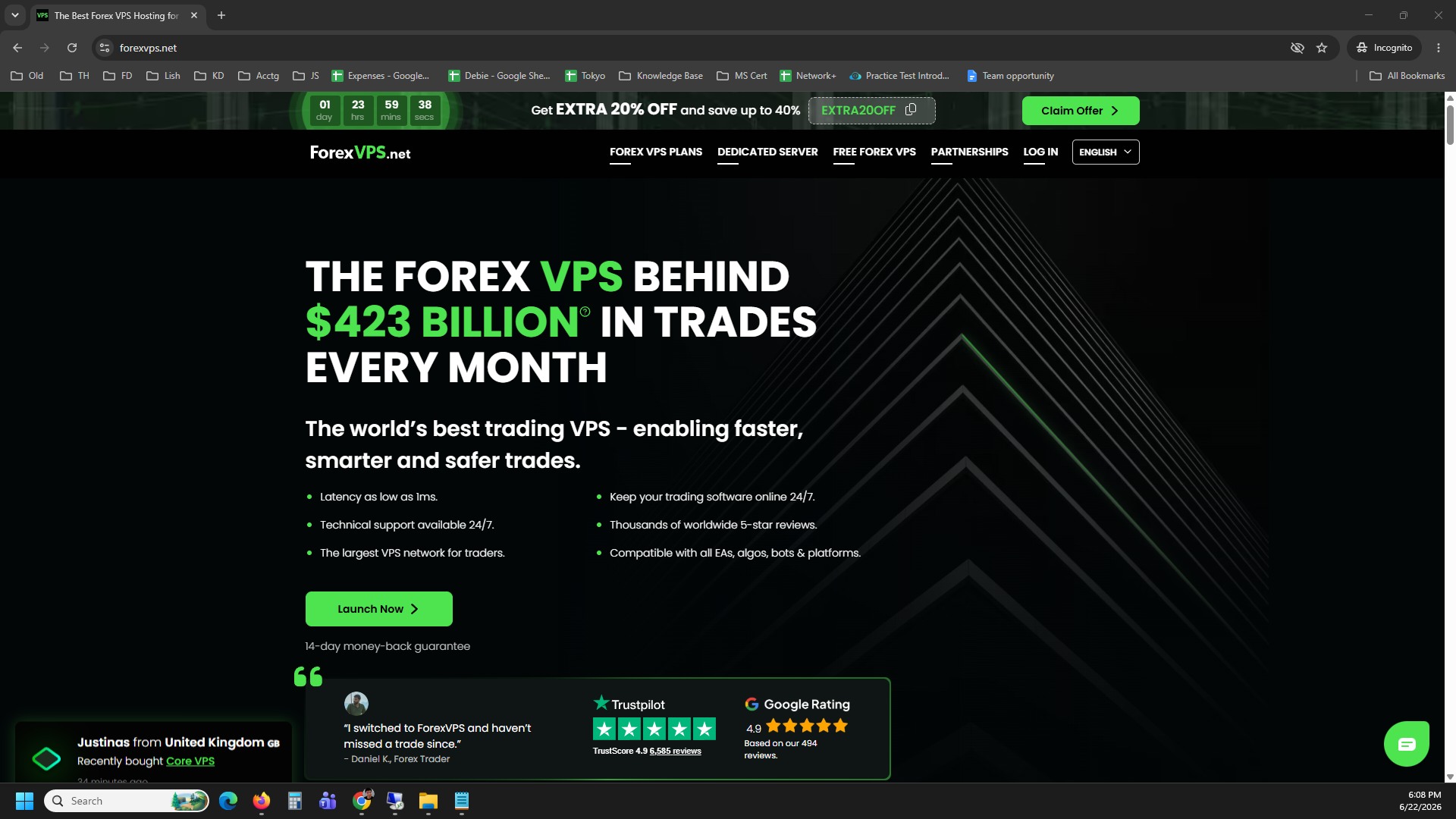
Step 1: Go to forexvps.net and open the login page
Go to forexvps.net and navigate to your client area login.
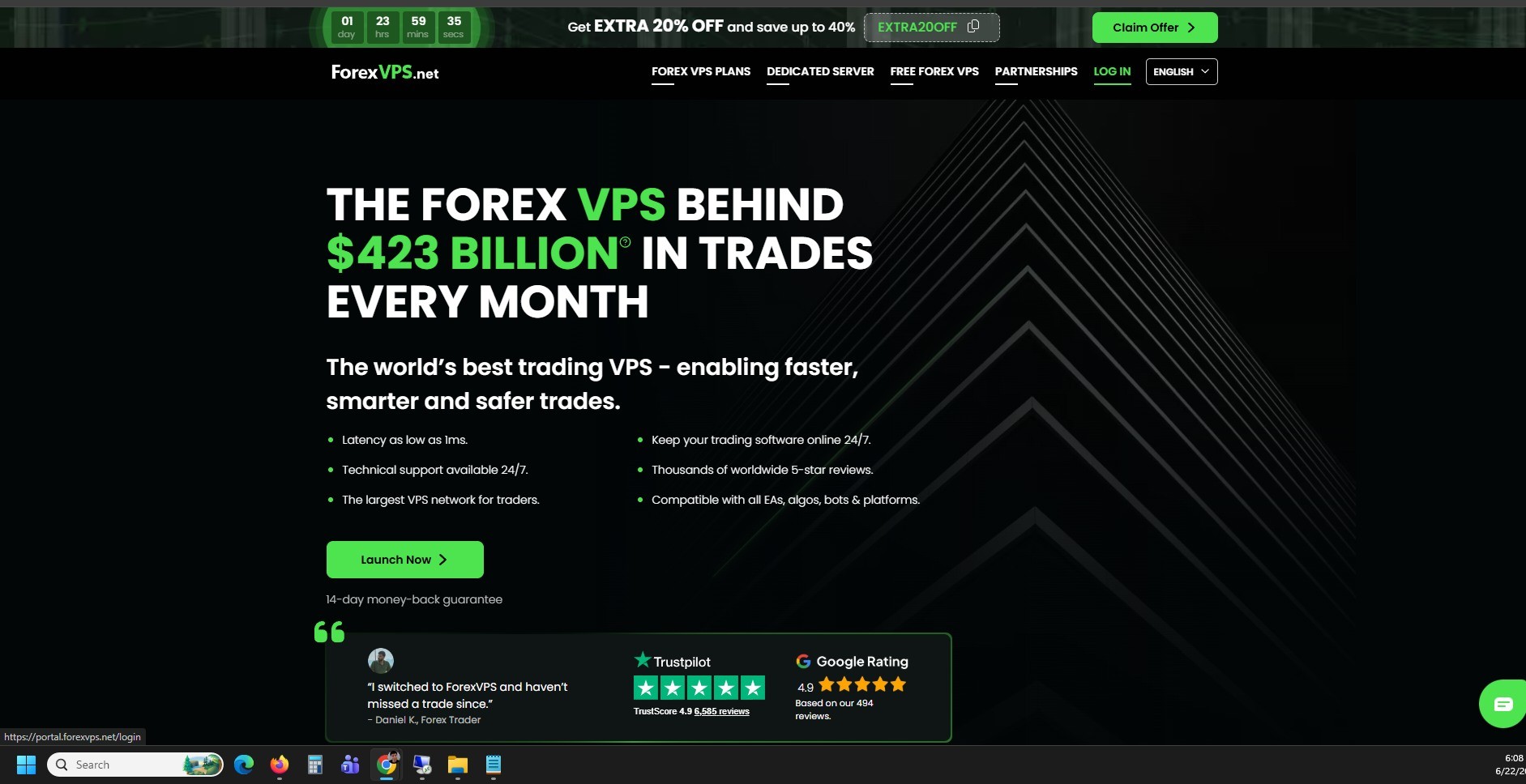
Step 2: Click LOG IN
Click LOG IN to open the login form.
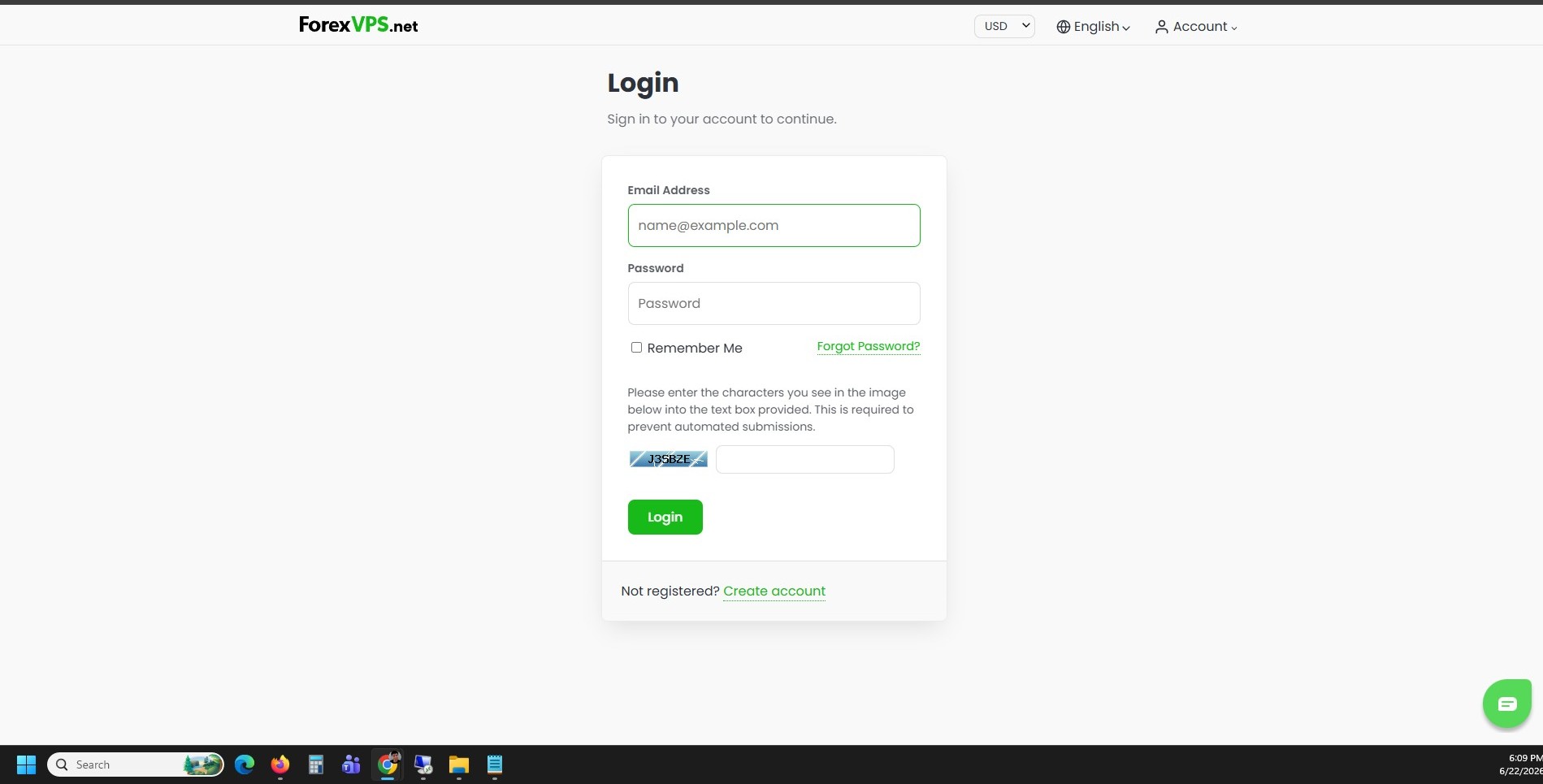
Step 3: Enter your credentials and log in
Type in your Email address, password, and the captcha, then click Login.
Part 2: Start the plan change
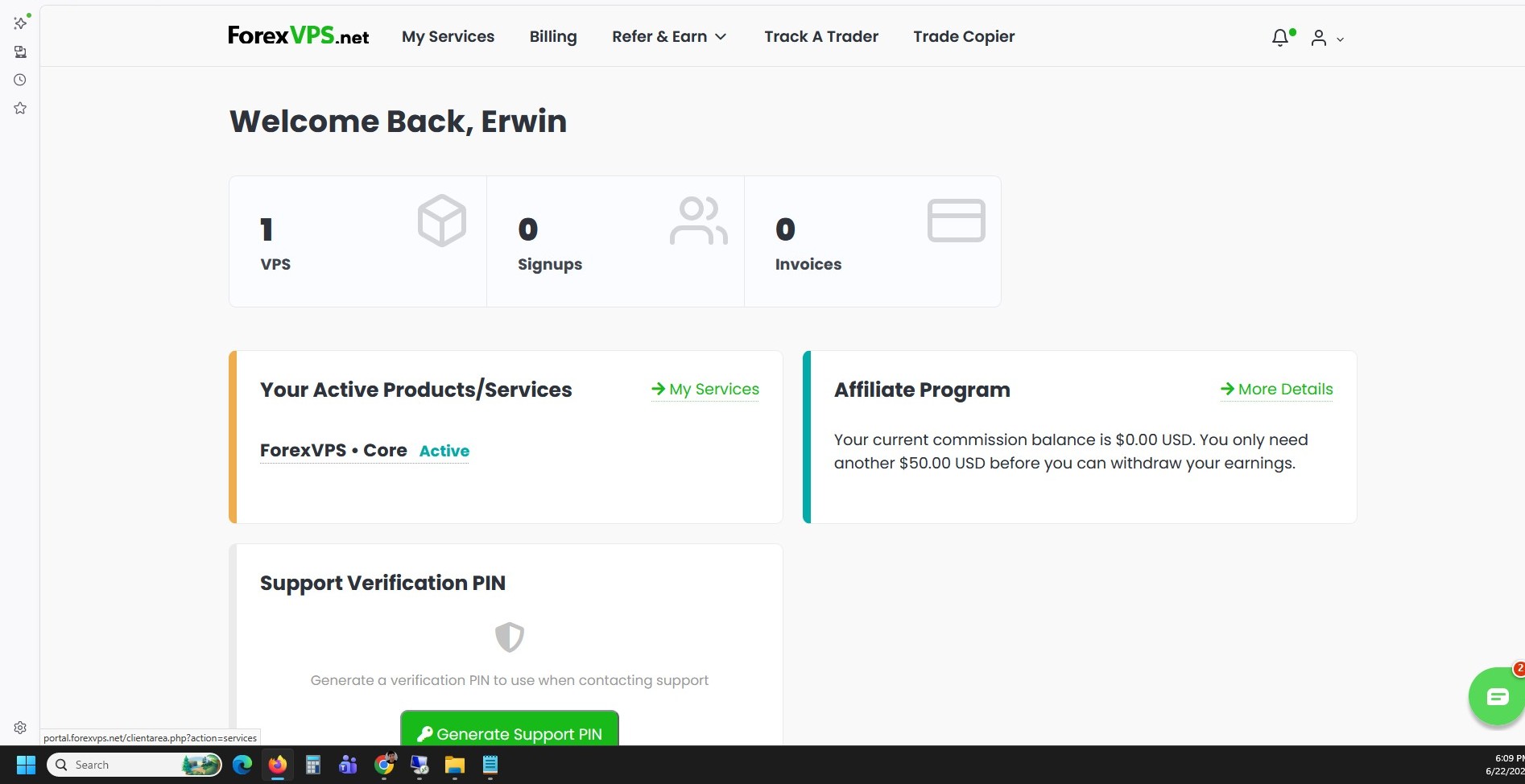
Step 4: Click the VPS tile on the dashboard
Click the VPS tile on the dashboard to open your service details.
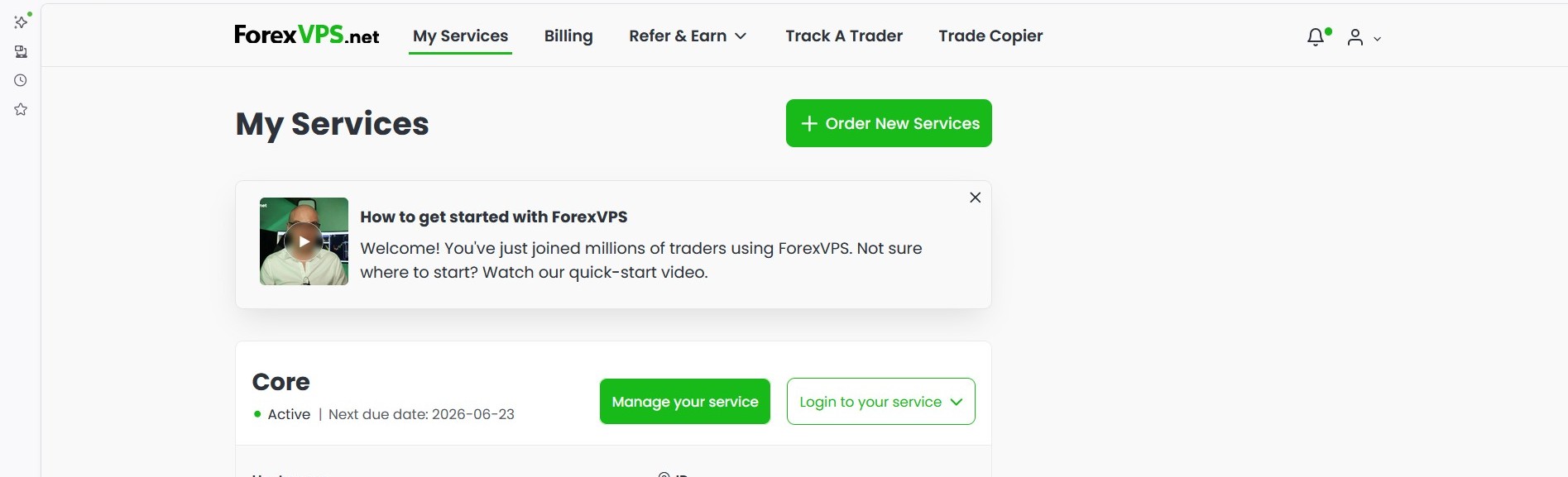
Step 5: Click Manage your service
Click Manage your service to open the service management page.
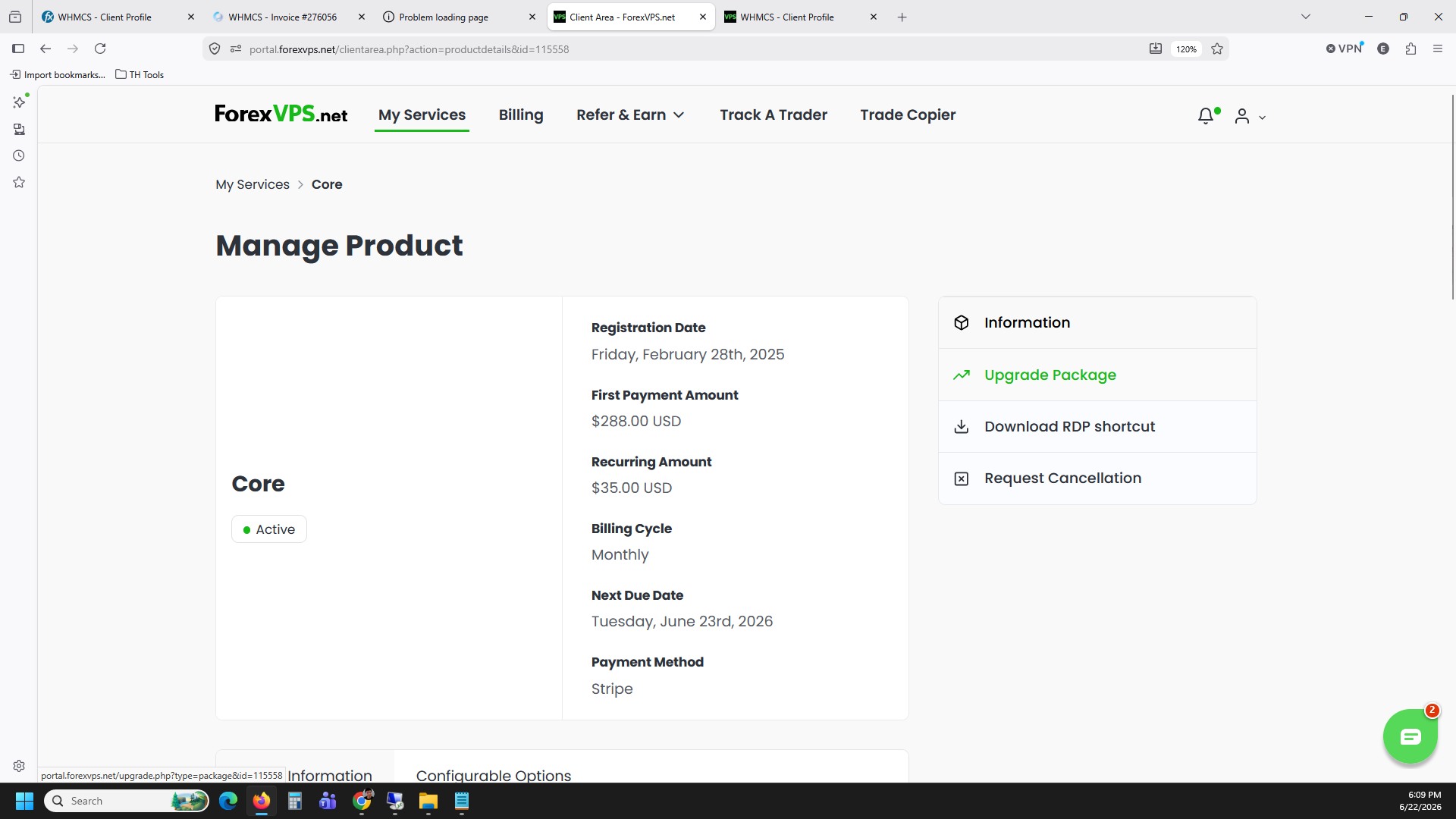
Step 6: Click Upgrade Package
Click Upgrade Package to view the available plan tiers. From here, select the plan you’d like to move to — either a higher or lower tier — and follow the on-screen prompts to confirm the change.
Once confirmed, your plan change is processed by ForexVPS and your ForexVPS resources are adjusted according to the new tier.
Troubleshooting VPS plan changes
Run into an issue while upgrading or downgrading your plan? Here are fixes for the most common problems.
| Problem | Likely cause | Fix |
|---|---|---|
| “Upgrade Package” option missing | Viewing the wrong service or an inactive plan | Confirm you clicked into the correct VPS tile before opening Manage your service. |
| Unsure which plan to choose | Unclear resource requirements | Contact ForexVPS support for guidance on the right tier for your trading setup before confirming. |
| Plan change not reflected immediately | Processing delay | Allow a few minutes for the change to apply, then refresh the client area dashboard. |
Frequently asked questions about upgrading or downgrading your VPS plan
Still have questions about changing your ForexVPS plan? Find quick answers below.
Will I lose my data when upgrading or downgrading my VPS plan?
No. Plan changes adjust your ForexVPS resources without affecting your existing files, installed software, or trading platform configurations.
Can I downgrade my plan at any time?
Yes. The same Upgrade Package option in the client area lets you move to a lower tier as well as a higher one.
Do I need to restart my VPS after changing plans?
A restart may be required for resource changes like CPU or RAM to take effect. Check the confirmation message shown after the change for specific instructions.
Where do I manage my VPS plan?
Log in to your client area, click the VPS tile, then Manage your service, then Upgrade Package to view and select available plans.