You can change the Windows display language on your ForexVPS through Control Panel’s Region settings. This guide walks you through adding a new language and setting it as the default display language.
Before you start: If your preferred language isn’t listed by default, you can add it directly from the Region settings — no separate download required.
What You’ll Need
- An active Remote Desktop session connected to your ForexVPS
Part 1: Open Region Settings
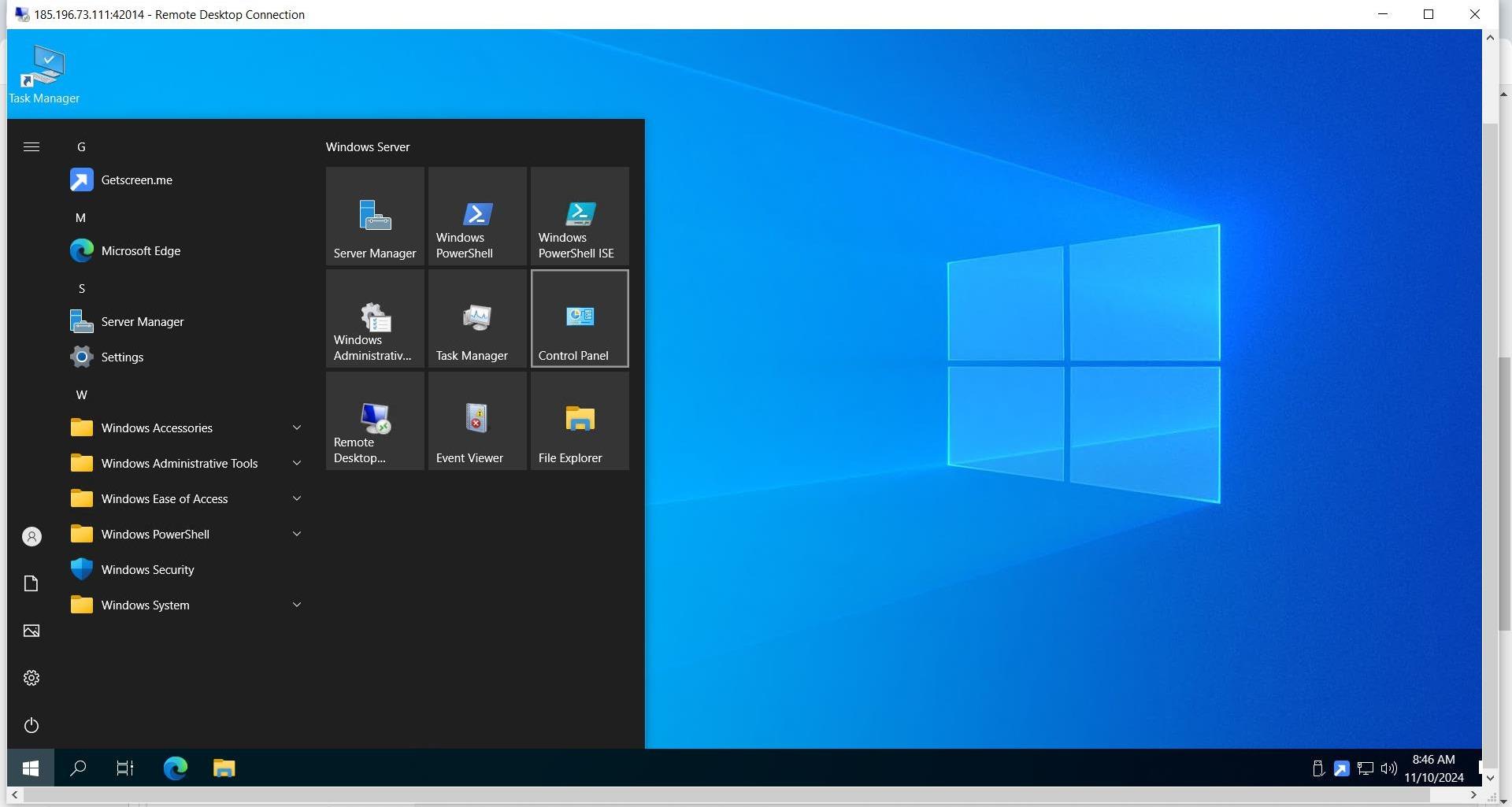
Step 1: Open Control Panel
Inside your ForexVPS, click the START menu, then click Control Panel.
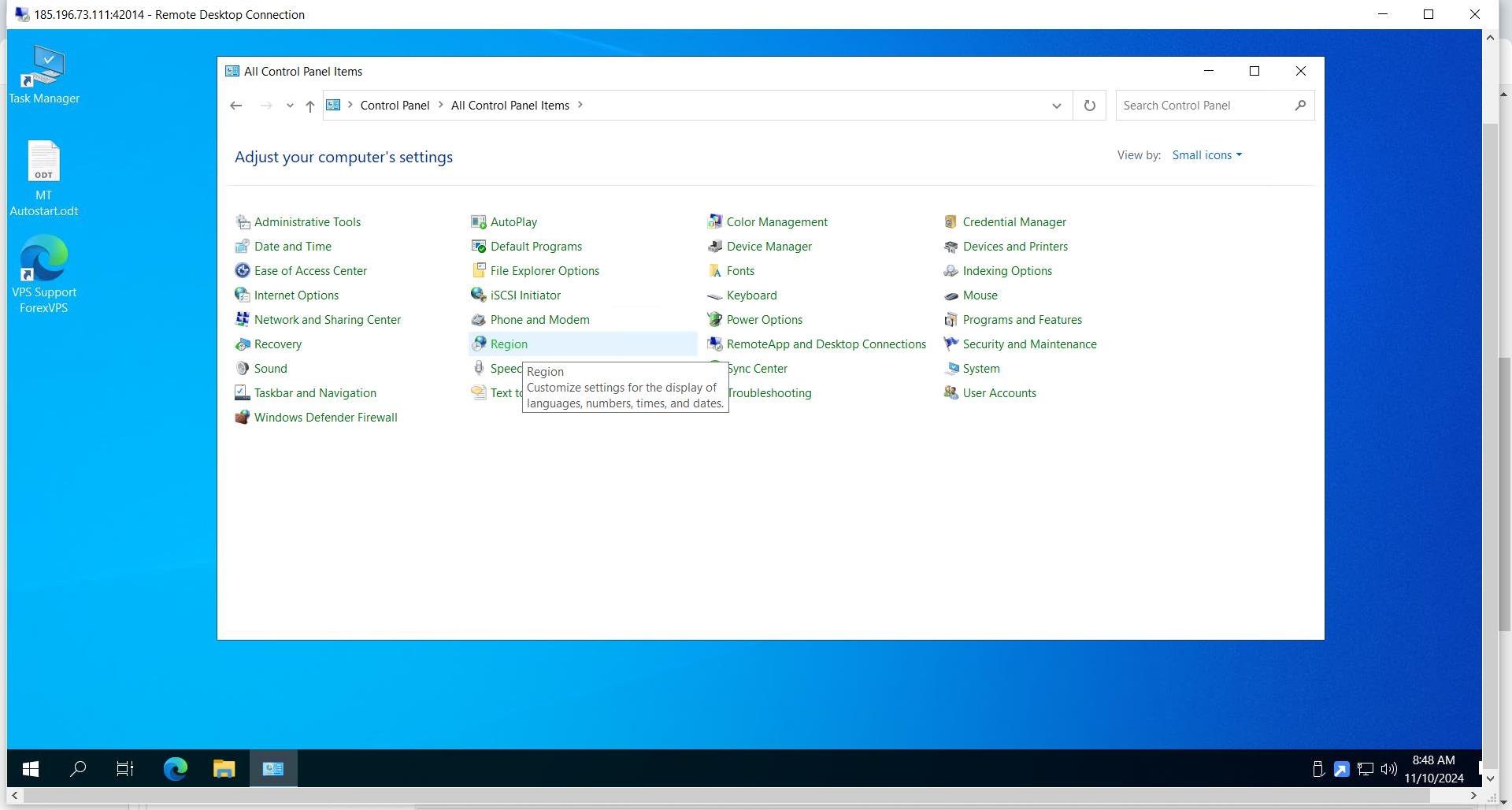
Step 2: Click Region
Click Region.
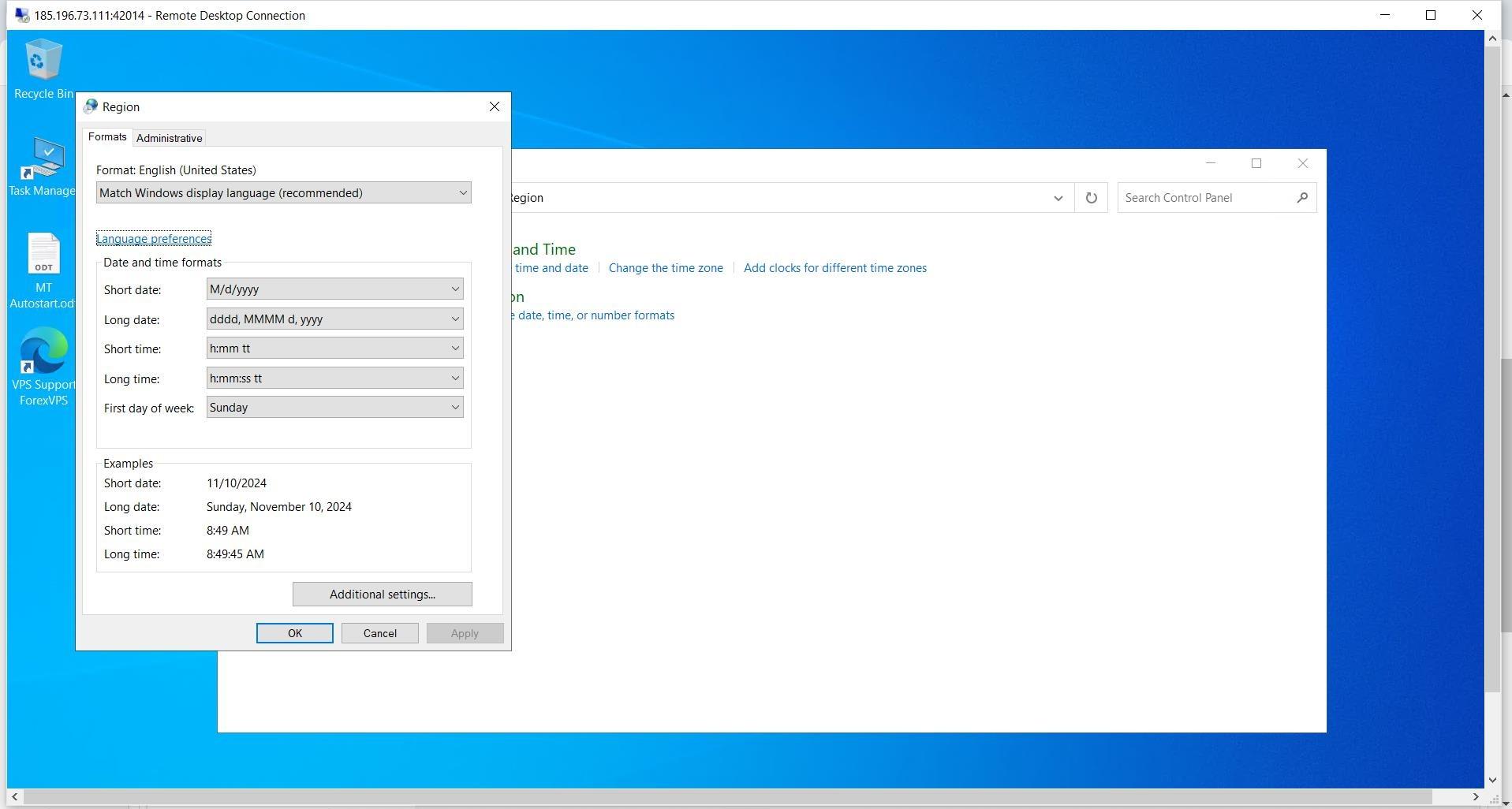
Step 3: Click Language Preference
Click on Language Preference.
Part 2: Add and Configure the Language
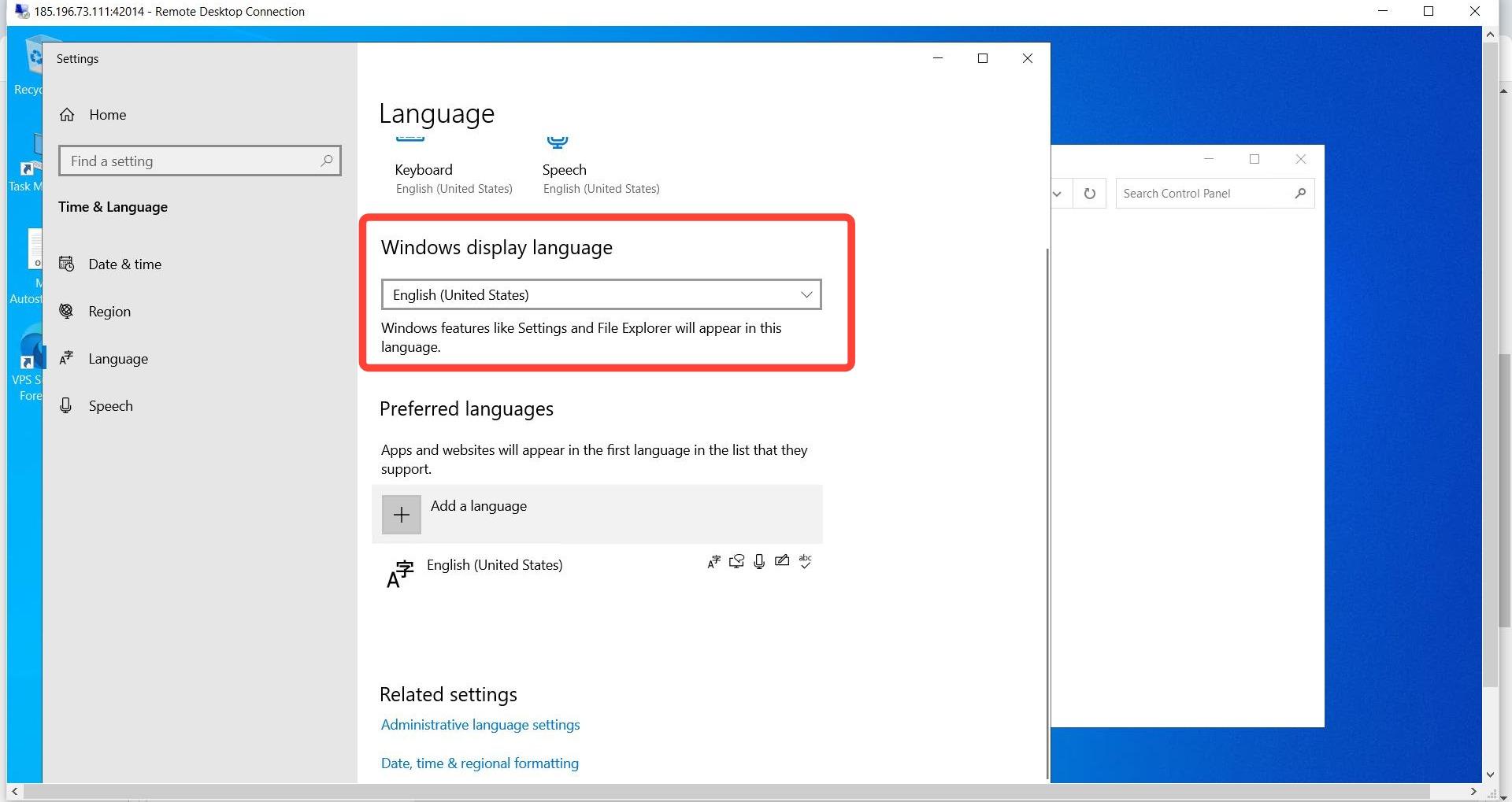
Step 4: Look for your language or click Add Language
Click Windows Display Language and look for the language you want. If it’s not available, click Add Language.
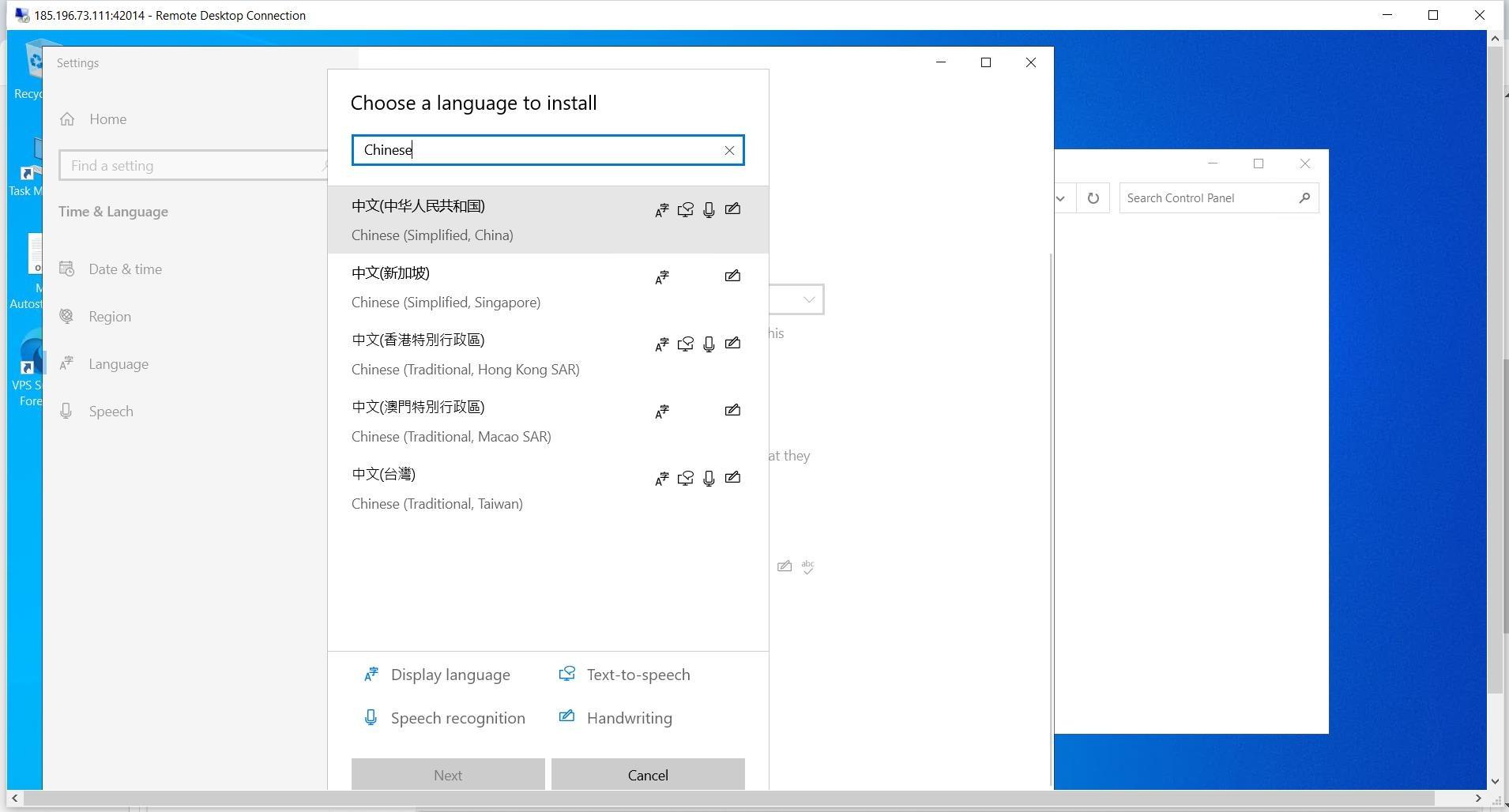
Step 5: Search and select the preferred language
Search and choose the preferred language, then click Next.
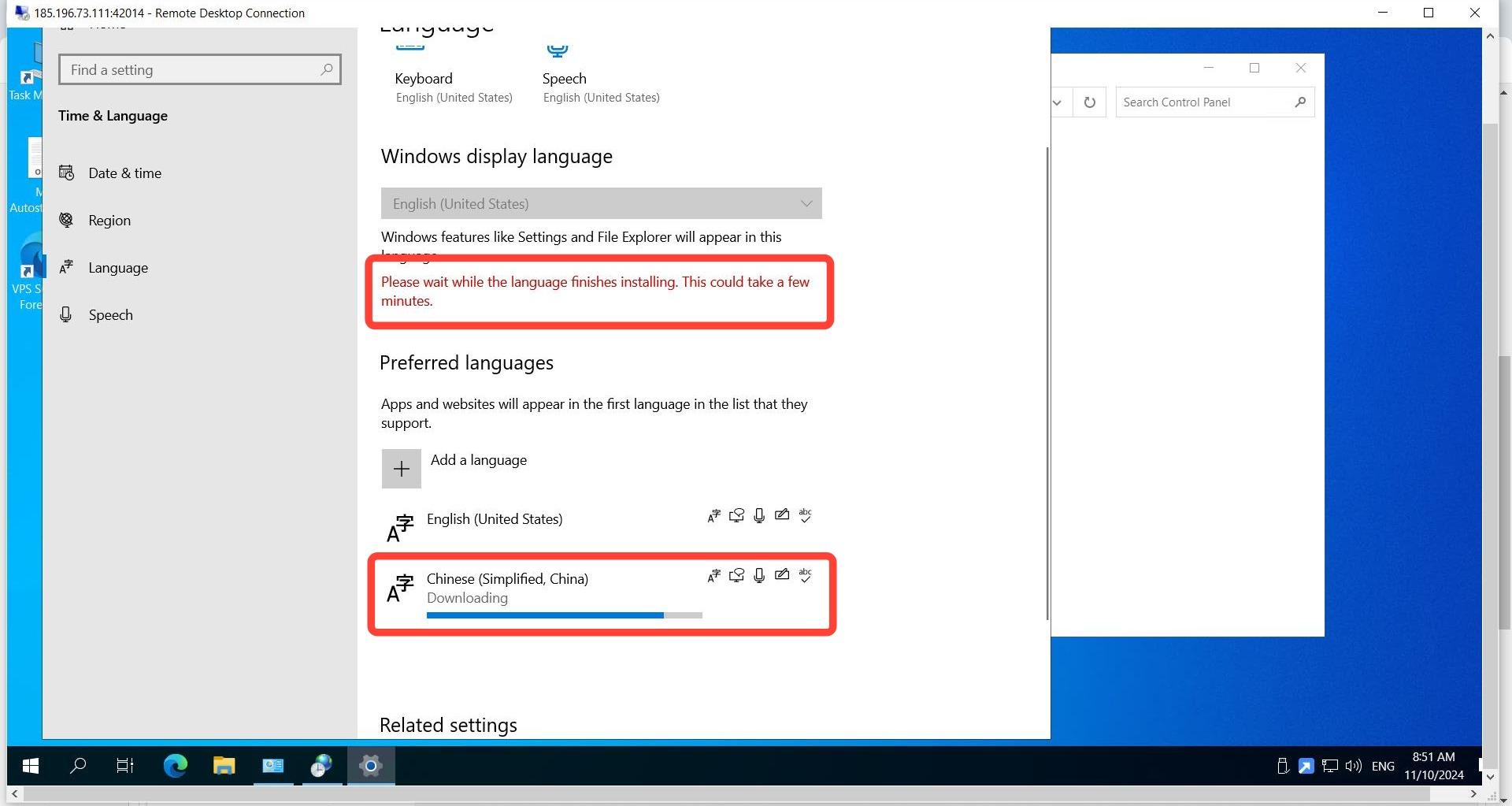
Step 6: Wait for the language to install
Wait until the preferred language finishes installing.
Step 7: Move the preferred language to the top
Your preferred language needs to be at the top of the list to become the active display language. Click the UP arrow to move it there.
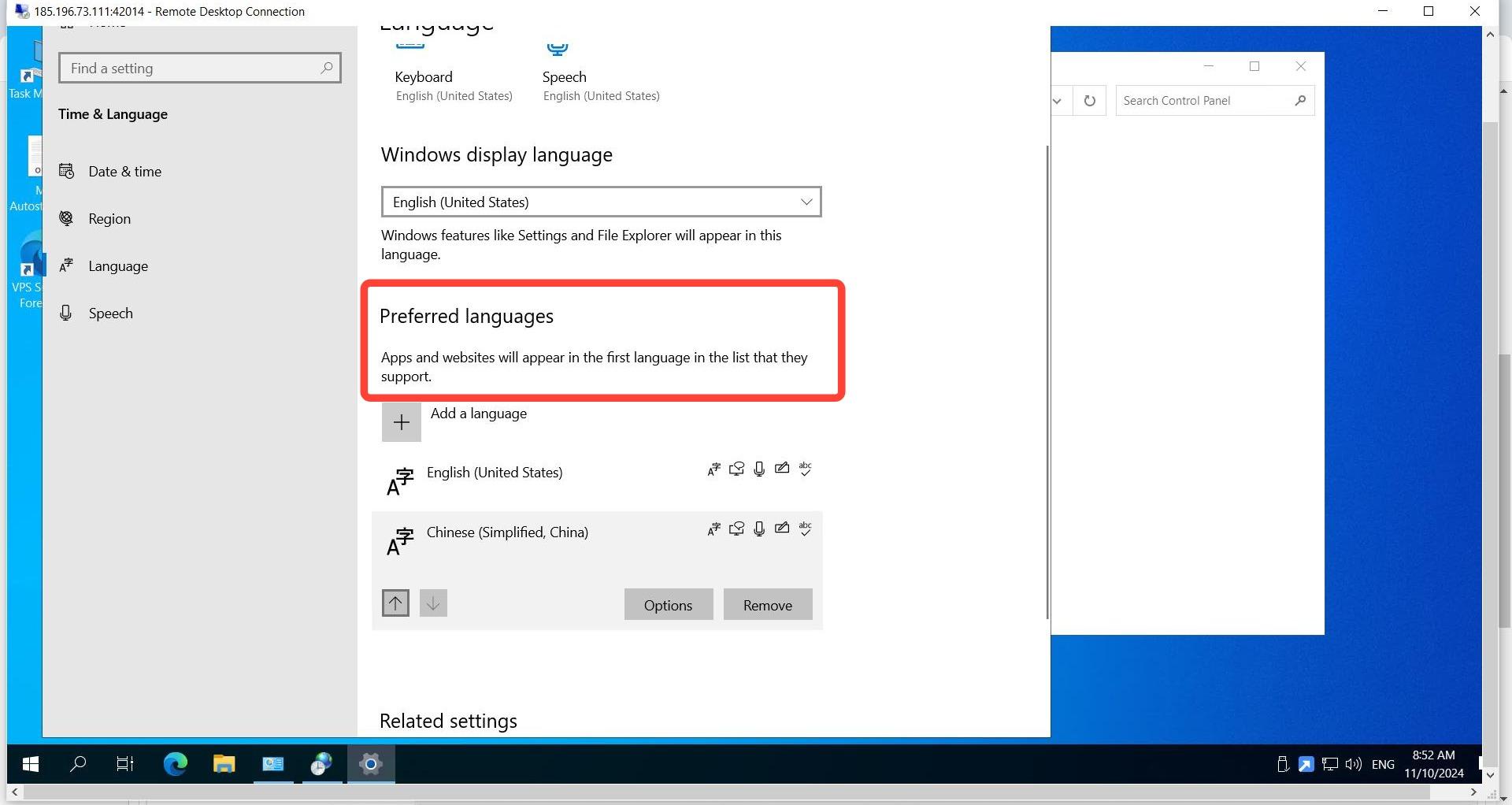
Once your preferred language is at the top of the list, sign out and back in (or restart your ForexVPS) for the new display language to take full effect across Windows.
Troubleshooting Display Language Changes in Your ForexVPS
Running into problems changing the display language on your ForexVPS? Here are fixes for the most common issues.
| Problem | Likely cause | Fix |
|---|---|---|
| Language doesn’t change after moving it to top | Windows hasn’t refreshed the display settings | Sign out and back in, or restart your ForexVPS to fully apply the new display language. |
| Language pack won’t finish installing | Slow network or large language pack | Wait longer — larger language packs with full keyboard and speech support take more time. |
| Can’t find the language you need | Language not yet added to the list | Click Add Language and search for it directly — most languages are available. |
Frequently Asked Questions About Changing the Language in Your ForexVPS
Still have questions about changing the language in your VPS? Find quick answers below.
Do I need to restart my ForexVPS after changing the language?
Signing out and back in is usually enough, though a full restart guarantees the new display language applies everywhere.
Can I add multiple languages to my ForexVPS?
Yes. You can add as many languages as needed — only the one at the top of the list becomes the active display language.
Does changing the display language affect MetaTrader or other trading platforms?
No. Changing the Windows display language does not affect the language settings inside MetaTrader or other trading platforms, which have their own separate language options.
Where is Language Preference located?
It’s inside Control Panel > Region, then Language Preference.